How to Connect a Twilio Number to AutoForward Text
AutoForwardText allows you to connect Twilio cloud phone numbers and use them inside your messaging workflows.
Unlike Android or iPhone devices, Twilio works entirely in the cloud and does not require an app installation.
You can use Twilio numbers for:
• Receiving SMS messages
• Sending SMS messages
• Dashboard replies
• SMS to Email forwarding
• SMS to WhatsApp forwarding
• Webhook integrations
• Shared inbox workflows
Setup usually takes less than 5 minutes.
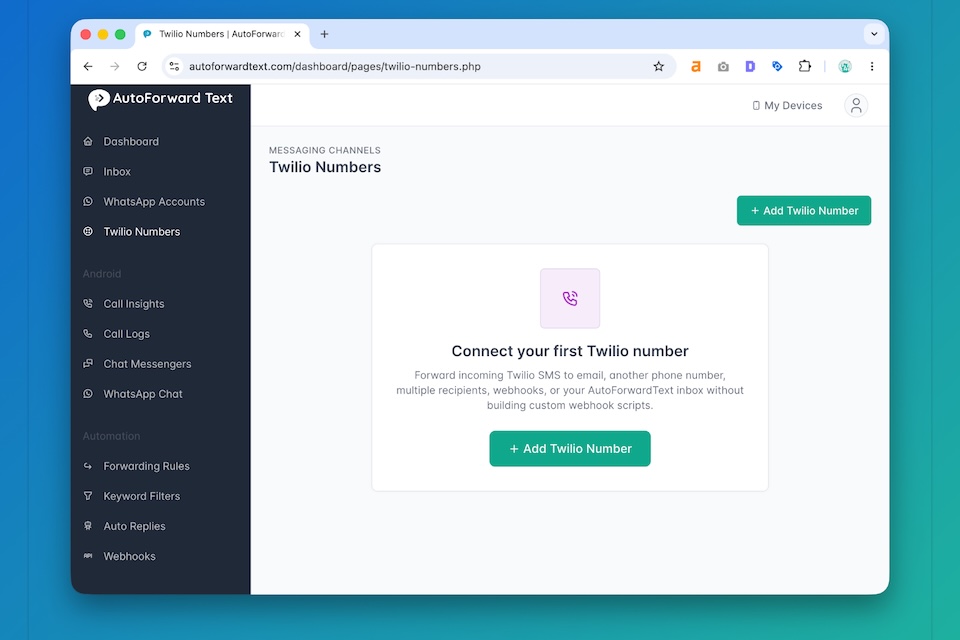
Step 1: Open Twilio Numbers
-
Log in to your AutoForwardText dashboard
-
Open Messaging Channels
-
Open Twilio Numbers
-
Select Add Twilio Number
Step 2: Enter Your Twilio Details
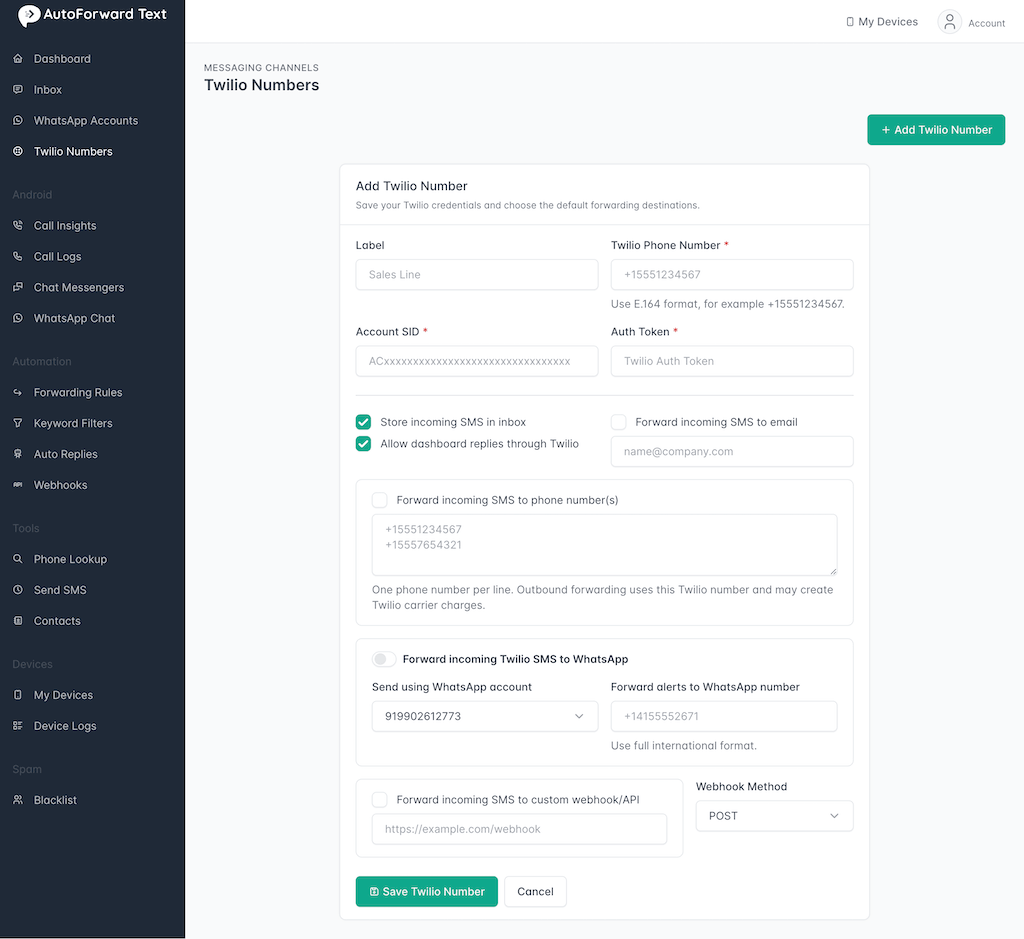
Complete the following fields:
Label
Example:
Sales Line
Twilio Phone Number
Example:
+15551234567
Use full international E.164 format.
Account SID
Example:
ACxxxxxxxxxxxxxxxxxxxxxxxxxxxxxxxx
Auth Token
Enter your Twilio Auth Token.
Step 3: Configure Forwarding Destinations
You can optionally configure default destinations.
Supported destinations:
Email forwarding
Add one or more email addresses:
name@company.com
SMS forwarding
Enter destination numbers:
+15551234567
+15557654321
One phone number per line.
WhatsApp forwarding
Select:
Send using WhatsApp account
Choose a connected WhatsApp account and enter destination:
+14155552671
Use international format including country code.
Webhook forwarding
Enter:
https://example.com/webhook
Select:
• POST
• GET
Step 4: Save Your Number
Click Save.
Your Twilio number will now appear under Messaging Channels.
Step 5: Configure Twilio Webhook
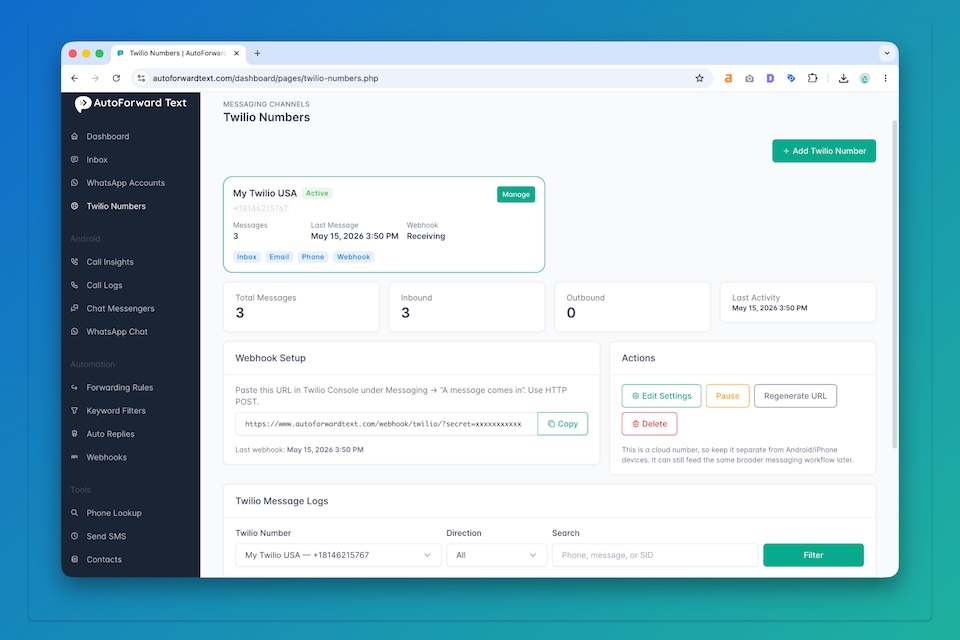
Open your connected number inside AutoForwardText.
Copy your generated webhook URL.
Example:
https://www.autoforwardtext.com/dashboard/pages/twilio-webhook.php?secret=xxxxxxxx
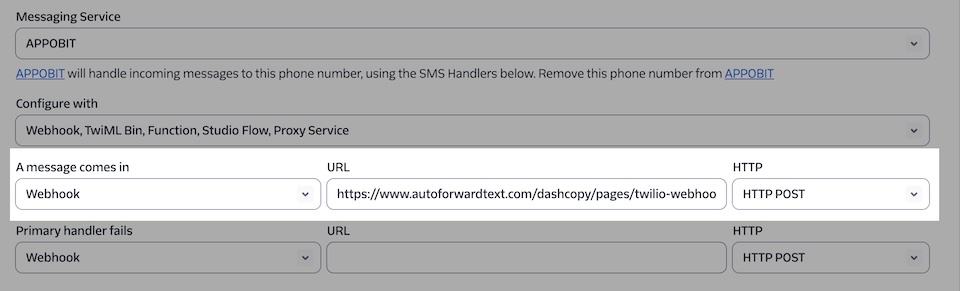
Inside Twilio Console:
-
Open Phone Numbers
-
Select your Twilio number
-
Open Messaging
-
Locate:
A message comes in
-
Paste the webhook URL
-
Select:
HTTP POST
-
Save changes
Step 6: Test Your Setup
Send an SMS message to your Twilio number.
If setup is successful:
• Messages appear in Twilio Message Logs
• Forwarding rules execute
• Dashboard activity updates
Still need help? Contact support.