How to Forward Incoming WhatsApp Messages to a WhatsApp Group
AutoForwardText can help you automatically forward incoming WhatsApp messages from a connected WhatsApp account to a selected WhatsApp group.
This is useful when your team needs to see incoming customer messages, alerts, booking requests, order updates, or other operational messages in one shared group.
Before You Start
You will need:
- An active AutoForward Text account
- A WhatsApp account connected to AutoForwardText
- Access to the WhatsApp group where you want messages forwarded
- Permission to use the connected WhatsApp account for this purpose
Step 1: Connect Your WhatsApp Account
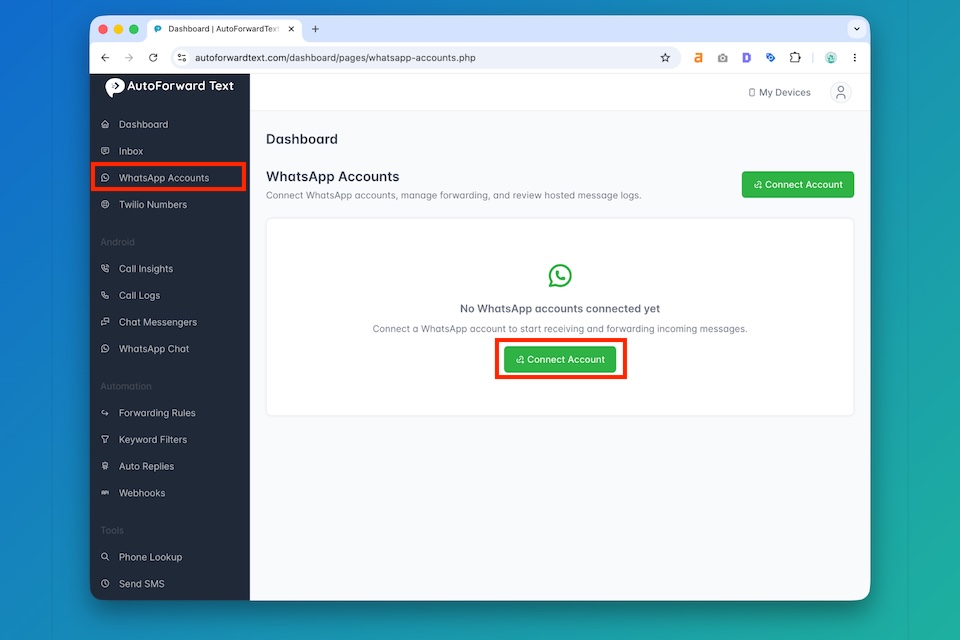
Log in to your AutoForwardText dashboard.
Go to the WhatsApp Accounts section and connect the WhatsApp account that will receive the incoming messages.
Follow the on-screen instructions to link your WhatsApp account. Once connected, AutoForwardText will be able to detect incoming WhatsApp messages for forwarding based on your settings.
Step 2: Go to WhatsApp Accounts
After your WhatsApp account is connected, return to the WhatsApp Accounts page in your dashboard.
You should see your connected WhatsApp account listed there.
If it is not yet listed, give it a few minutes to sync completely. It may take 10-15 minutes after the initial account connection, to sync all your groups with our software.
Click the option to manage or configure forwarding settings for that WhatsApp account.
Step 3: Select the Forwarding Destination
In the forwarding settings, choose where incoming WhatsApp messages should be forwarded.
Select WhatsApp Group as the forwarding destination.
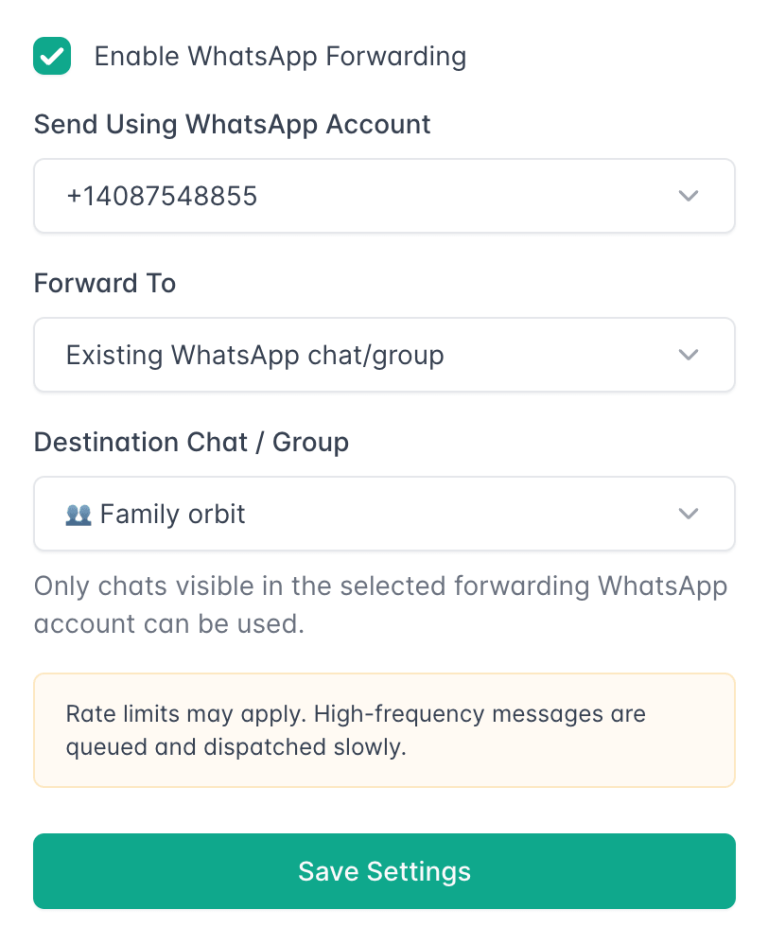
This tells AutoForwardText that incoming messages should be copied and sent to a selected WhatsApp group instead of only being forwarded to an email address, phone number, webhook, or another destination.
Step 4: Choose a WhatsApp Group
Next, select the WhatsApp group that should receive the forwarded messages.
AutoForwardText will show the available chats or groups linked to your connected WhatsApp account.
Choose the correct group carefully, especially if your WhatsApp account is part of multiple groups.
Forwarded messages may include details such as:
- The original sender’s name or phone number
- The incoming WhatsApp message text
- The time the message was received
This helps your team quickly understand who sent the message and what needs attention.
Step 5: Save the Rule
Once you have selected the WhatsApp group, save your forwarding rule.
Make sure the rule is enabled.
After saving, AutoForwardText will begin forwarding new incoming WhatsApp messages according to your selected settings.
Step 6: Test with an Incoming Message
To confirm everything is working, send a test WhatsApp message to the connected WhatsApp account from another number.
Then check the selected WhatsApp group.
You should see the incoming message copied into the group, along with the sender's details if enabled.
If the message does not appear, check the following:
- The WhatsApp account is still connected
- The correct group was selected
- The forwarding rule is enabled
- The incoming message was sent after the rule was saved
- The connected WhatsApp account has access to the selected group
Common Use Cases
This feature is designed for practical team workflows, such as:
- Forwarding customer support messages to a support team group
- Sending sales inquiries to a sales team group
- Sharing appointment requests with office staff
- Routing operations alerts to internal teams
- Backing up important incoming WhatsApp messages
- Keeping partners or team members informed in real time
Important Usage Notice
AutoForward Text’s WhatsApp group forwarding feature is designed for operational use cases such as team alerts, customer support routing, order notifications, appointment requests, internal coordination, and message backup.
It should not be used for spam, unsolicited messaging, bulk promotions, harassment, or any activity that violates WhatsApp’s policies or applicable laws.
You are responsible for making sure you have the proper permission to forward messages and that your use of this feature is lawful and appropriate.
Troubleshooting
The WhatsApp group is not showing
Make sure the connected WhatsApp account is already a member of the group. If the group was recently created or the account was recently added, refresh the WhatsApp Accounts page and try again. Please wait at least 10-15 minutes after the initial connection for all the groups to sync.
Messages are not forwarding
Check that the forwarding rule is enabled and saved. Also, confirm that your WhatsApp account is still connected inside AutoForwardText.
Sender details are missing
Depending on the message source and available contact information, sender details may appear as a name, phone number, or WhatsApp contact identifier.
Can I forward to more than one WhatsApp group?
If you need to forward messages to multiple groups or create advanced routing rules, contact support so we can confirm the best setup for your use case.
Need Help?
If you are setting this up for a business, team, association, or operational workflow and are unsure about the best configuration, contact AutoForward Text support with your use case. We can help confirm whether WhatsApp group forwarding is the right setup for you.