How do I automatically forward emails to one phone number as SMS?
The Automatic Email to Text feature gives you a private AutoForward Text email address.
Any approved email sent to that address is automatically converted into an SMS and delivered to one fixed phone number.
Your private forwarding address may look like:
yourname@reply.autoforwardtext.com
This is useful when another service needs one permanent email address for forwarding alerts.
Common uses
You can use Automatic Email to Text for:
-
Gmail forwarding
-
Outlook forwarding
-
Website form notifications
-
CRM lead alerts
-
Helpdesk escalations
-
Server monitoring alerts
-
Order notifications
-
Appointment notifications
-
Security alerts
Before you begin
You need one of the following SMS sending methods connected to your account:
-
An Android phone with SMS Gateway enabled
-
A connected Twilio number
You must also enable the main Email to Text feature.
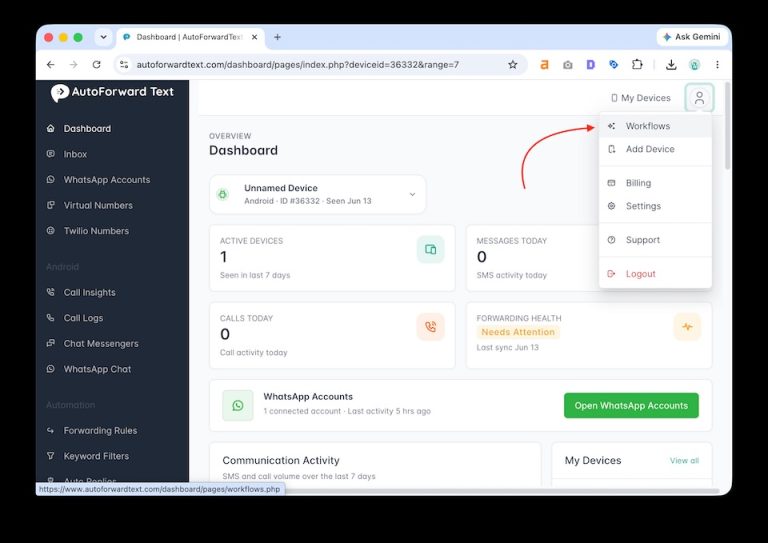
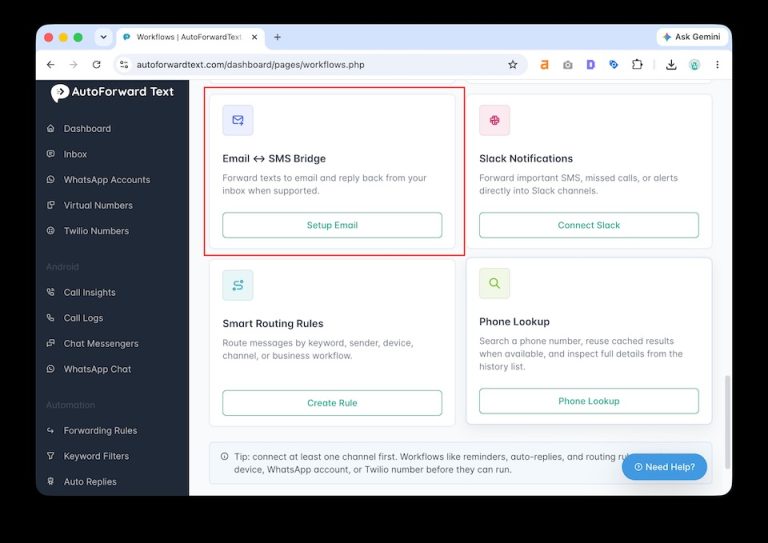
How to enable automatic email forwarding
-
Sign in to your AutoForward Text dashboard.
-
Open Email to Text.
-
Turn on Enable Email to Text.
-
Select the Android gateway or Twilio number that should send the SMS.
-
Add any approved sender email addresses.
-
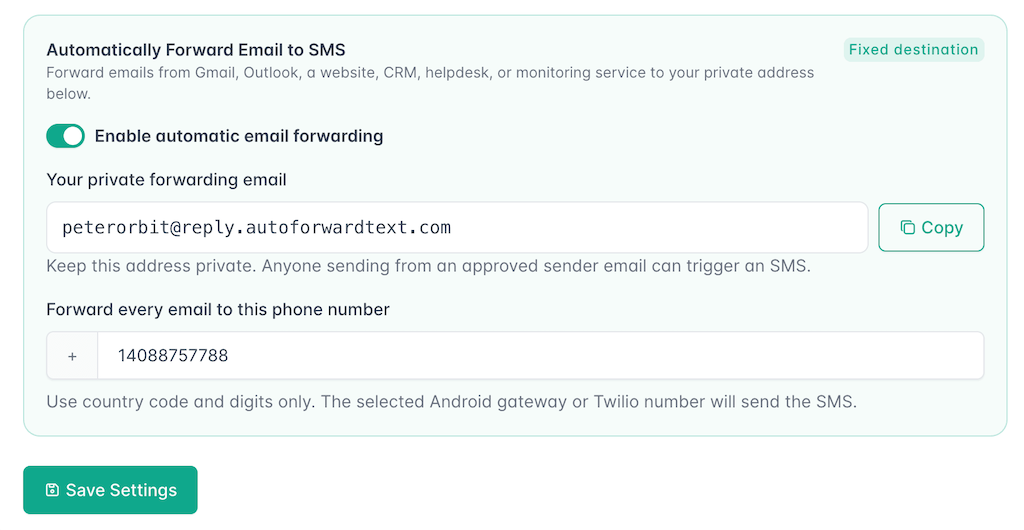
Find the Automatically Forward Email to SMS section.
-
Turn on Enable automatic email forwarding.
-
Enter the fixed destination phone number.
-
Use digits only and include the country code.
-
Click Save Settings.
Your private forwarding email is shown inside the same section.
How it works
Send or forward an email to your private AutoForward Text address.
Example:
yourname@reply.autoforwardtext.com
AutoForward Text will:
-
Confirm that the sender's email is approved
-
Read the email body
-
Convert the content into an SMS
-
Send it to your saved destination phone number
-
Use the Android gateway or Twilio number selected in your settings
You do not need to put the destination number in the email address. The destination is already saved in your account.
How do I use it with Gmail?
You can manually forward an email to your private AutoForward Text address.
You can also create a Gmail forwarding rule or filter that forwards selected emails automatically.
For example, you could forward:
-
Emails from a specific sender
-
Emails containing “New lead”
-
Payment failure alerts
-
Website contact form notifications
-
Server downtime alerts
Make sure the Gmail address forwarding the email is included in your approved sender list.
How do I use it with Outlook?
Add your private AutoForward Text address as the forwarding destination in Outlook.
You can then create an Outlook rule that forwards selected messages automatically.
The Outlook sender address used for forwarding must be approved in your AutoForward Text settings.
Is my forwarding email private?
Treat your private forwarding address like a password.
Anyone who knows the address may attempt to send an email to it. AutoForward Text still checks the approved sender list, but you should not publish the address publicly.
Only share it with services and email accounts that need to send alerts.
Can I change the destination phone number?
Yes.
Open the Email to Text settings page, change the fixed destination phone number, and save the settings.
Future emails will be sent to the new number.
Can I forward to multiple phone numbers?
The automatic forwarding workflow currently uses one fixed destination number.
To send an email to another number, use the standard Email to Text format:
phonenumber@reply.autoforwardtext.com
What happens if automatic forwarding is disabled?
Emails sent to your private forwarding address will not be converted into SMS until the feature is enabled again.
Your private email address remains assigned to your account.
Why was my forwarded email not delivered?
Check the following:
-
Email to Text is enabled
-
Automatic email forwarding is enabled
-
A destination phone number is saved
-
The sender's email is approved
-
The destination includes the country code
-
Your Android gateway is online
-
Your Twilio number is active
-
Your daily limit has not been reached
You can review the result under Recent Email to Text Activity.