Losing important text messages on your iPhone can be stressful. Maybe it was a meaningful conversation, a business message, a verification code, or proof of something important—and suddenly it’s gone. The good news is that in many cases, you can recover deleted texts. The not-so-great news? Recovery depends heavily on timing, backups, and how your iPhone is set up.
This guide walks you through real, proven methods to recover lost text messages on iPhone. No false promises, no “magic miracle” tools, and no shady tricks. Just practical steps, what actually works, and what to do when recovery isn’t possible—plus a smarter way to make sure you never lose important messages again.
Quick Reality Check: Can Deleted Text Messages Always Be Recovered?
Before jumping into recovery methods, it’s important to understand something honestly:
👉 Recovering deleted text messages on iPhone is not always guaranteed.
Whether recovery works depends on a few key factors:
- Do you have an iCloud backup from before the deletion?
- Do you have a Finder/iTunes backup?
- Are you using iOS 16 or newer (with Recently Deleted available)?
- How recently were the messages deleted?
If the answer to most of these is no, recovery becomes much harder, and in some cases impossible. iPhones are designed with strong security and privacy protections, which is great for safety—but it also means once something is gone without a backup, it’s often gone permanently.
⚠️ Before You Try Anything, Keep This in Mind
- Avoid resetting your iPhone unless you know a backup exists
- Be careful with “miracle” recovery apps that overpromise
- Don’t panic and rush—restoring the wrong backup can make things worse
Summary: Comparing Ways to Recover (or Protect) iPhone Text Messages
| Method | When It Works | Pros | Cons / Risks | Backup Needed? | Best For |
|---|---|---|---|---|---|
|
Method 1: Recently Deleted (iOS 16+) |
Messages deleted within the last ~30–40 days on iOS 16 or newer. | No reset, fast, safe, restores single messages or threads directly in Messages. | Does nothing if messages are too old or permanently removed from Recently Deleted. | No (built-in safety net). | Recent accidental deletions on newer iPhones. |
|
Method 2: iCloud Backup Restore |
iCloud backup exists from before the messages were deleted. | Can restore a lot of lost data, including messages, across the whole device. | Requires full reset and restore, can overwrite newer messages, apps, and files. | Yes — an older iCloud backup with messages included. | Important messages when you know your backup timing fits. |
|
Method 3: Finder / iTunes Backup |
Local computer backup (Mac/PC) was created before deletion. | Extra recovery option if you don’t use iCloud; can be more complete if backups are encrypted. | Full-device restore, potential data loss, needs the backup password if encrypted. | Yes — a valid Finder/iTunes backup. | Users who regularly back up to a Mac or PC. |
|
Method 4: Third-Party Recovery Tools |
Sometimes useful when you have backups and want to inspect or extract data from them. | Can preview messages in backups without restoring the entire device in some cases. | Results not guaranteed, privacy risks, may be expensive, often rely on existing backups anyway. | Usually yes — most tools work off backup data, not “pure magic.” | Tech-comfortable users exploring all options as a last resort. |
|
Method 5: AutoForwardText (Automatic Backup) |
Used going forward to prevent loss by auto-forwarding or storing incoming SMS as they arrive. | No restore needed, no reset, messages remain available even if deleted from the iPhone. | Does not recover texts that were already lost before setup; it’s a prevention and continuity tool. | No traditional backup — it creates its own ongoing record of messages. | Anyone who never wants to stress over losing important SMS messages again. |
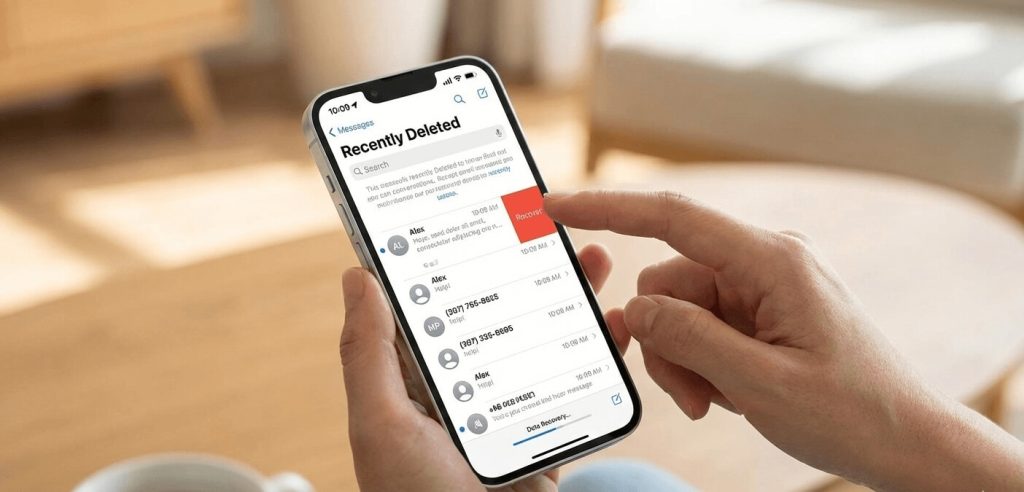
Method 1 — Recover from “Recently Deleted” (iOS 16 and Newer)
If you’re using iOS 16 or later, this is the easiest and safest way to recover deleted text messages on iPhone — and it works more often than people realize.
Apple introduced a Recently Deleted section inside the Messages app that temporarily stores deleted messages for a limited time before permanently erasing them.
✅ When This Method Works
This method can recover your messages if:
- You’re using iOS 16 or newer
- The messages were deleted within the last 30–40 days
- They haven’t been permanently erased yet
No reset required. No backup needed. No complicated tools.
🛠️ How to Recover Deleted Messages from Recently Deleted
Follow these simple steps:
1️⃣ Open the Messages app
2️⃣ Tap Filters (top left) or “Edit” depending on your view
3️⃣ Select Recently Deleted
4️⃣ Choose the conversation(s) or messages you want to bring back
5️⃣ Tap Recover
6️⃣ Confirm: Recover Messages
Your messages will return to your main Messages list immediately.
Method 2 — Recover Lost Text Messages Using an iCloud Backup
If your deleted messages aren’t in Recently Deleted, the next best chance to recover them is through an iCloud backup — but this method only works if your iPhone backed up before the messages were deleted.
Unlike Method 1, this method requires restoring your iPhone from a previous backup, which essentially rolls your phone back in time.
✅ When This Method Works
This method can recover deleted text messages if:
- iCloud Backup was enabled before deletion
- A backup was created before the messages were deleted
- You’re willing to reset and restore your iPhone
If these conditions fit your case, there’s a good chance your lost messages are still inside that backup.
🔍 Step 1 — Check When Your Last iCloud Backup Was Made
Before resetting anything, confirm whether an iCloud backup exists and when it was created:
1️⃣ Open Settings
2️⃣ Tap your Apple ID name at the top
3️⃣ Go to iCloud
4️⃣ Select iCloud Backup
5️⃣ Check the Last Successful Backup date and time
➡️ If that backup is from before you deleted the messages, this method is worth trying.
➡️ If the backup is newer than the deletion, this method likely won’t help.
🛠️ Step 2 — Restore Your iPhone From iCloud Backup
⚠️ This process erases current data and replaces it with the backup copy.
Here’s the high-level process:
1️⃣ Go to Settings → General → Transfer or Reset iPhone
2️⃣ Tap Erase All Content and Settings
3️⃣ Follow the setup steps
4️⃣ When prompted, choose Restore from iCloud Backup
5️⃣ Sign in to your Apple ID
6️⃣ Select the backup you want to restore
Once the restore completes, your iPhone reloads everything from that backup — including messages that existed at the time.
⚠️ Important Warnings & Limitations
Be aware of the trade-offs before restoring:
- Restoring a backup replaces your current data
- Any messages or data created after the backup will be lost
- If no iCloud backup exists, this method won’t work
- iCloud Messages Sync (if enabled) may prevent this method from helping
If iCloud Messages is enabled, messages sync across devices and may already reflect the deletion everywhere.
One smart alternative to recovery: Instead of hoping deleted messages can be restored, many users choose to automatically back up incoming texts so a safe copy is always available.
Method 3 — Recover Lost Messages Using Finder (Mac) or iTunes (Windows)
If you regularly back up your iPhone to a computer instead of iCloud, there’s a good chance your deleted text messages may still exist inside one of those backups. Just like the iCloud method, this works by restoring your iPhone to an earlier snapshot of your data.
This method is especially useful if you:
- Don’t use iCloud backups
- Prefer local backups
- Frequently sync your iPhone to a computer
✅ When This Method Works
This method can successfully recover deleted messages if:
- You previously backed up your iPhone to a Mac (Finder) or Windows PC (iTunes)
- The backup was created before the messages were deleted
- You are willing to restore your phone to that earlier state
If no local backup exists, unfortunately, this method won’t help.
💻 How to Check If You Have a Computer Backup
On Mac (macOS Catalina and newer)
1️⃣ Connect your iPhone to your Mac
2️⃣ Open Finder
3️⃣ Select your iPhone from the sidebar
4️⃣ Under Backups, look for the latest backup date
On Windows or Older macOS (with iTunes)
1️⃣ Open iTunes
2️⃣ Connect your iPhone
3️⃣ Click your device icon
4️⃣ Under Backups, check the Latest Backup date
If the backup date is from before you deleted your messages, you’re in good shape.
🛠️ How to Restore Messages Using Finder or iTunes
⚠️ Restoring a backup will overwrite current iPhone data with the older snapshot.
On Mac (Finder)
1️⃣ Connect iPhone to your Mac
2️⃣ Open Finder
3️⃣ Select your iPhone
4️⃣ Click Restore Backup
5️⃣ Choose the correct backup
6️⃣ Click Restore
On Windows or Older macOS (iTunes)
1️⃣ Connect your iPhone to your computer
2️⃣ Open iTunes
3️⃣ Select your iPhone icon
4️⃣ Click Restore Backup
5️⃣ Choose the backup
6️⃣ Confirm and restore
Once complete, your phone reloads everything from that backup — including previously deleted texts.
Limitations & Things to Know
Before using this method, understand:
- Restoring will replace the current data with the old data
- You may lose messages, photos, and files created after that backup
- This method only works if the backup existed before deletion
- No backup = no recovery with this method
Method 4 — Using Third-Party iPhone Recovery Tools (What Actually Works vs Hype)
If your deleted messages aren’t in Recently Deleted, and you don’t have an iCloud or computer backup, you’ll probably find dozens of websites promising “100% guaranteed iPhone message recovery.”
Let’s be honest: most of those promises are exaggerated.
iOS is designed with strong encryption and security protections. That means third-party tools cannot magically pull fully deleted messages from thin air on modern iPhones. However, in some situations, they may help — with limits.
✅ When Recovery Tools Might Work
These tools may be useful only if:
- Your iPhone messages still exist in an older backup file
- You need to preview messages inside a backup before restoring
- Your iPhone uses older iOS versions (rare today)
In most modern cases, tools don’t “recover” deleted data — they simply extract messages from existing backups.
What These Tools Can Sometimes Do
- Scan computer backups (Finder / iTunes)
- Extract messages stored in backup files
- Help locate messages without doing a full device restore
- Recover messages from older devices or old iOS versions
This can be helpful if you want to see what’s inside a backup without resetting your phone.
Method 5 — The Smarter Solution: Never Lose Messages Again (Automatic Backup)
At this point, one thing is probably clear:
Recovering deleted text messages on iPhone isn’t always easy — and sometimes, it’s simply not possible. Even if you succeed, it usually involves resets, restores, stress, and risk of losing newer data.
That’s why many iPhone users choose a different approach:
👉 Instead of hoping you can recover deleted texts… make sure you never lose them in the first place.
✅ Why This Approach Makes Sense
Most people don’t panic because they like “recovering data.”
They panic because the message was important — and they suddenly don’t have it anymore.
Automatic message forwarding solves that problem completely.
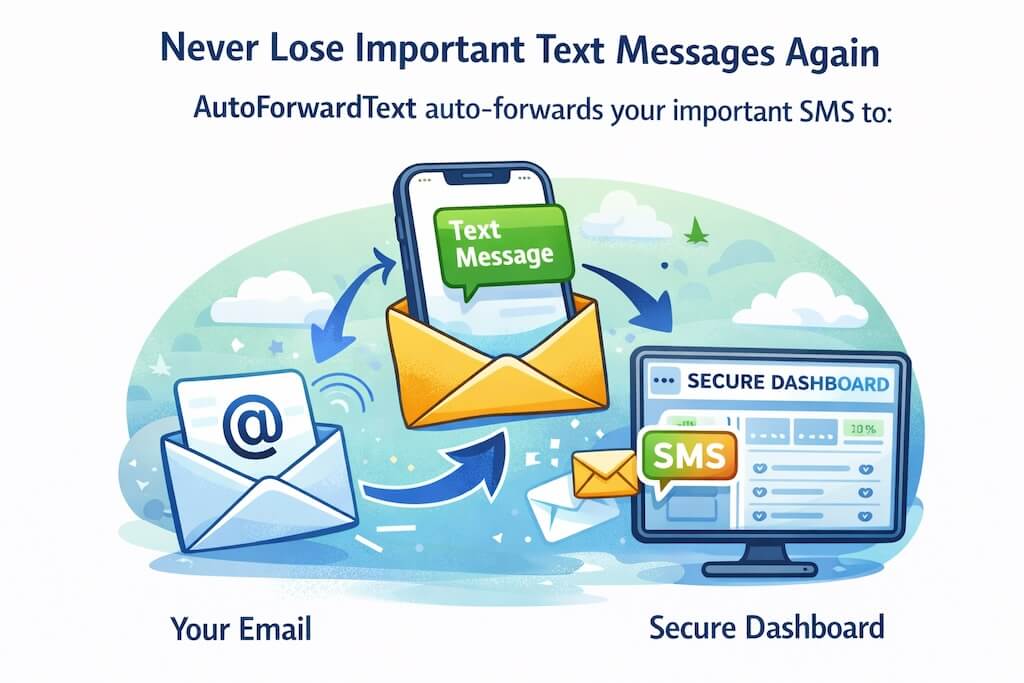
With AutoForward Text, your incoming text messages can be automatically:
- Forwarded to your email
- Stored securely in your online dashboard
- Accessible even if they’re deleted from the iPhone later
So instead of recovery stress, you always have a reliable backup copy.
Why People Love This Option
- Works automatically in the background
- Messages stay accessible even if deleted from the phone
- Cloud dashboard keeps everything organized
- Makes “recovery” unnecessary in the future
It’s not about fixing the problem one time — it’s about never facing it again.
Don’t want to stress about recovering deleted texts again? AutoForwardText automatically keeps a copy of important SMS messages so they’re always accessible. Learn more →
Common Mistakes That Can Ruin Your Chances of Recovery
When people realize important messages are gone, panic kicks in. Unfortunately, that’s when many make mistakes that actually make recovery harder.
Here are the biggest pitfalls to avoid:
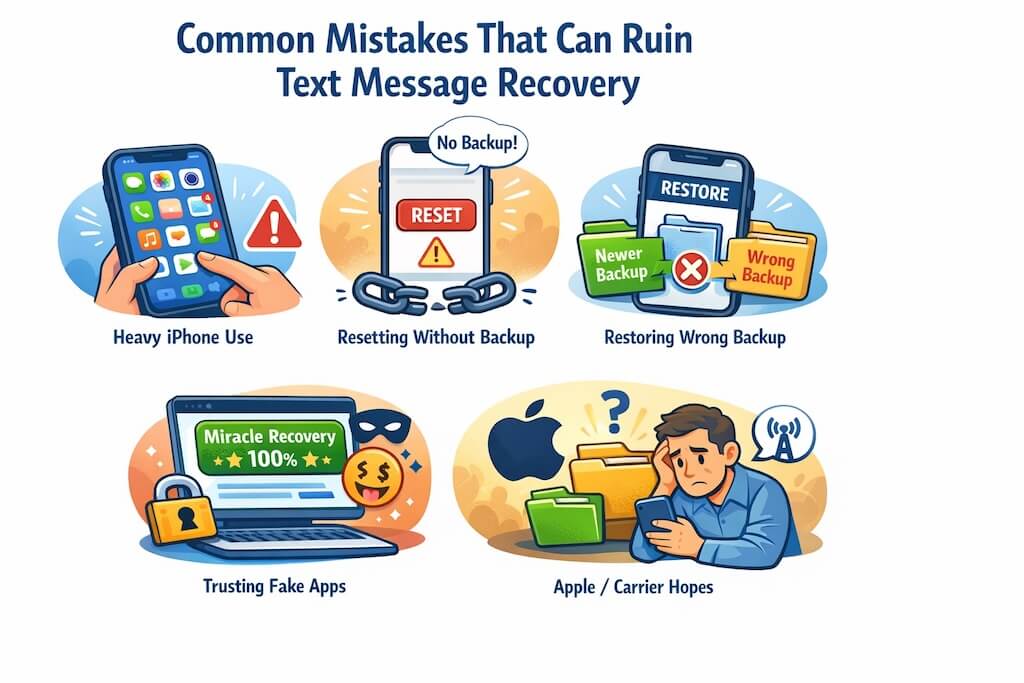
❌ Continuing to use the iPhone heavily
New data can overwrite deleted data, reducing recovery chances.
❌ Resetting the phone without verifying backups
If you erase the device without a valid backup, there is nothing to restore.
❌ Restoring the wrong backup
If you pick a newer backup (created after deletion), the missing messages won’t return.
❌ Trusting “miracle” recovery software ads
If something claims “100% guaranteed recovery with one click,” it’s almost always misleading.
❌ Assuming Apple or your carrier will recover them for you
Apple doesn’t restore deleted messages. Carriers rarely keep SMS content.
How to Avoid Losing iPhone Text Messages in the Future
Even if you recover your messages now, it’s worth making sure this doesn’t happen again.
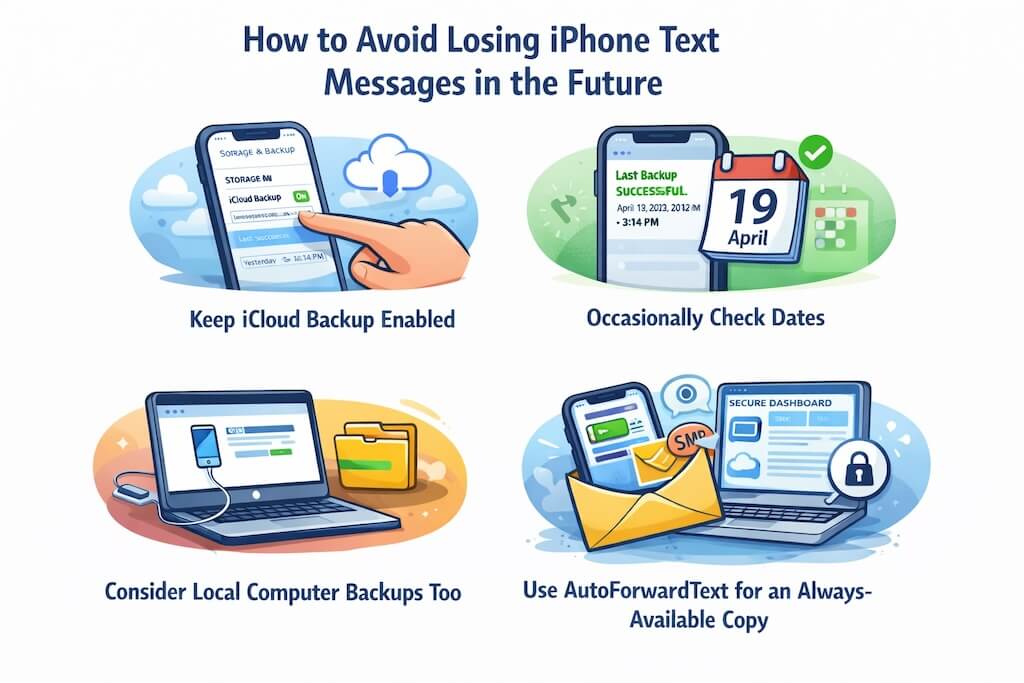
✅ Keep iCloud Backup Enabled
Make sure your iPhone is backing up regularly:
Settings → Your Name → iCloud → iCloud Backup → Turn On
✅ Occasionally Check Backup Dates
If your phone hasn’t backed up in months, you’ll want to fix that.
✅ Consider Local Computer Backups Too
Finder / iTunes backups give you an extra recovery option.
✅ Use AutoForwardText for an Always-Available Copy
If messages are truly important, relying only on Apple backups may not be enough.
With AutoForwardText, important SMS messages:
- Can be automatically forwarded to your email
- Can be stored securely in your dashboard
- Stay accessible even if deleted from the phone
It’s reliable, simple, and removes the “panic factor” completely.
Frequently Asked Questions
❓ Can I recover iPhone text messages without a backup?
In most cases, no. If Recently Deleted or backups aren’t available, recovery is usually not possible on modern iPhones.
❓ Can Apple recover deleted text messages for me?
No. Apple does not retain deleted message content.
❓ Can my phone carrier recover deleted SMS?
Carriers sometimes keep logs (date/time, numbers), but rarely the actual message content — and it’s not generally available to consumers.
❓ Do recovery apps really work?
They mainly extract data from backups. They cannot magically restore overwritten messages on newer iOS devices.
❓ How long do I have to recover deleted texts?
On iOS 16+, Recently Deleted keeps messages for about 30–40 days.
Conclusion
Recovering lost text messages on iPhone is possible — but it isn’t always guaranteed. If you’re lucky, Recently Deleted, iCloud, or a computer backup will bring them back. If not, recovery tools have limited real-world success due to Apple’s strong security and privacy protections.
That’s why the smartest approach isn’t just recovering messages…it’s preventing the panic altogether.
If you never want to worry about losing important SMS messages again, AutoForwardText can automatically back them up so they’re always available when you need them — without resets, restores, or stress.
You’ll sleep better knowing the next “Oh no…that message is gone!” moment…won’t be a problem at all.
Never Lose Important Text Messages Again
Recovering deleted messages isn’t always guaranteed — but keeping a secure copy is. AutoForwardText automatically forwards your SMS messages to email or stores them safely in your online dashboard, so your messages are always available when you need them.
Learn How AutoForwardText Works →