SMS is still one of the most reliable communication channels in the world. Banks use it. Delivery companies use it. Customers use it. IoT devices use it.
But managing SMS manually? That’s chaos.
What if every important text message could automatically trigger an action — log into Google Sheets, notify your Slack channel, create a CRM entry, or send you an email?
That’s exactly what happens when you combine AutoForward Text with Zapier.
Instead of just receiving messages, you turn SMS into a fully automated workflow engine.
What Is AutoForward Text?
AutoForwardText automatically forwards incoming SMS messages to your chosen destination — email, webhook, API endpoint, or automation platform.
Instead of checking one phone all day, you can:
- Forward texts to email instantly
- Send messages to your team chat
- Log alerts into Google Sheets
- Trigger workflows via webhook
It takes minutes to set up. No complex infrastructure required.
Why Connect AutoForward Text to Zapier?
On its own, AutoForwardText forwards messages.
Connected to Zapier, it becomes a bridge to over 5,000 apps.
That means any incoming SMS can now:
- Create a row in Google Sheets
- Send a message to Slack
- Create a ticket in Zendesk
- Add a lead to your CRM
- Notify you via Gmail
Instead of reacting to messages manually, your system reacts automatically.
That’s the difference between monitoring SMS and automating SMS.
How the Integration Works
The logic is simple:
Phone → AutoForwardText → Zapier → Your Apps
Here’s the step-by-step setup:
Step 1: Install and Configure AutoForwardText
- Sign up and configure the app on your iOS or Android device
- Log in to the dashboard and go to Forward Settings (Side Menu item)
- Click on the Add New URL Endpoint
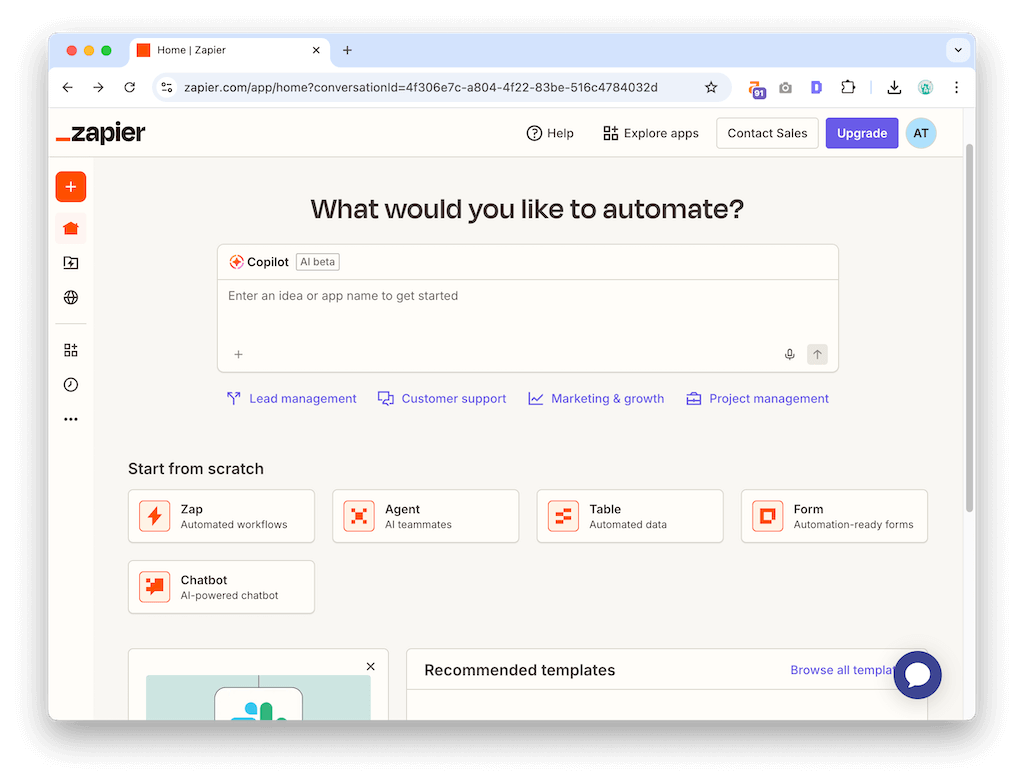
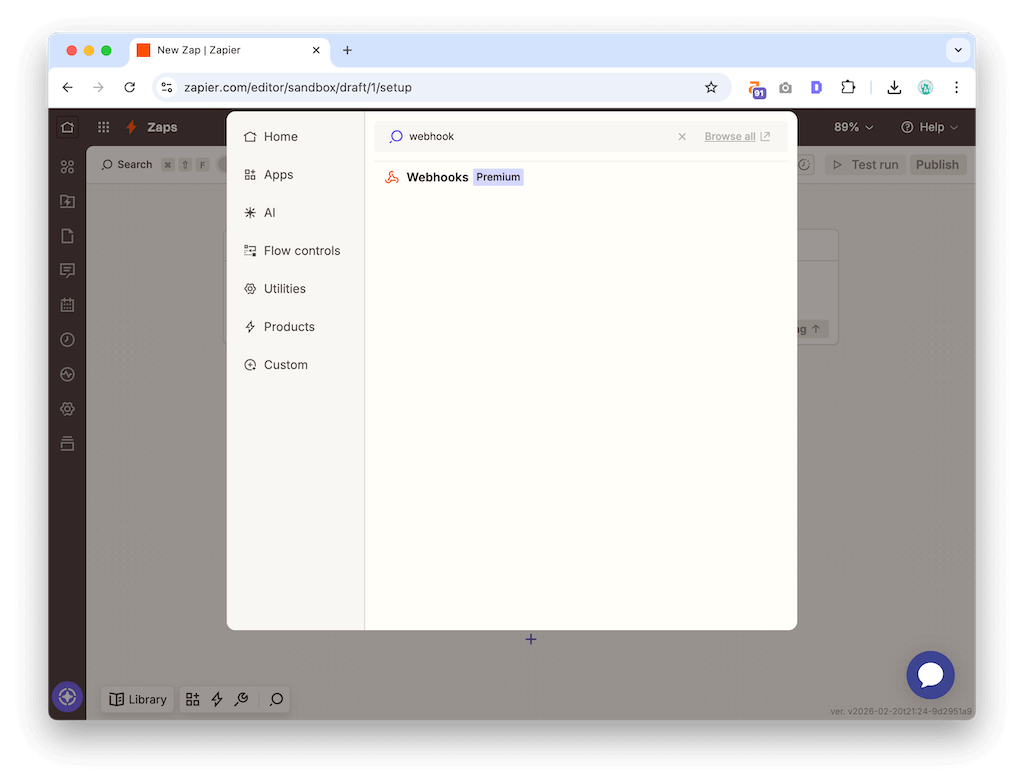
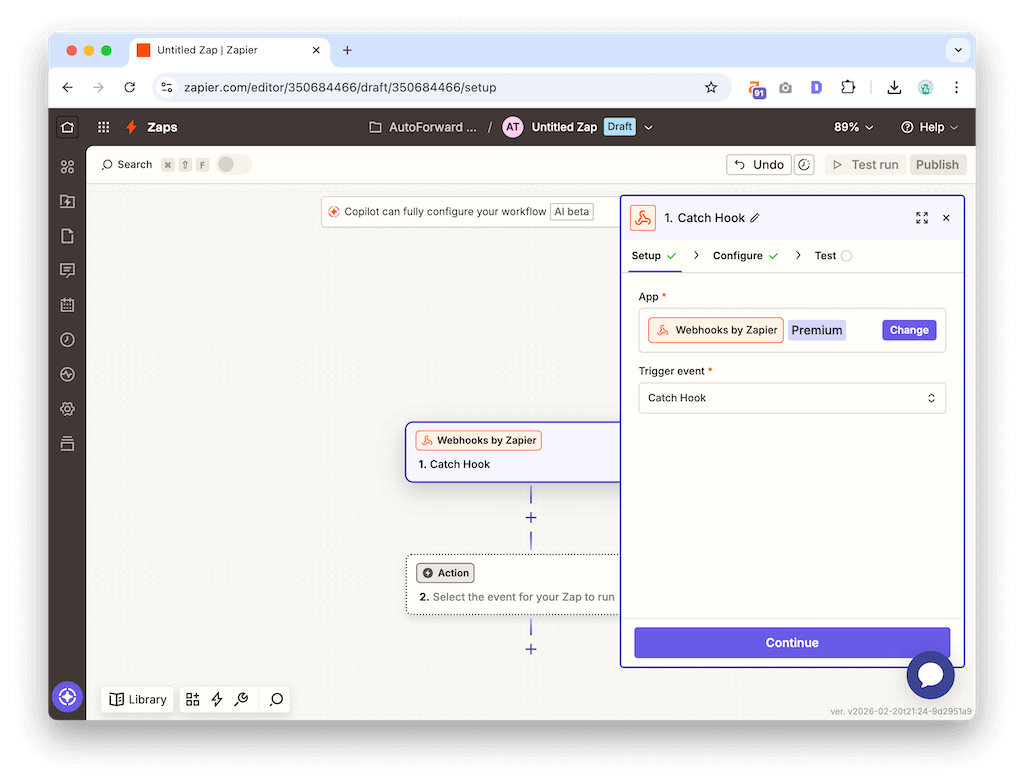
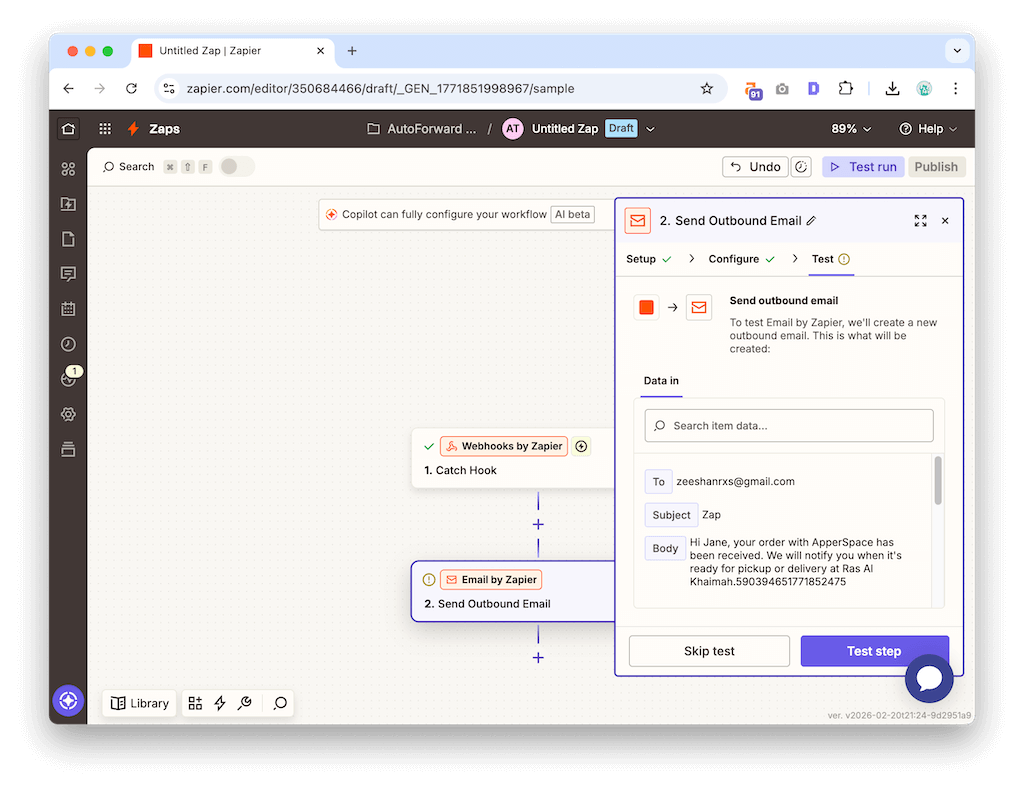
Step 2: Create a Webhook in Zapier
- Log in to Zapier.
- Create a new Zap.
- Choose “Webhooks by Zapier” as the trigger.
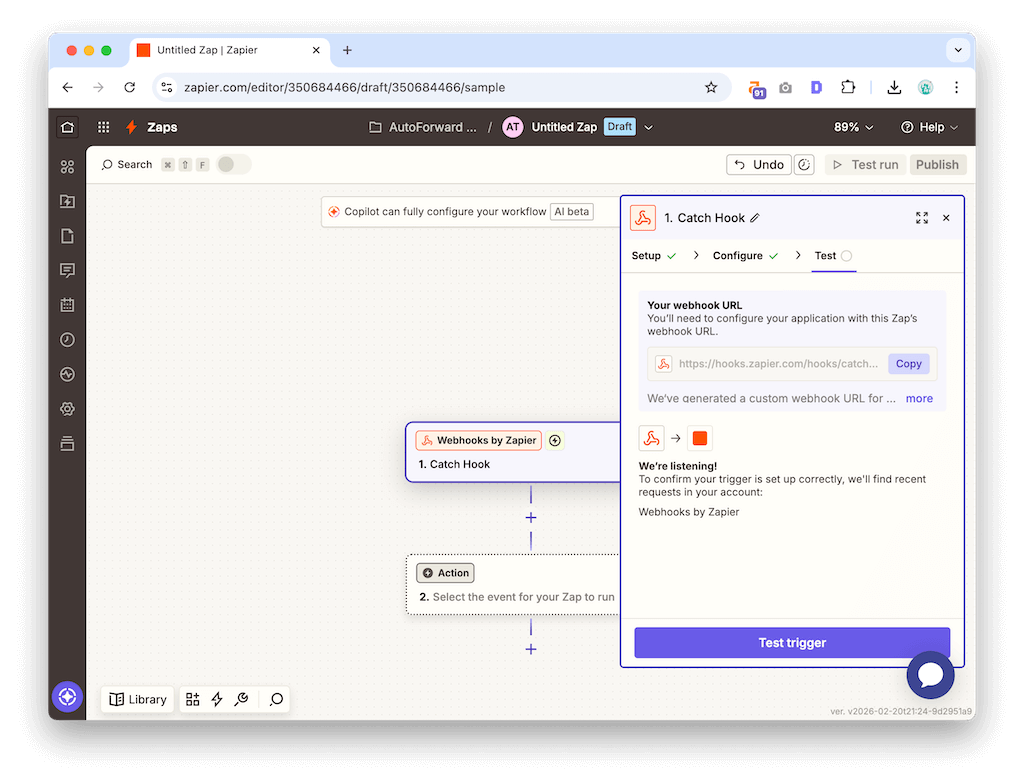
- Select “Catch Hook.”
- Copy the webhook URL provided.
Step 3: Paste the Webhook into AutoForwardText
- Add the Zapier webhook URL inside the dashboard.
- Save your settings.
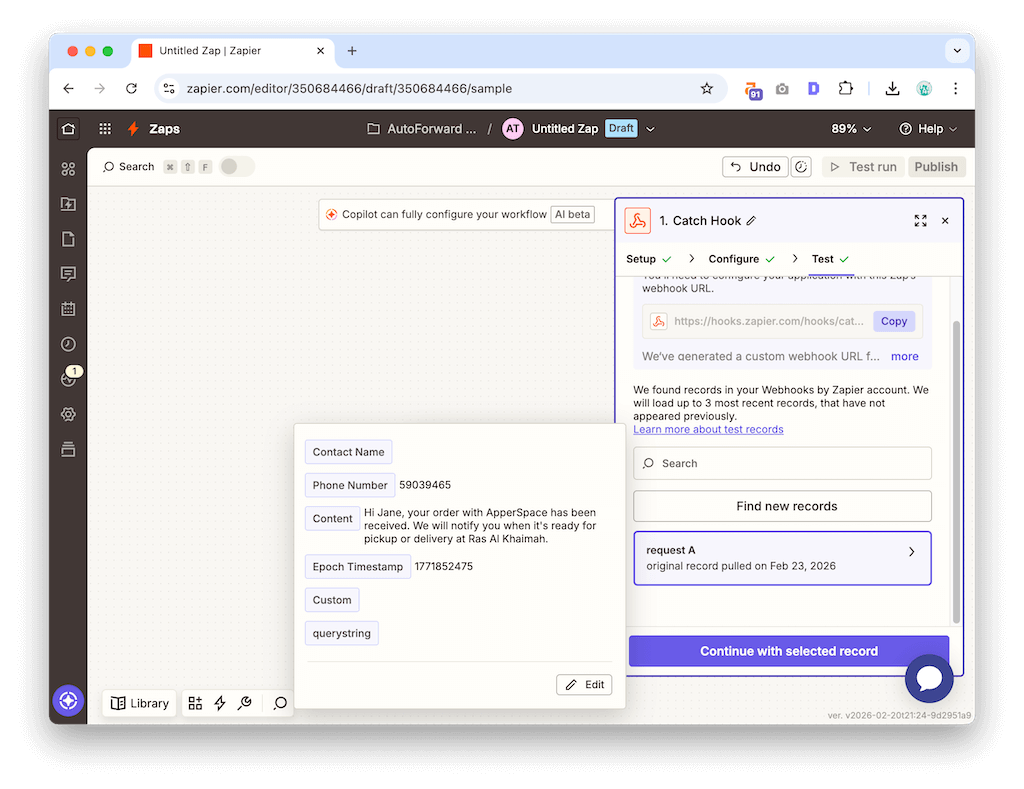
- Send a test SMS to your device.
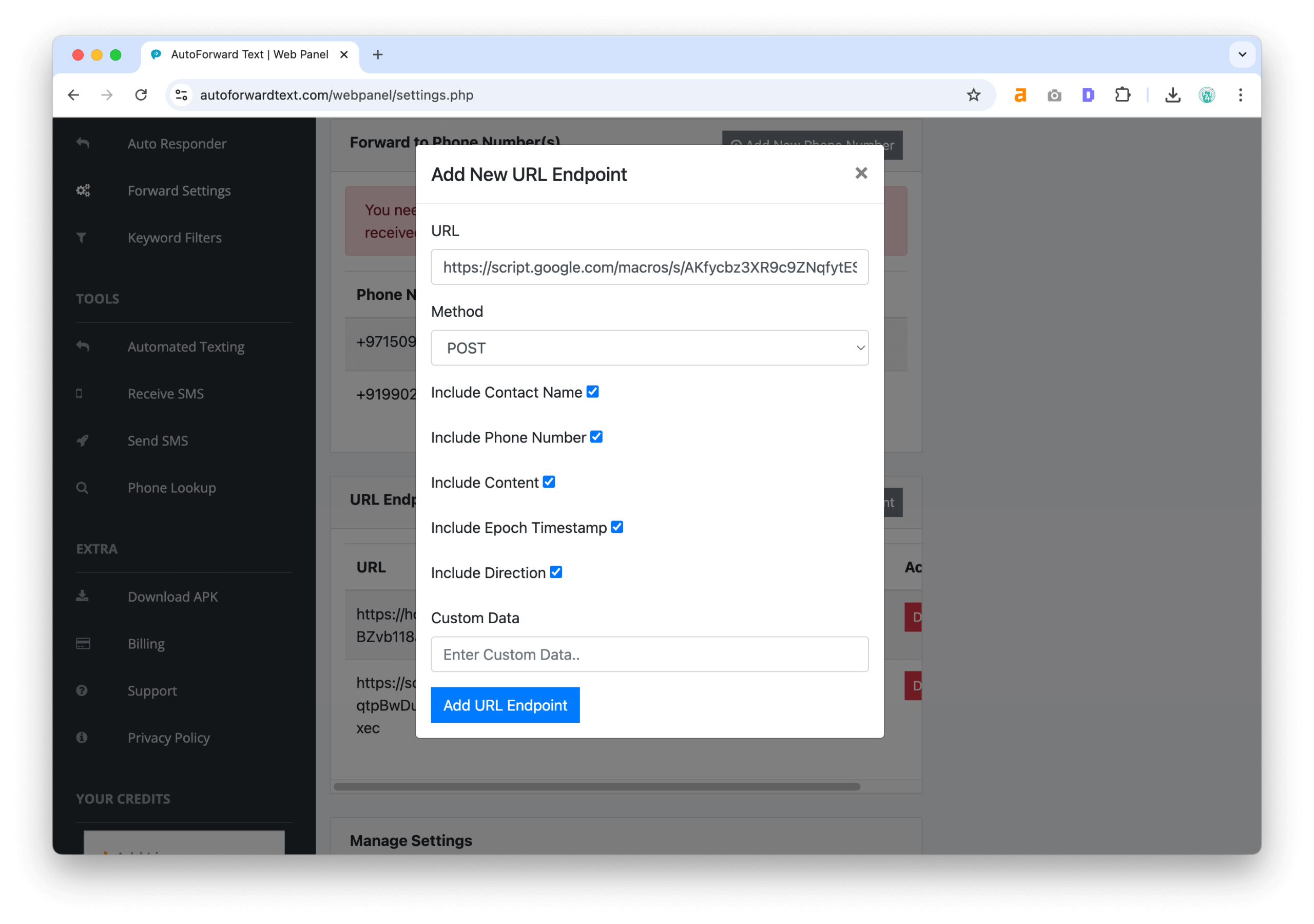
Zapier will instantly detect the message payload.
Step 4: Choose Your Action
Now choose what happens next:
- Send to Slack
- Append to Google Sheets
- Create a Trello card
- Send email via Gmail
- Update CRM
Turn the Zap on.
You’re done.
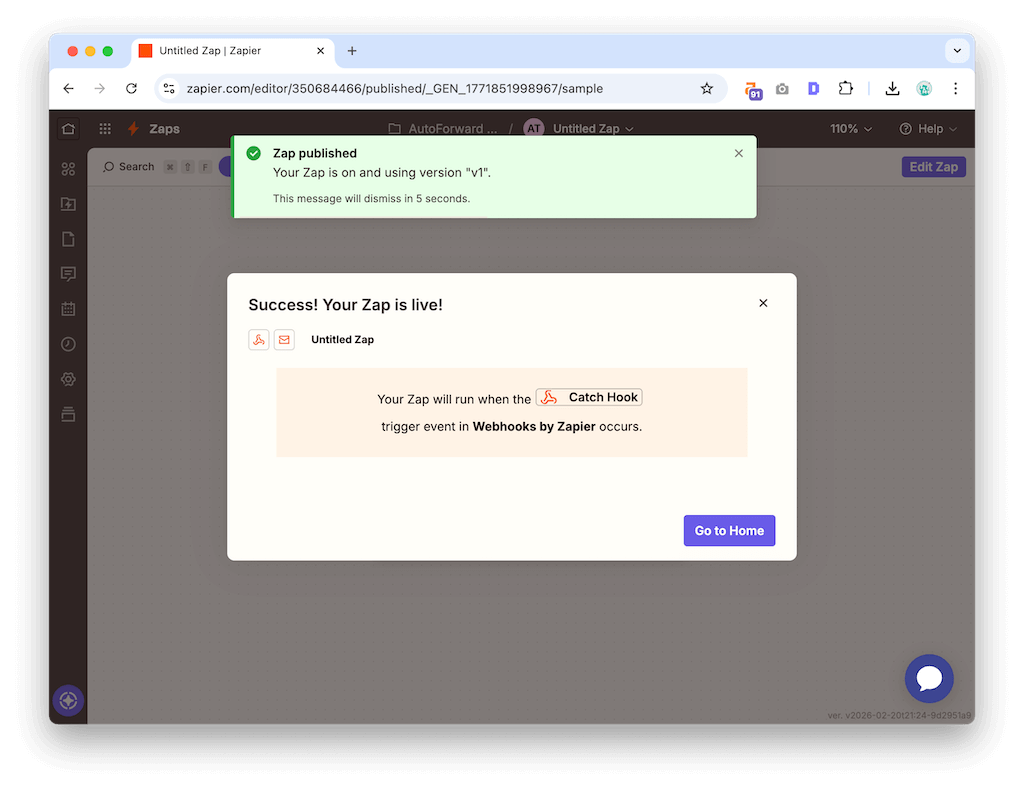
From now on, incoming SMS automatically triggers your workflow.
Real-World Use Cases
This is where things get interesting.
1. Small Businesses
Customer inquiries often come through SMS. Instead of replying manually and risking missed leads:
- Forward SMS → Zapier → CRM
- Forward SMS → Zapier → Slack team channel
Now your team sees leads instantly.
2. IT & DevOps Alerts
Some systems still rely on SMS alerts.
Forward those messages to:
- Slack
- Email distribution lists
- Incident management tools
No more relying on a single device to receive critical alerts.
3. OTP & Verification Logging
If you manage multiple accounts or devices, OTPs can get scattered.
Forward SMS to:
- A secure email inbox
- A private spreadsheet
- A logging system
Organized. Searchable. Archived.
4. E-commerce & Delivery Notifications
Automatically log delivery updates into Google Sheets for tracking and reporting.
This is especially useful for:
- Small logistics businesses
- Resellers
- Dropshippers
Advanced Workflows
Once connected to Zapier, you can layer additional logic:
- Filter messages by keyword
- Only trigger actions during business hours
- Send high-priority alerts to specific channels
- Chain multiple actions from a single SMS
For example:
Incoming SMS with “URGENT” → Slack + Email + Create Task
That’s serious automation.
Security Considerations
AutoForward Text only forwards messages you define. You control the rules.
Zapier connections use secure HTTPS endpoints. Always ensure you:
- Use private Zaps
- Limit access to shared dashboards
- Avoid forwarding sensitive data unless necessary
Used properly, this is a professional-grade automation pipeline.
FAQ
Can I use AutoForwardText without Zapier?
Yes. You can forward SMS directly to email or webhook endpoints.
Does this work with MMS?
Depends on device and configuration. SMS forwarding is fully supported.
Can I automate WhatsApp messages?
No. This integration focuses on SMS only.
Final Thoughts
SMS isn’t going away. But manual SMS handling should.
With AutoForwardText + Zapier, your phone stops being a bottleneck and starts being a trigger.
Whether you’re running a business, managing alerts, or organizing critical messages, you can automate it in minutes.
👉 Download AutoForward Text and set up your first SMS-to-Slack automation now.