Need to automatically forward text messages to another phone — or even to your email or team inbox? Whether you’re managing a business line, sharing SMS notifications with your team, or simply backing up personal messages, copying texts manually just won’t cut it.
Fortunately, there’s a faster, smarter way.
AutoForward Text makes it easy to auto-forward SMS and MMS messages from your Android or iPhone — with no complex setup or extra apps required. From keeping a searchable email archive of your texts to routing important messages to Slack or your CRM, AutoForward Text gives you total control over how and where your messages go.
In this guide, we’ll show you exactly how to set up automatic text forwarding on both Android and iPhone, walk through real-world scenarios where it’s useful, and show you how to connect your texts to tools like email, Slack, and Google Sheets — all without needing to switch SIM cards or juggle devices.
What Is AutoForward Text? (And Why It’s Different)
AutoForward Text is a cross-platform SMS forwarding service that lets you automatically send incoming text messages from your phone to another phone number, email address, or dashboard — without needing to physically forward them or switch devices.
AutoForward Text works within your phone’s native settings — and doesn’t require invasive access or workarounds. It’s beneficial for:
- Small business owners who want to forward customer inquiries to team inboxes
- Remote workers who monitor business SMS from multiple locations
- Parents, caregivers, or logistics professionals needing alerts in real-time
- Anyone who wants an email archive of their important messages
You stay in control — no third-party ads, no SIM tampering, no hassle.
iPhone: Forward Texts Using Apple Shortcuts (No App Needed)
Setting up AutoForward Text on your iPhone is simpler than you might think — and best of all, you don’t need to install any third-party app from the App Store. Thanks to Apple’s built-in Shortcuts app, available on all iPhones running iOS 15 or later, you can create a personal automation that instantly forwards incoming text messages to your AutoForward Text account or your email inbox.
This method uses Apple’s automation tools to securely send a copy of every message as it arrives — no manual action, no coding, and no extra apps. The only things you need are:
- an iPhone,
- the Shortcuts app (pre-installed on most devices), and
- your AutoForward Text account email, which acts as the destination.
Once set up, messages are automatically forwarded the moment they hit your inbox. This is especially useful for remote workers, business owners, or parents who want a backup or shared copy of texts without needing to touch the phone each time.
✅ Bonus: You can even customize filters based on keywords or contacts to forward only the texts that matter.
👉 View the full iPhone setup guide →
Android: Set Up SMS Forwarding with the AutoForward Text App
If you’re using an Android phone, the process of setting up AutoForward Text is just as straightforward — and in some ways, even more powerful. The Android app gives you deeper control over which messages are forwarded, when, and to where.
To begin, you’ll download the AutoForward Text app from our website. After installation, you’ll go through a one-time setup process where you grant the necessary permissions for SMS access and background operation. From there, you can connect your device to your email, another phone number, or even a dashboard view that consolidates all forwarded messages in one place.
The Android version offers a range of smart features:
- Forward based on specific contacts or message keywords
- Forward to multiple destinations at once (e.g. another phone and your email)
- Forward call logs alongside SMS, if needed
- Control how messages appear and whether to include timestamps or metadata
This setup is ideal for teams managing a shared phone, customer service lines, or anyone wanting message visibility across multiple devices.
✅ Once configured, the app runs quietly in the background — no need to manually check anything.
👉 View the full Android setup guide →
Setting Up Text Message Forwarding To Another Phone Number
If you want incoming text messages to be automatically forwarded from your phone to another mobile number, AutoForward Text makes it simple — but note that this feature is part of the Premium (Pro) plan. So before starting, make sure you’ve upgraded your account to the correct subscription tier. The Pro plan includes 25 forwards per month, and you can purchase additional message credits from inside your dashboard at any time.
Then, when you’re ready to set up text message forwarding to another phone number, you’ll need to go into the AutoForward Text app settings. Here, you will see a place where you can add the phone number that you want the texts to forward to. Make sure you have the number right, and then enter it into this box.
🌐 In the Dashboard (Recommended for Full Control):
- Log in to your AutoForward Text account via the dashboard.
- Click Forward Settings from the menu (left side on desktop, top-left menu on mobile).
- Choose “Forward to Phone Number(s)”.
- Click “Add New Phone Number”.
- Enter the phone number with the country code.
- Complete OTP verification to confirm ownership.
Once verified, AutoForward Text will begin forwarding your selected messages to that number automatically.
🔄 You can set up forwarding to multiple phone numbers and email addresses simultaneously, and manage them all in one place.
This setup is beneficial for business owners, support teams, and on-call staff who need real-time SMS visibility across different devices. It also reduces the need for manual copying or checking multiple phones, helping you stay organized and responsive.
You can then customize the forwarding settings to suit your needs. You can decide which messages get forwarded, and from which contacts. If you only want work messages to forward, set up your work contacts in this area and leave your personal ones out. If you want texts from one of your friends to forward to a group, enter their number here.
Automatic text message forwarding can be a powerful tool — but it must be used responsibly and legally. Depending on your location, forwarding SMS messages — especially personal messages, OTPs, or texts from third parties — may be subject to privacy laws or telecom regulations.
You should never forward someone else’s messages without their consent, and should avoid forwarding texts containing sensitive information like passwords, verification codes, or financial details.
AutoForward Text does not monitor or validate the content of forwarded messages and assumes no liability for how users configure the service. Always consult your local laws or data protection guidelines if you’re unsure about compliant use.
Troubleshooting Common Issues
If you’re experiencing problems with AutoForward Text, you’re not alone — especially during initial setup. Fortunately, most issues can be resolved quickly by checking a few common problem areas. Here’s a breakdown of what to look for:
Permission errors are a common problem. As mentioned above, you need to make sure that AutoForward Text has access to your SMSs, or it cannot forward them. If you aren’t sure, go into your phone’s settings and check the permissions. Enable the app, and then restart it and see if it works.
1. App Permissions Not Granted
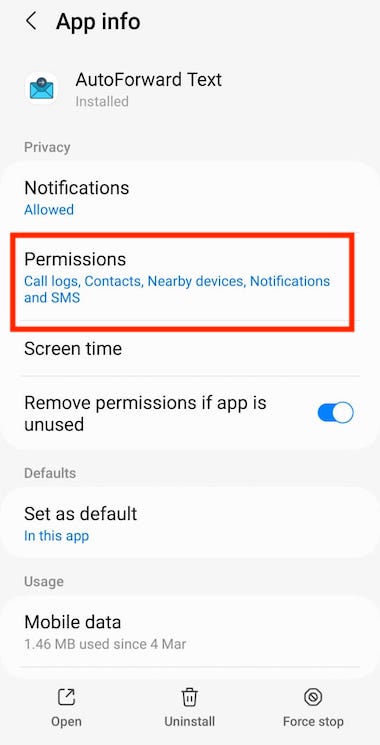
One of the most common setup issues is missing permissions. AutoForward Text must have access to your SMS messages in order to forward them. If you’re unsure whether permissions are enabled:
- Open your phone’s Settings
- Go to Apps → AutoForward Text
- Tap Permissions
- Make sure SMS/Messages access is allowed
After enabling permissions, restart the app and try again.
2. Battery Optimization: Blocking the App
Battery optimization tools can interfere with background apps like AutoForward Text. If the app is stopping unexpectedly or not forwarding consistently, your battery settings may be the cause.
Here’s how to exempt AutoForward Text:
- Go to Settings → Battery
- Tap the three-dot menu in the top-right corner
- Select Battery Optimization
- Change the filter to All Apps
- Find AutoForward Text and select it
- Choose Don’t Optimize → Tap Done
This ensures your phone won’t restrict the app from running in the background.
3. Messages Are Sent But Not Received
If messages appear to be forwarded but the recipient doesn’t receive them, there are a few possible causes:
- Incorrect Filters: The receiving phone may be filtering messages from unknown numbers. Ask the recipient to check their SMS filtering or spam folder.
- Do Not Disturb Mode: If the sender’s number is accidentally on the receiver’s Do Not Disturb list, the message may be received silently with no notification.
- Forwarding Limits Reached: If you’re on the Pro plan, ensure you haven’t exceeded your monthly forwarding limit or used up your available credits.
How to Forward Texts to More Than Just Phones
AutoForward Text isn’t limited to forwarding messages between phones — you can also route texts to email, Slack, or even tools like Google Sheets to keep everything organized and accessible.
Forward to Email Automatically
Set up forwarding to your email inbox to create a searchable archive of all incoming messages. This is perfect for business use, remote teams, or anyone who prefers reading messages on a larger screen. Just add your email address in the AutoForward Text settings, and incoming texts will start landing in your inbox in real-time — complete with sender, timestamp, and message content.
Forward to Slack
Want texts to show up in your team’s Slack channel? You can integrate AutoForward Text with Slack using the online dashboard. This allows you to post incoming messages into specific channels or direct messages, so your team can take action quickly — ideal for support alerts, order notifications, or lead tracking.
Forward to Google Sheets
Track messages in a spreadsheet for logging, analysis, or automation. Using REST APIs, you can send each new incoming text to a row in Google Sheets — capturing sender info, date/time, and the message body. Great for teams managing bookings, deliveries, or support requests.
AutoForward Text vs Other Forwarding Apps
| Feature | AutoForward Text | SMS Forwarder | AirDroid | PhoneLeash |
|---|---|---|---|---|
| Works on Android | ✅ | ✅ | ✅ | ✅ |
| Works on iPhone (iOS) | ✅ (via Shortcuts) | ❌ | ✅ (limited functionality) | ❌ |
| Forward to Email | ✅ | ✅ | ❌ | ✅ |
| Forward to Another Phone | ✅ (Pro plan) | ✅ | ❌ | ✅ |
| Supports Slack / Google Sheets (via Zapier) | ✅ | ❌ | ❌ | ❌ |
| Keyword & Contact Filters | ✅ | ✅ | ❌ | ✅ |
| Dashboard + Web Access | ✅ | ❌ | ✅ | ❌ |
| Forward Call Logs | ✅ | ❌ | ❌ | ✅ |
| Privacy-Focused (No Ads) | ✅ | ❌ (ads present) | ❌ | ✅ |
Conclusion
AutoForward Text can be very valuable if you need to send texts to either an email address or another phone number (or both). You can easily send the information you need to the relevant places without having to mess around manually copying and pasting.
Whether you’re running a business, managing a team, or just staying organized, it’s the simplest way to keep your messages accessible, shareable, and secure — across both iPhone and Android.
Start Forwarding Smarter — Today
- ✅ Supports iPhone & Android
- ✅ Forward to phone, email, Slack, Google Sheets & more
- ✅ Smart filters, simple setup, full control
Try AutoForward Text free — or upgrade to Pro for advanced features.
Start Forwarding Now