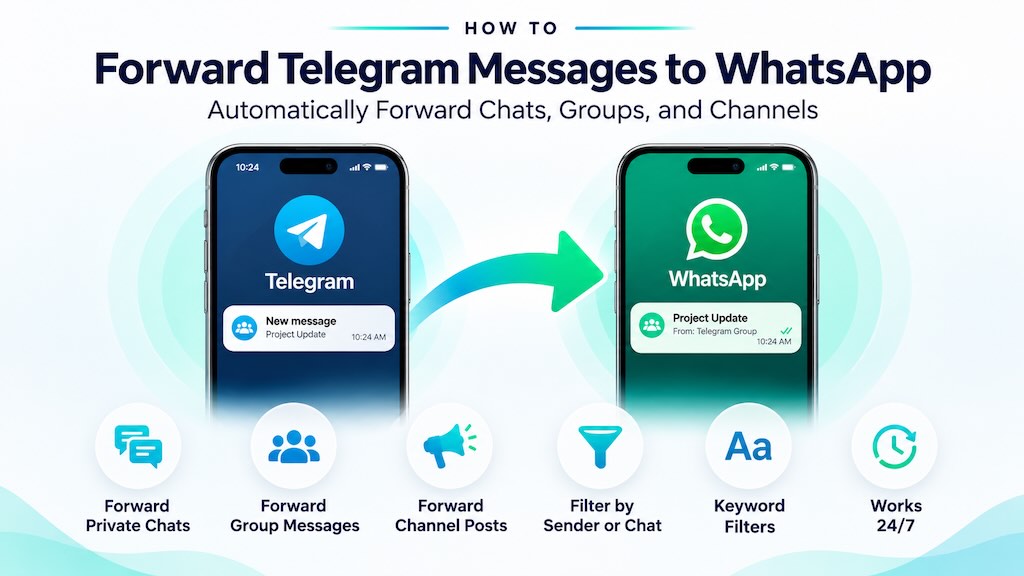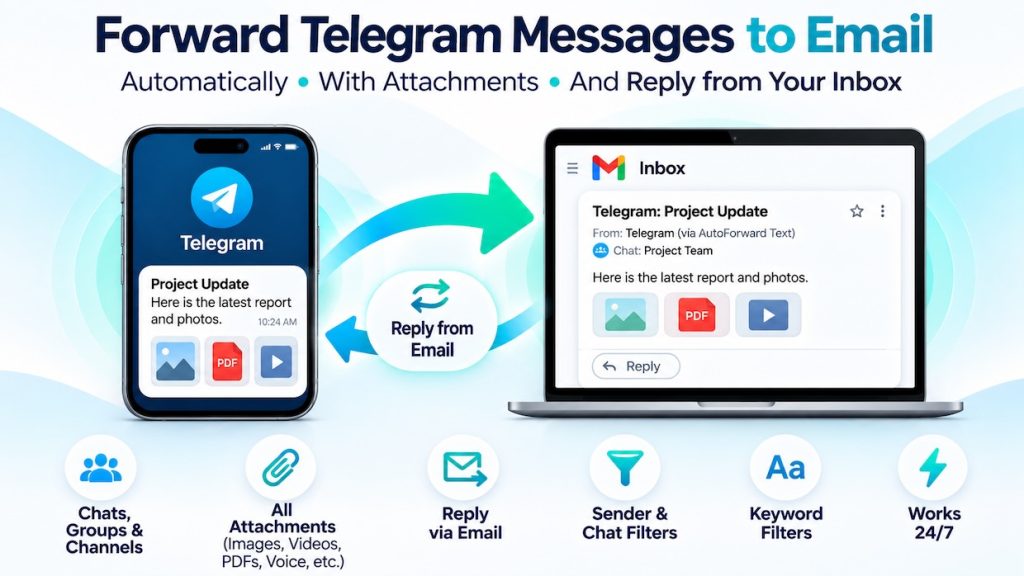
Want Telegram messages to arrive in your email inbox automatically? AutoForward Text can send incoming Telegram private-chat messages, group discussions, and channel posts to your email address, including supported images, videos, PDFs, voice messages, and multiple attachments. The forwarded email identifies the original Telegram sender and chat.
Quick answer: Sign in to AutoForward Text, connect your Telegram account using the QR-code flow, configure email as the forwarding destination, and send a test message. New incoming Telegram messages can then be delivered to Gmail, Outlook, or another email inbox. Optional keyword and sender/chat rules help narrow what gets forwarded.
This guide covers both manual sharing and automated Telegram-to-email forwarding, plus attachments, filters, practical business uses, and troubleshooting. Unlike a Telegram-to-WhatsApp bridge, the email workflow has been tested with multiple types of media attachments.
Quick Answer: Telegram to Email
- Create or sign in to your AutoForward Text account.
- Open Telegram Accounts and connect your Telegram account using the provided QR flow.
- Set an email address as the forwarding destination.
- Optionally configure keyword filters and sender/chat rules.
- Send a new Telegram text and an attachment from an account or chat you control.
- Confirm that the forwarded email arrives with the sender, source chat, message content, and supported attachments.
Important: Connecting Telegram is not the same as enabling forwarding. Make sure the email destination and forwarding settings are saved, and check the forwarding logs after your test.
Ways to Send Telegram Messages to Email
Manually share a message
For an occasional message, use Telegram’s available share, copy, or save options and paste or attach the content to an email. Exact share options vary by platform and message type.
Automatically forward new messages
Connect Telegram to AutoForward Text and configure email forwarding so new incoming messages are delivered without repeating the manual process.
Manual sharing works for one-off messages. Automatic forwarding is more useful when your goal is to monitor a group, preserve operational updates in email, or notify a team without checking Telegram continuously.
How to Automatically Forward Telegram Messages to Email
Step 1: Create your AutoForward Text account
Visit AutoForward Text signup and open the dashboard. You will configure the source Telegram account and the destination email address here.
Step 2: Connect Telegram using QR authentication
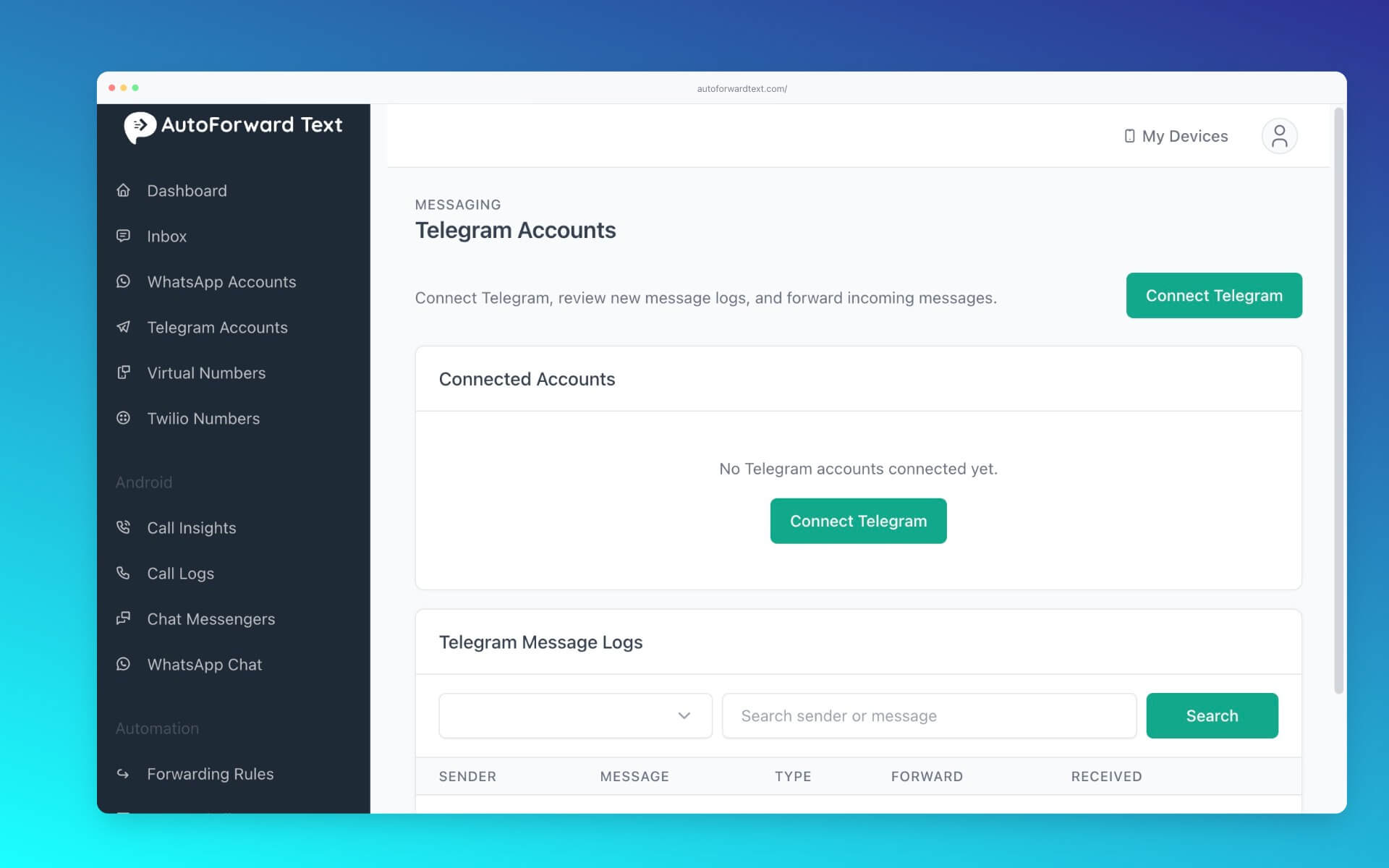
Open Telegram Accounts and start the account connection process. Follow the QR-code authentication instructions shown in the dashboard to authorize your own Telegram account.
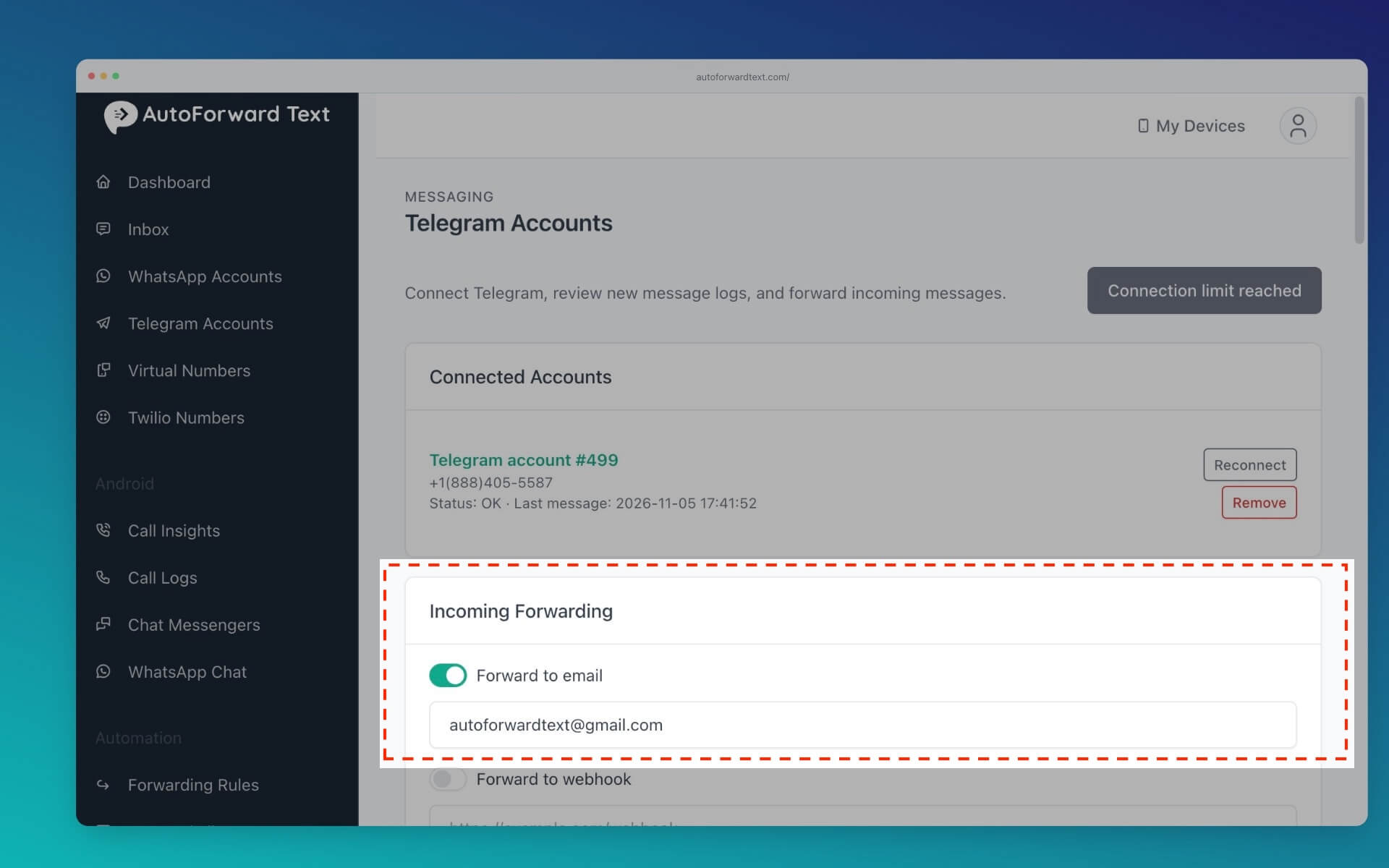
Step 3: Configure an email destination
In the Telegram forwarding configuration, select email delivery and enter the inbox that should receive the messages. This can be a Gmail, Outlook, or another working email address. Save the forwarding settings.
Step 4: Decide whether to apply filters
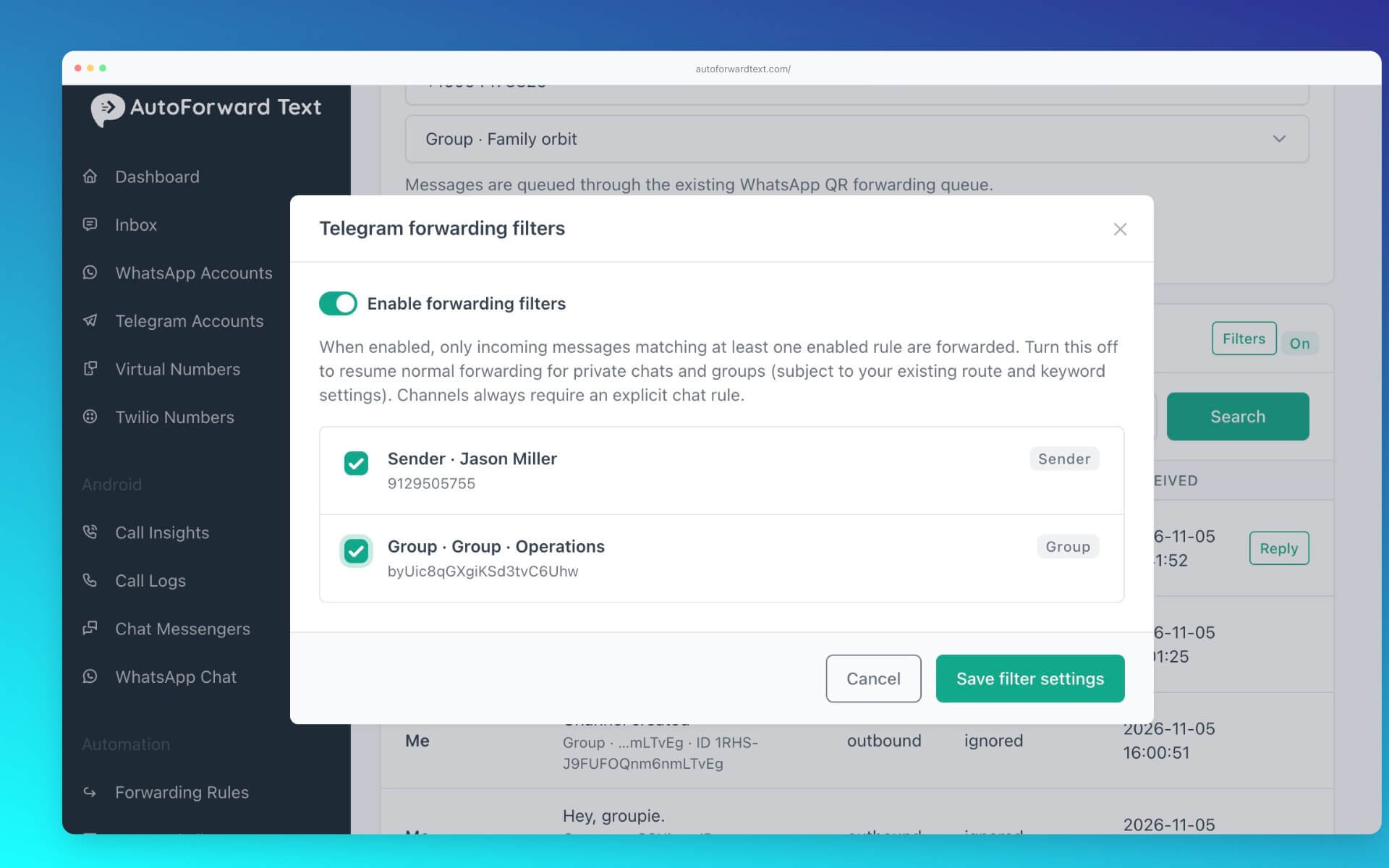
By default, forwarding may cover incoming messages across the connected Telegram account. If you only want particular senders or chats, open Filters and configure the relevant rules. You can also apply keyword filters for messages containing chosen terms.
Sender/chat filtering was recently implemented and passed helper tests, but the dashboard UI and live webhook behavior still require end-to-end verification. Confirm the rules work with test messages before using the integration for sensitive conversations.
Step 5: Send a test Telegram message
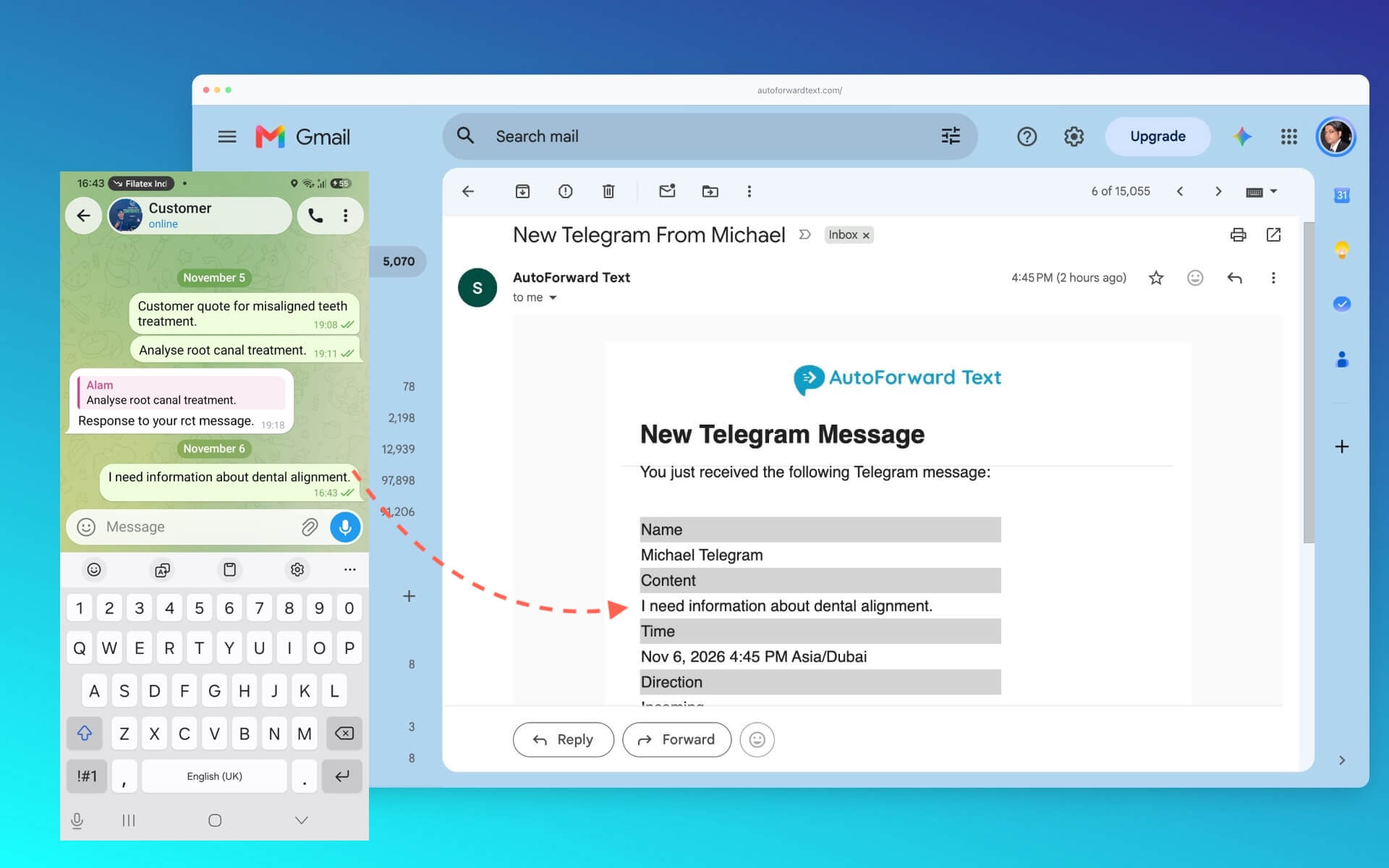
Send a fresh message to the connected account from a test conversation. Check the configured email inbox, including spam or junk folders. Verify that the email includes the original sender and chat name, not just the message text.
Step 6: Test an attachment
Send an image or PDF to the same Telegram conversation. Confirm that the file arrives with the email and opens correctly. For production use, repeat this with the types and sizes of attachments your team normally exchanges.
Send Telegram Updates Straight to Your Inbox
Connect your Telegram account, choose an email destination, and forward incoming messages and supported attachments without manual copying.
Reply to Telegram Messages Directly From Email
AutoForward Text supports two-way Telegram conversations through email. When a Telegram message arrives in your Gmail, Outlook, or other email inbox, you can reply to the forwarded email and have your response sent back to the original Telegram chat.
- Open a Telegram message forwarded by AutoForward Text in your email inbox.
- Click Reply on that email.
- Write your response and send it normally.
- AutoForward Text routes the response back to the original Telegram conversation through your connected account.
The forwarded email includes the original sender and source chat, helping you understand the conversation before responding. This is useful for customer support, sales enquiries, and teams that prefer working from an email inbox rather than switching between apps.
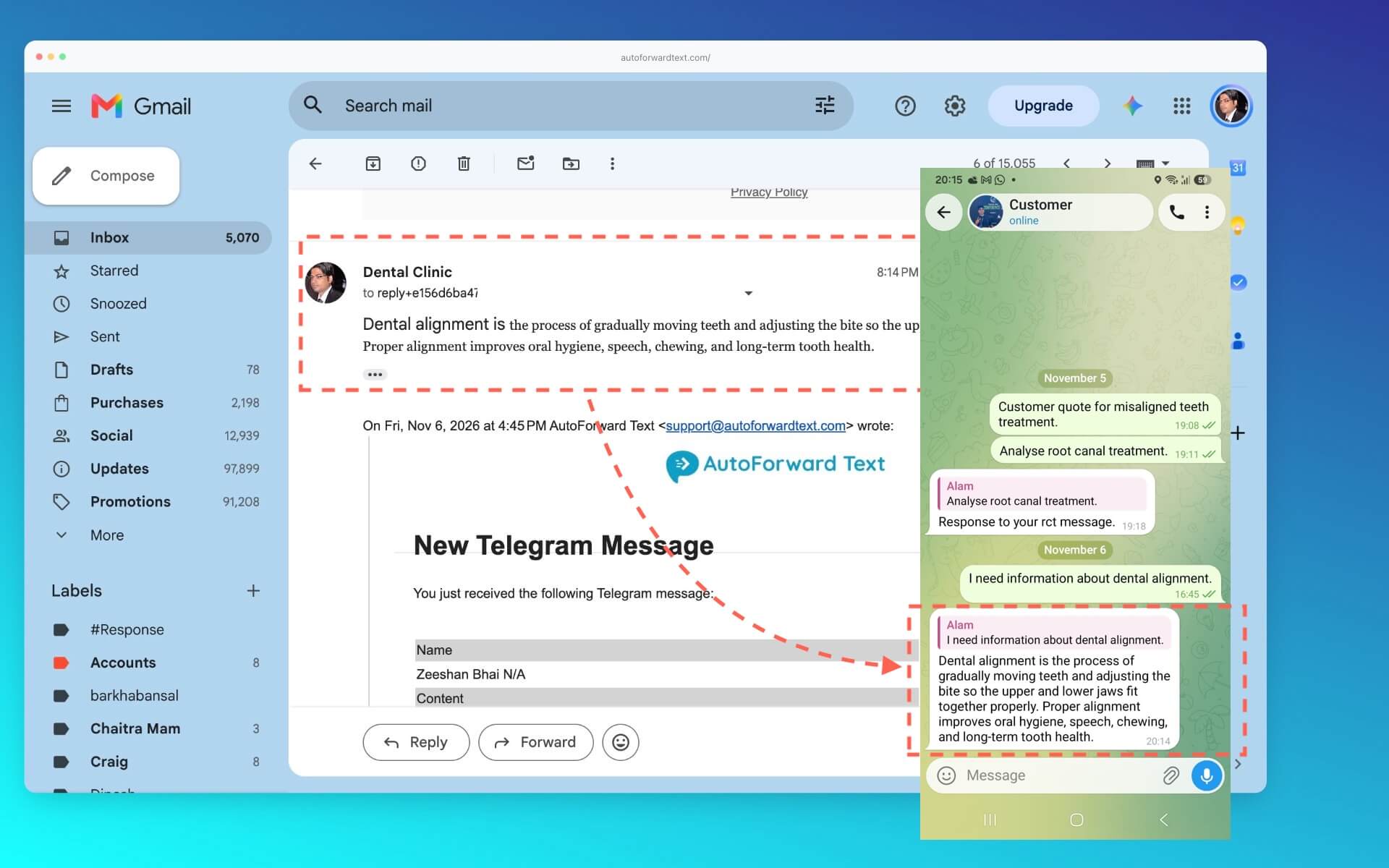
Tip: Reply to the original forwarded email rather than composing a new message. Keep your Telegram account connected and test the complete round trip before using the workflow with customers.
Forward Telegram Images, Videos, PDFs, and Voice Notes to Email
One advantage of forwarding Telegram to email rather than WhatsApp is attachment handling. The Telegram-to-email workflow has been tested with images, videos, PDFs, voice notes, and multiple attachments.
| Telegram content | Email forwarding | What to verify |
|---|---|---|
| Text messages | Supported | Message body, sender, and source chat |
| Images | Supported | Image opens at the destination |
| Videos | Supported | File size and recipient mailbox limits |
| PDFs and documents | Supported | Attachment downloads and opens |
| Voice notes | Supported | Audio file can be played |
| Multiple attachments | Supported | All expected files arrive |
Attachment size matters: A successful test with a small file does not guarantee delivery of every file size. Email providers impose message and attachment limits, and forwarding services can impose their own limits. Test large files before depending on this workflow for them.
Forward Telegram Group and Channel Messages to Email
Telegram group messages to Gmail or Outlook
When a Telegram group generates updates your team needs to see, forwarding those messages to a monitored mailbox can reduce the need for everyone to join the group. For example, a field operations group can send updates into a shared email inbox used by an office coordinator.
Telegram channel posts to email
You can also forward incoming posts from Telegram channels to email. This can be useful for announcements, project updates, or other channel content you are authorized to redistribute.
Channel filtering rule: If sender/chat filtering is enabled, a channel must have an enabled, exact matching chat rule. A sender-only rule does not allow channel posts through.
Keep in mind that email forwarding sends a copy of new incoming content; it is not a historical export of every past Telegram message.
Control Forwarding With Sender, Chat, and Keyword Filters
Without filtering, a connected Telegram account may receive messages from many private conversations, groups, and channels. Not every one of those messages belongs in a shared email inbox.
| Filter | Purpose | Example |
|---|---|---|
| Sender rule | Allow incoming messages from a chosen Telegram sender | Updates from a particular team member |
| Chat rule | Allow incoming messages from a chosen chat, group, or channel | One operations group |
| Keyword filter | Forward messages that match configured words | “urgent”, “order”, or “booking” |
In the updated dashboard, clicking a sender name can create a sender rule, while a Filter link beside a chat can create a chat rule. The Filters control manages rules and enables or disables sender/chat filtering.
When sender/chat filtering is enabled, messages matching an enabled sender or chat rule are eligible for forwarding. Nonmatching incoming messages remain in the logs as Filtered by rule. Outgoing Telegram messages are not forwarded.
Test before using with real data: The new sender/chat filters have passed PHP syntax and helper tests, but live webhook and UI verification were not yet completed at the time this guide was drafted. Do not assume a rule protects confidential chats until you confirm it in the actual dashboard and logs.
What Does a Forwarded Telegram Email Look Like?
A forwarded email includes the original Telegram sender and the source chat, so a recipient can identify where the message originated. Supported files are delivered as email attachments.
Illustrative example (not an exact product screenshot):
Source chat: Project Updates
Telegram sender: Alex
Message: The revised project brief is ready for review.
Attachment: project-brief.pdf
This context matters when multiple Telegram conversations feed one inbox. Without the sender and chat information, email recipients could struggle to tell which group or person originated an update.
Forwarded emails also support replies: click Reply in your email client to send a response back to the original Telegram chat. You can alternatively reply through the AutoForward Text unified inbox.
When Telegram-to-Email Forwarding Is Useful
Customer enquiries
Route Telegram enquiries into a monitored business inbox so staff can read and reply to customers directly by email, without constantly switching to Telegram.
Operations and field teams
Send updates from Telegram groups to an office email inbox. Sender and chat information helps the recipient identify who posted the update.
Channel announcements
Forward relevant channel posts to an inbox used for internal updates or review. If you only want one channel, use an exact chat rule and test it.
Document handoffs
Deliver Telegram PDFs, photos, videos, and voice notes to email for easier review and handling. Check attachment limits before relying on large files.
Personal notifications
Receive Telegram messages in an email account you already monitor. If the connected Telegram account also has private conversations, configure and verify filters before forwarding to a shared mailbox.
Manual Forwarding vs. Automatic Telegram-to-Email
| Capability | Manual share or copy | AutoForward Text |
|---|---|---|
| Forward one message | Yes | Yes, as part of ongoing forwarding |
| Automatically forward new incoming messages | No | Yes |
| Group and channel content | Manual, one item at a time | Supported |
| Images, videos, PDFs, voice notes | Depends on manual sharing options | Tested with email |
| Reply to the original Telegram chat from email | Not automatically linked | Yes, using Reply on the forwarded email |
| Original sender and chat context | May require manual explanation | Included |
| Sender/chat and keyword filters | Manual selection | Available; verify new rules live |
| Works while phone offline | No manual action possible | Tested, while integrations stay connected |
Privacy and Account Access
Connect only a Telegram account you own or are authorized to manage. Forwarding messages to email creates additional copies of potentially private conversations, so choose destinations carefully.
- Use a mailbox that the intended recipients can access securely.
- Check whether the Telegram chats or channels contain confidential information before enabling broad forwarding.
- Test sender and chat rules with harmless sample messages before relying on them.
- Do not redistribute content from private groups or channels without appropriate permission.
- Review account connection status and forwarding logs periodically.
If you use a shared mailbox, consider who can view attachments and how long your email provider retains them.
Troubleshooting Telegram-to-Email Forwarding
No forwarded email arrives
Check that Telegram is connected, email forwarding is enabled, and the destination address is correct. Look in spam or junk, then check the AutoForward Text logs for the test message.
Some Telegram messages are missing
Check keyword filters and sender/chat rules. With sender/chat filtering enabled, unmatched messages are logged as Filtered by rule. Also remember that outgoing messages are excluded.
Channel posts are not being forwarded
When sender/chat filtering is enabled, add an enabled exact chat rule for the channel. A sender-only rule will not permit channel posts.
The email arrives without an expected attachment
Test with a small file of the same type. Check the recipient email provider’s size restrictions, the forwarding logs, and whether the original Telegram message contained the expected file.
Email replies are not reaching Telegram
Make sure you used Reply on the original forwarded email, rather than starting a new email. Check that the connected Telegram account is active and test the round trip with a conversation you control. Review any available forwarding or reply logs if delivery fails.
Messages stop arriving after working previously
Verify that the Telegram account remains connected and reconnect it if the dashboard indicates an expired session. Then send a fresh test message.
The sender or chat name is not what I expected
Review the source message and forwarding log. Telegram identities and group/channel labels may differ from saved contact names. Capture a fresh test example before relying on a specific display format.
Frequently Asked Questions
Can Telegram messages be automatically forwarded to email?
Yes. AutoForward Text can forward incoming Telegram messages to a configured email destination after you connect your Telegram account and enable forwarding.
Can I forward Telegram group messages to Gmail?
Yes. Connect Telegram to AutoForward Text and use your Gmail address as the forwarding destination. Group messages can be forwarded, and chat filters can limit which conversations are eligible.
Can I forward Telegram channel posts to email?
Yes. Channel posts can be forwarded to email. When sender/chat filtering is enabled, channels require an enabled exact chat rule.
Does Telegram-to-email forwarding include images and files?
In the tested AutoForward Text setup, images, videos, PDFs, voice messages, and multiple attachments can be forwarded to email. Delivery remains subject to attachment and provider size limits.
Will the email show the Telegram sender and chat?
Yes. The forwarded email includes both the original sender information and source chat identification.
Can I forward messages from just one Telegram group?
Sender and chat forwarding filters have been implemented. Enable filtering and allow the specific chat, then verify the rule in a live test before relying on it.
Do I need to keep my phone online?
The tested integration continues working when the phone is offline, provided the linked Telegram account and forwarding service remain connected.
Can I reply to Telegram messages?
Yes. Click Reply on a Telegram message forwarded to your email inbox, and AutoForward Text sends the response back to the original Telegram chat. You can also reply through the unified inbox.
Do I need to create a Telegram bot?
No. AutoForward Text connects a Telegram account through QR-based account linking; it does not require you to build your own Telegram bot.
Automatically Forward Telegram Messages to Email
Get Telegram messages, group updates, channel posts, and supported attachments in the inbox your team already uses—and reply to Telegram chats directly from email. Configure forwarding, verify your filters, and test with real messages.