How to Automatically Forward Texts from Your iPhone
Want your iPhone text messages to automatically appear inside your AutoForwardText account or be forwarded to email? You can set this up using Apple's built-in Shortcuts app — no additional App Store app required.
Setup usually takes less than 5 minutes.
Requirements
Before starting, make sure you have:
• An iPhone running iOS 15 or newer
• Apple's Shortcuts app (pre-installed on most iPhones)
• An AutoForwardText account
• Your AutoForwardText account email address
Step 1: Open Shortcuts
-
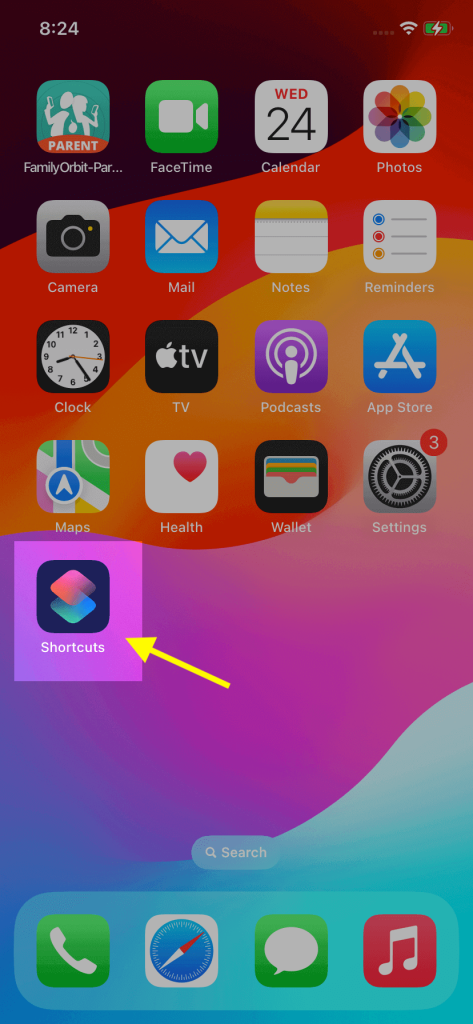
Open the Shortcuts app on your iPhone
-
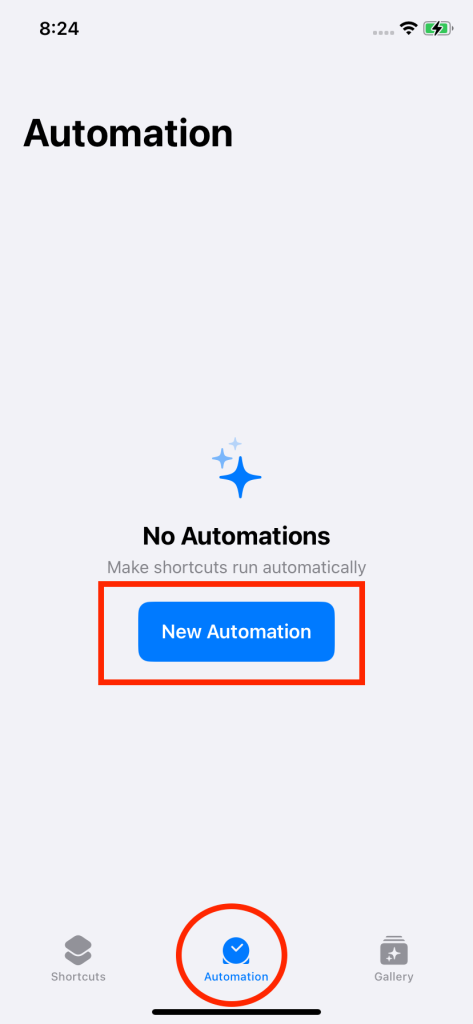
Tap Automation at the bottom
-
Tap +
-
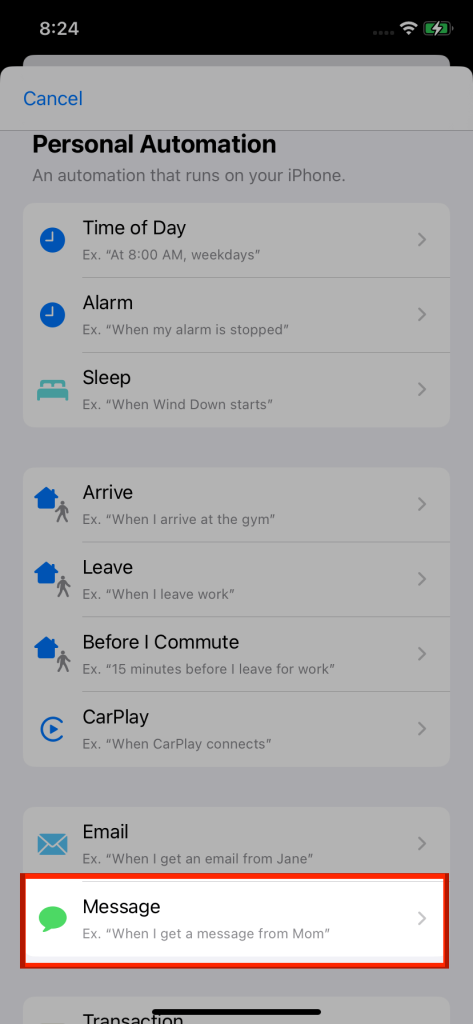
Select Create Personal Automation
-
Select Message
Step 2: Configure Message Trigger
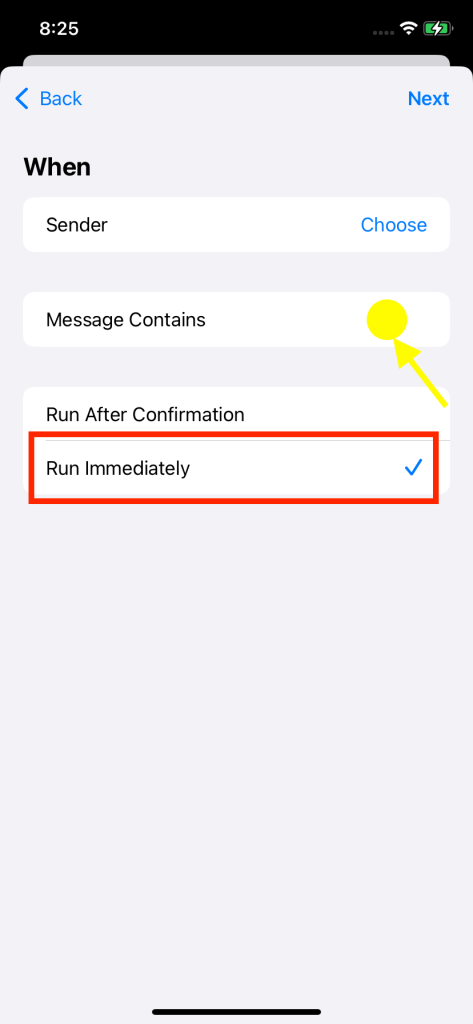
Configure the Message trigger:
Sender:
• Leave unchanged
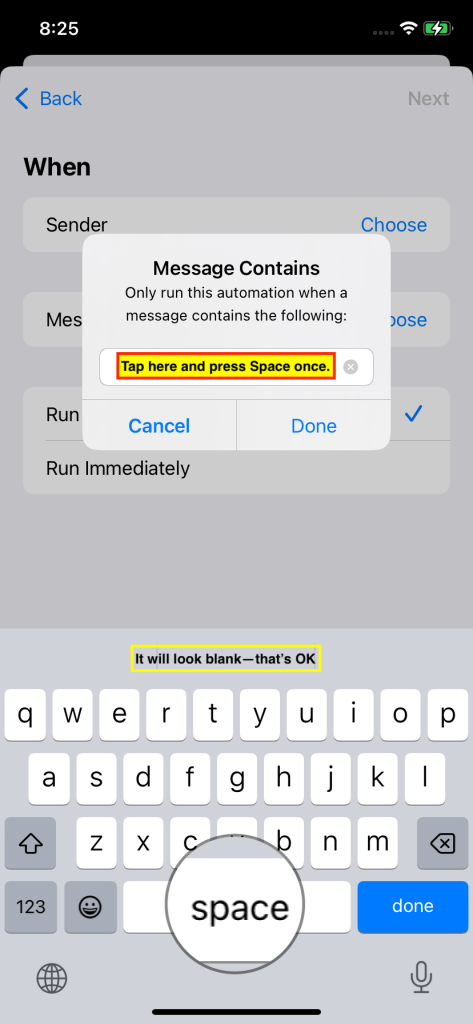
Message Contains:
• Tap the field
• Press the spacebar once
The field will appear blank — this is expected.
Run:
• Select Run Immediately
Tap Next
Why use a space?
Adding a single space helps the automation trigger for most normal text messages.
Since nearly all text messages contain spaces, incoming messages can be captured automatically.
Step 3: Add "Get Contents of URL"
-
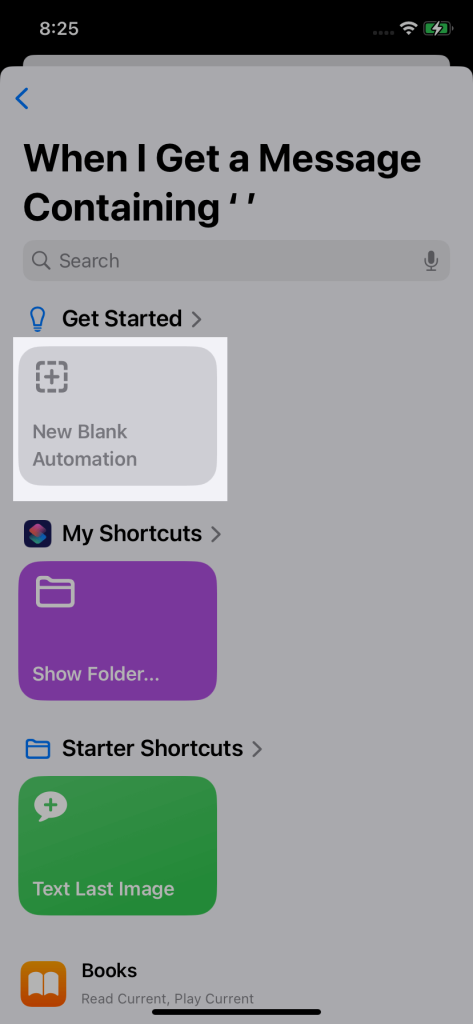
Tap New Blank Automation
-
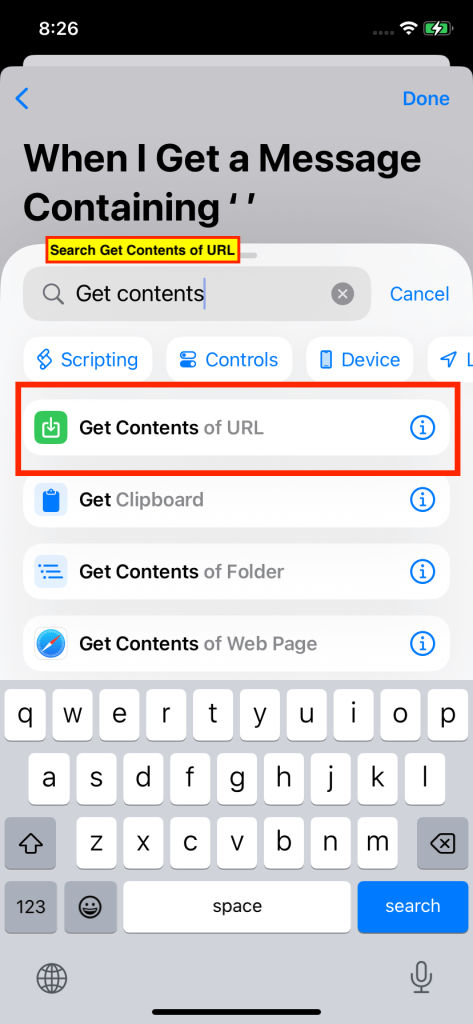
Search for:
Get Contents of URL
-
Select it
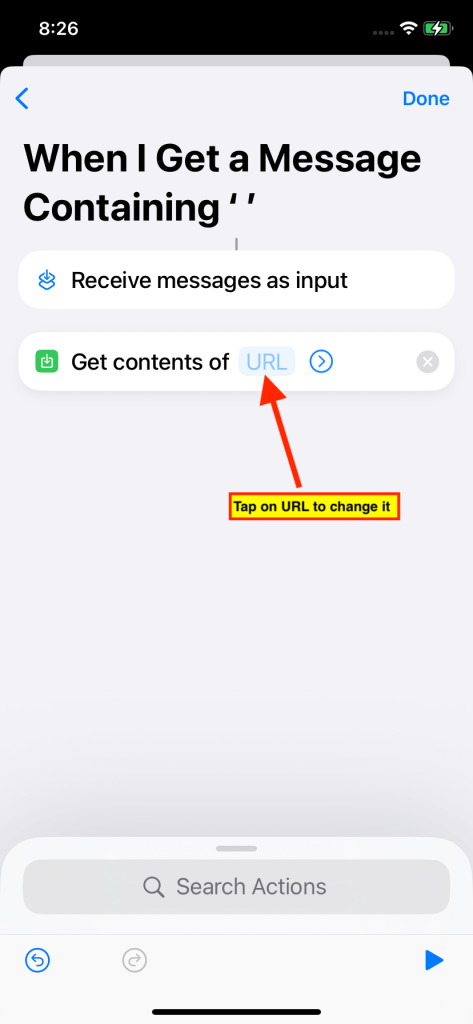
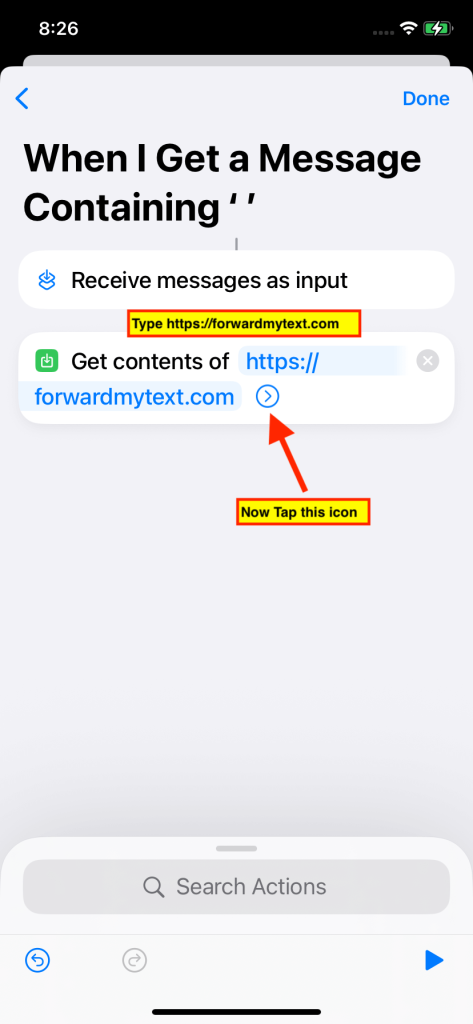
In the URL field enter:
https://forwardmytext.com
Step 4: Add Required Headers
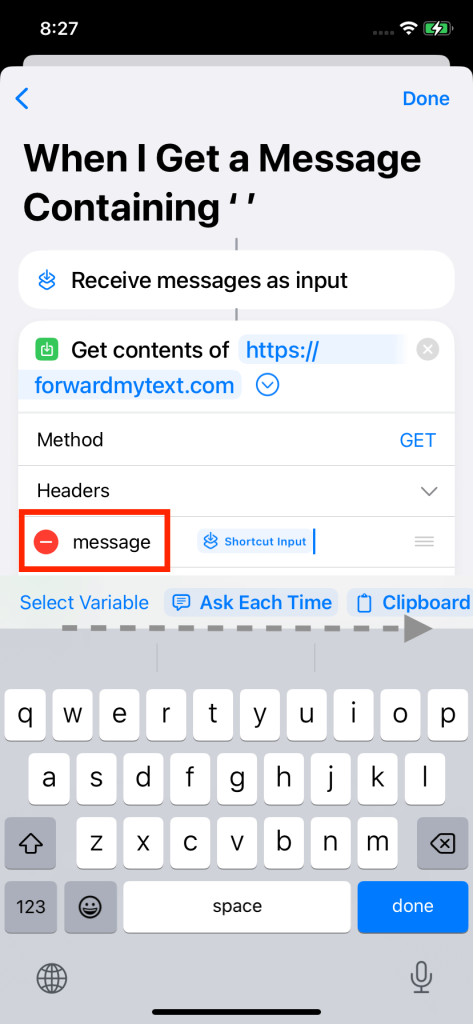
Tap the disclosure arrow on the action and add the following headers:
Header 1:
Name:
Message
Value:
Select Shortcut Input
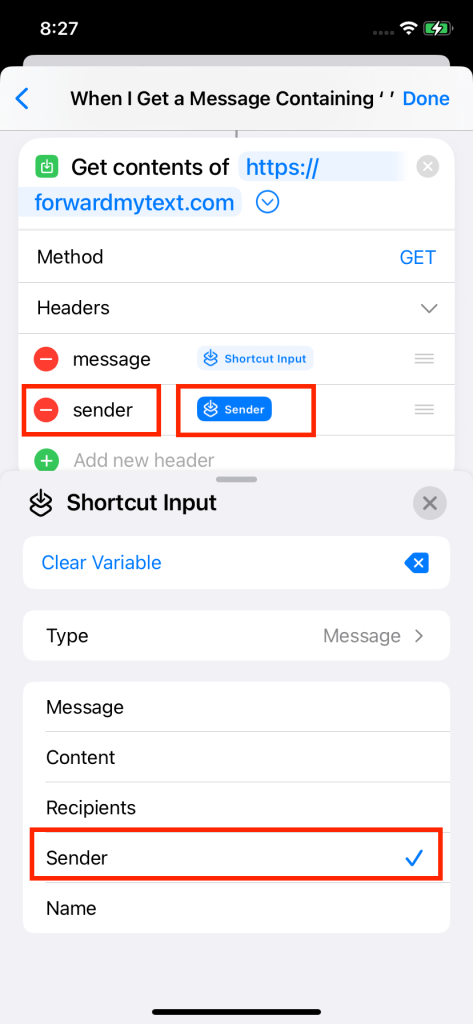
Header 2:
Name:
Sender
Value:
Select Sender
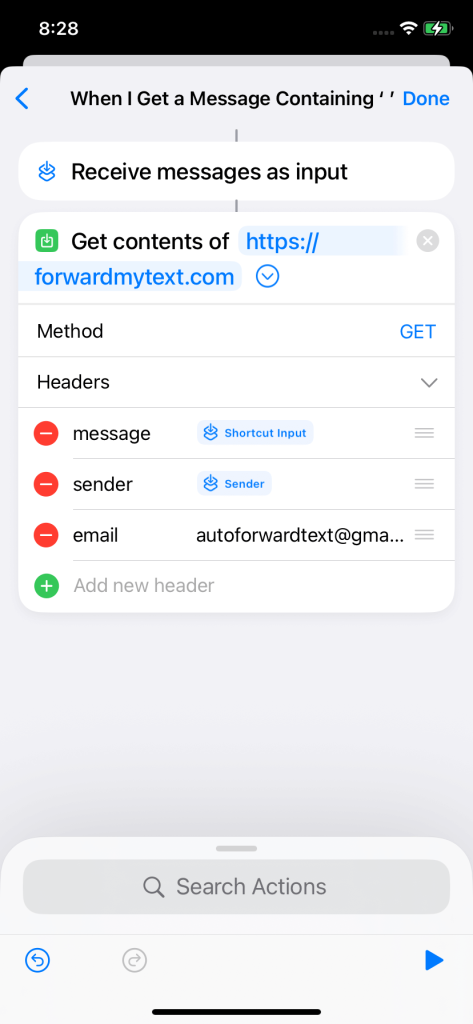
Header 3:
Name:
Email
Value:
Enter your AutoForwardText account email address
Example:
john@example.com
Step 5: Save the Automation
Tap:
Done
Your automation is now active.
You can close the Shortcuts app.
Step 6: Test Your Setup
Send yourself a text message from another phone.
If setup is successful:
• The Shortcut runs automatically
• Your message appears in your AutoForwardText dashboard
• Forwarding rules will run normally
Troubleshooting
Messages are not appearing
Check:
• Your AutoForwardText email address is entered correctly
• Run Immediately is enabled
• The Message Contains field contains one space
• Your internet connection is active
Shortcut is asking for permission every time
Open your automation and verify:
• Run Immediately is enabled
• Confirmations are disabled if prompted
I accidentally deleted the Shortcut
Repeat the setup steps above and recreate the automation.
Frequently Asked Questions
Can I reply to messages from iPhone?
Direct SMS replies from AutoForwardText are not currently supported on iPhone.
Can I forward messages to email?
Yes. After your iPhone is connected, create a forwarding rule from your dashboard and select Email as the destination.
Does this run in the background?
Yes. Once configured, the automation runs automatically.
Still need help? Contact support.