Want your SMS messages saved in Gmail so they are searchable, archived, and easy to access from any device?
That is a common problem. Text messages often contain important information: customer requests, appointment confirmations, delivery alerts, bank notifications, one-time passwords, work updates, and conversations you may need later.
The problem is that SMS messages usually stay trapped on one phone. If the phone is lost, damaged, replaced, or simply not nearby, those messages become harder to access.
This is why people search for SMS backup to Gmail. But here is the important part: there are two different things people usually mean by that phrase.
There are two types of SMS backup to Gmail:
- Backing up old SMS messages that are already stored on your phone.
- Automatically forwarding new SMS messages to Gmail as they arrive.
If you want to export years of old text messages, you may need a traditional SMS backup app. But if you want every incoming text message automatically copied to Gmail, AutoForward Text is the cleaner solution.
And now, it is not just a one-way backup. With AutoForwardText, you can also reply to forwarded SMS messages, so your Gmail inbox can become a simple place to read and respond to important texts.
Quick Answer: Best Way to Back Up SMS to Gmail
The best method depends on what you are trying to do.
| Goal | Best Option | Why |
|---|---|---|
| Save new SMS messages to Gmail automatically | AutoForward Text | Forwards incoming SMS messages to Gmail or any email address in real time. |
| Export old SMS history | SMS backup/export app | Better for creating backup files or exporting existing messages. |
| Move SMS to a new Android phone | Android backup or SMS restore tool | Useful for phone migration, but not a Gmail inbox archive. |
| Read SMS from computer | Google Messages for Web | Convenient for desktop access, but not a Gmail backup. |
| Backup iPhone SMS to Gmail | Limited Shortcuts/export workflows | iPhone does not allow full background SMS access like Android. |
For most business and operational use cases, the strongest answer is not an old-fashioned backup file. It is automatic forwarding to Gmail, because every new message becomes searchable and accessible without waiting for a manual export.
The fastest way to back up new SMS messages to Gmail is to forward them automatically using AutoForward Text. New incoming SMS messages can be sent to your Gmail inbox, and when reply support is enabled, you can respond to the original sender without switching back to the phone.
Fastest Method
Use AutoForward Text to forward incoming SMS messages from your Android phone directly to Gmail, Outlook, a shared inbox, another phone, Slack, or your own webhook.
Start SMS Backup to GmailWhat Does SMS Backup to Gmail Actually Mean?
People use the phrase SMS backup to Gmail in different ways. That is why many tutorials online feel confusing or outdated.
Some users want to take existing SMS messages from their phone and store them somewhere safe. Others want every new SMS message to arrive in Gmail automatically, almost like an email copy of each text.
Old SMS Backup
This means exporting messages that already exist on your phone. It is useful when you are changing phones, saving a personal archive, or keeping a copy of past conversations.
The downside is that old SMS backups are usually not real-time. You may need to manually run a backup, store a file, restore it later, or manage app permissions.
Real-Time SMS Backup to Gmail
This means new incoming SMS messages are automatically sent to your Gmail account as they arrive.
Basic flow:
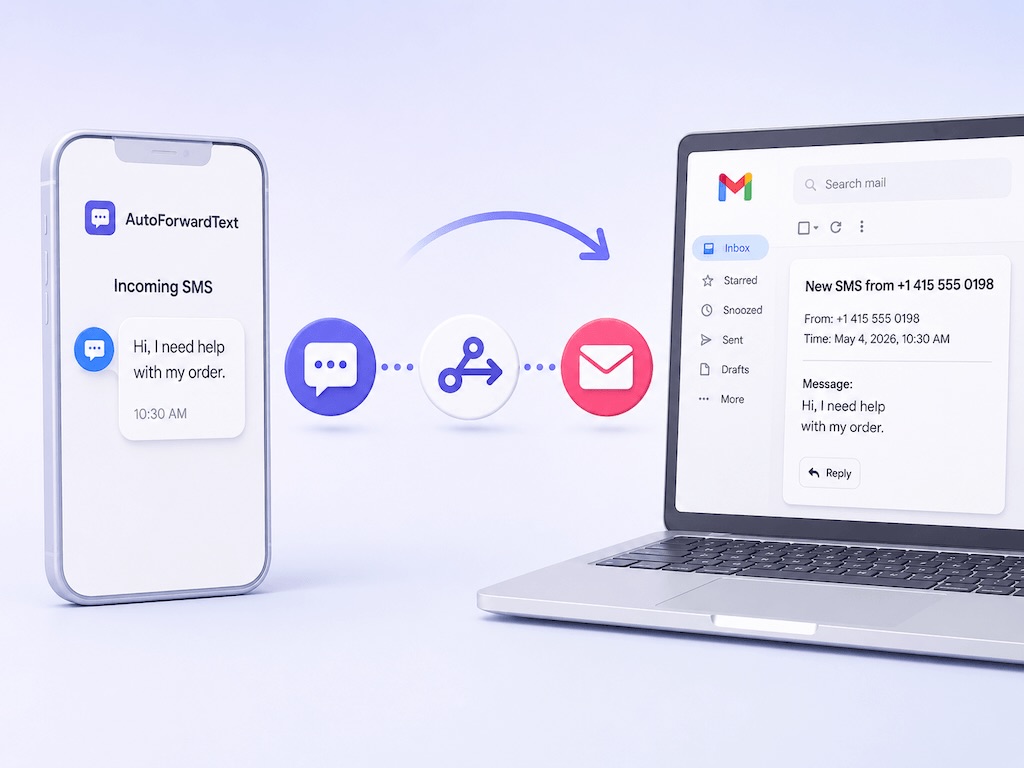
Incoming SMS Message → AutoForward Text → Gmail Inbox
This is better when you want a live, searchable SMS archive inside Gmail. It is also better for business workflows because you do not need to touch the phone every time a message arrives.
Can Android Back Up SMS to Gmail Natively?
Not in the way most people mean.
Android can back up SMS messages as part of a Google account device backup. That can help when restoring a phone or moving to a new Android device.
But that does not mean your SMS messages appear inside Gmail as normal emails. You cannot simply open Gmail and search your text messages the same way you search an email thread.
Important: Android backup is mainly for device restore. SMS-to-Gmail forwarding is for creating a readable, searchable email copy of incoming text messages.
So if your real goal is “I want every new SMS saved in Gmail,” you need an SMS forwarding tool rather than relying only on Android’s built-in backup.
Method 1: Forward New SMS Messages to Gmail Automatically
The most practical way to create a live SMS backup in Gmail is to automatically forward incoming SMS messages to your email address.
This is where AutoForward Text fits well. It is designed to forward messages from an Android phone to email and other destinations without manually copying each text.
What AutoForward Text Can Do
- Forward incoming SMS messages to Gmail or any email address.
- Forward SMS messages to another phone number.
- Forward SMS alerts to Slack.
- Send SMS data to a webhook or custom API endpoint.
- Use filters and rules for better control.
- Forward messages from one or multiple Android devices.
For Gmail backup, the biggest benefit is simple: every new text can become an email record.
That message can then be searched, labeled, forwarded, archived, or shared like any other email.
How to Set Up SMS Forwarding to Gmail
The setup is straightforward. The exact screen labels may vary slightly depending on your dashboard version, but the workflow is simple.
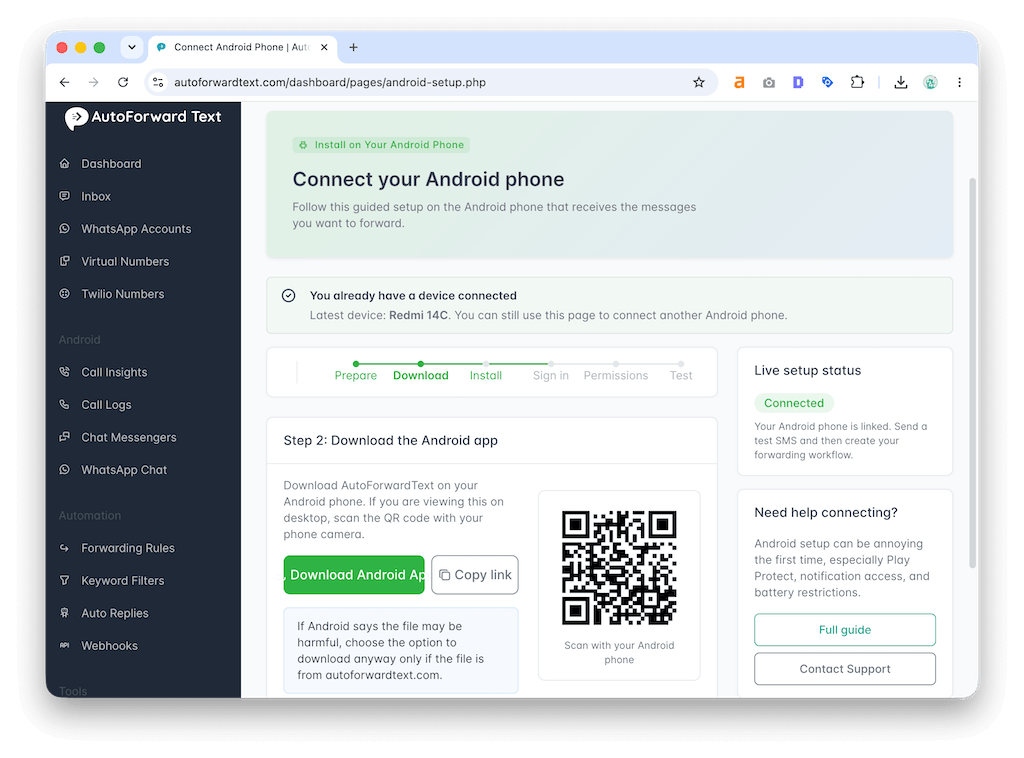
Step 1: Install AutoForward Text on the Android Phone
Install the AutoForward Text app on the Android phone that receives the SMS messages you want to back up.
This phone is the source device. When it receives a text message, AutoForward Text can process that message and send a copy to your selected destination.
Step 2: Grant the Required Permissions
SMS forwarding requires access to incoming text messages. Make sure the app has the required permissions so it can detect and forward new SMS messages.
Tip: If SMS forwarding is not working, permissions are usually the first thing to check. Battery optimization settings can also affect background forwarding on some Android devices.
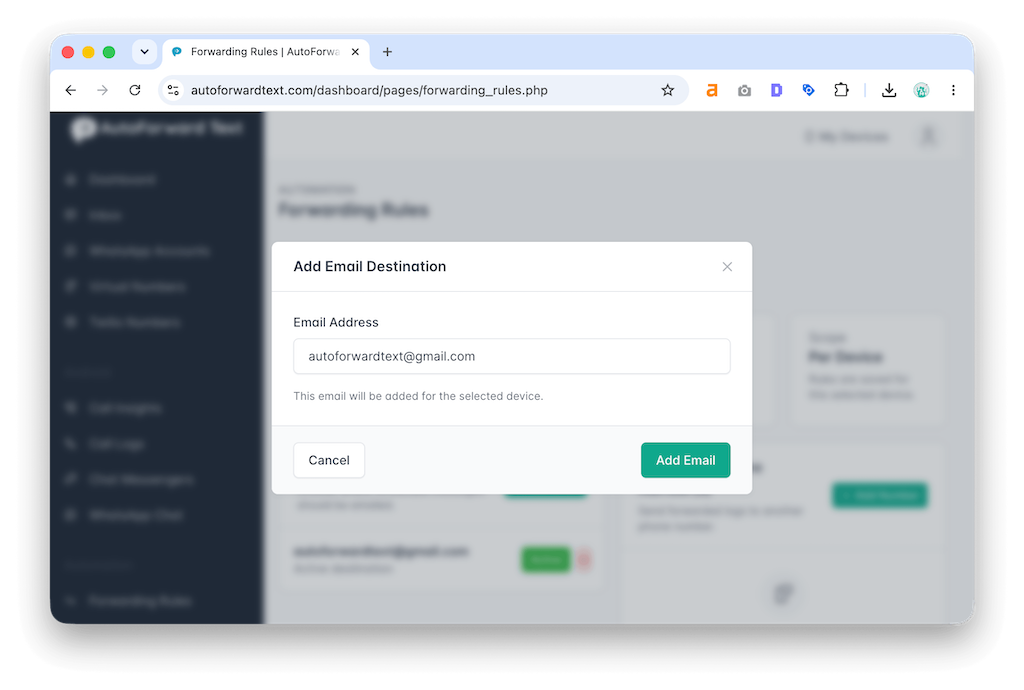
Step 3: Add Your Gmail Address
Inside the AutoForward Text dashboard, choose email as the forwarding destination and enter your Gmail address.
You can use a personal Gmail account, a business Gmail account, or a shared inbox if your team needs access.
Step 4: Create Your Forwarding Rule
Create a rule that tells AutoForward Text what to do when a new SMS message arrives.
For a basic Gmail backup, the rule can be simple:
All incoming SMS messages → Forward to Gmail
For more control, you can create rules for specific senders, keywords, alerts, or message types.
Step 5: Test With an Incoming SMS
Send a test SMS to the Android phone and check your Gmail inbox.
If the message appears in Gmail, your SMS backup workflow is working.
Step 6: Organize Messages in Gmail
Once messages start arriving in Gmail, you can organize them using Gmail filters and labels.
- Create a label called SMS Backup.
- Filter forwarded SMS messages into that label.
- Archive them automatically if you do not want inbox clutter.
- Star or forward important messages to your team.
This turns Gmail into a searchable SMS archive instead of a messy notification dump.
Reply to SMS Messages from Gmail
Backing up SMS messages to Gmail is useful, but replying from the same inbox is even better.
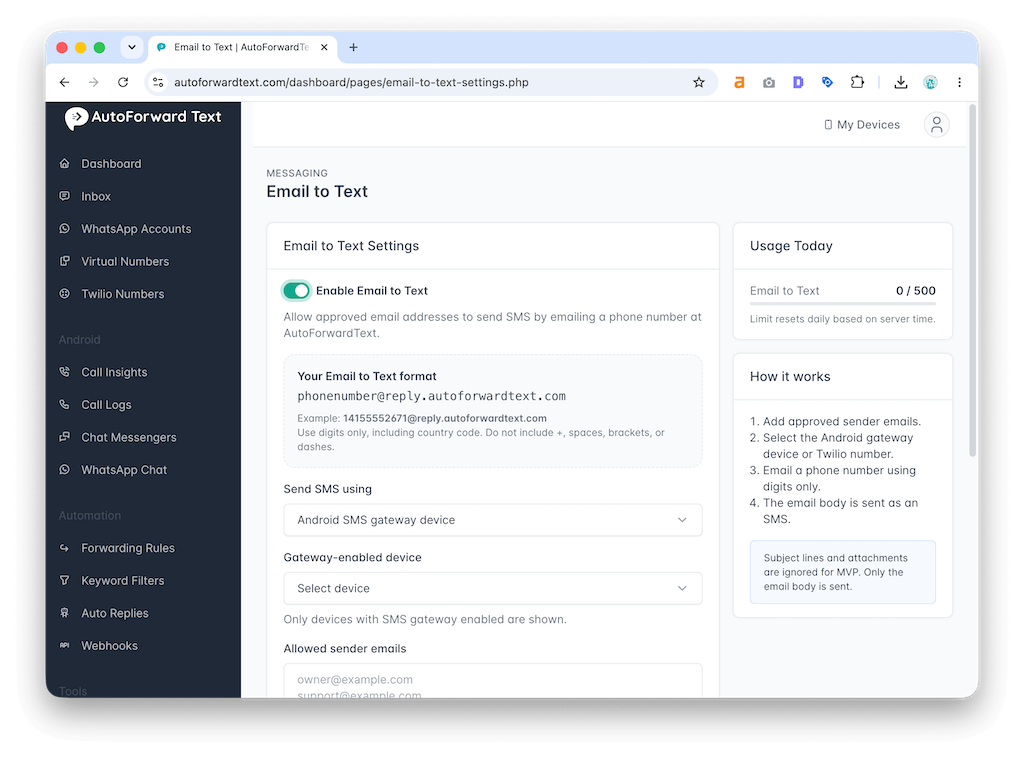
With AutoForward Text, forwarded SMS messages can include reply support. That means when a text message is forwarded to your Gmail inbox, you can reply to that email and have the response sent back as an SMS to the original sender.
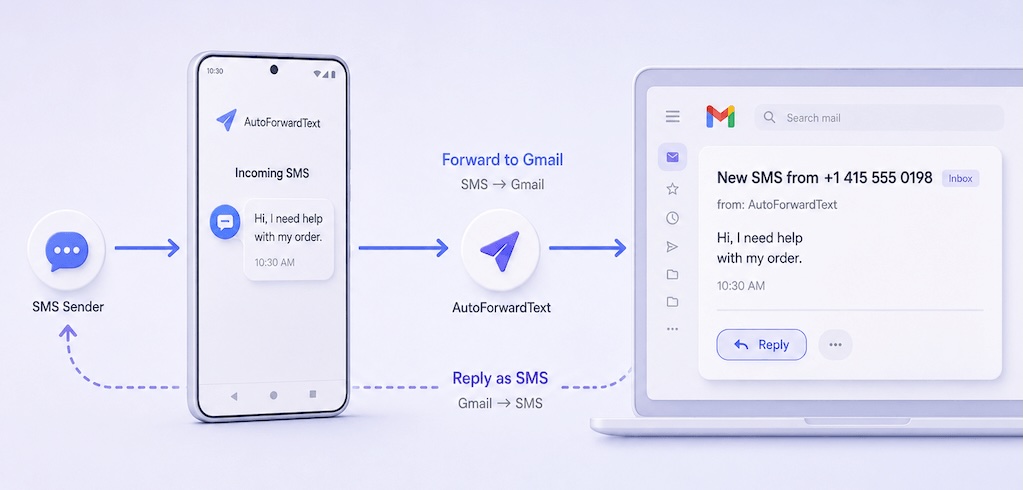
Basic reply flow:
Incoming SMS → Gmail Forward → Email Reply → SMS Sent Back to Sender
This turns Gmail into a lightweight SMS inbox. You can read the incoming message, keep a searchable copy, and reply from your computer or email app.
Why This Is Useful
- Reply to customer texts from Gmail
- Respond from a laptop instead of picking up the Android phone
- Keep the original message and reply history inside the email
- Let staff handle SMS conversations from a shared inbox
- Reduce missed replies when the phone is not nearby
Important: SMS reply support depends on your forwarding setup and sending channel. For Android device gateway replies, the connected Android phone must remain online and properly configured.
Save New SMS Messages to Gmail Automatically
AutoForward Text helps you create a live SMS-to-Gmail backup without manually exporting messages or checking the phone all day.
Try AutoForward TextMethod 2: Use an SMS Backup App
Traditional SMS backup apps are useful when your goal is to save old text messages that are already on the phone.
These tools usually create a backup file, export conversations, or sync messages into a storage location. Some older workflows were designed around saving messages into Gmail labels through IMAP-style access.
When SMS Backup Apps Make Sense
- You want to export old SMS conversations.
- You are switching to a new phone.
- You want a one-time backup file.
- You need to restore messages later.
- You do not need real-time Gmail copies of new messages.
Where They Fall Short
The downside is that many backup apps are built around archive and restore, not live business workflow.
That means they may not be ideal if you want incoming messages to appear in Gmail immediately, trigger alerts, route messages to a team, or send SMS data to a webhook.
| Need | Traditional Backup App | AutoForward Text |
|---|---|---|
| Export old messages | Good fit | Not the main use case |
| Forward new SMS to Gmail | Limited or inconsistent | Strong fit |
| Reply from Gmail | Not usually supported | Supported when reply handling is enabled |
| Business alerting | Limited | Strong fit |
| Webhook/API routing | Usually no | Yes |
| Restore SMS to phone | Often yes | No |
So the choice is not really “which app is best?” The better question is: do you want to export old messages, or do you want an automatic Gmail copy of new messages going forward?
If you want SMS backup to Gmail with reply support, AutoForwardText is a better fit than a basic backup-only app.
Method 3: Use Android Google Backup
Android’s built-in Google backup can help save some device data, including SMS messages, for restore purposes.
This is useful if you are replacing a phone or restoring your data after a reset.
Best For
- Moving to a new Android phone.
- Recovering messages after a device reset.
- Keeping a basic device-level backup.
Not Best For
- Searching SMS messages inside Gmail.
- Forwarding messages to a team inbox.
- Real-time SMS alerts.
- Business record keeping.
- Webhook or Slack routing.
Google backup is helpful, but it does not replace SMS forwarding to Gmail.
Method 4: Use Google Messages for Web
Google Messages for Web lets you read and send text messages from a browser when your Android phone is connected.
This is useful if you want desktop access to your SMS inbox.
But it is not the same as SMS backup to Gmail. Messages for Web does not create email copies of your SMS messages, does not organize them inside Gmail, and does not create a separate searchable Gmail archive.
Simple difference:
Google Messages for Web = access your SMS from browser
SMS forwarding to Gmail = save incoming SMS as email records
If you only want to reply to texts from a computer, Messages for Web may be enough. If you want Gmail backup and archive, use forwarding.
Can you back up SMS to Gmail on iPhone?
iPhone is more limited than Android for this use case.
Apple does not allow normal third-party apps to read your full SMS database in the background the same way Android apps can. That means full automatic SMS backup to Gmail is not simple on iPhone.
You may be able to use Apple Shortcuts for some forwarding-style workflows, but it is not the same as a complete Android-style SMS backup system.
Important: If your main goal is automatic SMS-to-Gmail backup, Android is the stronger platform. iPhone workflows are more limited and may require manual steps or Shortcuts-based automation.
That does not mean iPhone users have no options. It just means expectations need to be realistic. For fully automatic SMS forwarding to Gmail, Android gives you more control.
SMS Backup to Gmail for Businesses
For personal use, SMS backup is usually about saving memories or keeping copies of important conversations.
For business use, it is more serious.
Businesses receive SMS messages for sales leads, appointment reminders, customer support, delivery alerts, payment notifications, verification codes, and internal operations. If those messages stay on one phone, the business has a visibility problem.
Business Problems SMS-to-Gmail Backup Solves
- The owner receives all SMS messages but the team cannot see them.
- A shared business phone receives customer texts after hours.
- Important OTPs or account alerts need to be archived.
- Customer conversations need to be searchable later.
- Remote staff need access to incoming messages without holding the phone.
- SMS messages need to be routed into email, Slack, or internal systems.
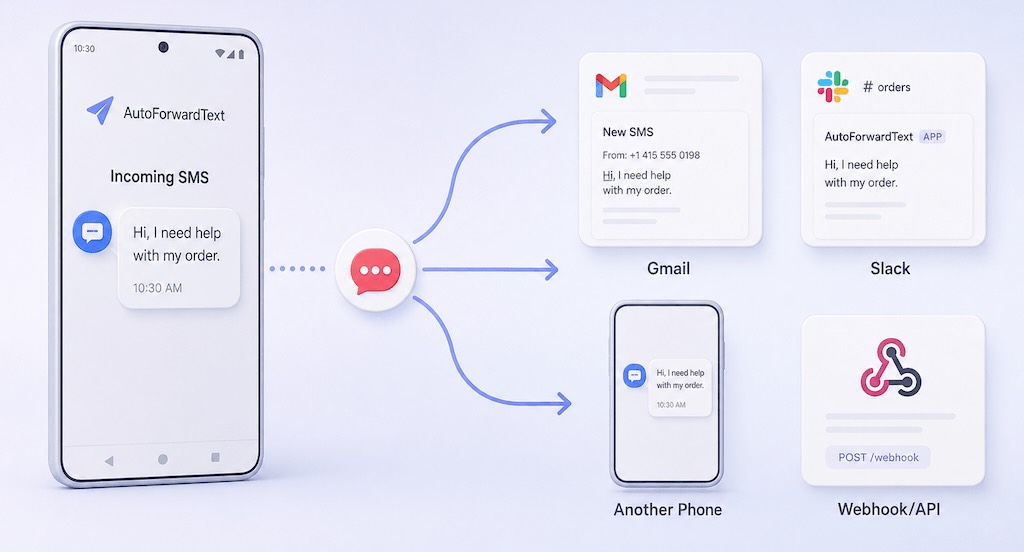
This is where AutoForward Text becomes more than a backup tool. It becomes a simple SMS routing layer.
Business workflow example:
Customer SMS → Gmail Backup + Slack Alert + Webhook to CRM
That is a much better workflow than hoping one person checks one phone at the right time.
For businesses, the reply feature matters because SMS forwarding becomes more than an archive. A team member can receive a customer text in Gmail, reply from the inbox, and keep the conversation record in one place.
SMS Backup App vs SMS Forwarding to Gmail
This is the easiest way to decide which method you need.
| Feature | SMS Backup App | SMS Forwarding to Gmail |
|---|---|---|
| Saves old messages | Usually yes | Usually no |
| Saves new messages automatically | Sometimes | Yes |
| Messages appear in Gmail inbox | Depends on the app/setup | Yes |
| Good for real-time alerts | Limited | Yes |
| Good for business workflows | Limited | Yes |
| Can forward to Slack/webhook | Usually no | Yes |
| Can restore SMS to phone | Often yes | No |
| Best for | Migration and archives | Live Gmail backup and message routing |
If you need a one-time copy of old messages, use a backup app. If you need new messages saved to Gmail automatically, use AutoForward Text.
Best Use Cases
SMS-to-Gmail backup is useful whenever text messages should not be trapped on a single phone.
1. Backup OTP and Verification Messages
Some teams use a dedicated phone number for account logins, bank alerts, utility portals, and two-factor authentication codes.
Forwarding these messages to Gmail can make access easier, but be careful. OTP messages are sensitive and should only be forwarded to secure email accounts.
Security note: If you forward OTP messages to Gmail, protect that Gmail account with strong authentication. Do not forward sensitive codes to public or loosely shared inboxes.
2. Save Customer SMS Conversations
If customers text your business phone, Gmail backup gives you a searchable record of incoming requests, complaints, bookings, and follow-ups.
3. Archive Appointment and Booking Messages
Clinics, salons, repair shops, consultants, and local businesses often receive appointment-related SMS messages. Forwarding those texts to Gmail helps keep records organized.
4. Monitor Delivery and Operations Alerts
Delivery updates, driver messages, vendor alerts, and logistics notifications are easier to manage when they are copied into email or routed to a team.
5. Keep a Searchable SMS Record
Gmail search is one of the biggest benefits. Instead of scrolling through a phone inbox, you can search by sender, keyword, date, customer name, or message content.
6. Forward SMS From Multiple Android Phones
If your business uses multiple devices, each phone can forward important SMS messages to the same Gmail account or to separate inboxes depending on your rules.
Privacy and Security Tips
SMS messages can contain sensitive information, so do not treat SMS backup casually.
- Only forward messages from phones you own or are authorized to manage.
- Use a secure Gmail account with strong password protection.
- Enable two-factor authentication on Gmail.
- Use Gmail labels and filters to organize SMS backups.
- Avoid forwarding bank alerts or OTPs to shared inboxes unless absolutely necessary.
- Review who has access to the destination email account.
- Delete old message backups when you no longer need them.
- For business use, follow your local privacy and consent requirements.
Used properly, SMS forwarding is useful. Used carelessly, it can expose private information. Set it up like a business system, not a random hack.
Frequently Asked Questions
Can I back up SMS to Gmail automatically?
Yes. On Android, you can automatically forward new incoming SMS messages to Gmail using AutoForward Text. This creates a live email copy of new messages as they arrive.
Does Google automatically save SMS to Gmail?
No. Android can back up SMS messages for device restore, but that does not make your SMS messages appear inside Gmail as searchable email conversations.
What is the best way to back up SMS to Gmail?
If you want to save new SMS messages to Gmail automatically, SMS forwarding is usually the best method. If you want to export old messages already on your phone, use a traditional SMS backup app.
Can AutoForward Text back up old SMS messages?
AutoForward Text is mainly designed to forward new incoming SMS messages to Gmail, email, another phone, Slack, or webhooks. For old historical SMS messages, use an export or backup app first.
Can I forward SMS to Gmail from Android?
Yes. Install AutoForward Text on the Android phone, create an email forwarding rule, add your Gmail address, and test with an incoming SMS message.
Can I back up SMS to Gmail from iPhone?
Yes, but with some restrictions. iOS limits background access to SMS messages, so full automatic SMS-to-Gmail backup is much harder on iPhone. Shortcuts may help with limited workflows, but Android is better for this use case.
Can I reply to SMS messages from Gmail?
Yes. With AutoForwardText reply support, forwarded SMS messages can be replied to from your email inbox, and the reply can be sent back as an SMS to the original sender.
Does SMS backup to Gmail support two-way messaging?
Traditional SMS backup tools are usually one-way. AutoForwardText is different because it can forward incoming SMS messages to Gmail and also support replies, depending on your setup.
Do I need the Android phone to be online to reply?
For Android gateway-based replies, yes. The connected Android phone needs to stay powered on, connected to the internet, and properly configured so AutoForwardText can send the reply back as SMS.
Can I forward SMS messages to a shared Gmail inbox?
Yes. You can forward SMS messages to a shared business email address or Google Workspace inbox so multiple team members can see important texts.
Can I back up SMS from multiple phones to one Gmail account?
Yes. With a device-based setup, multiple Android phones can forward incoming SMS messages to one Gmail account or to different email addresses based on your rules.
Can SMS messages be forwarded to destinations other than Gmail?
Yes. AutoForward Text can forward SMS messages to email, another phone number, Slack, WhatsApp workflows, or a custom webhook/API endpoint depending on your setup.
Is SMS forwarding to Gmail good for business records?
Yes, especially for businesses that receive customer texts, appointment requests, alerts, or verification messages. Gmail makes those messages searchable and easier to share internally.
Do I need coding to back up SMS to Gmail?
No. With AutoForward Text, you can configure SMS-to-Gmail forwarding from a dashboard without building your own SMS automation system.
Final Thoughts
SMS backup to Gmail sounds simple, but the right method depends on what you actually need.
If you want to export old text messages from your phone, use a traditional SMS backup app. That is the right tool for migration, restore, and one-time archives.
But if you want new SMS messages saved to Gmail automatically, forwarding is the better workflow.
With AutoForward Text, incoming SMS messages can be copied to Gmail in real time, giving you a searchable email record without manually exporting messages or checking one phone all day.
That is the real value: not just backup, but automatic SMS visibility.
Backup and Reply to SMS Messages from Gmail
AutoForwardText helps you forward incoming SMS messages from your Android phone to Gmail, keep a searchable email copy, and reply back to the original sender when reply support is enabled.
- Forward incoming SMS messages to Gmail or any email address
- Reply to forwarded SMS messages from your inbox
- Use filters for OTPs, customer texts, alerts, and keywords
- Forward SMS to Slack, another phone, or webhook/API endpoint