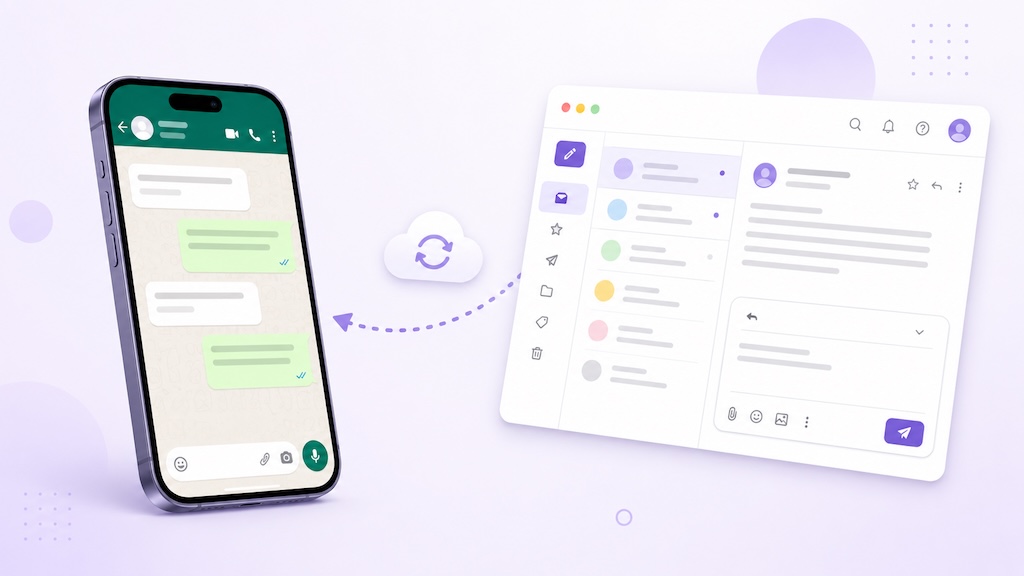
Forwarding WhatsApp messages to email is useful, but it still leaves one obvious problem: how do you reply without switching back to WhatsApp?
AutoForward Text lets you receive supported incoming WhatsApp messages in Gmail, Outlook, Microsoft 365, Apple Mail, or a shared inbox and reply directly from email.
Your response is then sent back through the connected WhatsApp account to the original individual or group chat.
Quick Answer: Can You Reply to WhatsApp from Email?
Yes. AutoForward Text can forward an incoming WhatsApp message to your email address and let you reply directly from that email.
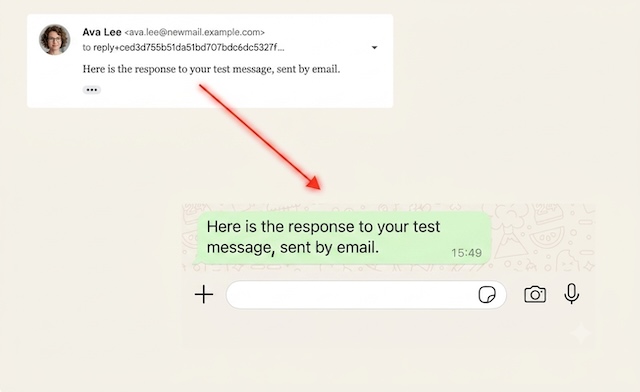
When you click Reply, AutoForward Text uses the secure reply address in the email to identify the correct WhatsApp account and original chat.
Your response is then sent back through WhatsApp. The recipient receives it as a normal WhatsApp message, not as an email or SMS.
Reply to WhatsApp Messages from Your Inbox
Connect your WhatsApp account, forward incoming messages to email, and send responses back from Gmail, Outlook, or a shared mailbox.
How WhatsApp Reply-by-Email Works
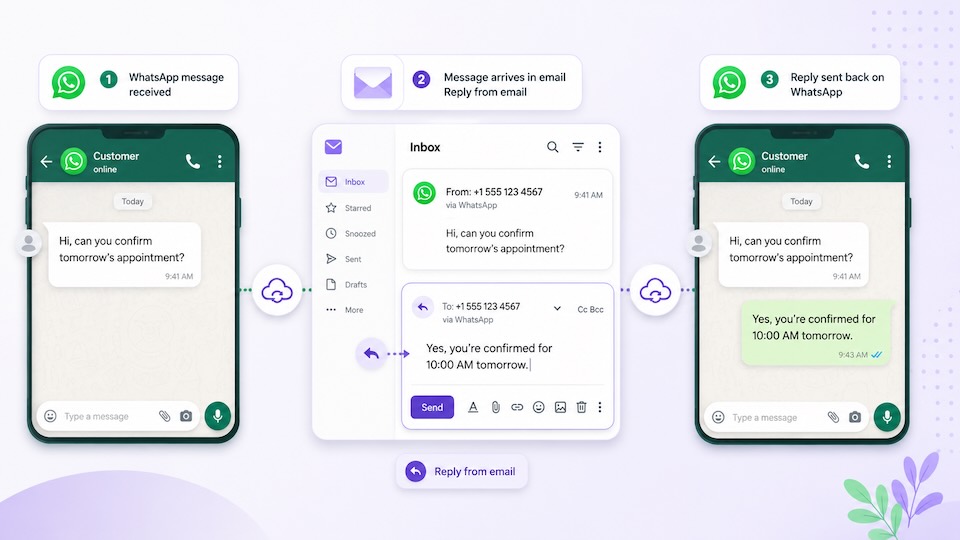
- A customer or contact sends a message to your connected WhatsApp account.
- AutoForward Text receives and records the incoming message.
- The message is forwarded to the email address configured for that WhatsApp account.
- You open the email and click Reply.
- You type your response and send the email normally.
- AutoForward Text identifies the original WhatsApp chat.
- The response is sent back through the connected WhatsApp account.
Example:
Incoming WhatsApp message → Email inbox → Email reply → Original WhatsApp chat
The original sender does not need to know that you answered from email. They simply receive the response inside WhatsApp.
Important: Reply to the forwarded email normally. Do not replace or manually edit the automatically generated reply address.
What Information Is Included in the Forwarded Email?
The forwarded email includes the main details needed to understand and answer the incoming WhatsApp message.
- The sender’s name
- The sender’s WhatsApp number
- The message content
- The date and time the message was received
- The message direction
- The connected WhatsApp account that received the message
The email subject also identifies the sender.
This is useful when a business has multiple WhatsApp accounts or several team members working from the same email inbox.
Media support may vary. Images, voice notes, videos, documents, stickers, and other attachments may not be included unless that media type is specifically supported. The original message will still remain visible in the AutoForward Text dashboard logs.
Why Reply to WhatsApp from Email?
Many businesses already manage customer communication from email. Support teams use shared inboxes, sales teams monitor lead mailboxes, and office staff spend most of the day in Gmail or Outlook.
Without reply-by-email, a forwarded WhatsApp notification is only an alert. Someone still has to open WhatsApp, find the original conversation, and type the response there.
Reply-by-email removes that extra step.
- Staff can respond from the inbox they already use
- The WhatsApp phone does not need to be passed around
- Remote team members can respond without physical access to the device
- Shared inboxes can be used for team visibility
- Messages are less likely to be forgotten
- Customer replies can be handled faster
How to Set Up WhatsApp Reply-by-Email
1. Sign In to AutoForward Text
Open your AutoForward Text dashboard.
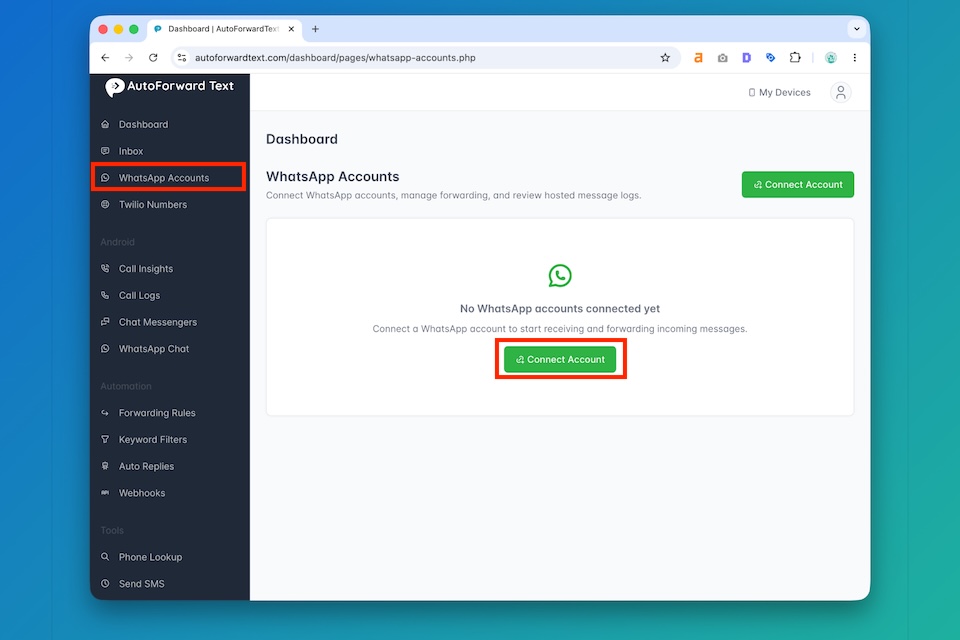
2. Open WhatsApp Accounts
Select WhatsApp Accounts from the account menu.
3. Connect Your WhatsApp Account
Add a WhatsApp account and complete the connection process. Scan the QR code when prompted.
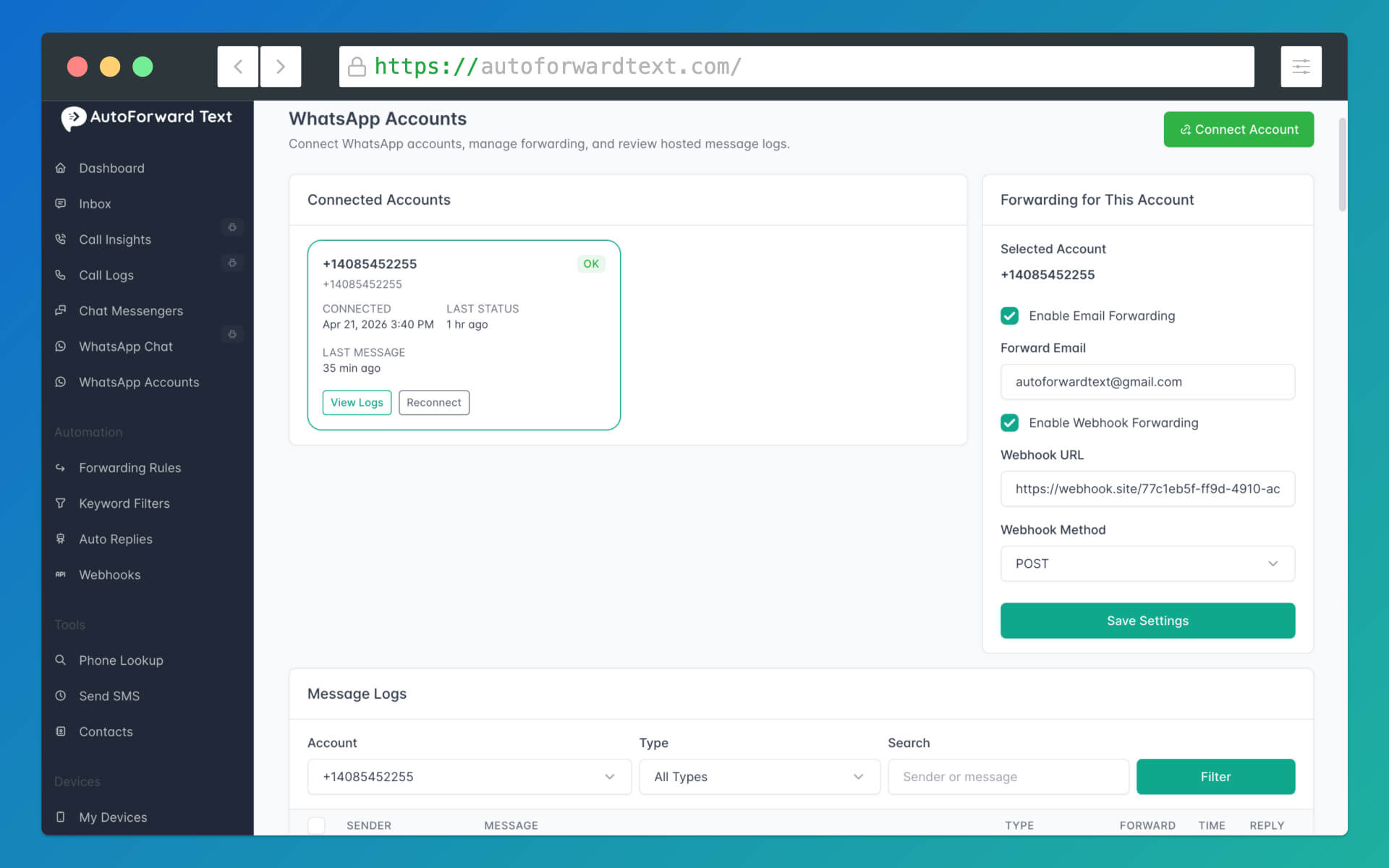
4. Enable Email Forwarding
Select or enter the email address that should receive incoming WhatsApp messages.
5. Send a Test WhatsApp Message
Send a message to the connected WhatsApp account from another number.
6. Open the Forwarded Email
Confirm that the forwarded email includes the sender details, message content, time, direction, and connected account.
7. Click Reply
Reply from the same email address that received the forwarded message.
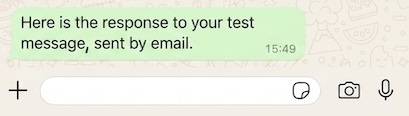
8. Confirm the WhatsApp Response
Your email response should appear in the original WhatsApp chat.
Do not compose a completely new email. Reply-by-email works by replying to the forwarded WhatsApp message because that email contains the secure conversation token.
How to Reply from the Dashboard
Email is not the only way to respond. Replies can also be sent directly from the AutoForward Text dashboard message logs.
Go to:
WhatsApp Accounts → Scroll down to view your messages
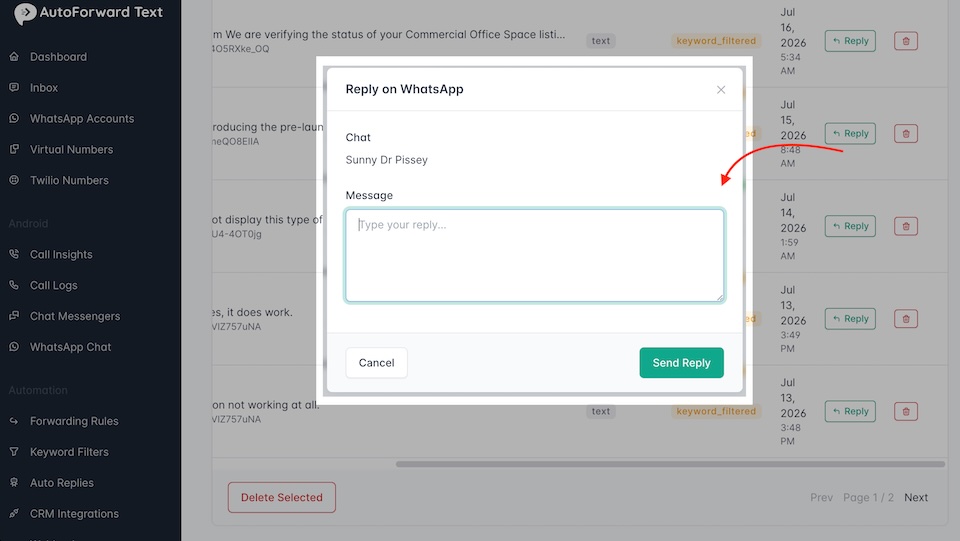
Scroll to the far right of the message table and click the Reply button next to the message you want to answer.
Your response will be sent back to the original WhatsApp chat.
Reply from Gmail, Outlook, or a Shared Inbox
Reply-by-email can be used with common email services and applications, including:
- Gmail
- Google Workspace
- Microsoft Outlook
- Microsoft 365
- Apple Mail
- Shared support inboxes
- Shared sales inboxes
The key requirement is that the response must come from the authorized email address configured to receive the forwarded WhatsApp message.
Shared inboxes: Team members can reply from a shared mailbox as long as the outgoing sender address matches the authorized forwarding email address.
Best Business Use Cases
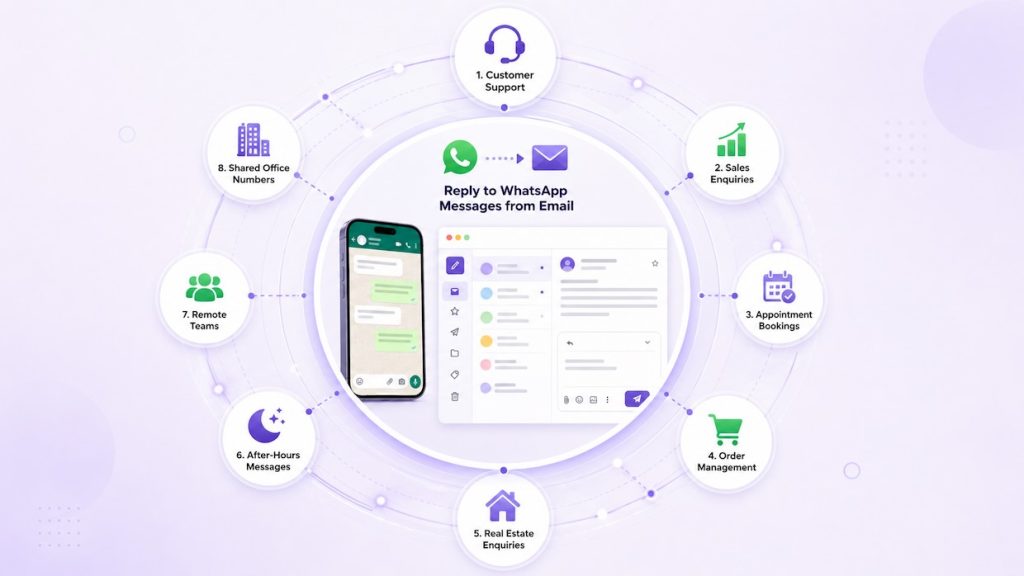
1. Customer Support
Forward WhatsApp questions to a support inbox and let staff respond without logging in to the WhatsApp phone.
2. Sales Enquiries
Send new WhatsApp leads to a shared sales inbox so the available salesperson can answer quickly.
3. Appointment Bookings
Clinics, salons, consultants, and service businesses can receive appointment requests by email and confirm them through WhatsApp.
4. Order Management
Order enquiries can be forwarded to an operations inbox. Staff can respond with availability, payment, collection, or delivery information.
5. Real Estate Enquiries
Property questions from WhatsApp can be routed to agents or a shared office inbox without requiring every team member to use the same phone.
6. After-Hours Messages
Messages received outside normal working hours can reach the inbox of the person responsible for urgent responses.
7. Remote Teams
Staff working from different locations can respond through email while the customer continues using WhatsApp.
8. Shared Office WhatsApp Numbers
A business can keep one office WhatsApp number while several staff members monitor and answer incoming messages through email.
WhatsApp Forwarding vs Reply-by-Email
| Feature | Standard WhatsApp Forwarding | WhatsApp Reply-by-Email |
|---|---|---|
| Receive WhatsApp messages by email | Yes | Yes |
| View sender name and number | Yes | Yes |
| Reply from Gmail or Outlook | No | Yes |
| Response goes to the original WhatsApp chat | No | Yes |
| Useful for shared inboxes | Yes | Yes |
| Team can respond without opening WhatsApp | No | Yes |
Standard forwarding keeps the team informed. Reply-by-email turns the forwarded message into a practical two-way workflow.
Important Requirements
- The WhatsApp account must remain connected to AutoForward Text
- Email forwarding must be enabled
- The response must come from the authorized forwarding email address
- The automatically generated reply address must not be edited
- The user must reply to an existing forwarded WhatsApp email
- The secure reply token must still be active
- The original WhatsApp chat must still be available
Do not forward the email to a different personal address and reply from there. The sender email is checked before the WhatsApp response is accepted.
Current Limitations
- Reply-by-email is designed for existing forwarded WhatsApp messages
- A newly composed email does not automatically start a new WhatsApp conversation
- Attachments and media replies may not be supported
- The connected WhatsApp account must remain active
- Expired reply tokens cannot be reused
- A reply sent from an unauthorized email address will be rejected
- Unsupported message types may appear only in the dashboard logs
Current model:
Reply to forwarded email → Send text response to original WhatsApp chat
Common Problems and Fixes
| Problem | Likely Cause | What to Check |
|---|---|---|
| The email reply was not delivered | The WhatsApp account is disconnected | Open WhatsApp Accounts and confirm that the account is still active |
| The reply was rejected | The email was sent from an unauthorized address | Reply from the same email address configured for forwarding |
| The reply address looks unusual | The address contains a secure reply token | Do not edit it; click Reply and send normally |
| A new email did not start a WhatsApp chat | Reply-by-email only responds to forwarded messages | Open the original forwarded message and click Reply |
| An old email no longer accepts replies | The secure reply token may have expired | Reply from the dashboard or use a newer forwarded message |
| The wrong person or group received the reply | The wrong forwarded email was used | Open the email belonging to the intended WhatsApp conversation |
| The dashboard Reply button is not visible | The actions column is off-screen | Scroll the message table horizontally to the far right |
| An image or voice note is missing from the email | The media type may not be supported | Open the message in the AutoForward Text dashboard or WhatsApp |
Best diagnostic order: check the connected WhatsApp account, confirm the forwarding email, verify that you replied from the authorized address, and then review the dashboard message logs.
Frequently Asked Questions
Can I reply to WhatsApp messages from email?
Yes. AutoForward Text can forward incoming WhatsApp messages to email and route your email response back to the original WhatsApp chat.
Can I reply to WhatsApp from Gmail?
Yes. Open the forwarded WhatsApp email in Gmail, click Reply, type your response, and send it normally.
Can I reply to WhatsApp from Outlook?
Yes. The same reply-by-email workflow works with Outlook and Microsoft 365.
Does WhatsApp support email replies natively?
No. WhatsApp does not normally convert an email reply into a WhatsApp response. AutoForward Text provides the connection between the email and the original chat.
Does the recipient receive an email?
No. The recipient receives your response as a WhatsApp message in the original conversation.
Does the reply go back by SMS?
No. A WhatsApp reply-by-email response is sent back through the connected WhatsApp account, not as an SMS.
Can I reply to a WhatsApp group from email?
Yes, when the original forwarded message came from a supported WhatsApp group chat. The response is sent back to that group.
Can several team members use the same inbox?
Yes. A shared inbox can be used as long as replies are sent from the authorized email address configured for WhatsApp forwarding.
Can I start a new WhatsApp conversation by sending a new email?
No. Reply-by-email is designed to respond to an existing forwarded WhatsApp message.
What information appears in the forwarded email?
The email can include the sender’s name, WhatsApp number, message content, received time, direction, and the connected WhatsApp account.
Can I reply from the AutoForward Text dashboard?
Yes. Open WhatsApp Accounts, scroll down to the message logs, scroll to the far right, and click the Reply button.
What happens if the WhatsApp account disconnects?
The email reply cannot be sent until the WhatsApp account is connected again.
Final Thoughts
Forwarding WhatsApp messages to email solves the visibility problem, but reply-by-email solves the workflow problem.
Instead of treating the forwarded email as a notification, your team can respond from the inbox it already uses. AutoForward Text then sends that response back to the original WhatsApp conversation.
This is especially useful for shared office numbers, sales teams, support desks, clinics, property businesses, and remote teams that do not want customer conversations trapped on one phone.
The workflow is intentionally simple: connect WhatsApp, enable email forwarding, receive the message, and click Reply.
Reply to WhatsApp Messages from Gmail or Outlook
Use AutoForward Text to receive incoming WhatsApp messages by email and send replies back to the original conversation.
- Forward incoming WhatsApp messages to email
- Reply from Gmail, Outlook, or a shared inbox
- Send responses back to the original WhatsApp chat
- Reply directly from the dashboard when needed