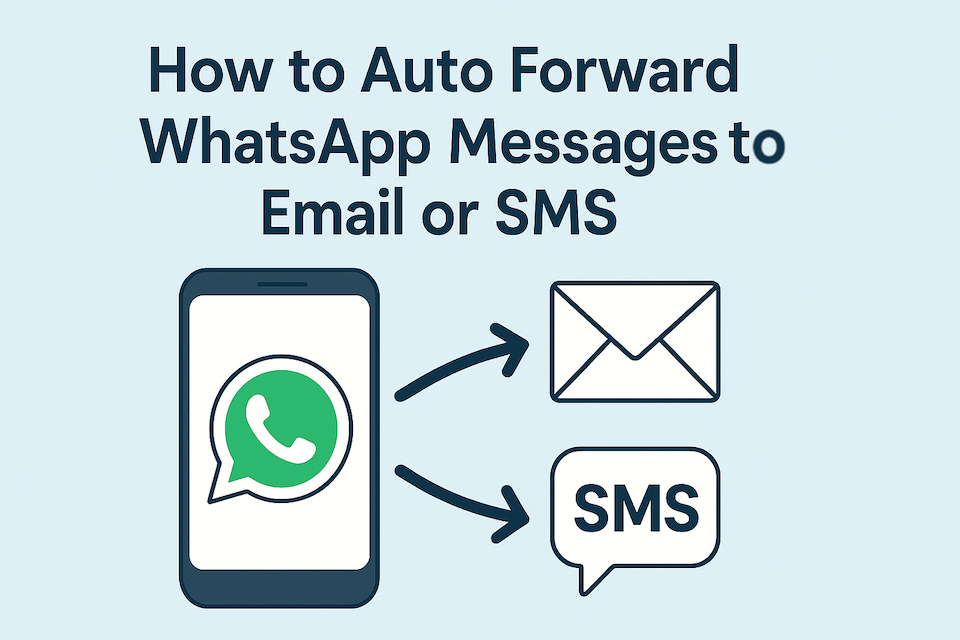
Want WhatsApp messages to automatically appear somewhere else — like another phone, a WhatsApp group, email, SMS, Slack, or your own webhook?
Most people do not want important WhatsApp messages stuck on one phone.
Maybe a customer sends a message to your business WhatsApp number, but your team needs to see it. Maybe you want incoming WhatsApp messages copied to email for backup. Maybe you want sales leads forwarded into a WhatsApp group. Or maybe you want WhatsApp messages pushed into Slack, SMS, or your own internal system.
Manually forwarding messages one by one is not a real workflow. It is slow, easy to forget, and useless when messages arrive after hours.
That is where AutoForward Text can help. It lets you connect a WhatsApp account and route incoming messages automatically to the places where your team already works.
Quick Answer: Forward WhatsApp Messages in Minutes
The fastest way to forward WhatsApp messages automatically is to connect your WhatsApp account to AutoForward Text and choose your forwarding destinations.
- Log in to AutoForward Text.
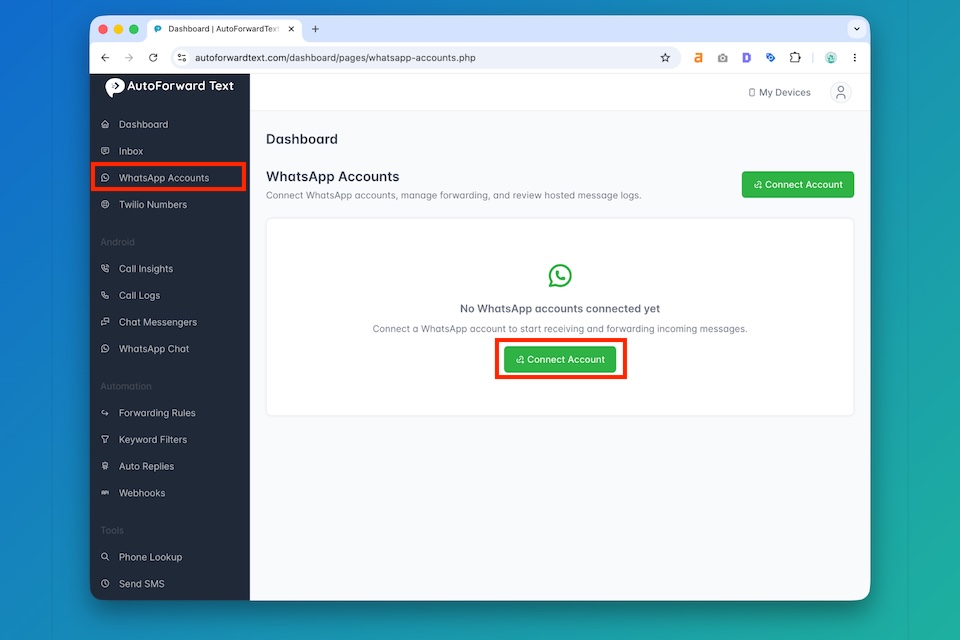
- Connect your WhatsApp account.
- Choose where incoming messages should be forwarded.
- Enable the forwarding rule.
- Start receiving WhatsApp messages in another channel automatically.
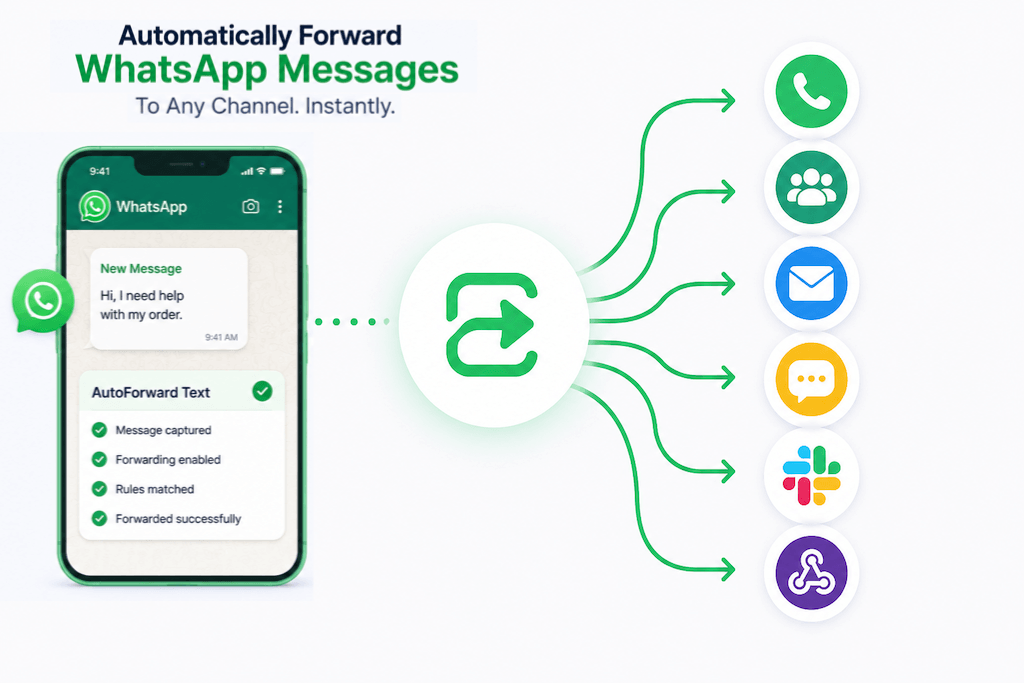
You can forward WhatsApp messages to:
- another phone number
- a WhatsApp group
- SMS
- Slack
- custom webhook or API endpoint
- multiple destinations at once
Fastest Method
Use AutoForward Text to route incoming WhatsApp messages to your phone, email, team group, Slack channel, SMS number, or webhook without manually copying messages.
Try AutoForward TextHow WhatsApp Forwarding Works
WhatsApp itself is built as a messaging app, not a full routing system. That means it is great for conversations, but limited when you want messages forwarded automatically into other tools.
AutoForward Text acts as the forwarding layer.
Basic flow:
Incoming WhatsApp Message → AutoForward Text → Selected Destination
The selected destination can be another WhatsApp chat, a group, an email address, an SMS number, a Slack channel, or a webhook endpoint.
This is useful because your WhatsApp messages no longer live in one isolated inbox. They can become part of your team workflow.
Connect Your WhatsApp Account
Before you can forward WhatsApp messages, you need to connect your WhatsApp account inside AutoForward Text.
How to Set It Up
- Open the AutoForward Text dashboard.
- Go to the connected accounts or WhatsApp section.
- Choose WhatsApp.
- Scan the QR code or follow the hosted connection process.
- Wait for the WhatsApp account to show as connected.
- Create a forwarding rule for incoming messages.
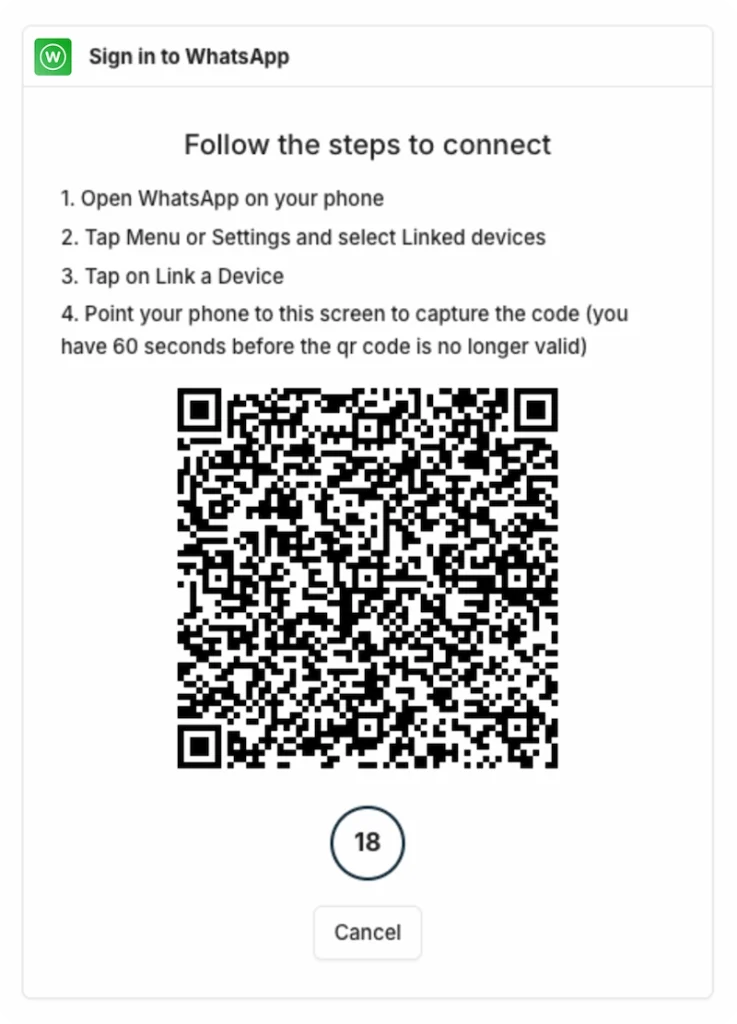
Once connected, AutoForward Text can watch for incoming WhatsApp messages and forward them based on your selected rules.
Important: Keep the setup clean and business-focused. Use WhatsApp forwarding for legitimate visibility, support, operations, and team workflows. Avoid spammy behavior or forwarding loops.
Forward WhatsApp Messages to Another Phone
Forwarding WhatsApp messages to another phone is useful when one person receives the messages, but another person needs to see them quickly.
How to Set It Up
- Connect your WhatsApp account in AutoForward Text.
- Create a new forwarding rule.
- Choose the source WhatsApp account.
- Select another phone number as the destination.
- Save and enable the rule.
Common Use Cases
- business WhatsApp number → owner’s phone
- work phone → assistant or manager
- sales messages → sales rep’s mobile number
- after-hours messages → backup phone
- important customer messages → second device
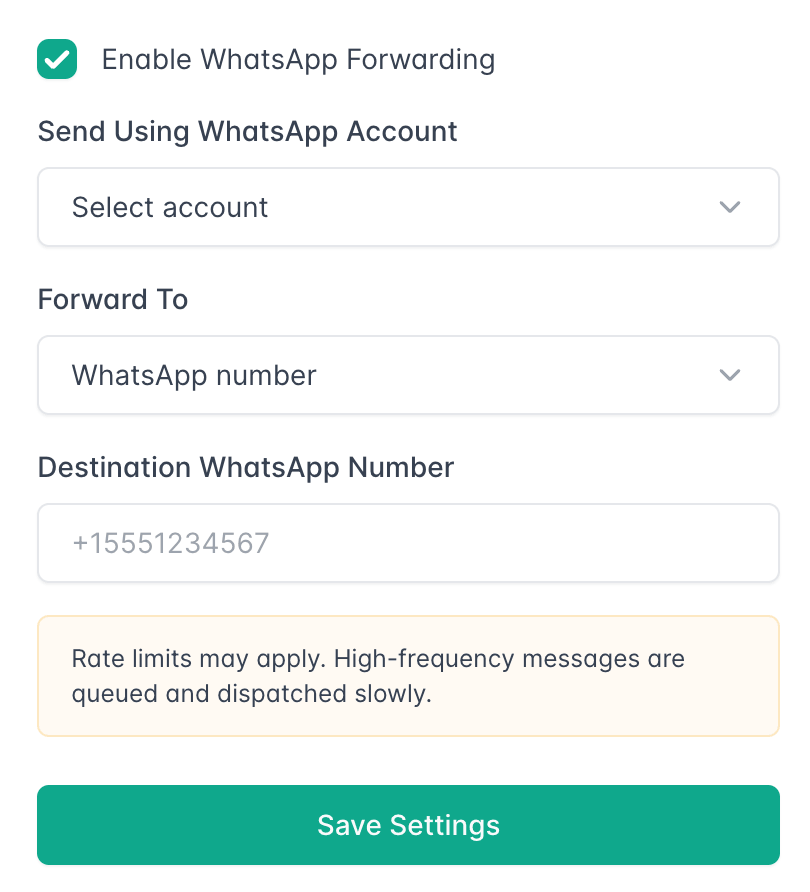
This solves a simple but painful problem: the right person does not always have access to the WhatsApp phone.
Forward WhatsApp Messages to a WhatsApp Group
This is one of the most useful workflows for small teams.
Instead of forwarding incoming messages to one person, AutoForward Text can forward them into a WhatsApp group where multiple people can see them.
How to Set It Up
- Connect your WhatsApp account.
- Create or choose the WhatsApp group that should receive forwarded messages.
- Select that group as the forwarding destination.
- Enable incoming message forwarding.
- Test by sending a message to the connected WhatsApp number.
Good Use Cases
- sales leads group
- customer support group
- partner notification group
- dispatch or operations group
- appointment booking group
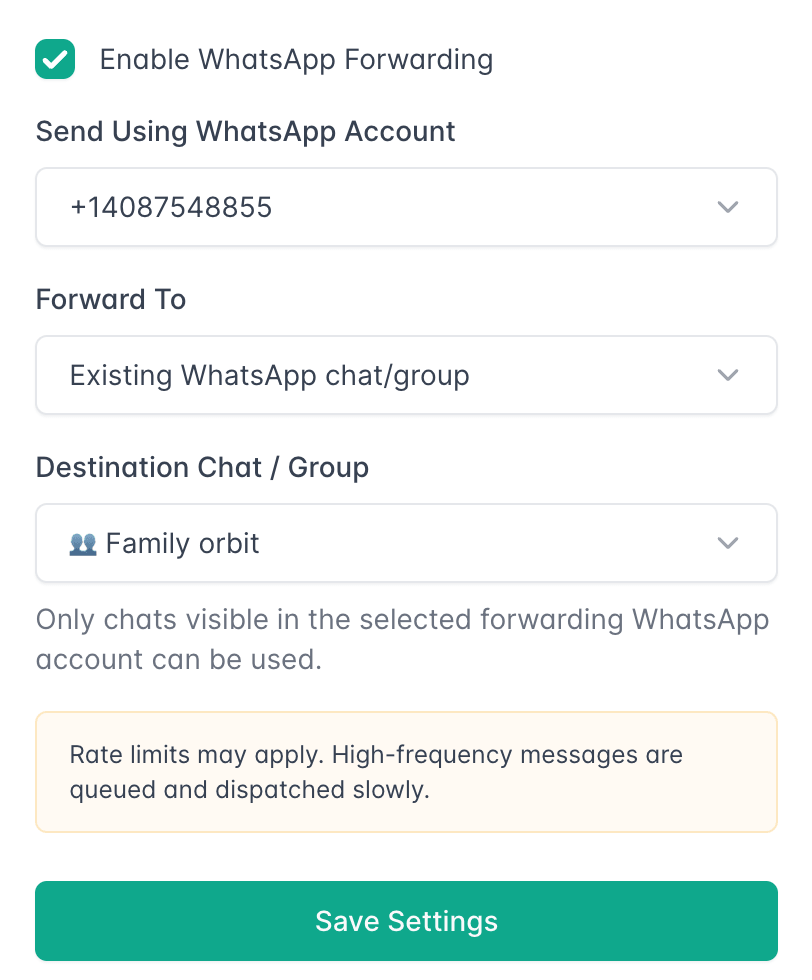
Example workflow:
Customer WhatsApp Message → AutoForward Text → Team WhatsApp Group
This makes WhatsApp forwarding feel less like a personal productivity trick and more like a real team workflow.
Forward WhatsApp Messages to Email
Email is still the easiest place to archive, search, and share messages. That is why forwarding WhatsApp messages to email is such a practical workflow.
How to Set It Up
- Connect your WhatsApp account inside AutoForward Text.
- Create a forwarding rule.
- Choose email as the destination.
- Add your Gmail, Outlook, or shared inbox address.
- Save and enable the rule.
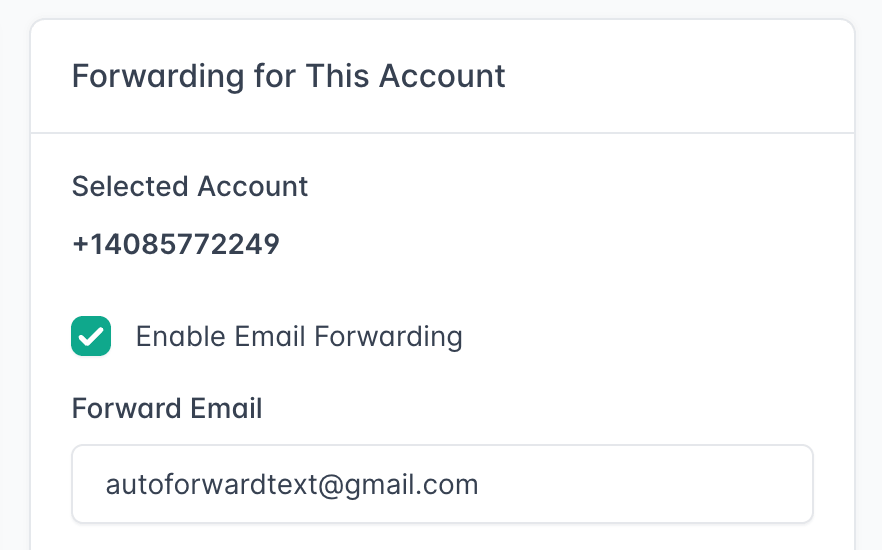
Why Forward WhatsApp to Email?
- create a searchable backup
- send customer messages to a shared inbox
- keep records of important conversations
- notify staff who do not use the WhatsApp account
- route WhatsApp messages into support workflows
If you already manage customer support from email, this is one of the cleanest ways to bring WhatsApp messages into your existing process.
Forward WhatsApp Messages to SMS
Forwarding WhatsApp messages to SMS is useful when the recipient may not be watching WhatsApp, but can receive normal text alerts.
This can be especially useful for urgent notifications, backup alerts, or team members who prefer regular SMS.
How to Set It Up
- Connect your WhatsApp account.
- Create a WhatsApp forwarding rule.
- Choose SMS or phone number as the destination.
- Add the recipient’s mobile number.
- Save and test the workflow.
Common Use Cases
- urgent WhatsApp messages → SMS alert
- business WhatsApp → owner’s mobile number
- after-hours WhatsApp messages → duty phone
- backup notifications when WhatsApp is not being monitored
Note: SMS forwarding may create message charges depending on the sending channel and destination country.
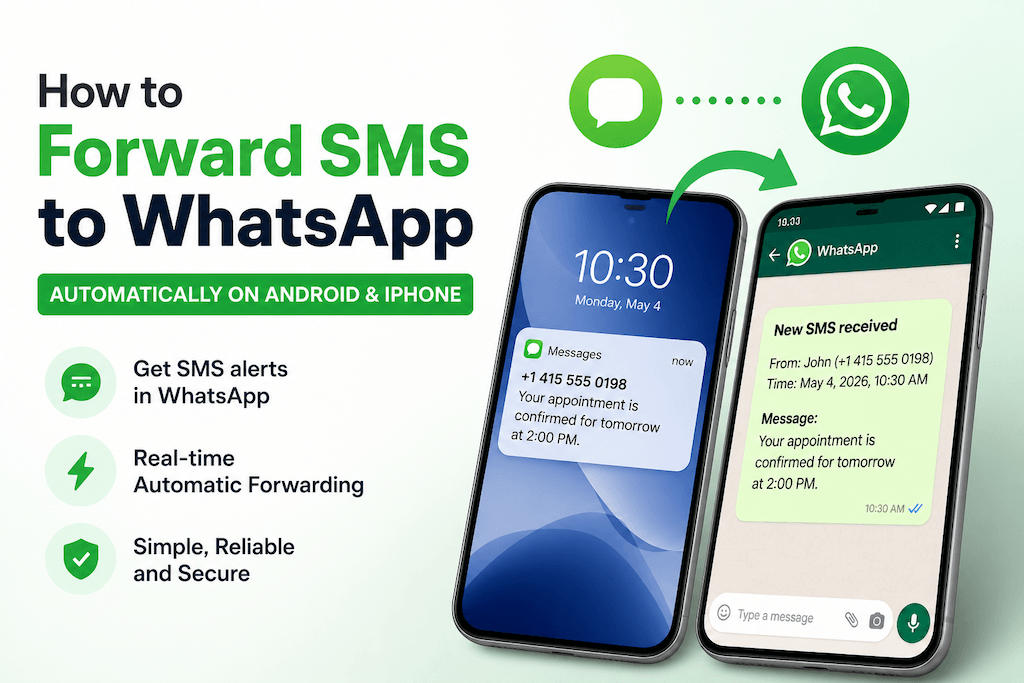
You can also forward incoming SMS to WhatsApp.
Forward WhatsApp Messages to Slack or Webhooks
WhatsApp messages do not always need to go to another human’s inbox. Sometimes they need to go into the tools your business already uses.
Forward WhatsApp Messages to Slack
If your team works in Slack, you can route WhatsApp alerts into specific channels.
- sales messages →
#sales - support messages →
#support - operations messages →
#ops - urgent messages → private manager channel
Forward WhatsApp Messages to Webhooks/API
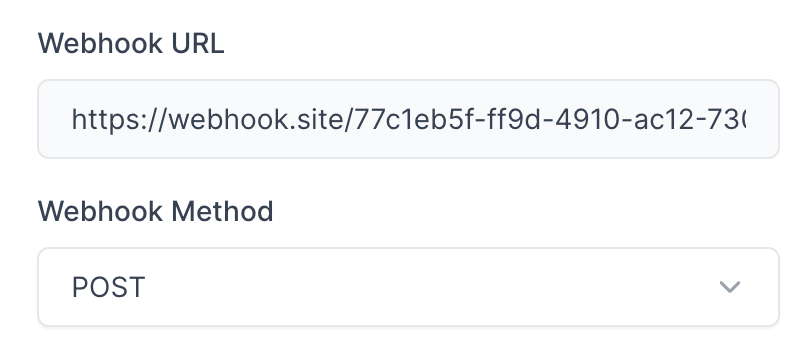
Webhook forwarding lets you send WhatsApp message data to your own system.
- CRM
- internal dashboard
- AI classification workflow
- lead enrichment tool
- ticketing system
- database or reporting system
Example webhook flow:
WhatsApp Message → AutoForward Text → Your API Endpoint → CRM / Dashboard / AI Workflow
This is where WhatsApp forwarding becomes real messaging infrastructure. You are not just copying messages. You are turning WhatsApp activity into business events.
Forward WhatsApp Messages to Multiple Destinations
Sometimes one destination is not enough.
With AutoForward Text, the stronger workflow is forwarding important messages to multiple places at once.
Example:
Incoming WhatsApp Message → WhatsApp Group + Email Archive + Slack Alert + SMS Backup
This is useful when different people or systems need the same message for different reasons.
| Destination | Why Use It |
|---|---|
| WhatsApp Group | Fast team visibility. |
| Searchable backup and shared inbox workflows. | |
| SMS | Urgent fallback alerts. |
| Slack | Internal team notifications. |
| Webhook | Send data into your own systems. |
This is the bigger point: AutoForward Text is not just about forwarding one message. It is about routing communication so it reaches the right people and tools.
Best Use Cases for WhatsApp Forwarding
WhatsApp forwarding is useful whenever important messages should not depend on one person checking one device.
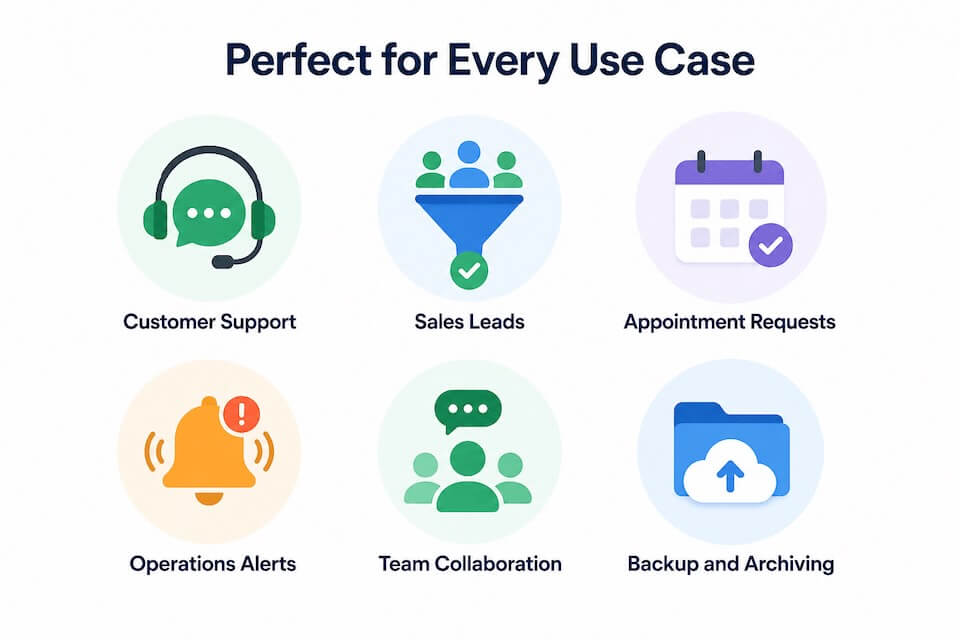
Customer Support
Forward incoming WhatsApp messages to a team inbox, support group, or Slack channel so customer requests do not sit unnoticed.
Sales Leads
Forward new WhatsApp inquiries to a sales group or manager instantly. A fast reply can be the difference between a closed lead and a lost one.
Appointment Requests
Clinics, salons, consultants, repair shops, and local service businesses can route booking messages to the right person.
Operations Alerts
Forward vendor updates, driver messages, dispatch notifications, and internal confirmations to the team that needs them.
Team Collaboration
Instead of one staff member owning the WhatsApp conversation, forward messages into a shared group for visibility.
Backup and Archiving
Forward WhatsApp messages to email or webhooks to keep a searchable record for future reference.
Shared Team Visibility and Business Workflows
Most WhatsApp problems in business are not really WhatsApp problems. They are visibility problems.
The business number receives a message, but:
- the owner is busy
- the phone is not nearby
- the team cannot see the conversation
- the message needs to be archived
- the support person works from email or Slack
Forwarding solves that by moving the message into the right workflow automatically.
| Workflow | Forwarding Destination | Why It Helps |
|---|---|---|
| Sales inquiry | WhatsApp group or SMS | Helps the team respond faster. |
| Support message | Email or Slack | Makes customer issues visible outside one phone. |
| Booking request | Manager phone or group | Routes appointments to the person who handles scheduling. |
| Operations update | Slack or webhook | Turns WhatsApp messages into internal alerts. |
| Message backup | Email or webhook | Keeps a searchable record. |
That is why WhatsApp forwarding should not be treated as a small convenience. For many teams, it becomes part of daily operations.
Limitations to Know
Let’s be honest: WhatsApp forwarding is useful, but it has limits.
Forwarding Is Not the Same as Full Two-Way Sync
Forwarding copies message content to another destination. It does not always mean the destination becomes a native WhatsApp conversation thread.
Media Handling Can Vary
Text messages are simple. Images, PDFs, voice notes, and other media may need additional handling depending on the forwarding destination.
Avoid Forwarding Loops
If you forward WhatsApp messages into another WhatsApp chat, the system needs to avoid forwarding its own forwarded messages again. AutoForward Text can help control this, but it is still something to keep in mind.
Use It for Legitimate Workflows
Forwarding should be used for visibility, support, operations, backups, and team workflows. Do not use it for spammy or non-consensual messaging.
Some Destinations May Have Costs
If messages are forwarded via SMS or another paid channel, usage costs may apply depending on your setup.
Final Thoughts
WhatsApp is where many business conversations happen, but one WhatsApp inbox is not enough for a real team workflow.
If important messages stay locked on one phone, they can be missed, delayed, or forgotten. Forwarding solves that by automatically routing messages to the right person, group, inbox, or system.
With AutoForward Text, you can forward WhatsApp messages to another phone, WhatsApp group, email, SMS, Slack, webhooks, and multiple destinations without manually copying messages all day.
That is the real value: not just forwarding, but communication routing.
Forward WhatsApp Messages Automatically
Route incoming WhatsApp messages to another phone, WhatsApp group, email, SMS, Slack, or your own webhook from one dashboard.
- Forward WhatsApp messages to teams
- Create email backups and shared inbox workflows
- Send urgent alerts by SMS or Slack
- Connect WhatsApp activity to your internal systems