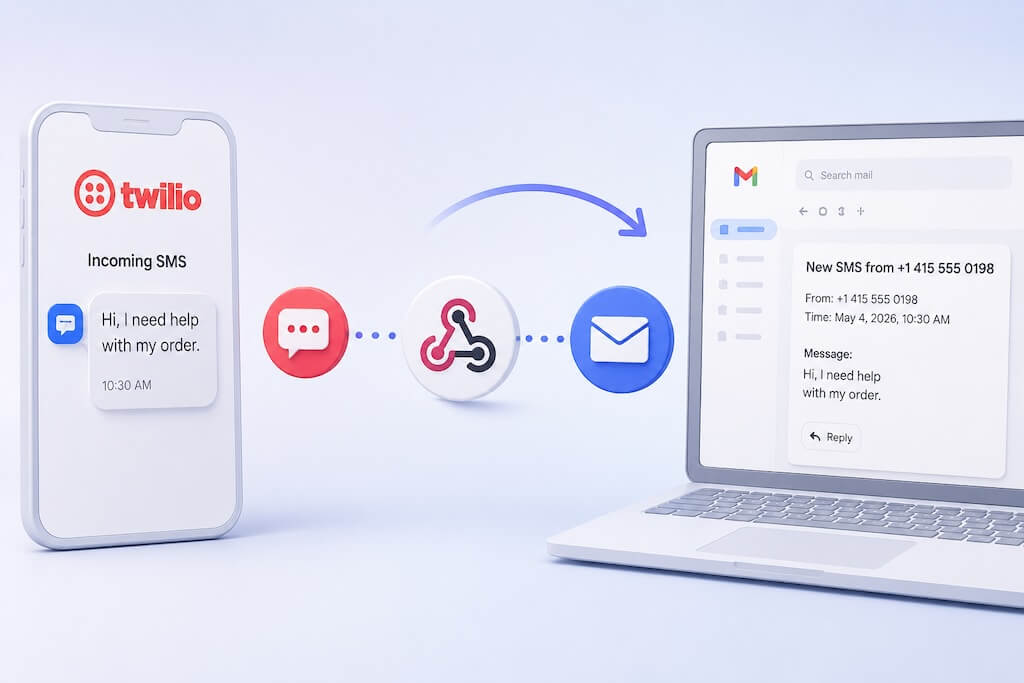
You can build an AI agent in Make.com that receives customer text messages, understands what the sender is asking, and automatically sends an SMS reply — while continuing to use the Android phone number and SIM you already have.
In this setup, the Android phone remains the SMS channel. AutoForward Text connects the phone to Make.com, while a Make AI Agent processes the conversation and decides what the response should say.
What we’re building:
↓
Android Phone + SIM
↓
AutoForward Webhook
↓
Make.com
↓
AI Agent
↓
AutoForward Text Reply API
↓
Android Phone
↓
Customer
This gives you a practical way to build an SMS AI agent for customer enquiries, appointment questions, lead qualification, after-hours responses, support requests, and other business conversations without moving the phone number to a separate cloud SMS provider.
How the SMS AI Agent Works
There are four main parts to the workflow:
- Your Android phone receives an SMS.
- AutoForward Text sends the message to a Make webhook.
- Make AI Agent reads the message and generates a response.
- Make posts the response back to AutoForward Text, which sends the reply through the Android phone.
The AI does not send the SMS itself.
Think of each component like this:
| Component | Responsibility |
|---|---|
| Android phone | Sends and receives SMS using the SIM and mobile number. |
| AutoForward Text | Connects the Android SMS channel to webhooks and reply APIs. |
| Make.com | Runs the automation scenario. |
| Make AI Agent | Understands the customer’s message and decides what to say or do next. |
The important distinction: you are not giving Make direct control of the mobile network. AutoForward Text provides the messaging bridge, while Make handles the automation and AI logic.
Before You Start
You will need:
- An Android phone with an active SIM
- SMS service on that SIM
- AutoForward Text installed and connected on the Android phone
- SMS permission enabled
- A Make.com account
Your Android phone must remain powered on and connected. If the phone is offline, Android kills the app, SMS permission is removed, or battery management blocks background activity, the automation may stop even if the Make scenario itself is working correctly.
Step 1: Connect Your Android Phone
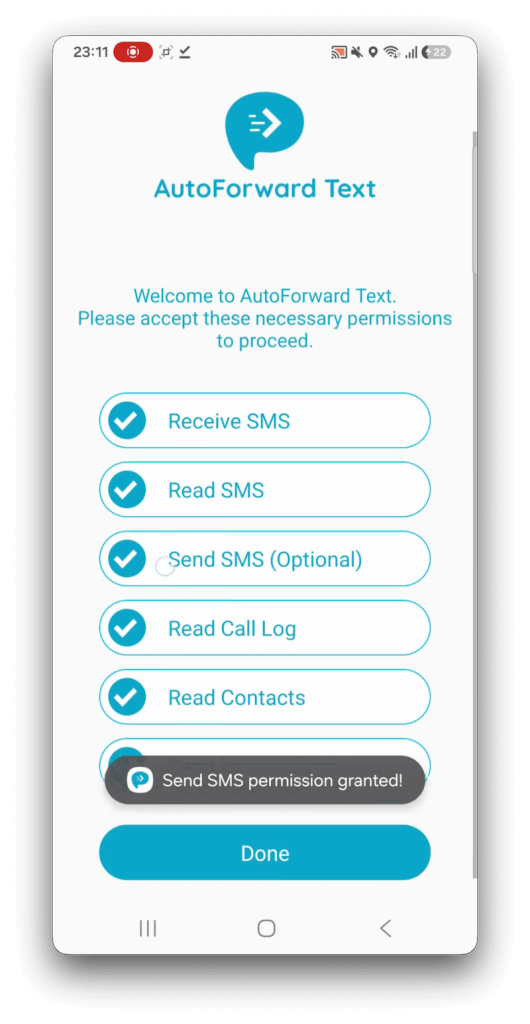
Install the AutoForward Text Android app and sign in with your AutoForward Text account.
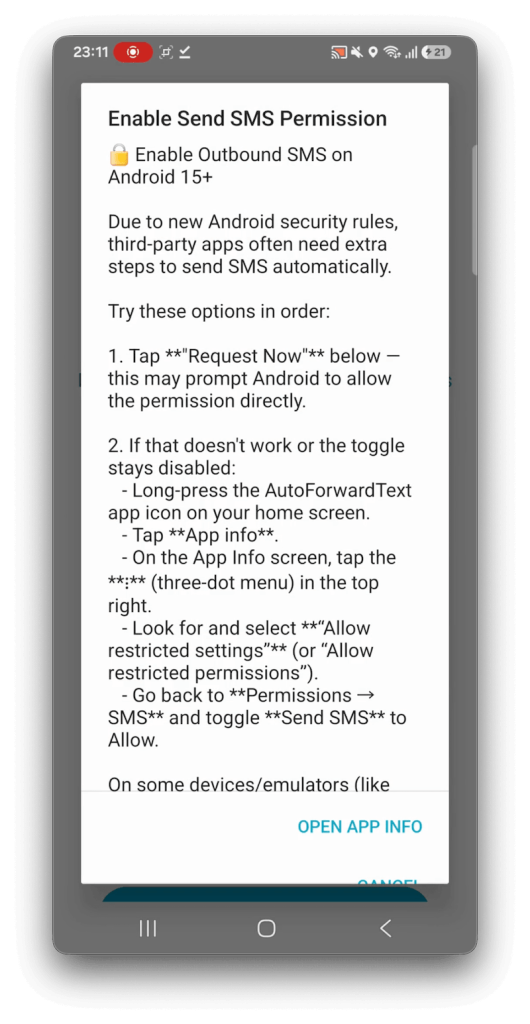
Grant SMS permission when prompted. Then disable battery optimization for AutoForward Text so Android can keep the app running reliably in the background.
On phones with aggressive battery management, also check sleeping apps, background restrictions, auto-start settings, and manufacturer-specific power-saving options.
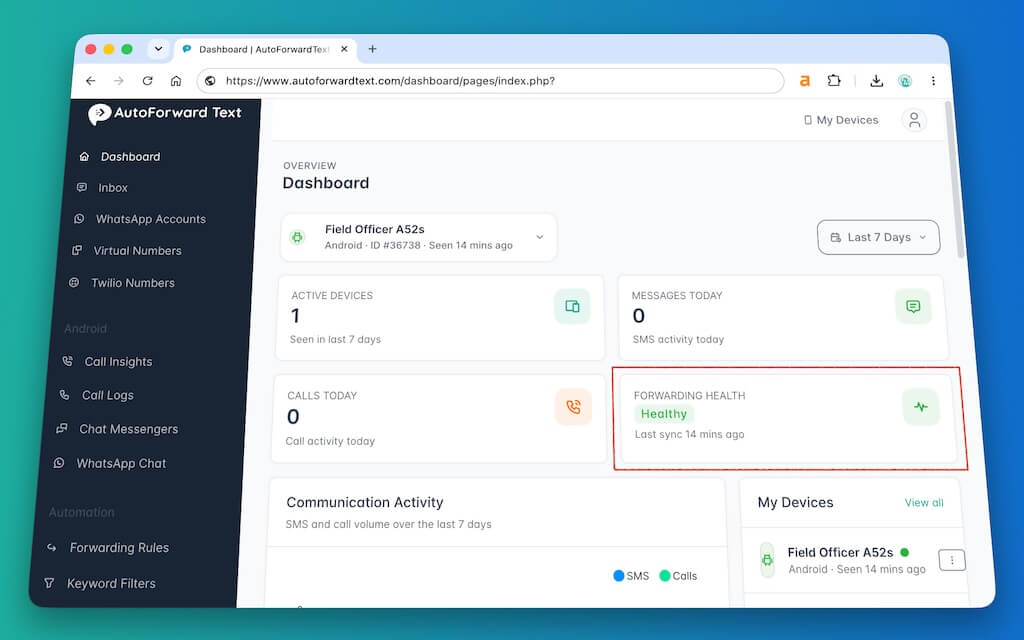
Open the AutoForward Text dashboard and confirm that the Android device appears as connected.
Enable SMS Gateway
Receiving messages is only half of the AI agent workflow. To allow Make to send an SMS reply back through the phone, enable SMS Gateway for the connected Android device.
Before configuring Make, send a normal SMS from another phone to the Android number:
Confirm that the incoming message appears in the AutoForward Text message log. If it does, the Android side is ready.
Step 2: Create a Custom Webhook in Make
Create a new scenario in Make.com.
Add:
Webhooks → Custom webhook
Create a new webhook and give it a clear name such as:
Android SMS AI Agent
Make generates a unique webhook URL. Copy that URL. AutoForward Text will send each incoming SMS to it.

Step 3: Forward Incoming SMS to Make
Return to AutoForward Text and open the forwarding settings for the Android device.
Add or enable a Webhook destination.

Configure it with:
- Method: POST
- Webhook URL: your Make Custom webhook URL
- Source: incoming SMS from the selected Android device
The webhook should include the useful message fields your Make scenario needs, such as:
eventdevice_iddevice_namecontact_namecontact_numbercontentdirectiontimestamp_utcmessage_idreply.endpoint
The reply.endpoint is especially useful. Make does not need to reconstruct which Android device, number, or message should receive the response. It can send the generated answer directly to the reply endpoint supplied with that incoming SMS.
A simplified payload may look like this:
{
  "event": "sms.received",
  "device_id": 36664,
  "device_name": "Office Android",
  "contact_name": "Customer",
  "contact_number": "+14155550123",
  "content": "Hi, are you available tomorrow?",
  "direction": "incoming",
  "message_id": 9274,
  "reply": {
    "method": "POST",
    "endpoint": "https://www.autoforwardtext.com/api/.../reply"
  }
}
Step 4: Capture a Real SMS in Make
Return to Make and click Run once.
Send a fresh SMS to your Android phone:
The message should arrive on the Android phone, appear in AutoForward Text, and then trigger the Make webhook.
Open the webhook output bundle and confirm that you can see contact_number, content, device_id, message_id, and reply.endpoint.
Do not add AI yet if this step does not work. First confirm Android → AutoForward Text → Make is reliable.

Step 5: Add Make AI Agent
Add a new module after the webhook:
Make AI Agent → Run an agent
Connect the AI provider or model you want to use.
For the agent input, map the SMS content from the webhook:
Input: Webhook → content
The AI Agent will now receive the customer’s SMS as the message it needs to understand and answer.

Step 6: Give the Agent Clear Instructions
Do not start with a complicated autonomous agent. The first version should have a narrow job and strict boundaries.
You are the first-line SMS assistant for our business.

Answer the customer's question clearly and briefly.

Do not invent prices, policies, opening hours, availability,
stock levels or other business facts that have not been
provided to you.

If you do not know the answer, say that someone from the team
will follow up.

Keep normal replies below 60 words.

SMS replies should sound natural and conversational.

Do not claim to be a human.
Then give the AI Agent the business information it actually needs, such as products, services, pricing, opening hours, areas served, FAQs, appointment rules, and escalation rules.
Do not let the agent guess. If you have not provided a price, policy, availability rule, or other business fact, the agent should not make one up.
Step 7: Give Each SMS Conversation Memory
Conversation memory matters because customers rarely restate the entire context in every SMS.
Use the sender’s phone number as the conversation identifier:
Conversation ID: Webhook → contact_number
This keeps messages from the same sender in the same AI conversation while separating different customers.
Do not use one fixed Conversation ID for every customer. That can mix context between unrelated people.

Step 8: Create an AutoForward Text API Key
Open API Keys in AutoForward Text and create a new key with a name such as:

Make SMS AI Agent
Give the key the permission required to reply to messages.
Copy the API key when it is shown and store it securely.
Never expose the API key in screenshots, videos, public Make blueprints, or documentation.
Step 9: Send the AI Response Back by SMS
Add an HTTP module after the AI Agent:
HTTP → Make a request
↓
Make AI Agent
↓
HTTP Request
Method
POST
URL
URL: Webhook → reply → endpoint
Do not hard-code a message ID or reply URL. Each incoming SMS should use the reply endpoint provided with that message.
Authorization
Authorization: Bearer YOUR_AFT_API_KEYIdempotency
Add an Idempotency-Key based on the incoming AutoForward Text message ID:
Idempotency-Key: make-sms-9274In the live scenario, map message_id dynamically.
Why this matters: if Make retries after a timeout or temporary error, the same logical reply can keep the same idempotency key instead of becoming a duplicate SMS.
Content Type
Content-Type: application/jsonRequest Body
{
  "text": "AI AGENT RESPONSE"
}
Map the Make AI Agent output into text.

Step 10: Test the Complete SMS AI Agent
Send a fresh test message and verify each stage:
- The Android phone receives the SMS.
- AutoForward Text logs it.
- AutoForward Text POSTs it to Make.
- The Custom webhook triggers the scenario.
- Make AI Agent reads the SMS.
- The agent generates an answer.
- The HTTP module POSTs the answer to
reply.endpoint. - AutoForward Text routes the reply to the Android device.
- The Android phone sends the SMS.
- The customer receives the response.


Once the scenario works reliably, turn it on so incoming SMS webhooks are processed automatically.
Make the Agent Useful, Not Just Automatic
A useful business SMS agent needs reliable knowledge, short responses, and a clear human handoff path.
Give It Real Business Knowledge
Provide the facts it is expected to answer: services, pricing, availability rules, locations, policies, and common questions.
Keep SMS Responses Short
Instead of a long email-style answer, prefer something like:
Short replies are easier to read and feel more natural over SMS.
Know When to Escalate
Make can then create a helpdesk ticket, Slack alert, CRM task, email notification, or human approval step.
Optional: Give the Agent Tools
Once the basic SMS loop is reliable, you can give the AI Agent selected tools.
- Check an appointment in a calendar
- Look up an order status
- Create or update a CRM contact
- Create a callback task
- Open a support ticket
Start small. Give the agent one or two clearly defined tools rather than exposing everything in your Make account.
Practical SMS AI Agent Ideas
| Use Case | Example Workflow |
|---|---|
| Lead qualification | Prospect texts a question → AI answers → collects useful details → Make creates or updates the CRM lead. |
| Appointment assistant | Customer asks for Friday afternoon → AI checks scheduling rules or calendar availability → replies with the next step. |
| After-hours receptionist | Customer texts outside office hours → AI answers basic questions → captures the reason for contact → creates a follow-up task. |
| Field service | Customer reports an issue → AI collects essential details → Make creates a service request or technician task. |
| Basic customer support | Incoming SMS → AI answers from approved business knowledge → anything uncertain is escalated to a person. |
What About Make.com’s Android Integration?
Make.com also offers Android-related modules, including SMS actions, which may be enough for some simple Make-only automations.
The AutoForward Text approach is more useful when you want the Android SMS number to sit inside a broader messaging setup where messages can be logged, forwarded through webhooks, replied to through APIs, and connected to systems beyond Make.
Not: “Make controls my phone.”
Instead: “My Android SMS channel is available to Make and the rest of my automation stack.”
Do You Need Twilio?
No, not for this setup. The connected Android phone and its SIM are the SMS endpoint.
A traditional cloud SMS provider like Twilio may be better when you need large message volumes, multiple virtual numbers, fully cloud-based infrastructure, or more sophisticated telecom routing.
The Android gateway approach is best when: “I already have this Android phone and mobile number. I want my AI automation to receive and respond to SMS through it.”
This is not a bulk-SMS loophole. Carrier terms, recipient consent, local messaging laws, anti-spam rules, and your mobile plan still apply.
Troubleshooting
| Problem | Likely Cause | What to Check |
|---|---|---|
| SMS does not appear in AutoForward Text | Android app, SMS permission, or background restriction | Check app connection, SMS permission, internet, and battery settings |
| SMS reaches AFT but Make does not run | Webhook rule or URL problem | Confirm webhook forwarding is enabled and the Make webhook URL is correct |
| Make receives the SMS but AI does not respond | Input mapping or model connection | Check that content is mapped into the agent input and the AI model is connected |
| AI answers correctly but no SMS arrives | HTTP request, API key, gateway, or Android problem | Check HTTP response, Authorization header, SMS Gateway status, phone internet, SIM service, and SMS permission |
| AI forgets earlier messages | Conversation ID missing | Map contact_number into the Conversation ID |
| Different customers share context | One Conversation ID reused | Use a customer-specific value such as the sender’s number |
| Duplicate replies | Scenario retry created another send | Use one stable Idempotency-Key per incoming message |
| Messages stop after the phone is idle | Android battery optimization | Exclude AutoForward Text from battery saver and sleeping-app restrictions |
Best diagnostic order: Android phone → AutoForward Text message log → Make webhook → AI Agent output → HTTP response → Android gateway → recipient.
Frequently Asked Questions
Can Make.com receive SMS from my Android phone?
Yes. AutoForward Text can forward incoming Android SMS messages to a Make Custom webhook, which then triggers the Make scenario.
Can Make AI Agent automatically answer SMS?
Yes. Map the incoming SMS into Make AI Agent, generate the answer, and send that response through the AutoForward Text Reply API for delivery by the Android phone.
Do I need a Twilio number?
No. This workflow uses the connected Android phone and its SIM as the SMS channel.
Which Make modules do I need?
The basic workflow uses a Custom webhook, Make AI Agent, and an HTTP request module.
Can the SMS AI Agent remember previous messages?
Yes. Use the sender’s phone number as the Make AI Agent Conversation ID so later messages from that number remain part of the same conversation.
Can the AI Agent access my CRM or calendar?
Yes. You can connect additional Make modules or tools so the agent can look up or act on approved business data.
Can I send a new SMS rather than replying to one?
Yes. A separate AutoForward Text Send API workflow can initiate a new SMS through a gateway-enabled Android device. The reply endpoint is intended for responding to a specific incoming message.
Does my Android phone have to remain online?
Yes. The physical phone sends the SMS, so it needs power, internet access, SMS permission, mobile service, and permission to run AutoForward Text in the background.
Is Make AI Agent required?
No. You can replace the AI Agent with filters, fixed responses, CRM lookups, routers, databases, or other Make modules.
Is this suitable for bulk SMS marketing?
No. The intended use is legitimate operational and conversational messaging. Carrier rules, consent requirements, local laws, anti-spam requirements, and mobile-plan limits still apply.
Final Thoughts
The useful part of this workflow is not simply that AI can write an SMS response.
It is that an existing Android phone number can become an input and output channel for an AI automation.
Android SMS → AutoForward Text → Make → AI Agent → AutoForward Text → Android SMS
AutoForward Text handles access to the SMS channel. Make handles the workflow. The AI Agent handles the conversation.
Start with a narrow agent that can answer a small set of questions safely. Make sure the receive-and-reply loop works reliably. Then add memory, knowledge, CRM data, tools, qualification logic, appointment handling, and human handoff as needed.
Connect Your Android SMS to a Make AI Agent
Use AutoForward Text to send incoming Android SMS messages into Make.com, process them with an AI Agent, and route automated replies back through your existing Android phone and SIM.
- Keep using your existing Android phone and number
- Trigger Make scenarios from incoming SMS
- Generate replies with Make AI Agent
- Send responses back through the Android phone