How to Connect Telegram to AutoForwardText
AutoForwardText lets you connect your Telegram account and automatically forward incoming messages from Telegram chats and groups to email, WhatsApp, SMS, Slack, or webhooks.
How to connect Telegram
-
Sign in to your AutoForwardText dashboard.
-
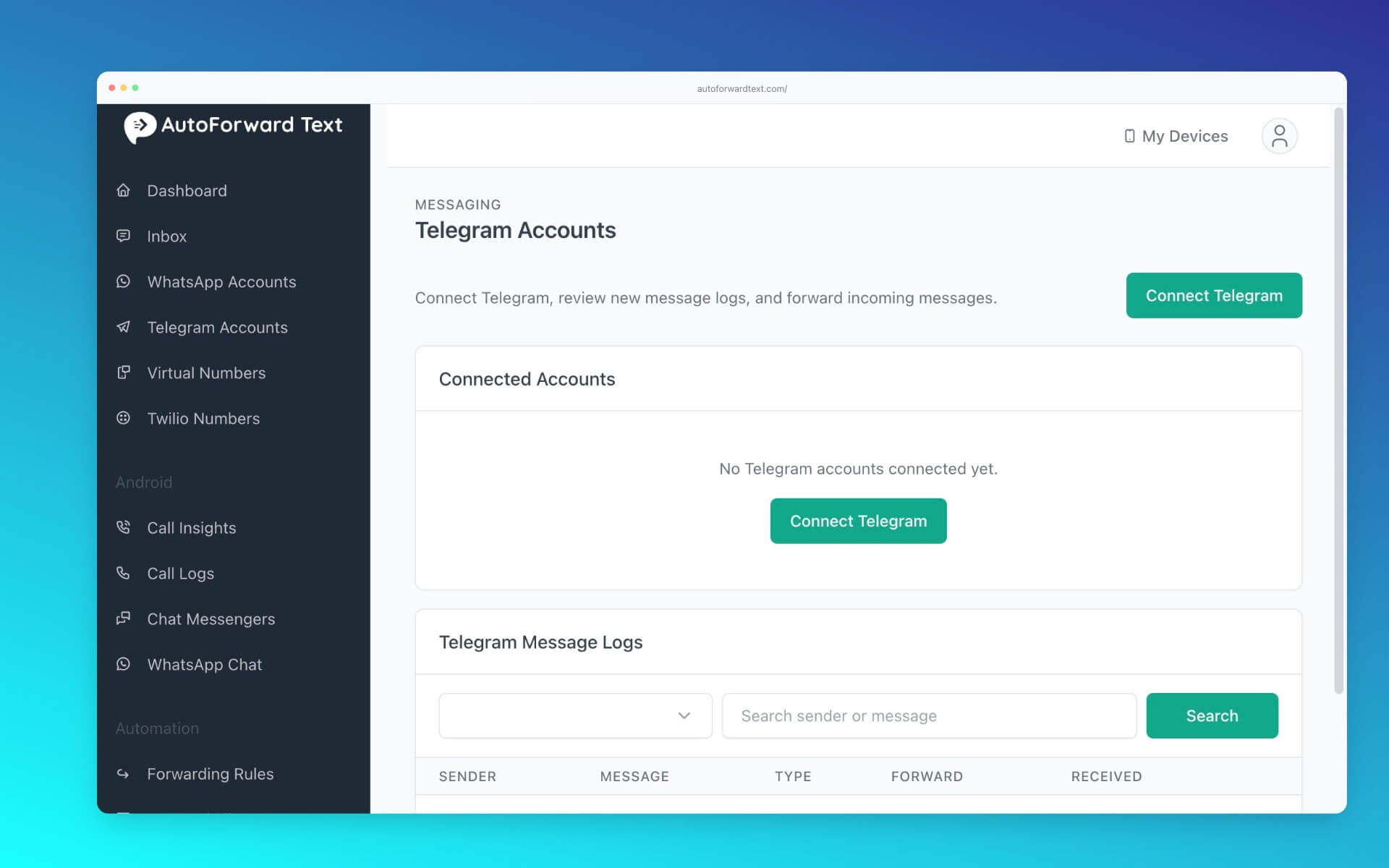
Open Telegram Accounts from the side menu.
-
Click Add Telegram Account.
-
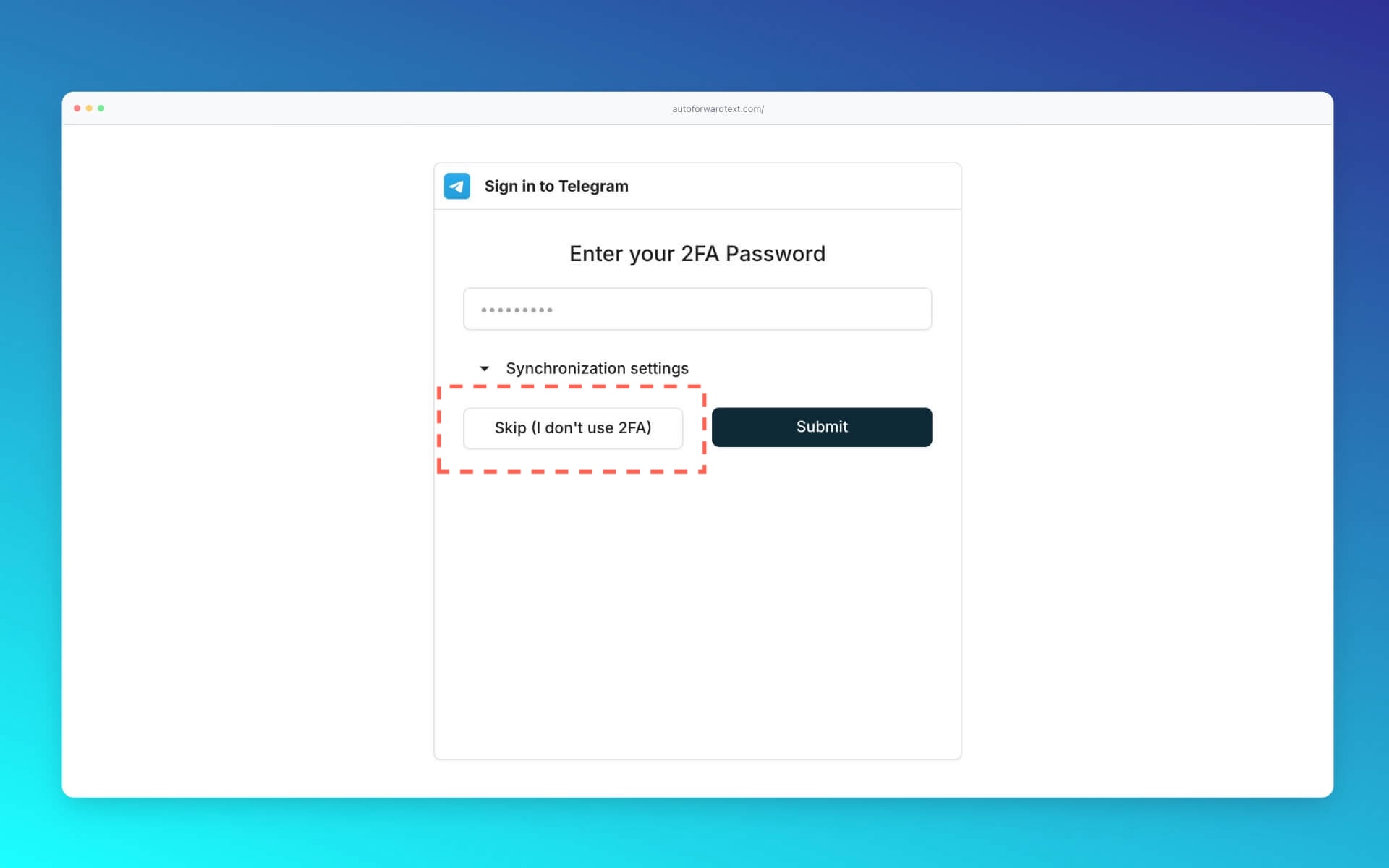
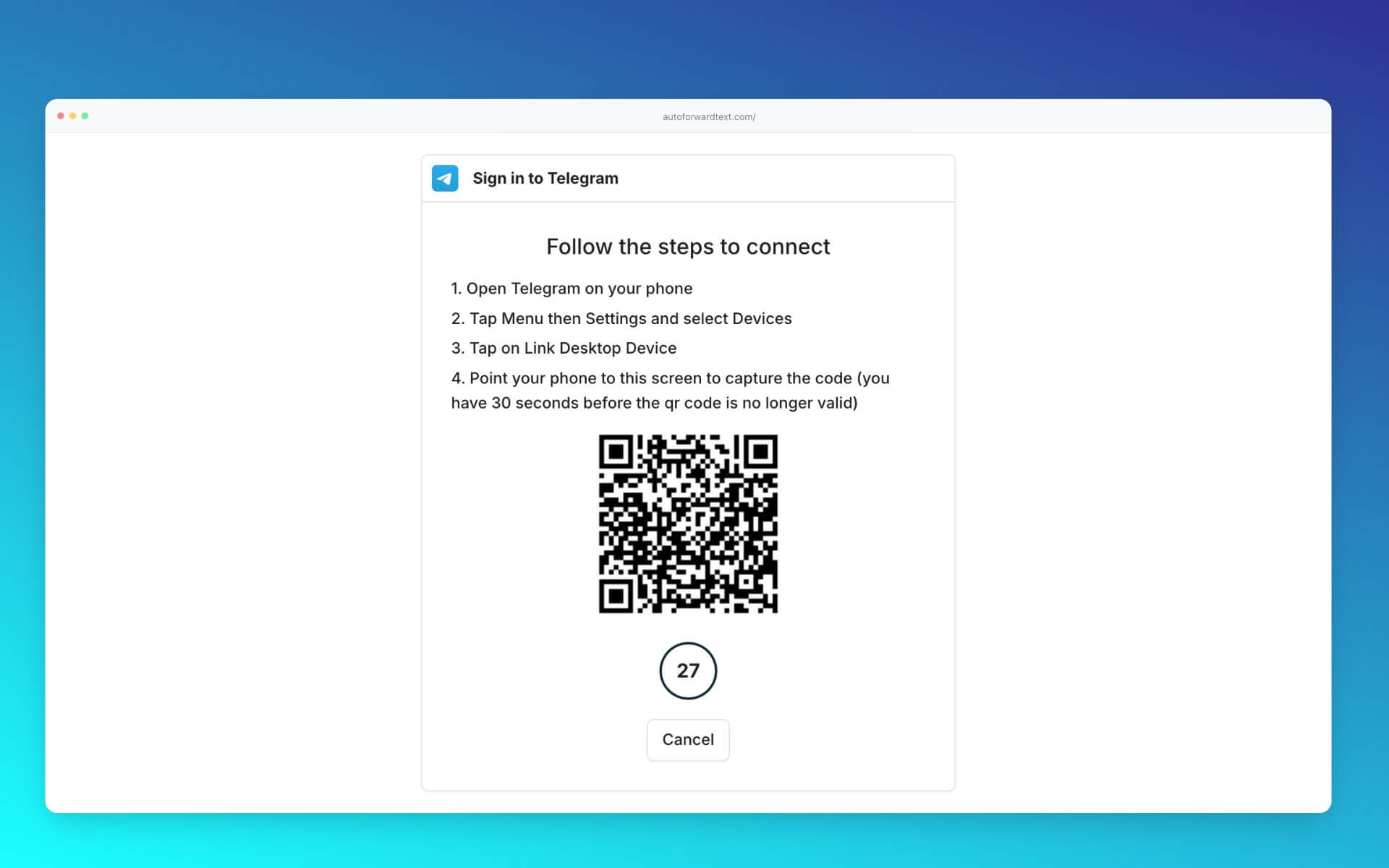
Follow the on-screen instructions to authorize your Telegram account. You can enter 2FA code associated with your account, or scan the generated QR code, Settings > Devices > Link Desktop Device) to authenticate. Reference: Telegram
-
Complete any verification requested by Telegram.
-
Wait for your account to show as connected.
Once connected, you can configure forwarding destinations and filters for incoming messages.
Do I need to keep Telegram open?
You do not need to keep the Telegram application open continuously. Your account must remain connected to AutoForwardText for forwarding to work.
Can I forward messages from Telegram groups?
Yes. You can configure forwarding for supported Telegram chats and groups that your connected account can access.
Still need help?
Contact AutoForwardText support if you have trouble connecting your Telegram account.