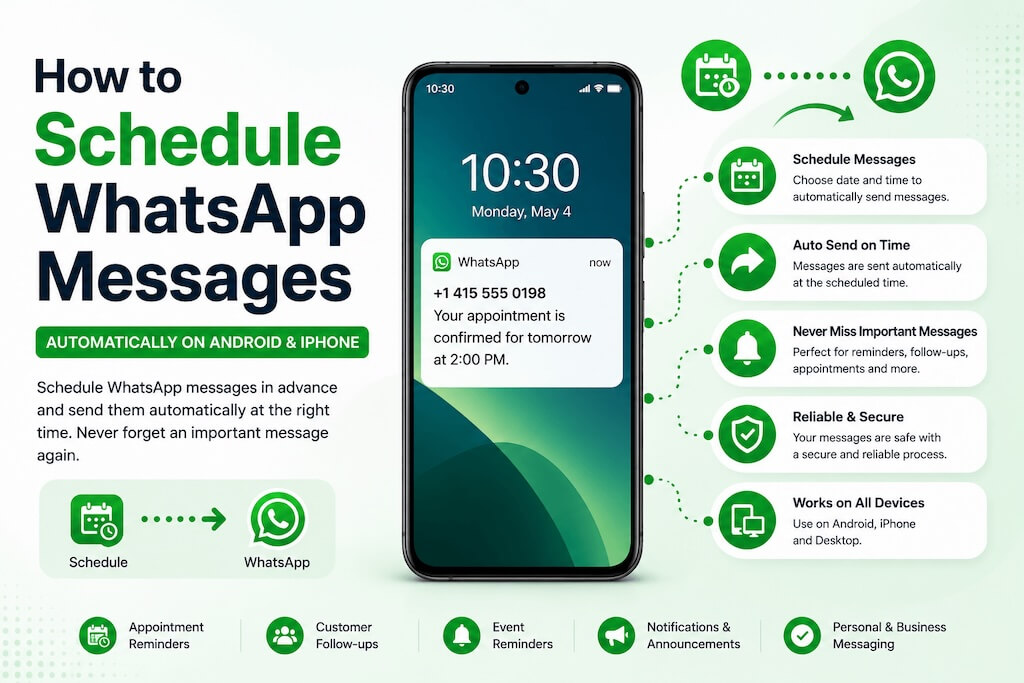
Need to send a WhatsApp message later instead of right now?
Whether it’s a birthday reminder, appointment follow-up, customer reply, sales lead, or simple personal reminder, scheduling messages can save a surprising amount of time.
The problem is that WhatsApp still does not officially support native message scheduling for regular personal chats.
That’s why most people rely on workarounds like:
- Apple Shortcuts on iPhone
- Android automation apps
- WhatsApp Business Away Messages
- browser extensions for WhatsApp Web
- business messaging and automation platforms
Some methods are simple and free. Others are better suited for businesses that need more reliable workflows and centralized communication.
In this guide, we’ll walk through the most practical ways to schedule WhatsApp messages on:
- iPhone
- Android
- WhatsApp Business
- Desktop browsers
Quick Answer: Schedule WhatsApp Messages in Minutes
Need a faster way to schedule WhatsApp or SMS messages for customers, reminders, or follow-ups?
- Create your AutoForward Text account
- Connect your WhatsApp account
- Schedule messages, auto-replies, and business workflows
You can manage scheduled SMS alerts, WhatsApp follow-ups, reminders, and customer replies from one dashboard.
Can You Schedule WhatsApp Messages?
Yes — but not directly inside regular WhatsApp yet.
Unlike email apps or SMS tools, WhatsApp still does not offer a built-in “send later” feature for personal chats. That’s why most people end up using workarounds.
For businesses, however, reliability quickly becomes more important than workarounds, especially when managing customer communication at scale. If you’re sending appointment reminders, customer follow-ups, or sales messages, look for tools that support both WhatsApp and SMS workflows.
Also, avoid platforms that promote bulk WhatsApp blasting. WhatsApp actively monitors spam-like activity, and the safest approach is always to message customers and users who have opted in to receive communications.
Schedule WhatsApp Messages Easily with AutoForward Text
If you’re looking for the easiest way to schedule WhatsApp messages, AutoForward Text now supports scheduled messaging through connected WhatsApp accounts.
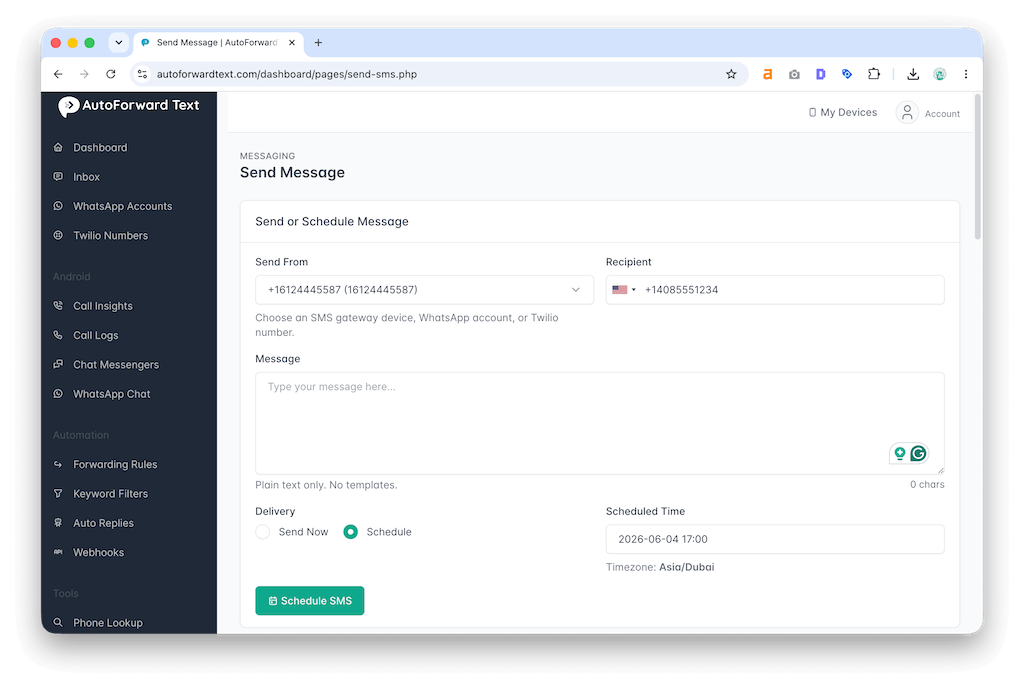
Instead of relying on manual reminder apps, you can connect your WhatsApp account by scanning a QR code and schedule messages directly from your dashboard.
Businesses commonly use this feature for:
- Appointment reminders
- Customer follow-ups
- Sales lead nurturing
- Service updates
- Internal team notifications
- Recurring customer communication
How It Works
- Create your AutoForward Text account
- Connect your WhatsApp account using the QR code
- Open the Schedule Message feature
- Select the recipient or WhatsApp chat
- Choose the date and time
- Save the schedule
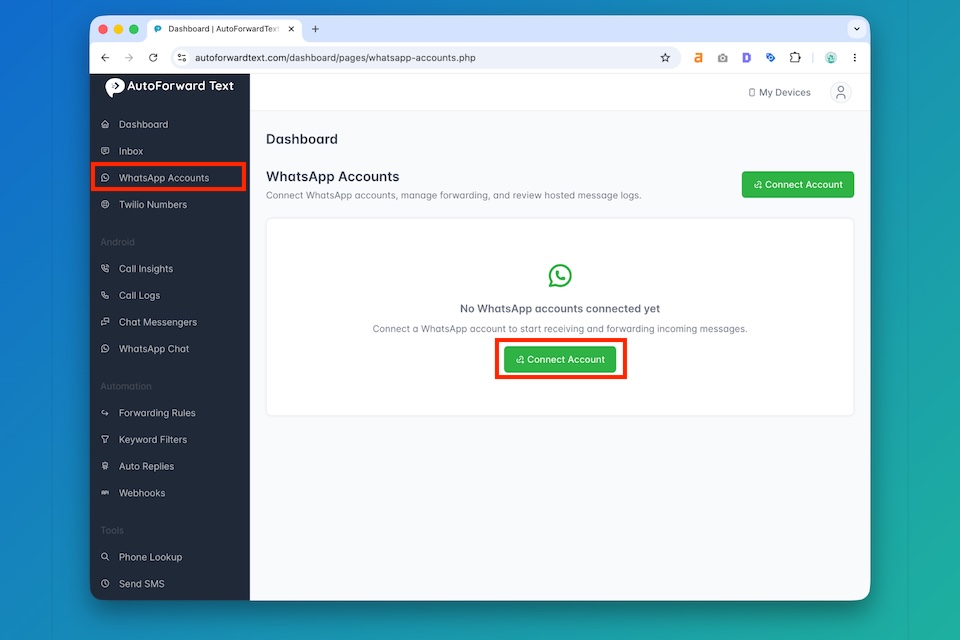
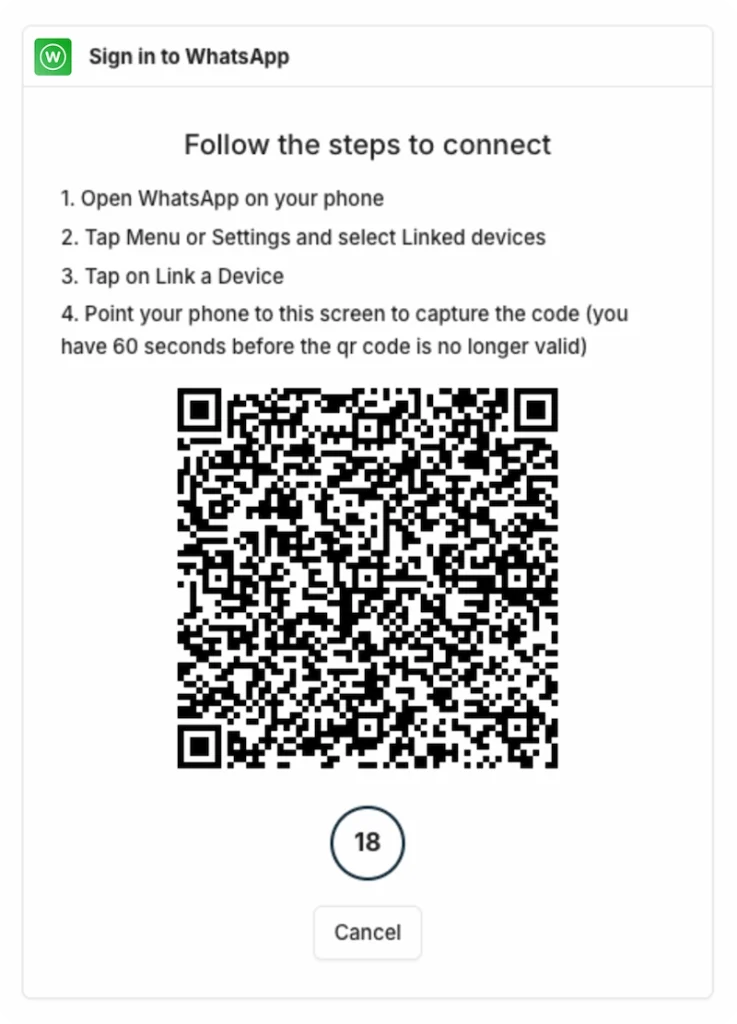
That’s it. AutoForward Text will automatically send the message at the scheduled time.
Why Businesses Prefer This Method
Many scheduling methods depend on:
- keeping a browser open
- phone automation apps
- accessibility permissions
- reminder notifications
- manual confirmation steps
AutoForward Text centralizes everything into a single dashboard where you can manage:
- Scheduled WhatsApp messages
- Scheduled SMS messages
- Shared team inbox
- WhatsApp conversations
- Forward WhatsApp to Email, Phone, or Slack
- Auto-replies
- Message routing
- Team communication workflows
One practical advantage is that SMS and WhatsApp scheduling can be managed together. If a customer doesn’t respond on WhatsApp, many businesses use SMS as a backup communication channel for important reminders and notifications.
This approach is particularly useful for:
- Clinics
- Real estate teams
- Service businesses
- Support desks
- Delivery operations
- Agencies
Schedule SMS & WhatsApp Messages From One Dashboard
Manage appointment reminders, customer follow-ups, auto-replies, WhatsApp conversations, and SMS workflows without juggling multiple apps and devices.
How to Schedule WhatsApp Messages on iPhone
Scheduling WhatsApp messages on iPhone is possible, but Apple’s restrictions make it less automatic than on Android.
The easiest free method is using the built-in Shortcuts app.
Method 1: Use Apple Shortcuts
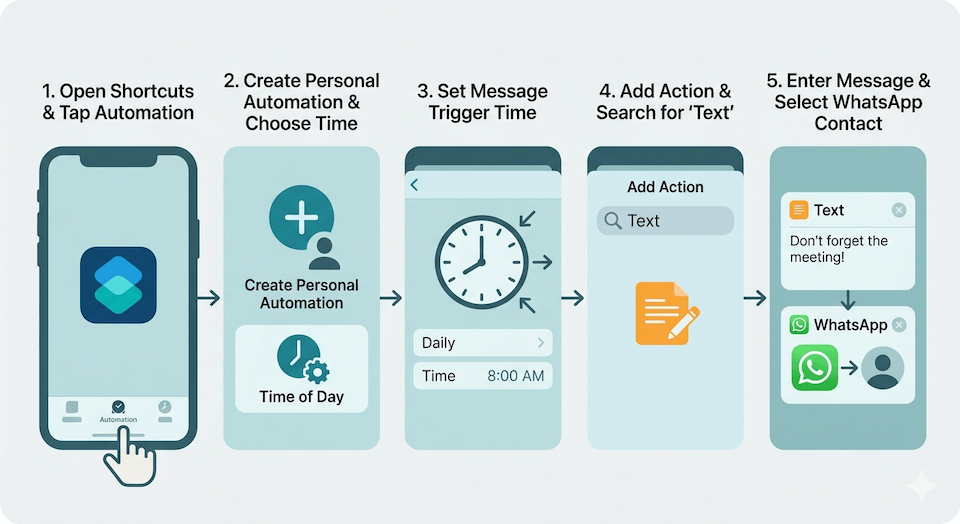
- Open the Shortcuts app
- Tap Automation
- Tap Create Personal Automation
- Choose Time of Day
- Select when you want the message reminder to trigger
- Tap Add Action
- Search for Text
- Enter your message
- Add another action and choose WhatsApp
- Select the contact or group
At the scheduled time, your iPhone can prepare the message and open WhatsApp.
However, in most cases, iOS still requires you to confirm or tap send manually. Apple does not allow most apps to send WhatsApp messages fully in the background silently.
Method 2: Use Calendar + WhatsApp Link
Another simple workaround is creating a calendar reminder with a WhatsApp click-to-chat link:
https://wa.me/15551234567When the reminder appears, tapping the link opens the WhatsApp conversation instantly.
From experience, this works surprisingly well for:
- birthday reminders
- sales follow-ups
- appointment callbacks
- personal reminders
For businesses that need fully automated workflows, reminders alone usually become difficult to manage at scale. That’s where centralized scheduling tools or messaging dashboards become more practical.
How to Schedule WhatsApp Messages on Android
Android gives you far more flexibility than iPhone when it comes to scheduling WhatsApp messages.
Because Android allows deeper automation access, some apps can automatically open WhatsApp, prepare messages, and even send them at scheduled times.
Method 1: Use an Android Automation App
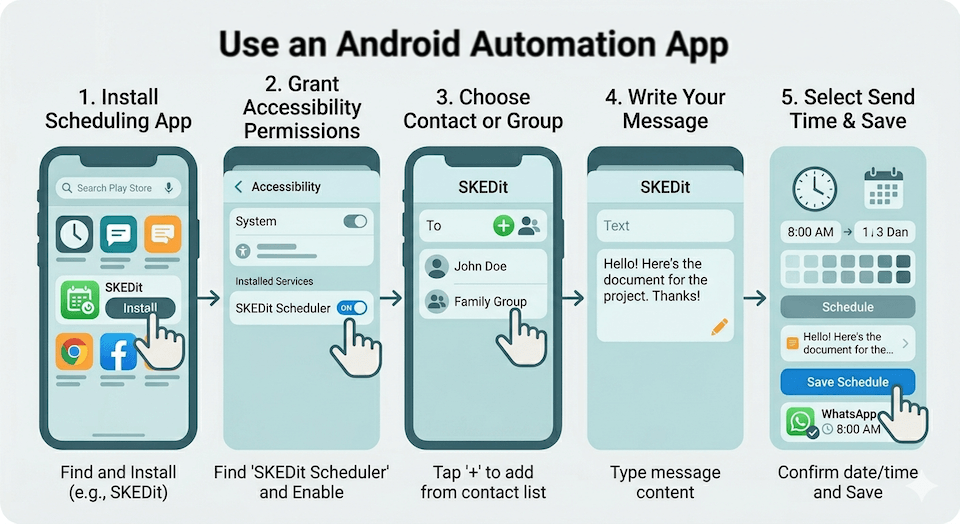
Apps like SKEDit and similar schedulers are the most common approach.
Typical setup looks like this:
- Install a WhatsApp scheduling app
- Grant Accessibility permissions
- Choose the WhatsApp contact or group
- Write your message
- Select the send time
- Save the schedule
Once configured, the app can trigger the message automatically later.
That said, Android automation is not always perfect in real-world use.
Many phones aggressively kill background apps to save battery. Samsung, Xiaomi, Huawei, and Oppo devices are especially known for this. If battery optimization blocks the automation app, scheduled messages may fail silently.
A good habit is testing one scheduled message first before relying on it for business communication.
Method 2: Use Google Calendar or Assistant
If you only need reminders instead of fully automatic sending, Google Calendar works well.
Create an event like:
- “Send invoice to client”
- “Follow up with customer”
- “Wish Happy Birthday”
Then add the WhatsApp number or chat link in the notes.
This method is simple, reliable, and avoids giving deep permissions to third-party automation apps.
For business use, many teams eventually combine Android SMS gateways with WhatsApp scheduling tools so customer reminders, alerts, and replies can all be managed from one place instead of multiple phones.
How to Schedule Messages in WhatsApp Business
If you run a business, the first thing to know is that WhatsApp Business does support some automation features — but not true “send later” scheduling for normal chats.
Inside WhatsApp Business, you can configure:
- Away Messages
- Greeting Messages
- Quick Replies
These are useful for basic communication workflows.
For example:
- Automatically replying after business hours
- Welcoming new customers
- Answering common questions
- Sending canned responses quickly
How to Enable Away Messages
- Open WhatsApp Business
- Tap Settings
- Go to Business Tools
- Select Away Message
- Enable it and customize your message
- Set your schedule
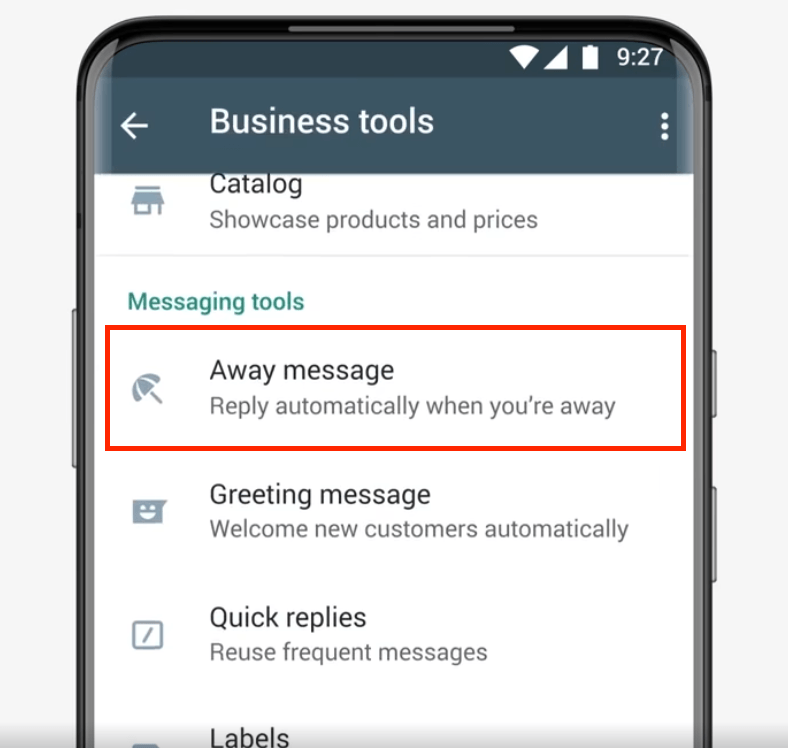
You can choose:
- always send
- custom schedule
- outside business hours
What WhatsApp Business Cannot Do
WhatsApp Business includes useful features like Away Messages and Greeting Messages, but it still cannot:
- Schedule normal messages for future sending
- Automatically send personalized follow-ups
- Manage complex messaging workflows
- Handle large-scale communication campaigns easily
For many small businesses, the built-in tools are enough to get started. However, once you begin managing appointment reminders, customer follow-ups, support requests, or sales leads, you’ll typically need dedicated scheduling and workflow tools to keep communication organized and reliable.
How to Schedule WhatsApp Messages on Desktop
If you spend most of your day on a computer, scheduling WhatsApp messages from desktop can be more convenient than using your phone.
Most desktop scheduling methods work through:
- WhatsApp Web
- browser extensions
- CRM or automation platforms
Method 1: Browser Extensions
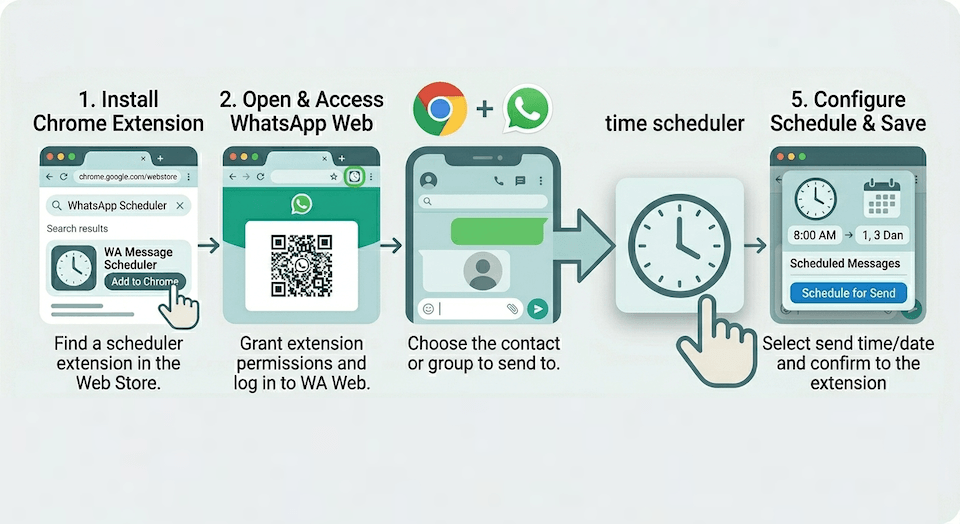
Extensions like WhatsApp schedulers for Chrome can add a “schedule message” feature directly inside WhatsApp Web.
The usual process looks like this:
- Install the extension
- Open WhatsApp Web
- Choose a contact or group
- Write your message
- Select the send time
- Save the schedule
For casual use, this works fairly well.
But there are some real-world limitations people don’t mention enough:
- Your browser may need to stay open
- WhatsApp Web can disconnect
- Extensions can break after WhatsApp updates
- Some extensions request broad access permissions
For personal reminders, this may be fine. For business-critical communication, it quickly becomes risky.
Method 2: Business Messaging Platforms
Businesses usually move beyond browser extensions once messaging becomes operational.
Instead of relying on one employee’s browser tab staying alive, centralized platforms allow teams to:
- manage customer conversations
- schedule replies
- route messages
- handle SMS and WhatsApp together
- monitor communication history
This becomes especially useful for:
- sales teams
- support desks
- appointment-based businesses
- field operations
From experience, browser extensions are good for lightweight use, but they are rarely reliable enough for long-term business workflows.
How Businesses Use Scheduled Messaging
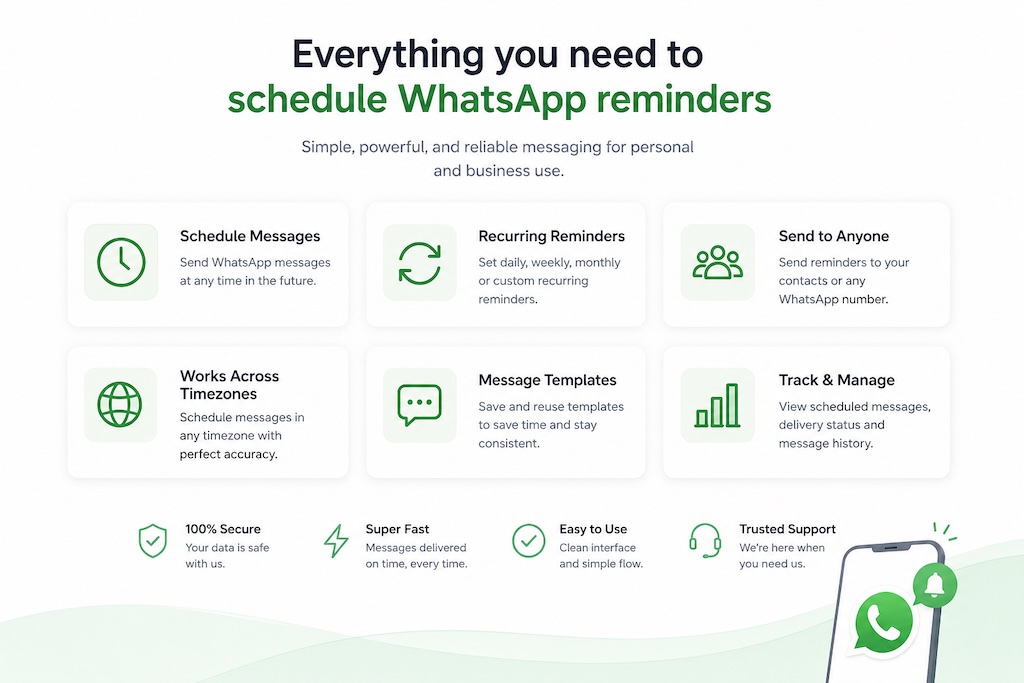
Businesses commonly use scheduled messaging for appointment reminders, customer follow-ups, sales leads, support requests, and internal notifications. A timely message can reduce no-shows, improve response rates, and help teams stay organized.
One thing many businesses discover quickly is that not every customer responds on WhatsApp. Some prefer SMS, while others engage more on WhatsApp. That’s why many teams use WhatsApp for conversations and SMS for urgent reminders and alerts. As communication volume grows, centralized scheduling and workflow tools become much more reliable than managing everything from individual phones.
WhatsApp Scheduling Risks & Rules
Before using any WhatsApp scheduling tool, it’s important to understand the risks.
WhatsApp is very aggressive about spam prevention. If an account suddenly starts sending large volumes of repetitive or unsolicited messages, restrictions can happen quickly.
This is especially common with:
- bulk blasting tools
- scraped contact lists
- mass cold outreach
- heavily automated behavior
In some cases, accounts may get temporarily limited or permanently banned.
A safer approach is using scheduled messaging for:
- existing customers
- opted-in users
- appointment reminders
- support follow-ups
- operational communication
Another thing people overlook is privacy and security.
Some browser extensions and automation apps request deep access permissions to notifications, accessibility features, or WhatsApp Web sessions. Always be careful about what permissions you grant and avoid unknown tools that make unrealistic promises.
For businesses, compliance matters too.
Depending on your country, sending promotional messages without consent may violate messaging or privacy regulations. Even if technically possible, aggressive automation can damage trust with customers very quickly.
From experience, the best messaging workflows are usually:
- small-scale
- targeted
- expected by the recipient
- genuinely useful
The goal should be improving communication, not flooding people with automated messages.
Frequently Asked Questions
Can you schedule WhatsApp messages without an app?
Not fully in most cases. WhatsApp does not currently include a built-in “send later” feature for personal chats, so scheduling usually requires Shortcuts, automation apps, browser extensions, or business messaging tools.
Does WhatsApp have a built-in scheduler?
No. Regular WhatsApp does not offer native message scheduling yet. WhatsApp Business includes Away Messages and Greeting Messages, but those are automated replies, not scheduled sends.
Is scheduling WhatsApp messages safe?
Usually yes, if used responsibly. Problems typically happen when people use bulk messaging tools, scraped contact lists, or spam-style automation.
Can WhatsApp Business schedule messages?
Partially. WhatsApp Business can automate greeting and away messages, but it does not support full scheduled messaging workflows by itself.
Can I schedule WhatsApp messages on iPhone?
Yes, using Apple Shortcuts or reminder-based workflows. However, iPhone restrictions often require some user interaction before messages are sent.
Can Android automatically send scheduled WhatsApp messages?
Android supports more automation than iPhone, so some scheduling apps can send messages automatically. Results may vary depending on battery optimization and device restrictions.
Is SMS better than WhatsApp for reminders?
For urgent reminders and alerts, SMS is often more reliable because it does not require internet access or WhatsApp installation. Many businesses use both together.
Can AutoForward Text schedule WhatsApp and SMS messages?
Yes. AutoForward Text can schedule WhatsApp messages through connected WhatsApp accounts and schedule SMS messages through connected Android SMS gateway devices.
You can create one-time or recurring messages, automate customer reminders, follow-ups, notifications, and operational workflows from a single dashboard. This makes it easier to manage both WhatsApp and SMS communication without relying on phone automations, browser extensions, or multiple apps.
Conclusion
While WhatsApp still doesn’t offer a built-in message scheduler for personal chats, there are now plenty of ways to schedule messages on iPhone, Android, desktop, and WhatsApp Business.
For occasional personal use, free tools and automations may be enough. But if you’re sending appointment reminders, customer follow-ups, sales messages, or business notifications, a dedicated scheduling platform is usually the more reliable option.
With AutoForward Text, you can connect your WhatsApp account using a QR code, schedule WhatsApp messages, schedule SMS messages, automate reminders, and manage communication workflows from a single dashboard.
Just remember to use scheduled messaging responsibly and focus on sending useful, expected communication to customers who want to hear from you.
Ready to start scheduling WhatsApp messages? Try AutoForward Text and get set up in minutes.
Schedule SMS & WhatsApp Messages From One Dashboard
Manage appointment reminders, customer follow-ups, auto-replies, WhatsApp conversations, and SMS workflows without juggling multiple apps and devices.