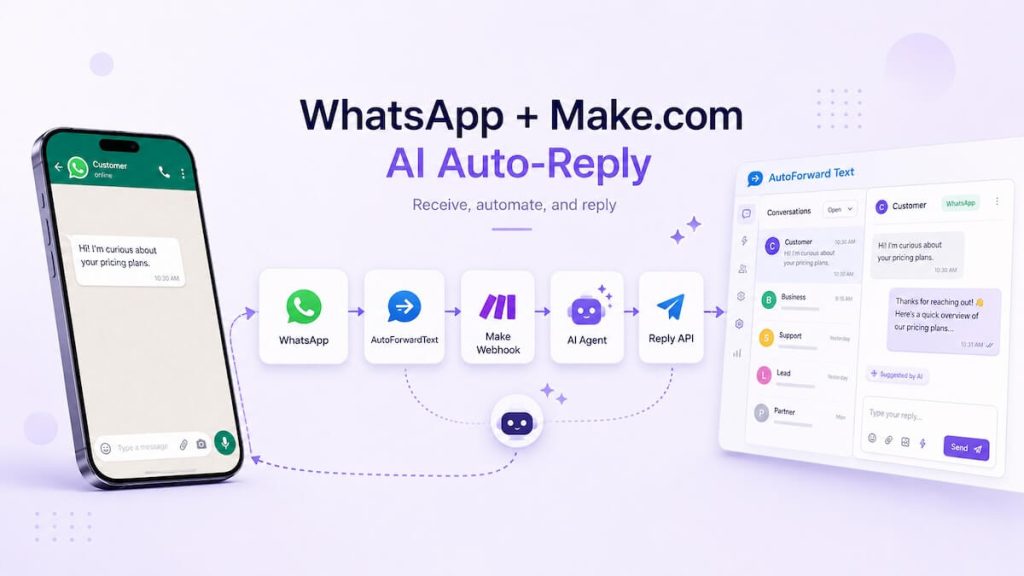
A useful WhatsApp AI workflow does not need to be complicated. The simplest architecture is to let WhatsApp handle the conversation, AutoForward Text handle message delivery, Make handle the automation, and an AI Agent decide what to say.
In this tutorial, we will build a working two-way flow where an incoming WhatsApp message is forwarded to Make, processed by a Make AI Agent, and then sent back to the original WhatsApp chat through the AutoForward Text Reply API.
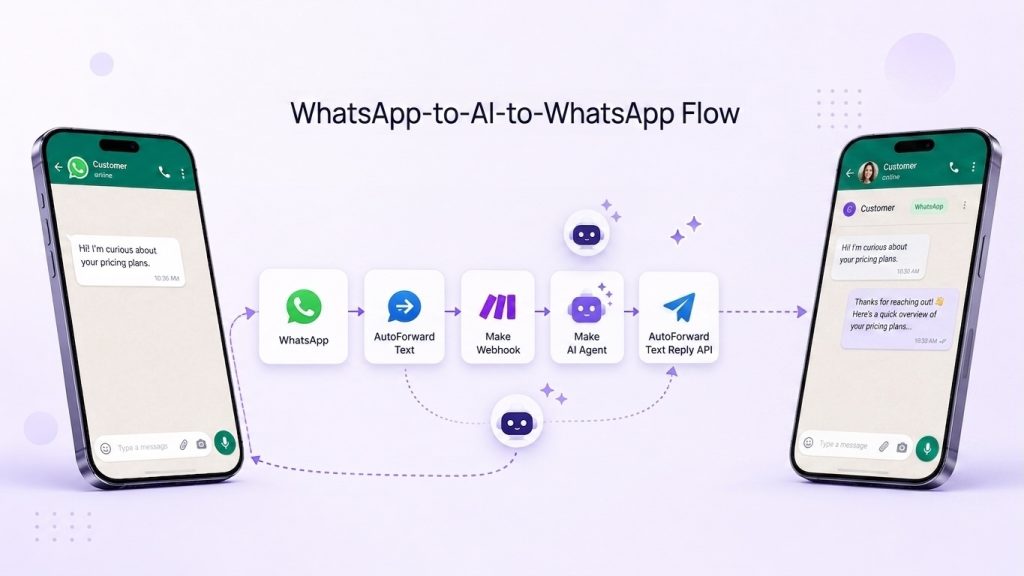
The key detail is that Make does not need to understand the underlying WhatsApp provider, account ID, chat ID, or connection type. AutoForward Text includes a message-specific reply.endpoint in the incoming webhook, and Make simply posts the AI response back to that endpoint.
How It Works?
You need four things:
- A WhatsApp account connected to AutoForward Text
- A Make.com account
- Access to Make AI Agents
- An AutoForward Text API key with reply permission
You should also test the WhatsApp connection before building the automation. Send a normal message to the connected account and confirm that it appears in AutoForward Text.
Best practice: Build and test the workflow in stages. First confirm WhatsApp is receiving messages, then confirm Make receives the webhook, then add the AI Agent, and only then add the outgoing Reply API request.
Step 1: Connect WhatsApp
Sign in to AutoForward Text and open WhatsApp Accounts.
Connect the WhatsApp account that will receive customer messages. Depending on the connection method available to your account, this may be a QR-based WhatsApp connection or a WhatsApp Business / Cloud API connection.
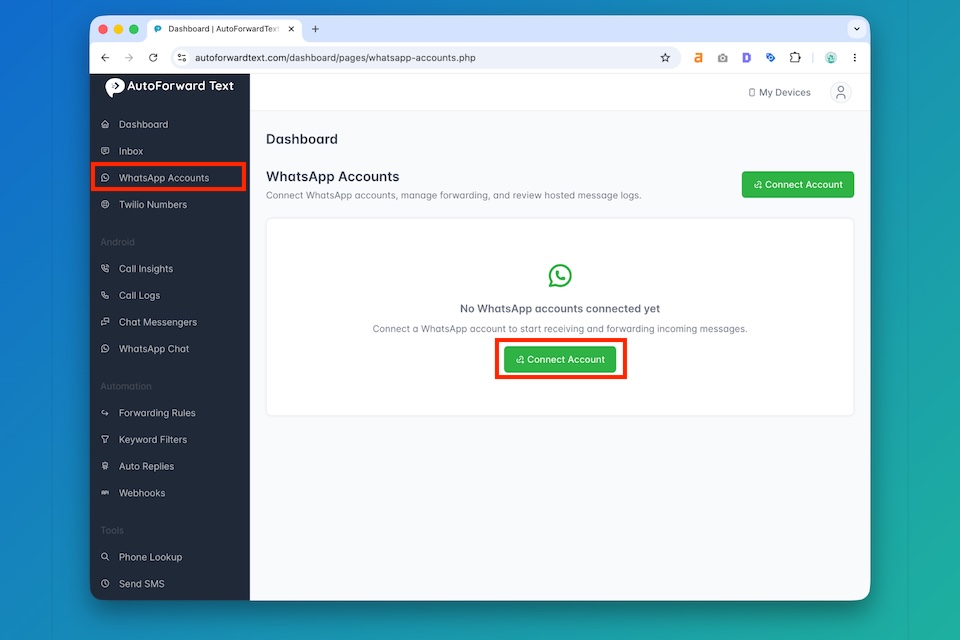
Once the account shows as connected, send it a message from a different WhatsApp number.
Confirm that the message appears in your AutoForward Text WhatsApp message logs.
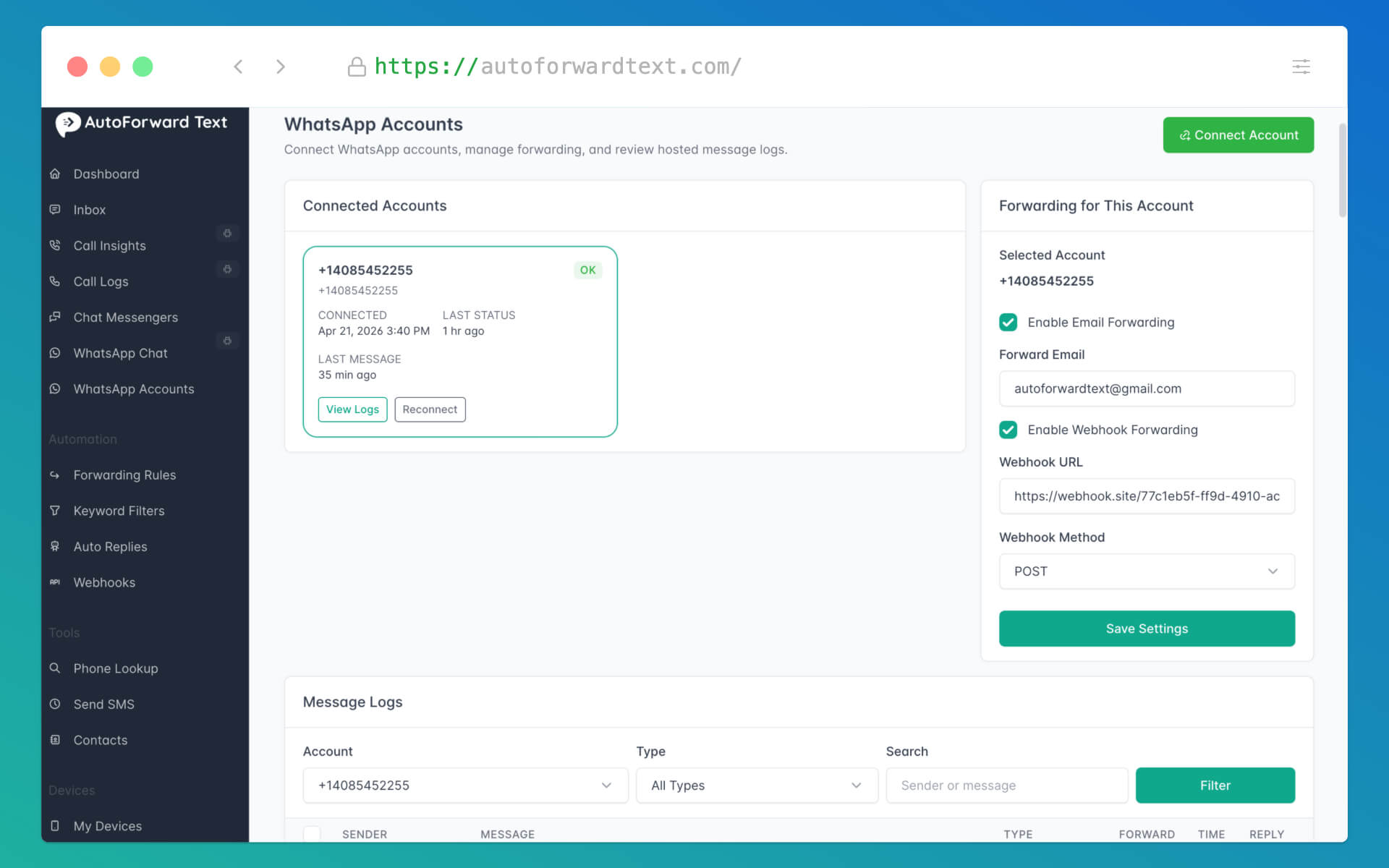
This first test matters because it separates WhatsApp connection problems from Make.com problems. If the message does not reach AutoForward Text, there is nothing for Make to process yet.
Step 2: Create a Make Webhook
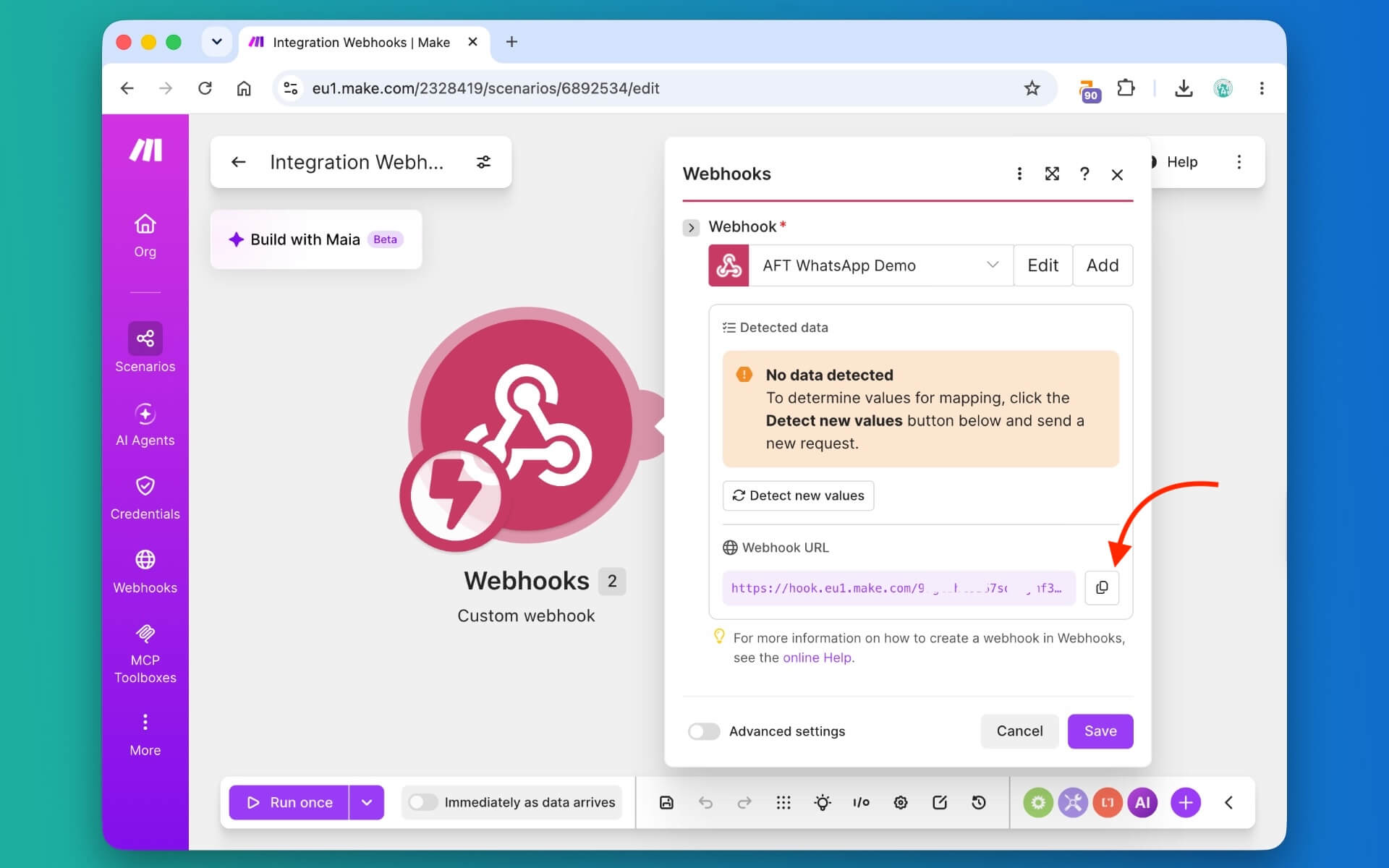
Open Make and create a new scenario.
Add the first module:
Webhooks → Custom webhook
Create a new webhook and give it a descriptive name such as:
WhatsApp AI Agent
Make will generate a webhook URL. Copy it.
This webhook will become the entry point for every incoming WhatsApp message that you want the scenario to process.
Step 3: Forward WhatsApp Messages to Make
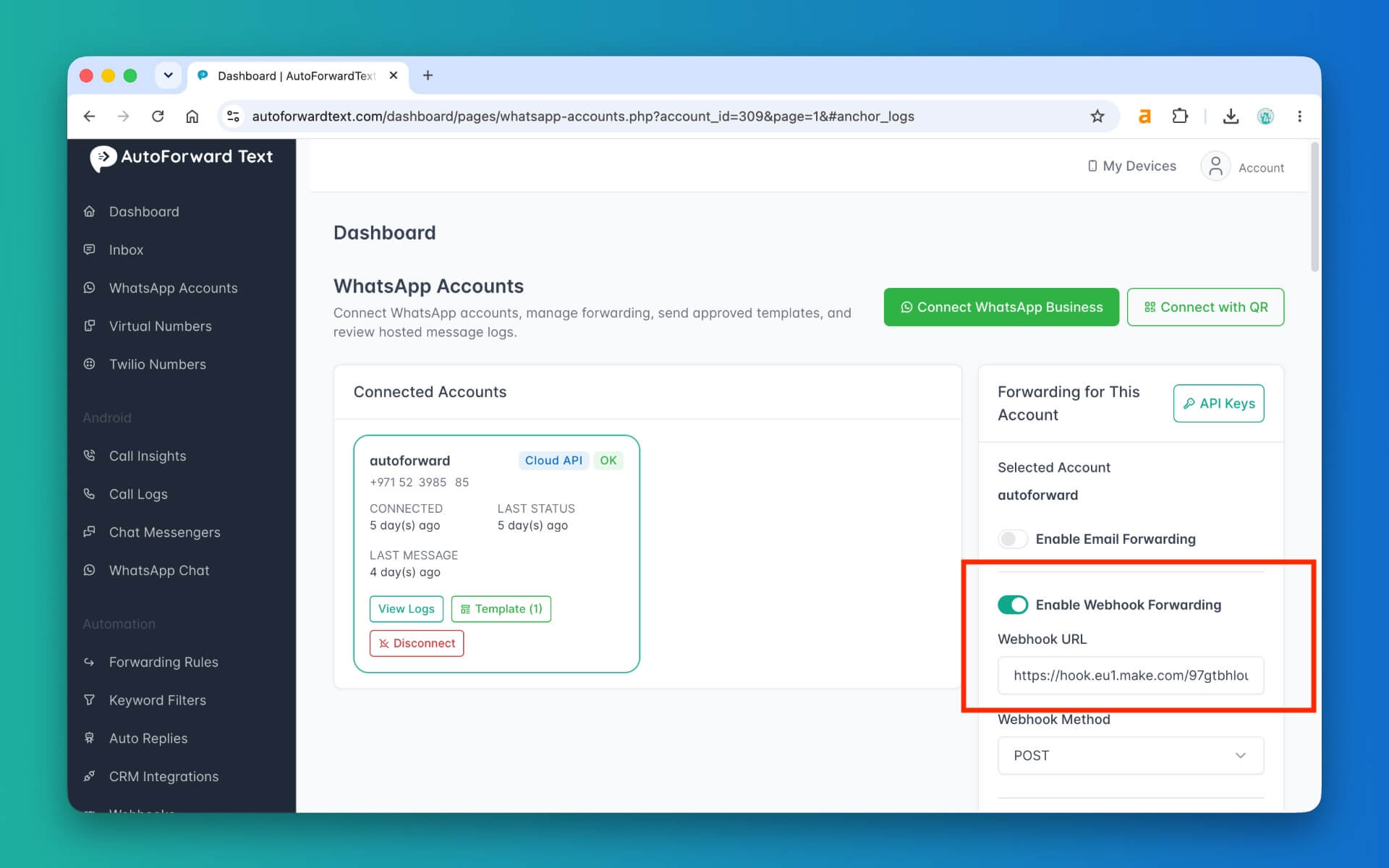
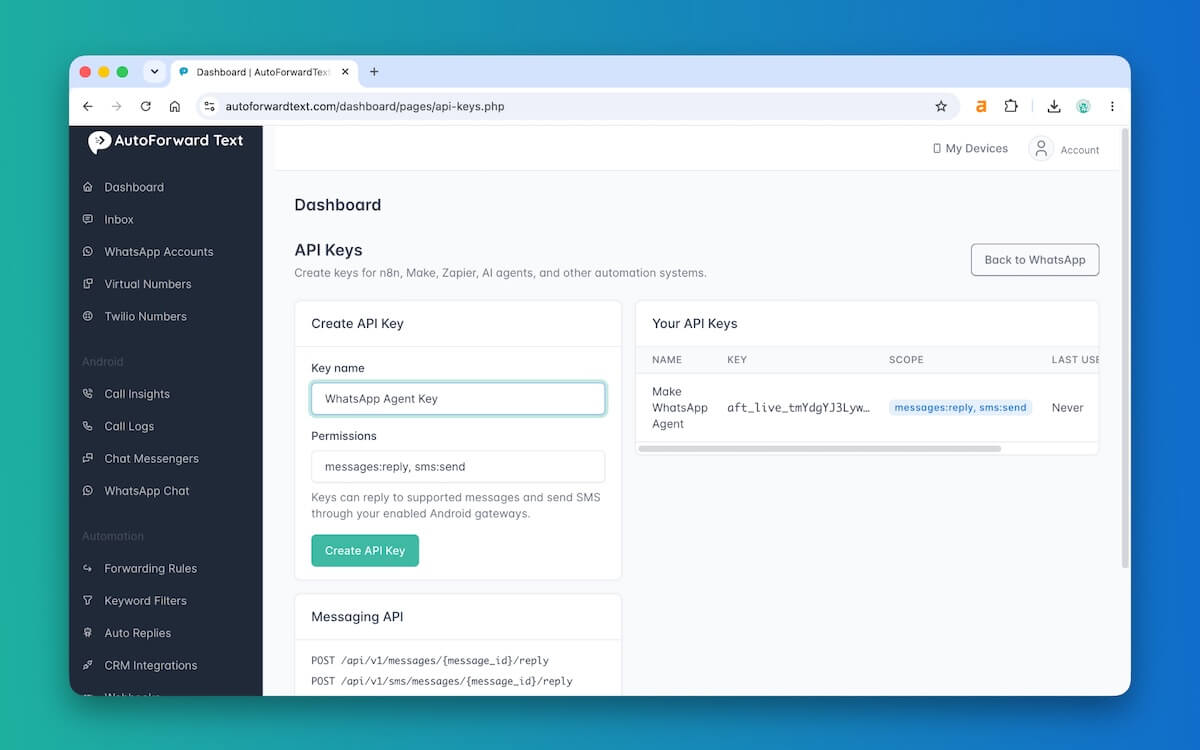
Return to AutoForward Text and open the forwarding settings for the connected WhatsApp account.
Enable Webhook Forwarding and paste the Make webhook URL into the webhook destination field.
Save the settings.
Now put the Make webhook into listening mode and send a brand-new WhatsApp message to the connected account.
Make should receive a structured webhook payload containing the incoming message details.
A simplified example looks like this:
{
  "event": "whatsapp.received",
  "message_id": 9274,
  "contact_name": "Customer",
  "contact_number": "+14155550123",
  "content": "Do you have availability tomorrow?",
  "reply": {
    "method": "POST",
    "endpoint": "https://autoforwardtext.com/api/v1/messages/9274/reply",
    "message_id": 9274
  }
}
The most useful fields for this workflow are:
content— the incoming WhatsApp messagecontact_number— useful for conversation memorymessage_id— identifies this incoming messagereply.endpoint— the URL used to send the response back
The important part is reply.endpoint. Make does not need to build a WhatsApp conversation URL or know which provider is connected. It simply posts the response back to the endpoint supplied with the original message.
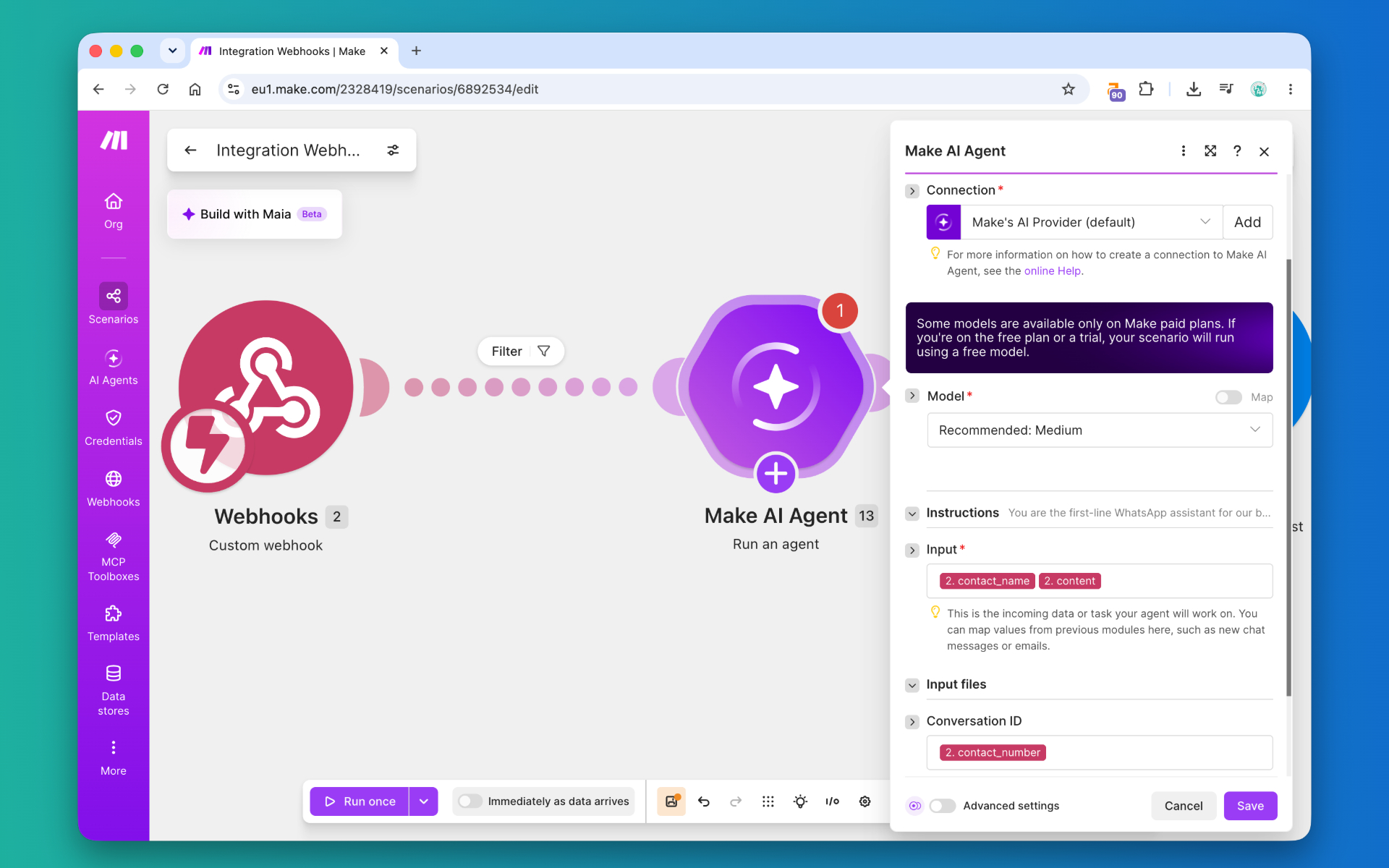
Step 4: Add a Make AI Agent
Add another module after the webhook:
Make AI Agent → Run an agent
Map the incoming WhatsApp content field into the AI Agent input.
Input:
Webhook → content
For a basic customer-facing agent, your instructions can be deliberately simple:
You are the first-line WhatsApp assistant for our business.

Answer the customer's question clearly and briefly.

Do not invent prices, policies, opening hours, stock availability
or other facts that have not been provided to you.

If you do not know an answer, say that someone from the team
will follow up.

Keep normal replies below 80 words.

Do not claim to be a human.
This is enough to test the workflow. You can add company knowledge, CRM access, lead qualification, or other tools after the basic messaging loop works reliably.
Use a Conversation ID if You Want Memory
If the AI Agent should remember earlier messages from the same customer, map a stable value into the agent’s Conversation ID.
For a simple implementation, the sender’s WhatsApp number can be used:
Conversation ID = contact_number
This lets a follow-up question such as:
remain part of the same conversation instead of being treated as a completely new session.
Step 5: Create an AutoForward Text API Key
The AI can now generate an answer, but Make still needs permission to send that answer back through AutoForward Text.
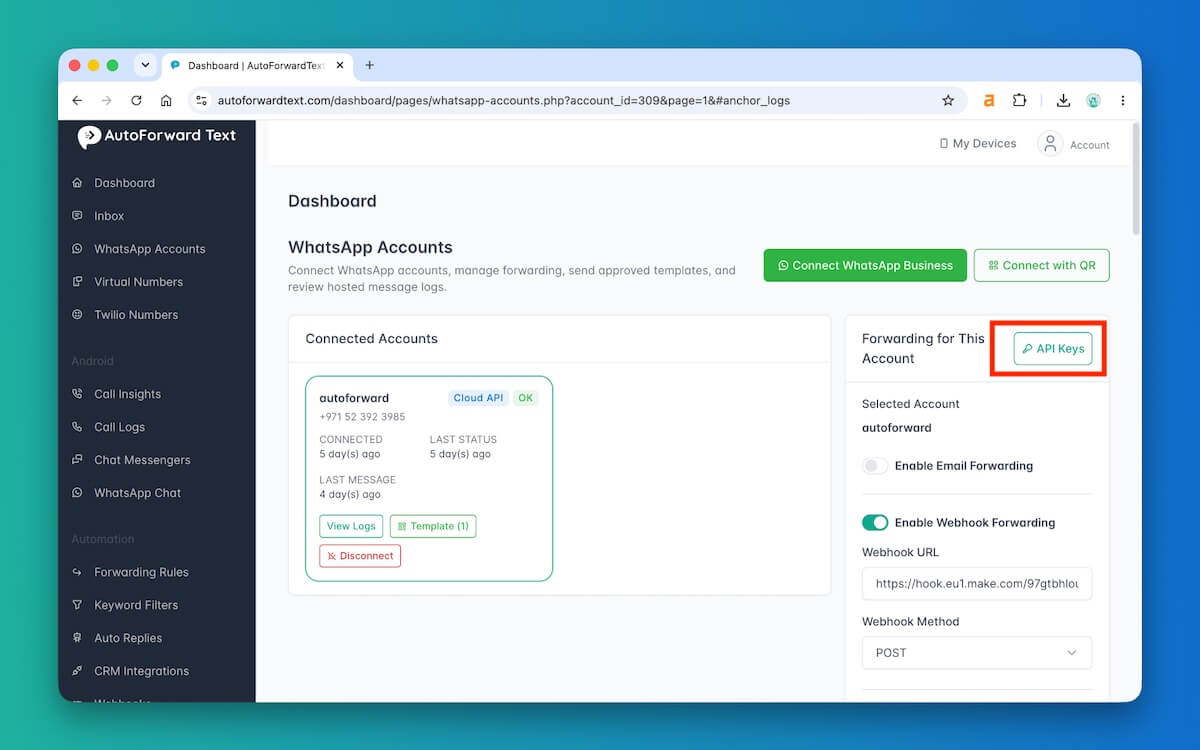
Open API Keys in AutoForward Text and create a new key.
A clear name is:
Make WhatsApp Agent
The key needs permission to reply to messages. The relevant scope is:
messages:reply
Copy the API key when it is created and store it securely.
Step 6: POST the AI Response to the Reply Endpoint
Add one more module to the Make scenario:
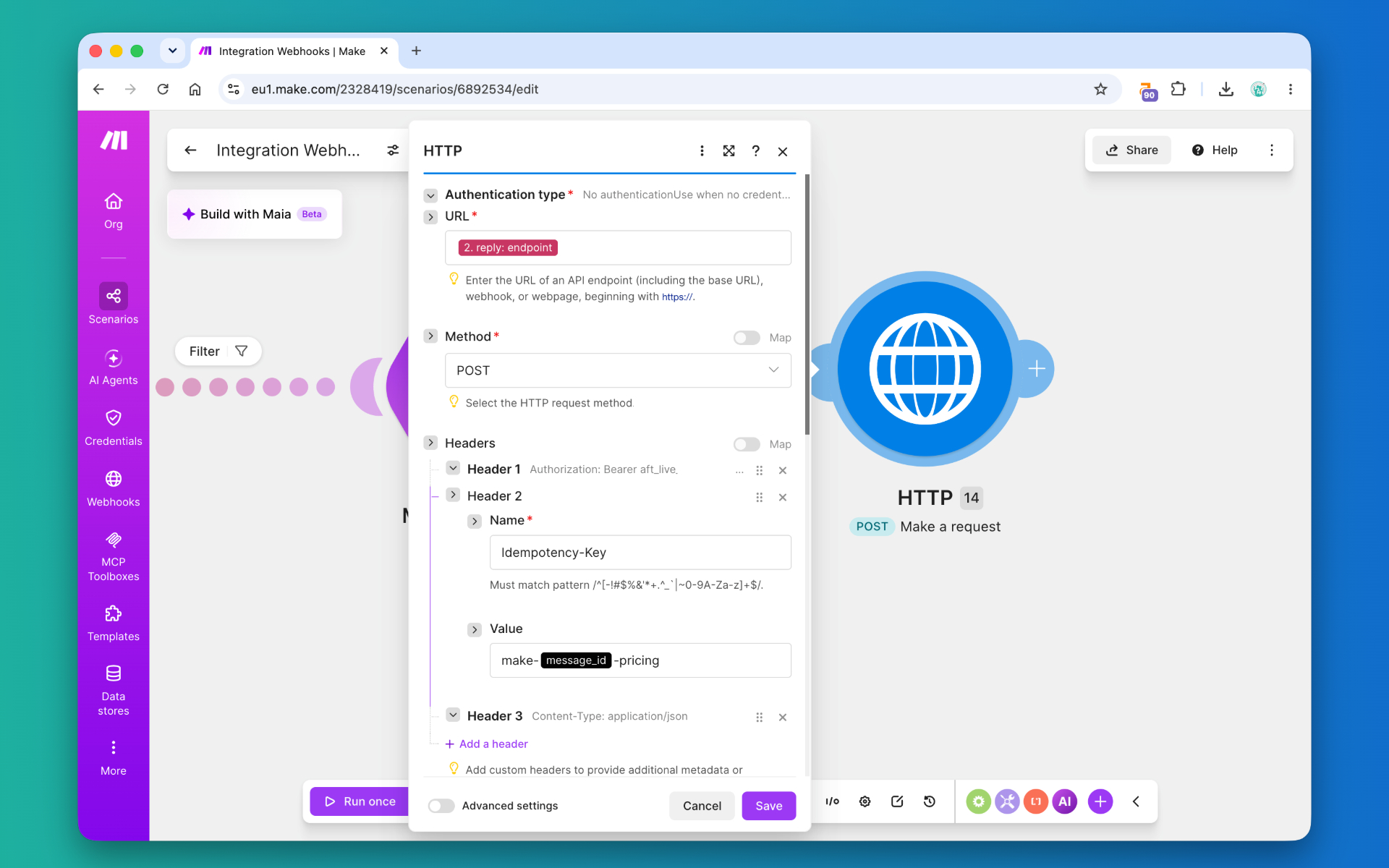
HTTP → Make a request
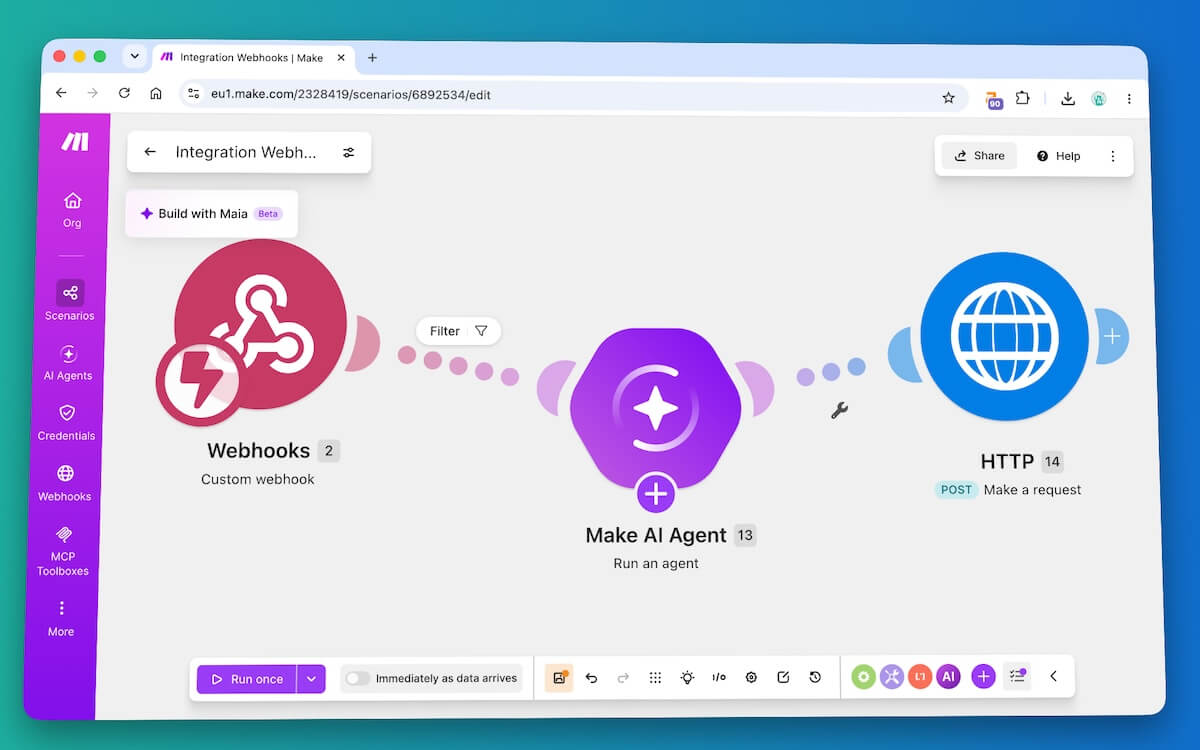
Your scenario should now have three main modules:
↓
Make AI Agent
↓
HTTP Request
URL
Map the reply.endpoint field from the original AutoForward Text webhook into the request URL.
Do not hard-code a message ID.
URL: Webhook → reply.endpoint
A real request URL may look like this:
https://autoforwardtext.com/api/v1/messages/9274/reply
But Make should use the dynamic endpoint from the incoming webhook because every new message has its own message ID.
Method
POST
Authorization Header
Add:
Authorization: Bearer YOUR_AFT_API_KEYIdempotency Key
Add another header:
Idempotency-Key: make-wa-MESSAGE_IDMap the incoming message_id into that value.
For example:
Idempotency-Key: make-wa-9274This protects against accidental duplicate replies if Make retries the HTTP request after a timeout or temporary network error.
One incoming WhatsApp message should map to one logical idempotency key. A retry of the same reply should reuse the same key rather than generating a new one.
Request Body
Send JSON with a single text field:
{
  "text": "AI AGENT RESPONSE"
}
Map the response generated by the Make AI Agent into text.
The final request is conceptually equivalent to:
curl -X POST \
  'https://autoforwardtext.com/api/v1/messages/9274/reply' \
  -H 'Authorization: Bearer aft_live_REPLACE_ME' \
  -H 'Idempotency-Key: make-wa-9274' \
  -H 'Content-Type: application/json' \
  --data '{"text":"Yes, we can help with that. What would you like to know?"}'
A successful reply request is accepted by AutoForward Text and queued for delivery back to the original WhatsApp conversation.
Step 7: Test the Complete Conversation
Save the scenario and make sure it is active.
Now send a fresh WhatsApp message from another account.
The complete workflow should now happen automatically:
↓
AutoForward Text sends it to Make
↓
Make AI Agent generates a response
↓
Make POSTs the response to
reply.endpoint↓
AutoForward Text sends the reply
↓
Customer receives the answer in WhatsApp
Do not stop testing when Make shows green checkmarks.
Verify all three layers:
- Confirm the incoming message appears in AutoForward Text.
- Confirm all Make modules complete successfully.
- Confirm the AI-generated response physically arrives in the original WhatsApp conversation.
What Happens When WhatsApp Requires a Template?
A successful AI response does not override WhatsApp’s own messaging rules.
If the original conversation is outside the window where a normal free-form business reply is allowed, AutoForward Text may return a response indicating that an approved WhatsApp template is required.
For example:
{
  "ok": false,
  "code": "template_required",
  "message": "An approved WhatsApp template is required to reopen this conversation."
}
Repeatedly retrying the same AI response will not fix this.
In a production scenario, handle this case separately. For example, Make could create a human follow-up task, send an internal alert, or route the conversation into a template-based workflow.
Troubleshooting
| Problem | Likely Cause | What to Check |
|---|---|---|
| WhatsApp message never appears in AutoForward Text | WhatsApp connection issue | Check the connected account status before troubleshooting Make |
| Message appears in AutoForward Text but not in Make | Webhook forwarding is disabled or the URL is wrong | Check the saved Make webhook URL and forwarding settings |
| Make receives the webhook but fields are missing | Make has not captured a complete sample payload | Put the webhook into listening mode and send a brand-new WhatsApp message |
| HTTP module returns an authentication error | API key or Authorization header is wrong | Check Authorization: Bearer ... and confirm that the API key is active |
| WhatsApp reply requires a template | The conversation is outside the free-form reply window | Handle the response as a template-required or human-follow-up case |
| Customer receives duplicate AI replies | The scenario retried with a new idempotency key | Use one stable Idempotency-Key for each incoming message |
| AI mixes up different customers | Conversation ID is missing or reused incorrectly | Use a stable per-customer value such as contact_number |
| Make succeeds but no WhatsApp reply arrives | The messaging connection failed after the automation completed | Check the AutoForward Text message logs and connected WhatsApp status |
Best diagnostic order: WhatsApp connection → AutoForward Text message log → Make webhook → AI Agent output → HTTP response → final WhatsApp delivery.
Where to Take the Workflow Next
The basic workflow is intentionally small:
WhatsApp → Webhook → AI Agent → Reply API
That is a good place to start because every additional module creates another place where the automation can fail.
Once the basic loop is reliable, you can make the AI Agent substantially more useful.
- Give it a company knowledge base
- Look up customer or lead data before replying
- Create or update CRM contacts
- Qualify enquiries before handing them to sales
- Check opening hours before answering
- Route certain keywords to a human
- Escalate low-confidence answers
- Record conversations in another system
The important part is to keep the responsibilities separate.
WhatsApp remains the communication channel. AutoForward Text handles receiving and delivering messages. Make handles the workflow. The AI Agent decides what the response should say.
That separation makes the automation easier to test, modify, and troubleshoot than a large workflow where every service tries to manage the WhatsApp connection itself.
Frequently Asked Questions
Can Make.com receive incoming WhatsApp messages?
Yes, when another service forwards the WhatsApp event into a Make Custom Webhook. In this workflow, AutoForward Text receives the WhatsApp message and sends the structured message data to Make.
Can a Make AI Agent reply to WhatsApp automatically?
Yes. The AI Agent can generate the response, and a following HTTP module can POST that response to the AutoForward Text Reply API so it is delivered back to the original WhatsApp conversation.
Does Make need the WhatsApp chat ID?
No. In this workflow, AutoForward Text includes a message-specific reply.endpoint in the incoming webhook. Make posts the response to that endpoint instead of reconstructing the WhatsApp chat details itself.
Why use the reply endpoint instead of building the API URL manually?
The reply endpoint already identifies the original AutoForward Text message and conversation. This keeps the Make scenario simpler and avoids hard-coding provider-specific identifiers.
Can the AI Agent remember earlier WhatsApp messages?
Yes. Use a stable Conversation ID in Make, such as the sender’s WhatsApp number, so messages from the same customer can remain part of the same AI conversation.
How do I stop duplicate WhatsApp replies?
Use a stable Idempotency-Key for each incoming message. If Make retries the same HTTP request, it should reuse the same key rather than create a new one.
Can I use the workflow without an AI Agent?
Yes. The webhook and Reply API can be used with normal Make logic as well. You could use filters, routers, database lookups, CRM data, templates, or fixed responses without involving AI.
What happens if WhatsApp requires an approved template?
A normal AI-generated free-form response cannot bypass WhatsApp’s messaging rules. The workflow should handle the template-required response separately rather than repeatedly retry the same reply.
Should I give the AI Agent full control of customer conversations?
Not initially. Start with narrow instructions, reliable business information, and clear human escalation rules. Expand the agent’s responsibilities only after the basic workflow has been tested with real conversations.
Final Thoughts
The useful part of this setup is not simply that it connects WhatsApp to AI. It gives each component one clear job.
AutoForward Text receives the message and supplies the reply path. Make orchestrates the automation. The AI Agent generates the answer. The Reply API sends that answer back into the original WhatsApp chat.
Once the basic round trip works reliably, you can add knowledge, CRM actions, lead qualification, routing rules, and human handoff without changing the underlying messaging flow.
For most teams, that is a better starting point than trying to build a large WhatsApp AI system in one step.
Connect WhatsApp to Your Make Workflow
AutoForward Text can receive incoming WhatsApp messages, forward them to your Make webhook, and provide a Reply API endpoint that sends the automation response back to the original conversation.