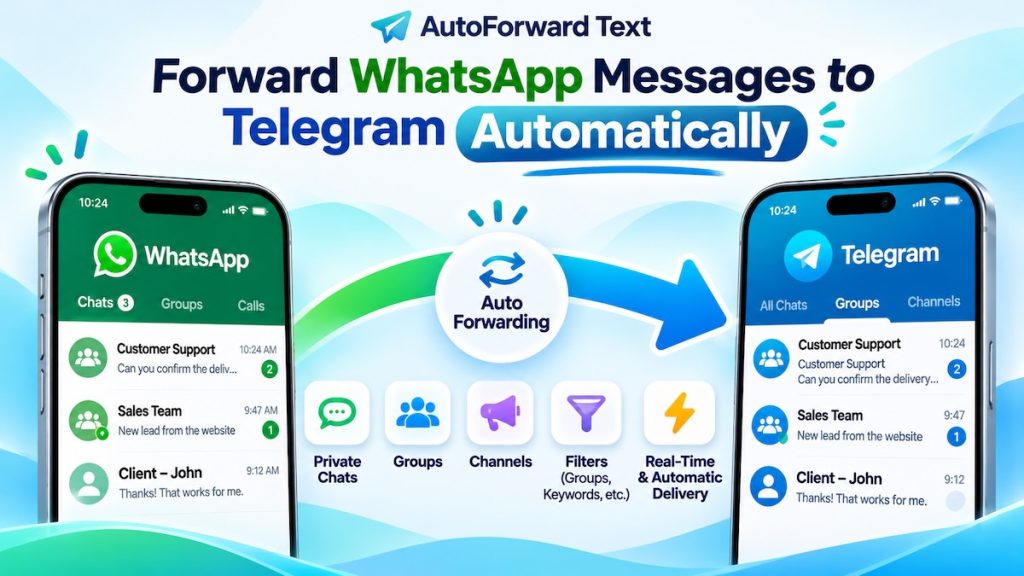
Want WhatsApp messages to appear automatically in a Telegram chat, group, or channel? AutoForward Text connects your existing WhatsApp and Telegram accounts and forwards new incoming messages without copying and pasting them by hand.
Quick answer: Connect your WhatsApp account and Telegram account to AutoForward Text, open WhatsApp forwarding settings, enable Telegram forwarding, choose the Telegram destination, and save. New eligible WhatsApp messages are forwarded as they arrive. You can also limit forwarding to selected WhatsApp groups or use source filters.
Quick Answer: WhatsApp to Telegram Forwarding
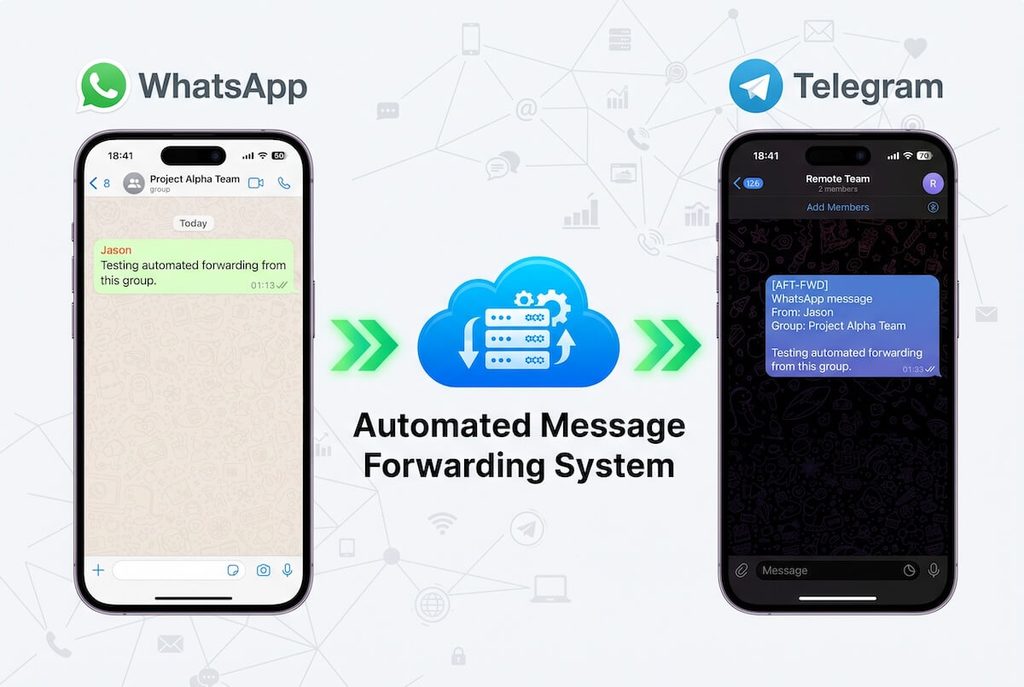
You can automatically forward incoming WhatsApp messages to a selected Telegram private chat, group, or channel using AutoForward Text. Both accounts are connected through the AFT dashboard. No custom Telegram bot, copy-and-paste routine, or programming is required for the supported forwarding workflow.
↓
AutoForward Text forwarding rule
↓
Selected Telegram chat, group, or channel
This is one-way message forwarding: WhatsApp is the source and Telegram is the destination. It is not historical chat migration or automatic two-way conversation synchronization.
What Can You Forward From WhatsApp to Telegram?
| WhatsApp source | Telegram destination | How it works |
|---|---|---|
| Incoming private-chat messages | Telegram private chat | Send eligible new messages to the chosen chat |
| Incoming WhatsApp messages | Telegram group | Share updates with a Telegram team or community |
| Messages from a selected WhatsApp group | Telegram group | Forward new messages from that group into the selected destination group |
| Incoming WhatsApp messages or group updates | Telegram channel | Publish forwarded text to a selected Telegram channel when the connected account has posting access |
These are examples of the supported routing patterns, not a promise that every WhatsApp message type or attachment is reproduced exactly. Current WhatsApp → Telegram forwarding is focused on text; media content may appear as placeholders rather than native files.
How to Automatically Forward WhatsApp Messages to Telegram
Step 1: Create your AutoForward Text account
Visit AutoForward Text signup and open your dashboard. You’ll manage both connected accounts and the forwarding destination from there.
Step 2: Connect the WhatsApp account receiving messages
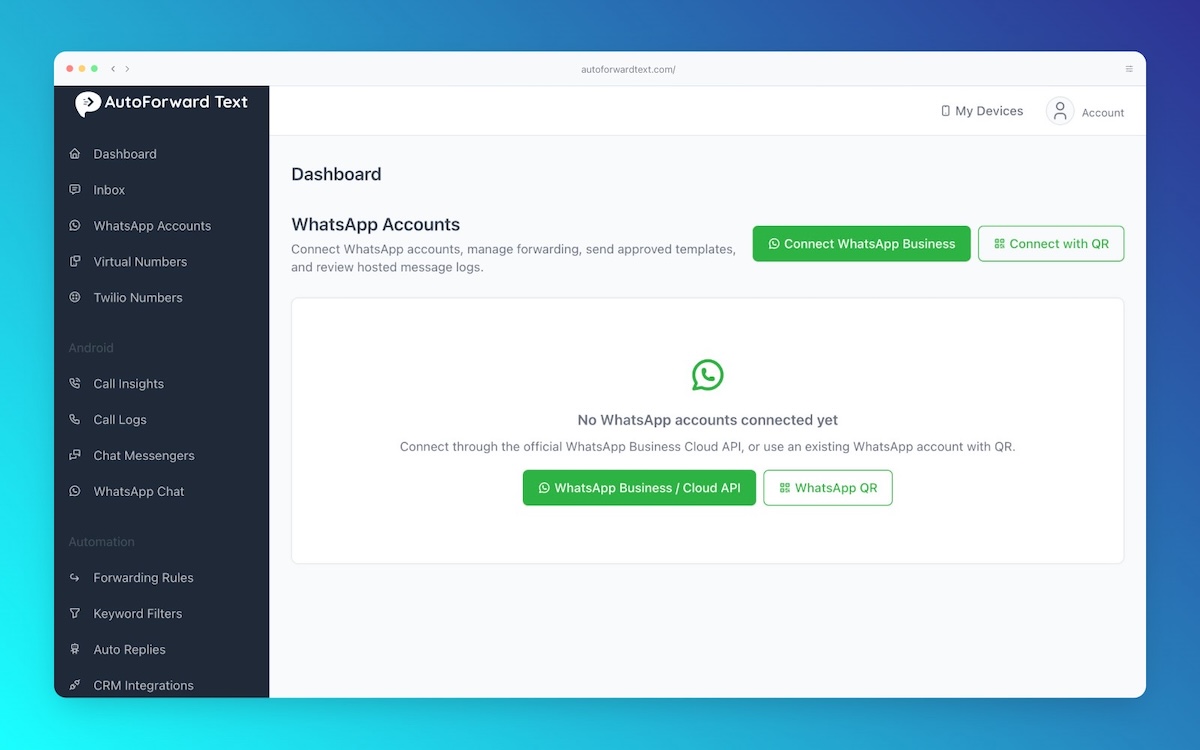
Open the WhatsApp accounts section and follow the displayed connection instructions. Complete the authorization using the WhatsApp account you own or are permitted to manage. Confirm that the account shows as connected before continuing.
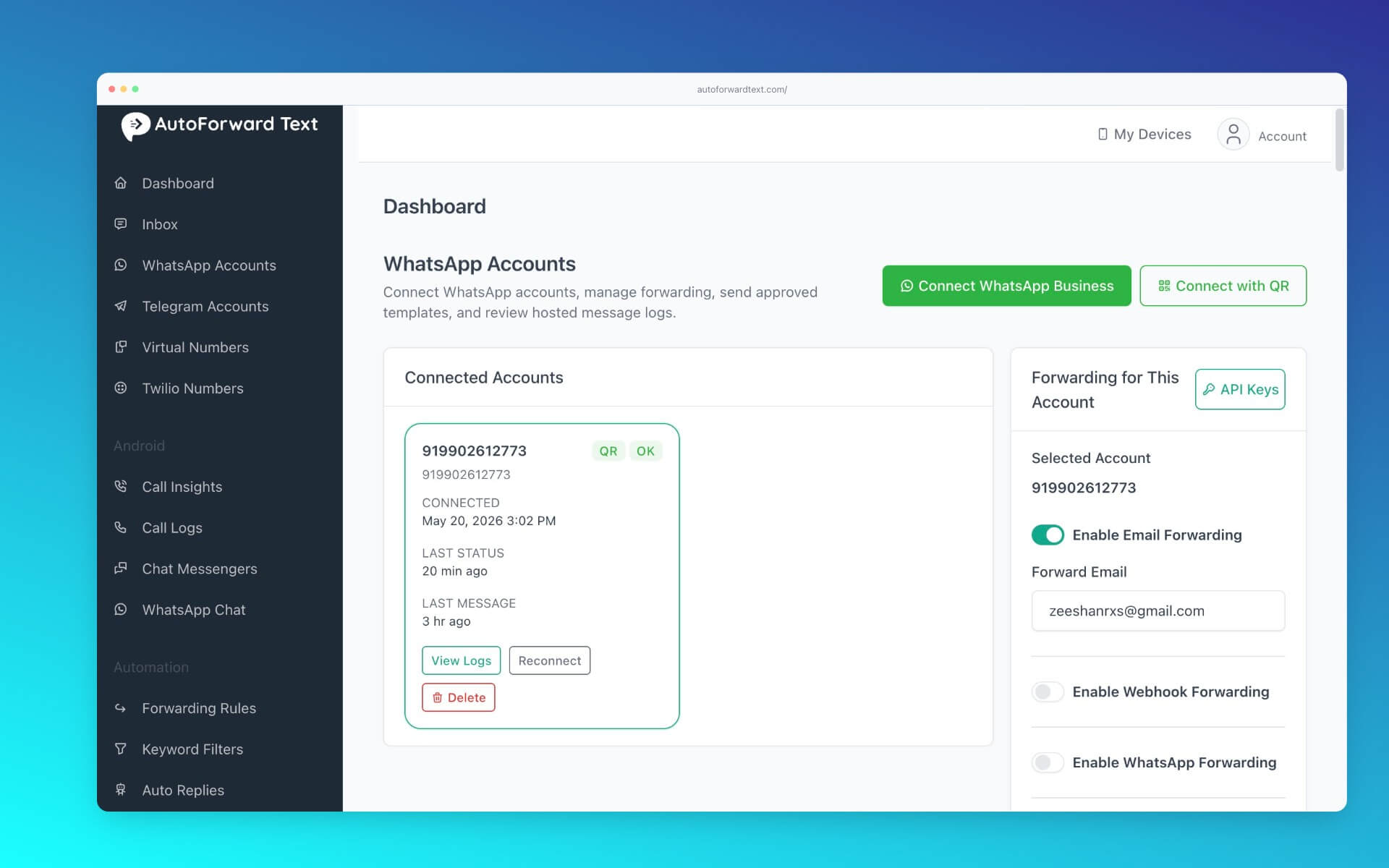
Step 3: Connect your Telegram account
Open the Telegram accounts section and follow the account connection flow. Make sure the intended Telegram chats, groups, or channels are available for selection. For a channel destination, the connected Telegram account must be able to post there.
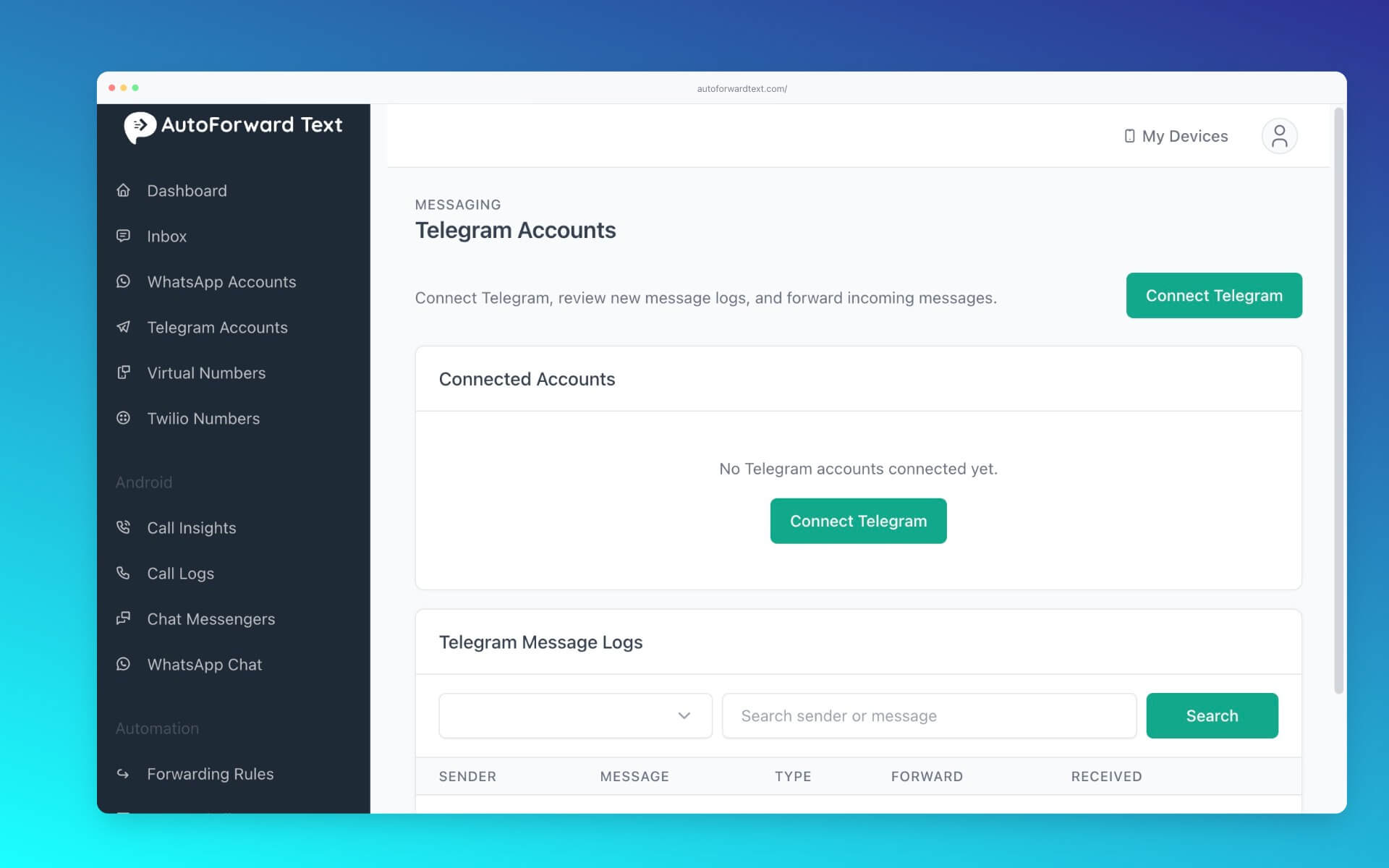
Step 4: Enable Telegram forwarding for WhatsApp
Return to the WhatsApp account’s forwarding settings. Enable the Telegram forwarding option and select the connected Telegram account and destination chat, group, or channel.
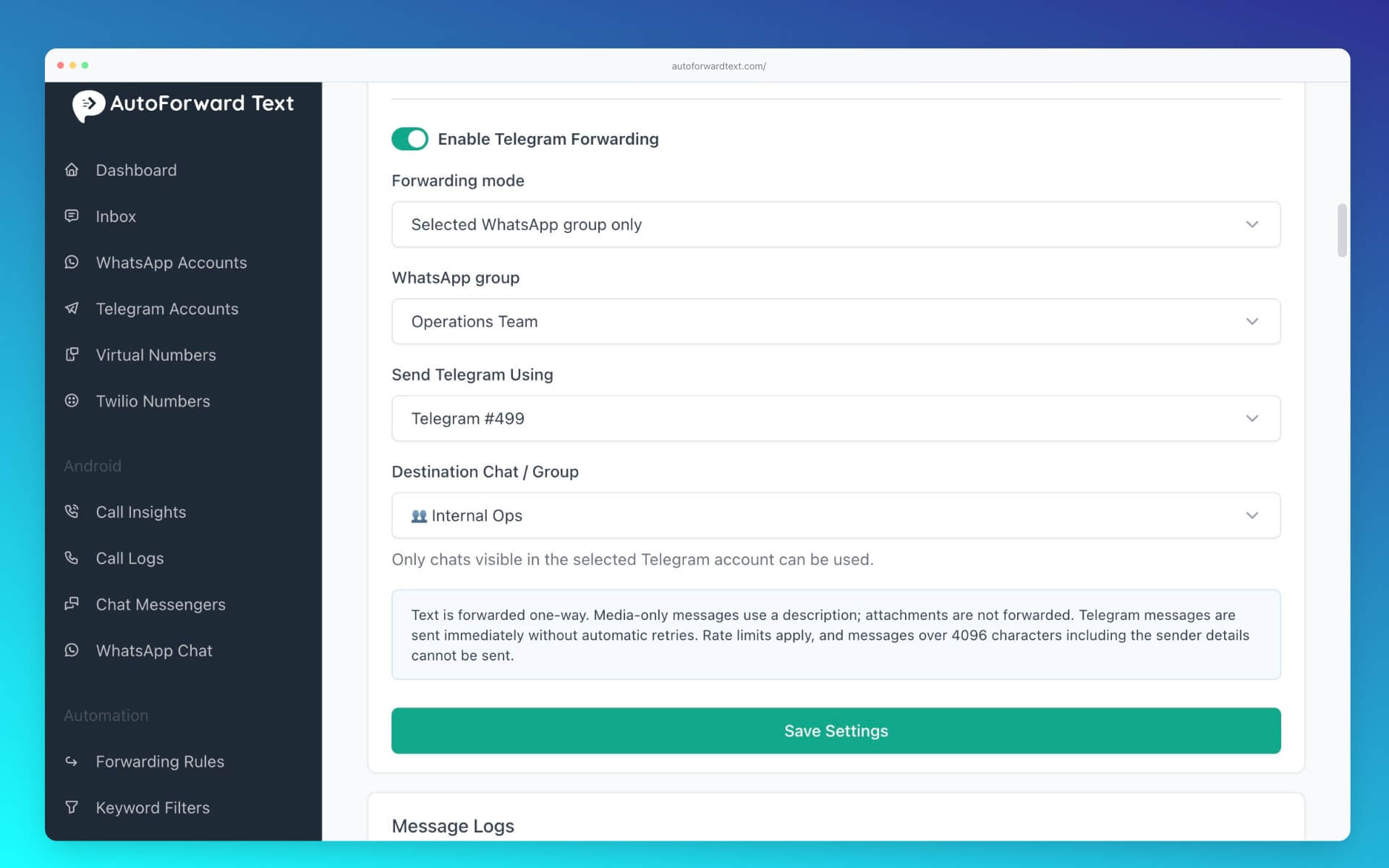
Step 5: Choose the WhatsApp source
Choose whether to forward eligible incoming messages broadly or restrict the source to a selected WhatsApp group. If you only want messages from certain groups, configure the source-group selection independently of the Telegram destination.
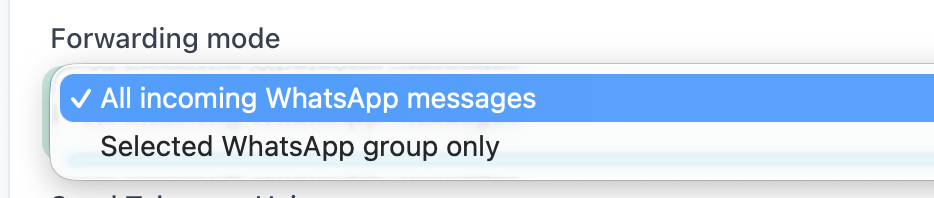
Step 6: Save and send a test message
- Save the forwarding settings.
- Send a new WhatsApp text message from a different account, or post in the WhatsApp group you selected.
- Check the selected Telegram destination.
- Review AFT delivery logs if the message does not arrive.
Connect WhatsApp to Telegram Without Coding
Route new WhatsApp messages to a Telegram chat, group, or channel from one dashboard. Set up the destination and test your first forwarded message.
Forward WhatsApp Group Messages to a Telegram Group
One useful setup is sending messages from a specific WhatsApp group to a Telegram group. For example, a field operations team may use WhatsApp while managers follow updates in Telegram.
↓
AFT source-group filter
↓
Telegram Group: Operations Updates
To configure this route, connect both accounts, select the WhatsApp group as the source, choose the Telegram group as the destination, and save. Post a new test message in the WhatsApp group to confirm delivery.
What this does not do: It does not import old group history, add WhatsApp members to Telegram, or automatically send Telegram group replies back to WhatsApp. Group membership and permissions remain separate.
Forward WhatsApp Messages to a Telegram Channel
Telegram channels are useful for announcements and broadcast-style updates. AFT can forward eligible incoming WhatsApp text messages or selected WhatsApp group updates to a Telegram channel that your connected Telegram account can post to.
- Connect the WhatsApp and Telegram accounts.
- Choose the WhatsApp source or source group.
- Select the intended Telegram channel as the destination.
- Save and test with a new incoming WhatsApp message.
Channel permissions matter: If a Telegram channel does not appear as a usable destination or messages fail to post, check that the connected Telegram account has permission to publish messages in that channel.
This is especially useful when the original information arrives on WhatsApp but a wider audience reads announcements through Telegram.
Choose Which WhatsApp Messages to Forward
Forwarding everything is not always desirable. AFT’s WhatsApp → Telegram route supports independent source-group filtering so you can choose which WhatsApp group supplies messages to a particular Telegram destination.
For example, you can route updates from a project WhatsApp group to a corresponding Telegram operations group without automatically forwarding unrelated private chats. Where your configured WhatsApp rules support keyword filtering, combine those rules with source selection to reduce noise.
Privacy tip: A Telegram group or channel may have a different audience from the source WhatsApp conversation. Only forward messages you are authorized to share, especially customer details or internal discussions.
Is WhatsApp to Telegram Forwarding Instant?
AutoForward Text processes eligible incoming WhatsApp messages through its webhook-based forwarding flow and sends them to Telegram as events arrive. It does not wait for scheduled hourly or daily batches.
Delivery still depends on the connection status of both accounts, provider availability, network conditions, and Telegram permissions. “Automatic” does not mean guaranteed zero-delay delivery. Check delivery logs when a message is missing.
Manual Forwarding vs. Automated Forwarding
| Method | What you do | Best for |
|---|---|---|
| Manual copy and paste | Open WhatsApp, copy a message, switch apps, and send it to Telegram | Occasional individual messages |
| Custom integration or bot | Build and maintain your own message bridge and authorization flow | Teams with engineering resources and specialized requirements |
| AutoForward Text | Connect accounts, select the source and Telegram destination, and save | Ongoing text forwarding without maintaining custom code |
If you need to send messages the other way, read our guide to forwarding Telegram messages to WhatsApp. Each direction requires its own configured forwarding route.
Practical Business Use Cases
Operations and field teams
Keep a Telegram operations group informed when staff report updates in a WhatsApp group.
Community announcements
Share eligible WhatsApp updates to a Telegram channel without retyping each announcement.
Customer service visibility
Route selected incoming WhatsApp text updates to a Telegram team chat, subject to appropriate access controls and customer privacy requirements.
Cross-platform project coordination
Let one team continue using WhatsApp while another follows a curated stream of messages in Telegram.
Limitations and What to Expect
| Capability | Current behavior |
|---|---|
| New incoming WhatsApp text → Telegram | Supported |
| WhatsApp group → Telegram group | Supported and tested |
| WhatsApp → Telegram channel | Supported and tested |
| Automatic batch scheduling | Not used; forwarding is event-driven |
| Media files as native Telegram attachments | Not currently supported in this route; placeholders may be sent |
| Historical message migration | Not provided |
| Automatic Telegram → WhatsApp replies | Not part of this one-way route |
| Automatic retry of failed or uncertain sends | Not currently provided |
AFT records forwarding delivery outcomes and uses duplicate-send protection, but a failed or uncertain send should not be assumed to retry itself. Check the logs and account connections if a message does not arrive.
Troubleshooting WhatsApp to Telegram Forwarding
Nothing arrives in Telegram
Confirm both accounts remain connected, Telegram forwarding is enabled, the destination is correct, and the incoming WhatsApp message matches the source-group selection. Then inspect the AFT delivery log.
Private messages forward, but group messages do not
Review the selected WhatsApp source group and any source-group filters. Test with a fresh message after saving changes.
Telegram channel posts fail
Verify that the connected Telegram account can publish to the chosen channel. Try posting directly through Telegram with that account to confirm access.
Media appears as text or a placeholder
That is a current limitation of WhatsApp → Telegram forwarding. Do not expect the original image, video, document, or voice note to arrive as a native Telegram attachment.
One message appears twice
Review overlapping forwarding rules and destination settings. AFT has duplicate-send protection for this route, but separate active rules or independently configured routes should still be checked.
Can I rely on a failed send being retried?
No. Automatic retries for failed or uncertain WhatsApp → Telegram sends are not currently provided. Review delivery status and resolve the underlying connection or permission issue.
Frequently Asked Questions
Can I automatically forward WhatsApp messages to Telegram?
Yes. Connect WhatsApp and Telegram in AutoForward Text, enable Telegram forwarding, select the destination, and save. Eligible new incoming messages are forwarded automatically.
Can I forward messages from a WhatsApp group to a Telegram group?
Yes. Select the WhatsApp group as the source and a Telegram group as the destination. This route has been tested with new incoming group messages.
Can I forward WhatsApp messages to a Telegram channel?
Yes, provided the connected Telegram account has permission to post in that channel.
Do both WhatsApp and Telegram accounts need to stay connected?
Yes. The forwarding route depends on valid connected accounts. If either account disconnects, delivery may stop until the connection is restored.
Is forwarding real-time or scheduled in batches?
Forwarding is event-driven and starts when eligible incoming messages are received, rather than on a scheduled batch. Actual delivery time depends on service and network conditions.
Can I forward WhatsApp images, videos, and documents to Telegram?
This route currently focuses on text. Media is not forwarded as native Telegram attachments and may be represented by placeholders.
Does Telegram reply automatically back to WhatsApp?
No. This article describes one-way WhatsApp-to-Telegram forwarding. Telegram-to-WhatsApp is a separately configured direction.
Can I select only one WhatsApp group?
Yes. The WhatsApp-to-Telegram route supports source-group selection so you can forward messages from a chosen WhatsApp group.
Do I need to code or create a Telegram bot?
No custom code or Telegram bot is required for the supported AutoForward Text account-connection and forwarding setup.
Will my old WhatsApp chat history be transferred?
No. The forwarding workflow handles eligible new messages after setup; it is not a historical chat migration tool.
Start Forwarding WhatsApp Messages to Telegram
Connect your accounts, choose a Telegram chat, group, or channel, and automatically route eligible new WhatsApp text messages. No custom bot or coding required.
Create Your AutoForward Text AccountExplore AutoForward Text