Need important emails turned into text or WhatsApp alerts automatically, without entering a phone number every time?
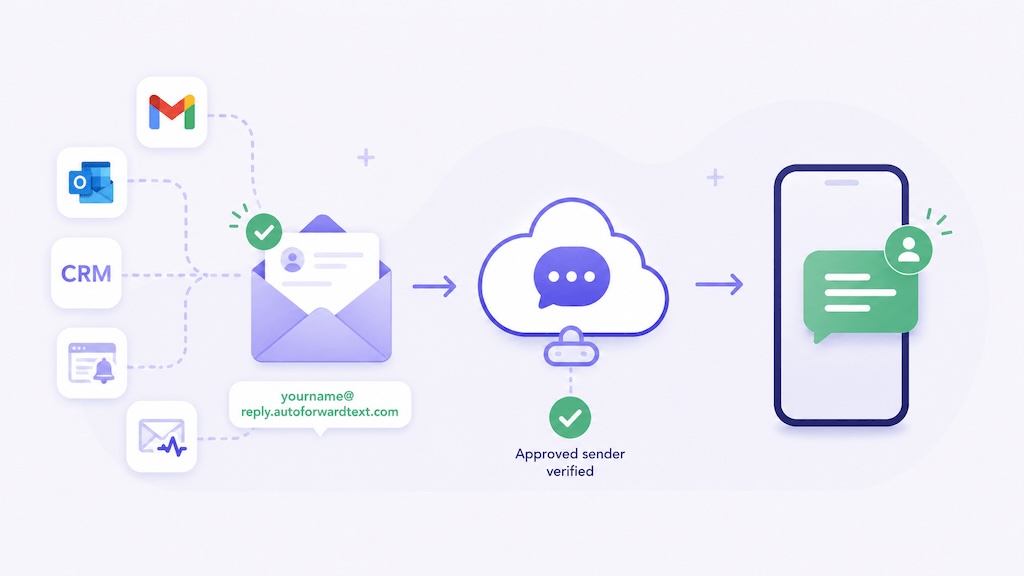
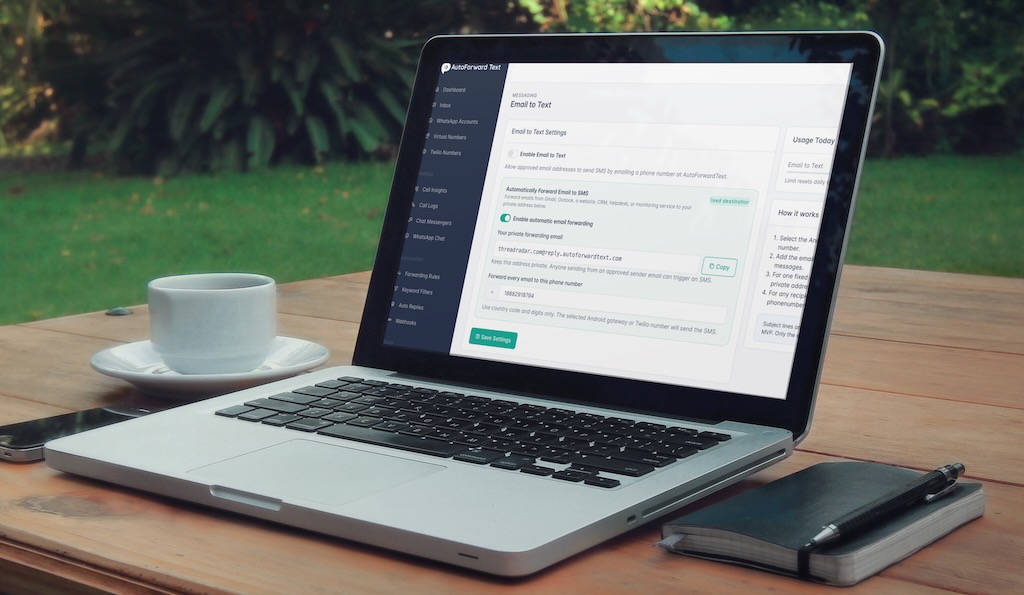
That is exactly what automatic email forwarding is for. AutoForward Text gives you one private forwarding address such as yourname@reply.autoforwardtext.com. You connect that address to a saved destination, then approved emails sent or forwarded to it are delivered automatically.
You can route those emails to an SMS number using AFT Shared SMS, your own Android SMS Gateway, or a connected Twilio number. You can also send them to a WhatsApp number, chat, or group using a connected WhatsApp QR account.
This is useful when Gmail, Outlook, a CRM, a website form, a helpdesk, a monitoring service, or another system needs one permanent destination for urgent notifications.
Unlike standard email-to-text, you do not put the destination phone number into the email address. The destination is already saved in your AutoForward Text settings.
Quick Answer: How to Automatically Forward Email to a Text Message
AutoForward Text gives you a private forwarding address such as yourname@reply.autoforwardtext.com. Add that address to Gmail, Outlook, your CRM, website form, helpdesk, or monitoring service, and selected emails can be delivered automatically to a saved SMS or WhatsApp destination.
Your private forwarding address may look like:
yourname@reply.autoforwardtext.com
When an approved sender sends or forwards an email to that address, AutoForward Text processes the message and routes it using the delivery method configured in your account.
Forward Important Emails Automatically
Send selected Gmail, Outlook, CRM, form, helpdesk, and monitoring alerts to SMS or WhatsApp without building a custom integration.
What Does Auto Forward Email to SMS Mean?
Automatic email-to-SMS forwarding means an email sent or forwarded to a private AutoForward Text address is converted into an outgoing alert without anyone manually retyping the message or choosing a recipient each time.
The sender may be a person, but it is often another system:
- Gmail or Outlook forwarding rules
- CRM lead notifications
- Website contact form alerts
- Payment failure emails
- Server or uptime monitoring tools
- Helpdesk escalation emails
- Security alerts
- Order and appointment notifications
The key advantage is that these systems already know how to send email. AutoForward Text adds an SMS or WhatsApp delivery layer without requiring a separate API integration for every source.
Standard Email to Text vs Automatic Email Forwarding
AutoForward Text supports two related email workflows, but they solve different problems.
| Workflow | Email Format | Destination | Best For |
|---|---|---|---|
| Standard Email to Text | +phonenumber@reply.autoforwardtext.com | Chosen inside each email address | Sending messages to different phone numbers |
| Automatic Email Forwarding | yourname@reply.autoforwardtext.com | One saved SMS or WhatsApp destination | Permanent forwarding rules and recurring alerts |
Standard Email to Text is better when the recipient changes. Automatic Email Forwarding is cleaner when the same number, chat, or group should always receive a particular type of alert.
Simple rule: Use phone-number email-to-text when the destination changes. Use your private forwarding address when the destination is fixed.
Where Can Automatic Emails Be Forwarded?
Your private forwarding address can route approved emails through several delivery methods.
| Delivery Method | What It Does | Best For |
|---|---|---|
| AFT Shared SMS Service | Sends SMS using AutoForward Text SMS credits. | The simplest SMS setup without your own provider. |
| Android SMS Gateway | Sends SMS through your connected Android phone and SIM. | Using your own mobile number. |
| Twilio SMS Number | Sends SMS through your connected Twilio number. | Cloud-based SMS workflows. |
| WhatsApp QR Account | Sends the alert through your connected WhatsApp account. | WhatsApp numbers, existing chats, and groups. |
Option 1: AFT Shared SMS Service
AFT Shared SMS is the lowest-friction option if you want automatic email-to-SMS forwarding without connecting your own Android gateway or Twilio account.
Messages sent through this route use your AutoForward Text SMS credits.
- No Android phone required.
- No Twilio account required.
- Useful for quick setup and operational alerts.
- SMS credits are managed inside AutoForward Text.
Option 2: Android Phone with SMS Gateway Enabled
Your Android phone can send the SMS through its own SIM card and mobile number. This is useful when you want alerts to come from an existing phone number.
The Android device must remain connected and able to send SMS for the gateway route to work.
Option 3: Connected Twilio Number
A connected Twilio number can send the SMS from the cloud. This is suitable for users who already operate Twilio or prefer a cloud-based SMS route.
Compliance note: Twilio may require sender registration, A2P 10DLC, toll-free verification, or other messaging compliance depending on the country, sender, destination, and use case.
Option 4: Forward Email to WhatsApp
If you connect a WhatsApp account to AutoForward Text using QR, approved emails can be delivered through that WhatsApp account instead of SMS.
You can save one of the following as the automatic forwarding destination:
- A WhatsApp phone number
- An existing WhatsApp chat
- A WhatsApp group
Important email
↓
Private AutoForward Text address
↓
Connected WhatsApp QR account
↓
Saved WhatsApp number / chat / group
This is particularly useful when a team already works inside WhatsApp and needs important email alerts to appear in the group they already monitor.
Forward Important Emails to a WhatsApp Group
One of the most practical uses of automatic email forwarding is routing alerts directly into a team WhatsApp group.
| Email Source | WhatsApp Destination |
|---|---|
| Website contact form | Sales group |
| CRM lead notification | Lead response group |
| Helpdesk escalation | Support group |
| Payment failure | Finance or operations group |
| Server alert | IT or on-call group |
| Booking request | Reception or scheduling group |
Instead of asking team members to keep watching another inbox, the alert can arrive in the WhatsApp conversation they already use for day-to-day coordination.
How to Enable Automatic Email Forwarding in AutoForward Text
The dashboard setup only needs to be completed once.
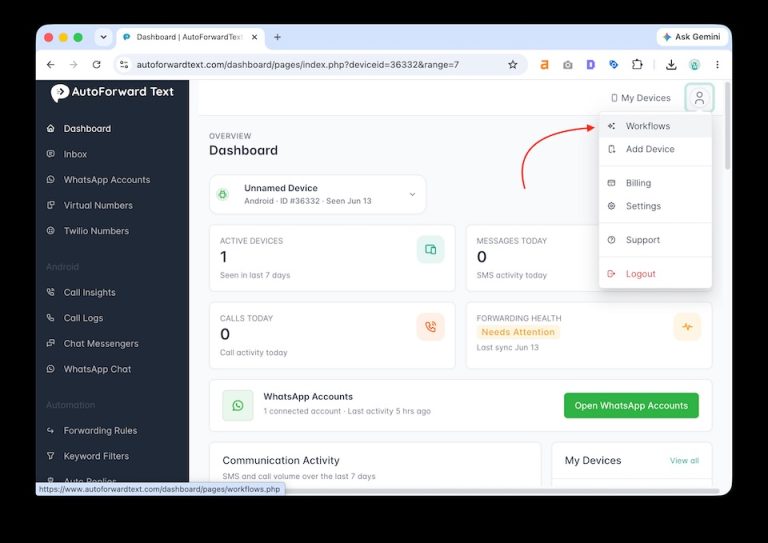
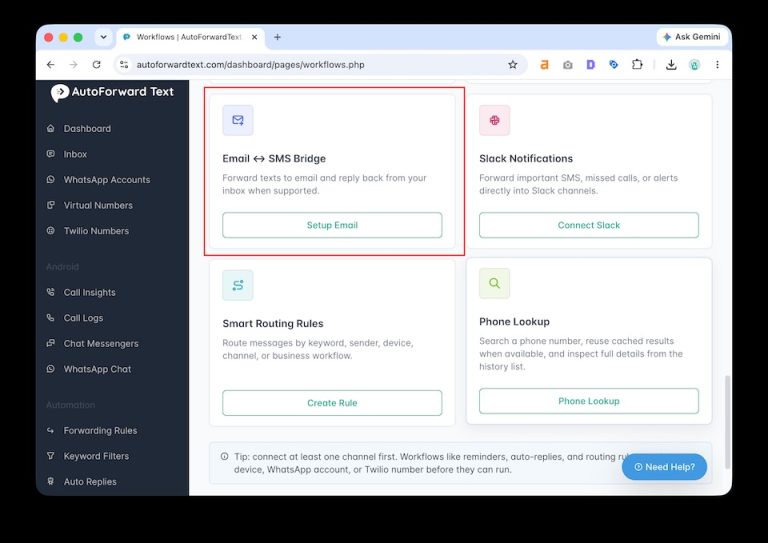
1. Open Email to Text
Sign in to AutoForward Text and open Email to Text under Workflows.
2. Add Approved Senders
Add the Gmail, Outlook, CRM, website, helpdesk, monitoring, or service email addresses that are allowed to send through your private forwarding address.
3. Enable Automatic Email Forwarding
Turn on the automatic forwarding option. Your private forwarding address remains stable, while you can change the delivery route or destination later.
4. Choose How the Email Should Be Delivered
| Method | What You Configure |
|---|---|
| AFT Shared SMS | Enter the fixed destination phone number. |
| Android SMS Gateway | Select the Android gateway and enter the fixed destination phone number. |
| Twilio SMS | Select the Twilio number and enter the fixed destination phone number. |
| WhatsApp QR | Select the connected WhatsApp account, then choose a number or existing chat/group. |
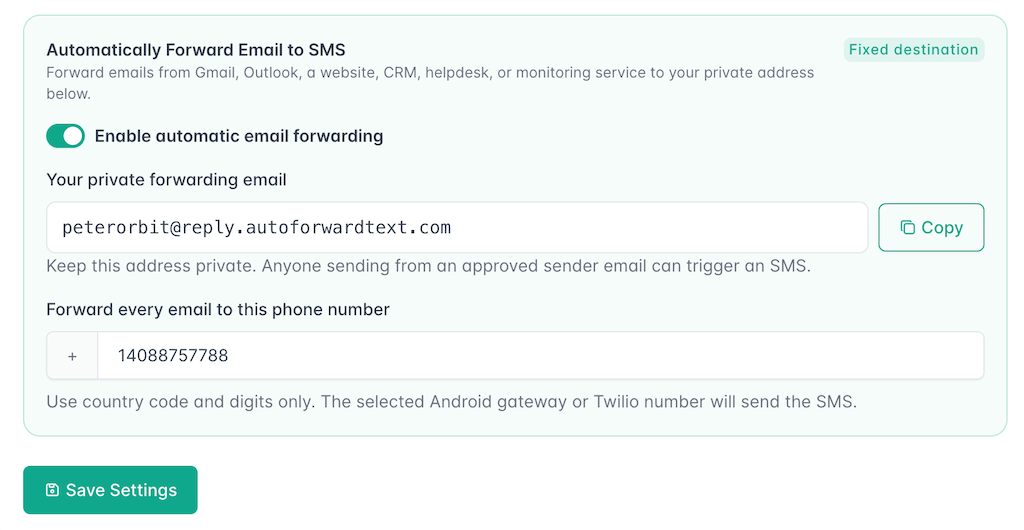
5. Copy Your Private Forwarding Address
Save the settings, copy the private email address provided by AutoForward Text, and use it in Gmail, Outlook, or any trusted service that should generate alerts.
How to Forward Gmail to SMS Automatically
Gmail can forward selected incoming messages to your private AutoForward Text address using filters.
Example forwarding address:
yourname@reply.autoforwardtext.com
Step 1: Copy Your AutoForward Text Address
Copy the private forwarding address shown in your AutoForward Text account.
Step 2: Add It to Gmail
In Gmail, open Settings → See all settings → Forwarding and POP/IMAP, then choose Add a forwarding address.
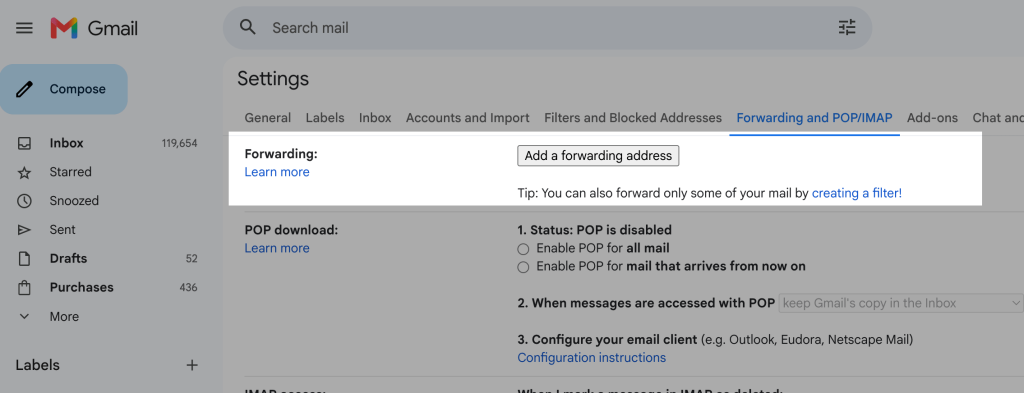
Paste your private AutoForward Text address. Gmail may ask you to confirm the forwarding destination before it can be used.
Step 3: Create a Filter for Important Emails
Use Gmail conditions to decide which messages should become alerts. For example, you can match:
- A specific sender
- A subject containing “New lead”
- Payment failure notifications
- Website contact form emails
- Server downtime alerts
- Security or login warnings
Step 4: Forward Matching Messages
Choose Forward it to and select your AutoForward Text address. Matching Gmail messages can then be delivered using the saved SMS or WhatsApp destination in your AutoForward Text settings.
No API integration is required. Gmail only needs the private email address supplied by AutoForward Text.
How to Forward Outlook Email to SMS
Outlook works the same way: AutoForward Text provides the private email destination, while Outlook decides which messages should be forwarded to it.
Step 1: Copy Your Private Forwarding Address
Copy the address from your AutoForward Text account.
Step 2: Create an Outlook Rule
In Outlook, open Settings → Mail → Rules and create a new rule.
Step 3: Choose Which Emails Matter
You can trigger the rule for messages from a specific sender, certain words in the subject, high-priority mail, appointment requests, helpdesk escalations, finance alerts, or other conditions.
Step 4: Forward to AutoForward Text
Choose the action to forward or redirect the matching email to your private AutoForward Text address. Once the rule is active, qualifying Outlook messages can be routed to the saved SMS or WhatsApp destination.
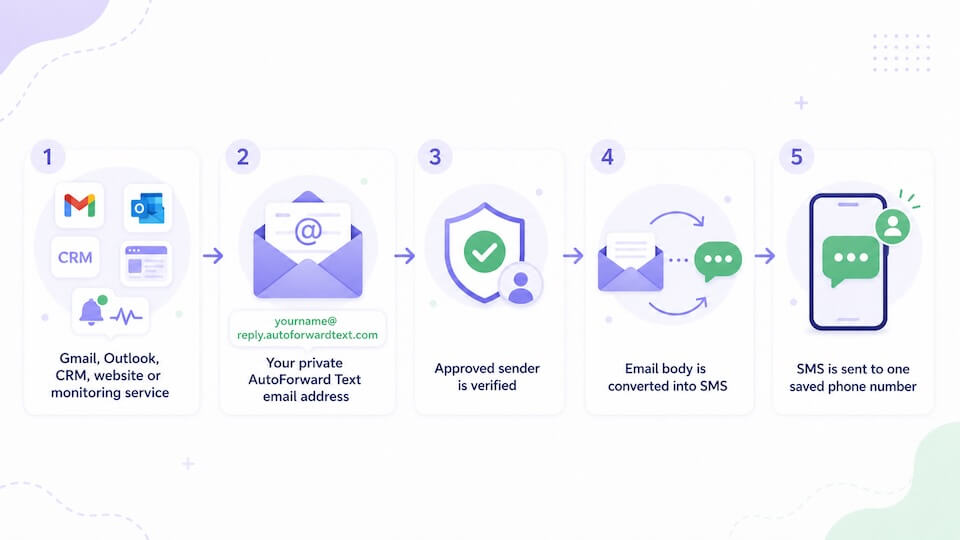
How the Workflow Works
- AutoForward Text assigns you a private forwarding email address.
- You add that address to Gmail, Outlook, a CRM, a website form, or another trusted service.
- The service forwards an important email to AutoForward Text.
- AutoForward Text verifies that the sender is approved.
- The email content is processed as an outgoing alert.
- The alert is delivered to the fixed SMS or WhatsApp destination saved in your account.
You do not put the destination phone number into the private forwarding address. AutoForward Text already knows which saved destination should receive the alert.
Best Business Use Cases
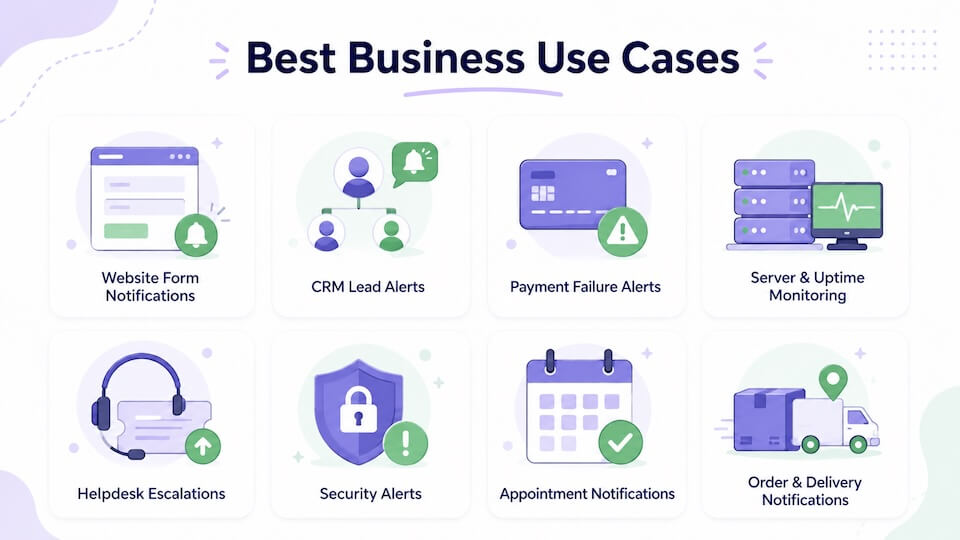
| Use Case | Example Workflow |
|---|---|
| Website form notifications | Contact form → email → sales SMS or WhatsApp group |
| CRM lead alerts | New lead → email → assigned salesperson or team chat |
| Payment failure alerts | Billing email → SMS or finance WhatsApp group |
| Server monitoring | Downtime email → on-call SMS or IT group |
| Helpdesk escalations | Priority ticket → support phone or support group |
| Security alerts | Security email → owner or operations team |
| Appointment notifications | Booking email → reception phone or WhatsApp chat |
| Order and delivery notifications | Operational email → staff SMS or WhatsApp group |
Which Delivery Method Should You Use?
| Method | Physical Phone Required | Uses Your Own Number | Best For |
|---|---|---|---|
| AFT Shared SMS | No | No | Fastest setup and simple SMS alerts |
| Android SMS Gateway | Yes | Yes | Existing phone/SIM and lower-volume alerts |
| Twilio | No | Yes | Cloud SMS infrastructure |
| WhatsApp QR | No dedicated SMS phone | Yes, your connected WhatsApp account | WhatsApp numbers, chats, and groups |
Use AFT Shared SMS if you want the simplest SMS route. Use Android when you want to send through your own SIM. Use Twilio if you already operate cloud SMS infrastructure. Use WhatsApp QR when the team already works inside WhatsApp or you want to route alerts to an existing chat or group.
Private Address and Sender Security
Treat your private forwarding email address as private account information.
AutoForward Text still checks the approved sender list, but the address should not be published unnecessarily.
- Only share it with trusted services and email accounts.
- Keep the approved sender list narrow.
- Remove old senders when they are no longer needed.
- Do not publish the private address on public webpages or forums.
- Review Recent Email to Text Activity for unexpected or failed attempts.
Destination and Message Limits
Can You Change the Destination?
Yes. Open Email to Text settings, change the saved SMS or WhatsApp destination, and save the settings. Future approved emails will use the new destination.
Can You Forward to Multiple Destinations?
The private automatic forwarding address uses one saved destination at a time. If you need to send email content to different phone numbers, use the separate Email to Text Message workflow:
+phonenumber@reply.autoforwardtext.com
What Part of the Email Is Sent?
For the cleanest results, keep the important content in the email body. Long messages, HTML formatting, signatures, quoted replies, and attachments may not translate cleanly into SMS or chat alerts.
What Happens When Automatic Forwarding Is Disabled?
Emails sent to the private forwarding address will not be delivered through the automatic forwarding route until the feature is enabled again. The private address can remain assigned to your account.
Common Problems and Fixes
| Problem | Likely Cause | What to Check |
|---|---|---|
| Email was received, but no alert arrived | Automatic forwarding disabled | Enable Email to Text and automatic forwarding. |
| Sender rejected | Email address is not approved | Add the actual sender to the approved list. |
| SMS sent to wrong number | Old saved destination | Update the fixed phone number and save. |
| AFT Shared SMS failed | SMS credits or delivery issue | Check available credits and Recent Email to Text Activity. |
| Android SMS not sent | Gateway device offline | Check device connection, app permissions, and gateway status. |
| Twilio SMS failed | Number, balance, or compliance issue | Check Twilio connection, sender status, registration, and destination support. |
| WhatsApp alert failed | QR account disconnected or destination unavailable | Check the connected WhatsApp account and selected chat/group. |
| Only part of the message arrived | Email was too long | Shorten the source notification and keep the important text near the top. |
Best place to diagnose problems: Check Recent Email to Text Activity to see whether the email was accepted, rejected, sent, or failed.
Frequently Asked Questions
Can I automatically forward email to SMS?
Yes. AutoForward Text gives you a private forwarding address. Approved emails sent or forwarded to it can be delivered automatically to a saved SMS destination using AFT Shared SMS, Android, or Twilio.
Can I forward Gmail messages to SMS automatically?
Yes. Create a Gmail forwarding rule or filter that sends selected messages to your private AutoForward Text address. AutoForward Text then routes those messages to the saved destination.
Can Outlook automatically send emails as text messages?
Yes. Create an Outlook rule that forwards selected emails to your AutoForward Text private address. AutoForward Text then processes them using the saved SMS or WhatsApp route.
Can I automatically forward email to WhatsApp?
Yes. With a connected WhatsApp QR account, approved emails can be routed automatically to a saved WhatsApp number, existing chat, or group.
Can I forward emails to a WhatsApp group?
Yes. Select a connected WhatsApp QR account and choose an existing group as the saved automatic forwarding destination.
Do I need a Twilio account?
No. You can use AFT Shared SMS or an Android SMS Gateway instead. Twilio is optional.
Do I need an Android phone?
No. An Android phone is only required if you choose the Android SMS Gateway method. AFT Shared SMS and Twilio can send SMS without an Android device.
Can I forward emails to more than one phone number?
The private automatic forwarding workflow uses one saved destination at a time. To send to different phone numbers, use the standard Email to Text Message workflow, where the recipient number is included in the email address.
Is the private forwarding address secure?
AutoForward Text checks approved sender addresses, but the private forwarding address should still be treated as private and should not be published publicly.
Can I change the destination later?
Yes. Update the saved SMS number or WhatsApp destination in Email to Text settings and save your changes.
Why was my email not forwarded?
Check that Email to Text is enabled, automatic forwarding is enabled, the sender is approved, the selected delivery route is available, and the saved destination is valid.
Final Thoughts
Automatic email forwarding is useful because it connects systems that already send email with channels people and teams are more likely to notice quickly.
Instead of building a separate SMS or WhatsApp integration for every CRM, website form, monitoring tool, helpdesk, or inbox, you can give the service one private AutoForward Text email address and let AutoForward Text handle the delivery.
Use AFT Shared SMS when you want the simplest SMS setup. Use Android when you want to send through your own phone and SIM. Use Twilio for a cloud SMS route. Use WhatsApp QR when you want the alert delivered to a WhatsApp number, chat, or team group.
If you need a different destination in every email rather than one saved route, use the separate Email to Text Message workflow.
Automatically Forward Email Alerts to SMS or WhatsApp
AutoForward Text gives you one private forwarding address for Gmail, Outlook, CRMs, website forms, helpdesks, monitoring tools, and other services.
- Forward approved emails to one saved destination
- Use AFT Shared SMS, Android, or Twilio for SMS
- Forward to a WhatsApp number, chat, or group
- Create Gmail and Outlook forwarding rules
- Route lead, payment, security, server, and support alerts automatically