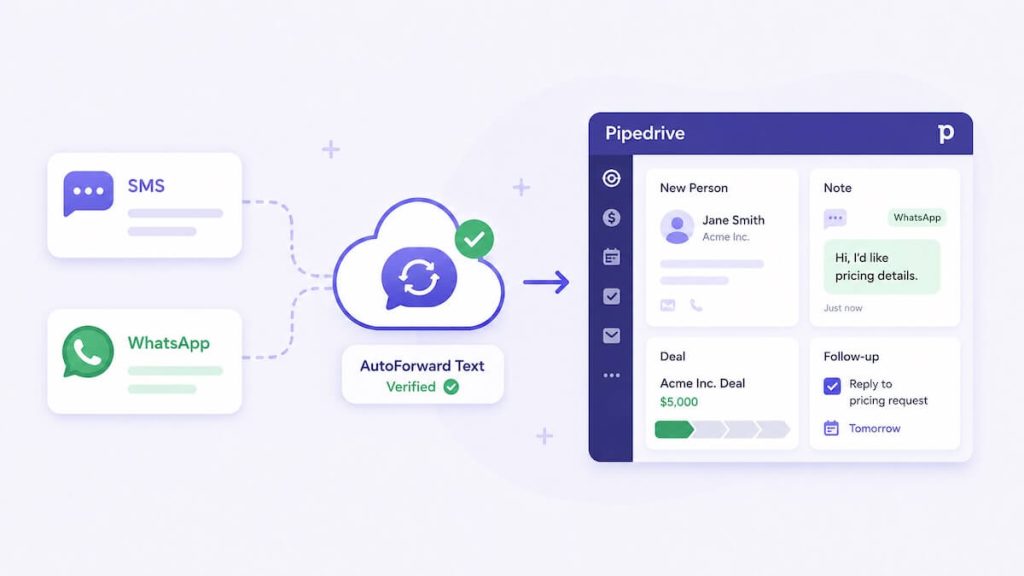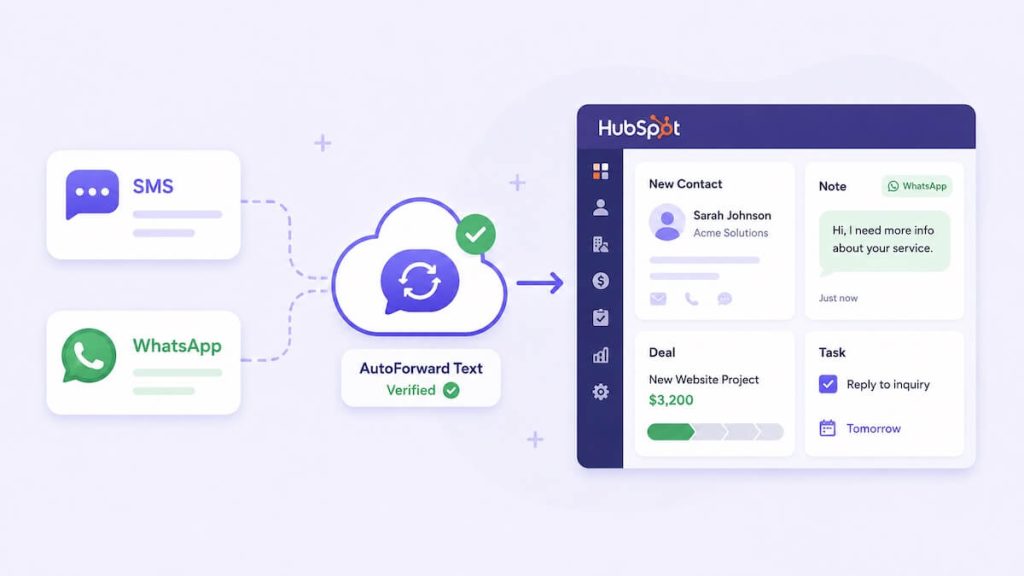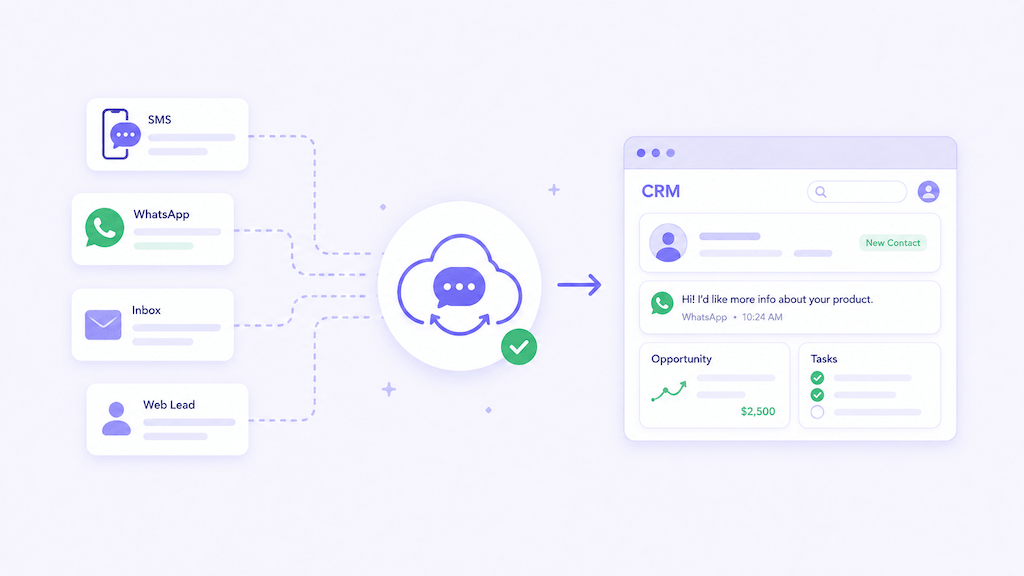
Customer messages often arrive on a mobile phone or WhatsApp account long before they reach the CRM. That creates a simple but expensive problem: the conversation exists, but the sales team cannot see it, track it, or follow it up properly.
AutoForward Text can automatically send supported incoming SMS and WhatsApp messages into HubSpot, Pipedrive, or GoHighLevel. Instead of manually copying a sender’s number and message into the CRM, the system can create or update the contact and add the incoming conversation as a CRM record.
This is useful for businesses that already receive leads and customer enquiries on existing phones, SIM cards, Android devices, iPhone Shortcuts, WhatsApp accounts, or connected messaging numbers.
Basic workflow
Quick Answer: How to Forward SMS and WhatsApp to a CRM
Connect your HubSpot, Pipedrive, or GoHighLevel account from the CRM Integrations page in AutoForward Text. Once connected, supported incoming SMS and WhatsApp messages from your connected devices and accounts are automatically sent to the CRM.
AutoForward Text can use the sender’s phone number to look for an existing CRM contact. When a match is found, the new message can be attached to that record. When no match is found, the system can create a new contact or person using the information available in the message.
Send Incoming Messages to Your CRM Automatically
Connect SMS and WhatsApp conversations with HubSpot, Pipedrive, or GoHighLevel so your team can capture leads and follow up without manually copying messages.
Why Incoming Messages Get Lost Outside the CRM
Many businesses use a CRM for leads, deals, opportunities, and follow-up tasks, but the first customer message still arrives somewhere else.
It may arrive as:
- An SMS on the owner’s Android phone
- A text message received through an iPhone Shortcut
- A WhatsApp message sent to a business or personal account
- A message received by a connected Twilio number
- An enquiry sent to a virtual number
- A missed-call or message alert handled by another workflow
When those messages stay on the phone, several things go wrong:
- The sales team cannot see the lead
- No task is created for follow-up
- The customer history is incomplete
- Two team members may reply separately
- Messages are forgotten after hours
- The business cannot measure where leads came from
A CRM integration closes that gap by moving the message into the same system where the business already manages contacts and sales activity.
What AutoForward Text Sends to the CRM
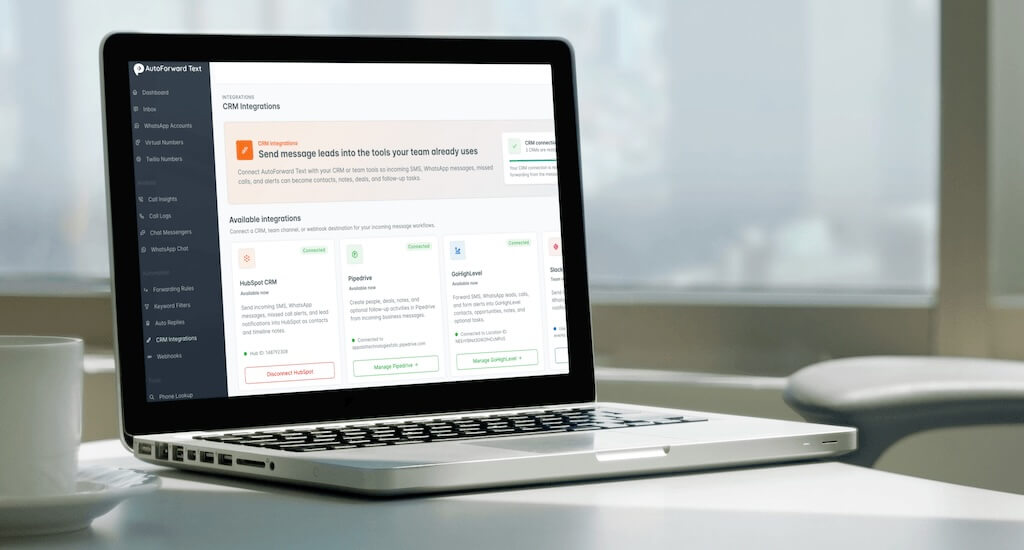
The exact CRM records depend on the connected platform and the options supported by that integration.
AutoForward Text may create or update:
- Contacts or people
- Phone numbers and sender names
- Notes containing the incoming message
- Deals or opportunities
- Follow-up activities
- Tasks for the sales or support team
- Message source information
- Device or connected-account details
This is not the same as running an outbound SMS marketing campaign from the CRM. The main purpose is to capture incoming business conversations that are already reaching your phone or WhatsApp account.
Supported CRM Integrations
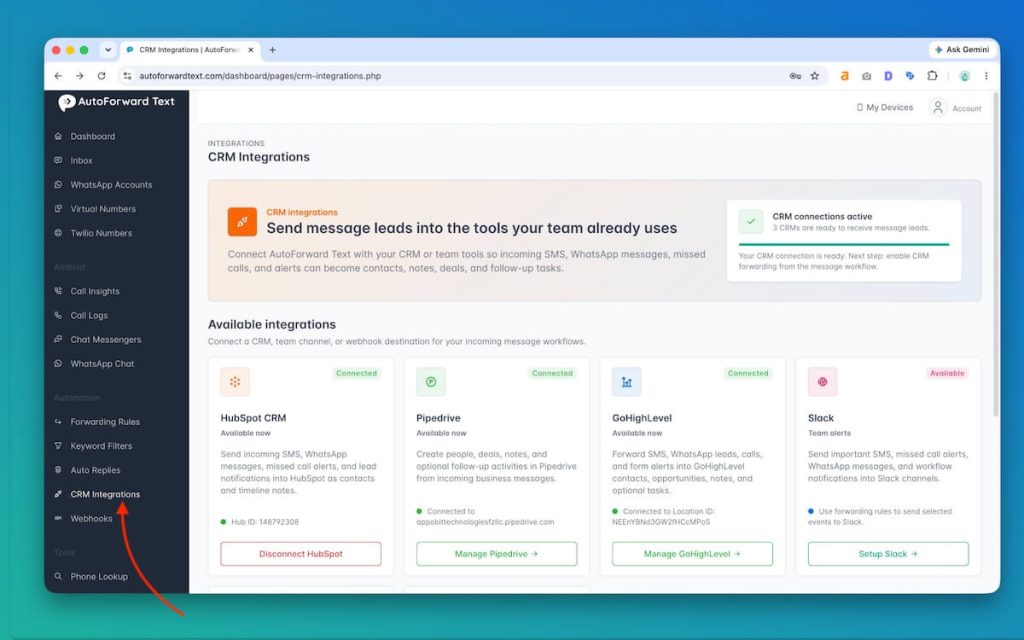
AutoForward Text currently supports direct connections with the following CRM platforms:
| CRM | Typical Records | Best Fit |
|---|---|---|
| HubSpot | Contacts and timeline notes | Businesses that want incoming messages attached to customer records |
| Pipedrive | People, notes, deals, and activities | Sales teams that manage leads through a deal pipeline |
| GoHighLevel | Contacts, notes, opportunities, and tasks | Agencies and local businesses using opportunities and follow-up workflows |
Slack and webhooks are also available elsewhere in AutoForward Text, but they are not CRM platforms. They are better suited to team alerts, custom workflows, and sending message data to another system.
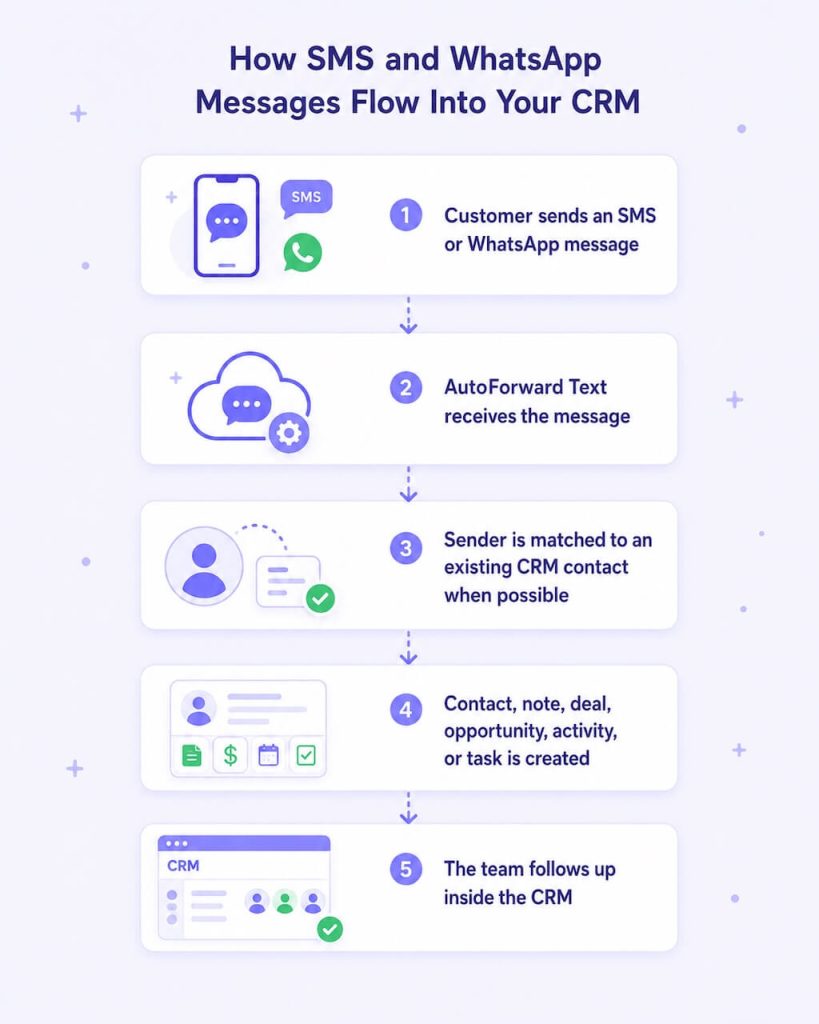
How CRM Forwarding Works
- A customer sends an SMS or WhatsApp message.
- The connected device, WhatsApp account, Twilio number, or virtual number receives it.
- AutoForward Text records and processes the incoming message.
- The system checks which CRM integrations are connected to the account.
- The message is queued for every connected CRM.
- The CRM is searched for an existing contact using the sender’s phone number where possible.
- The contact is updated, or a new contact is created.
- The message is added as a note or other supported CRM record.
Example:
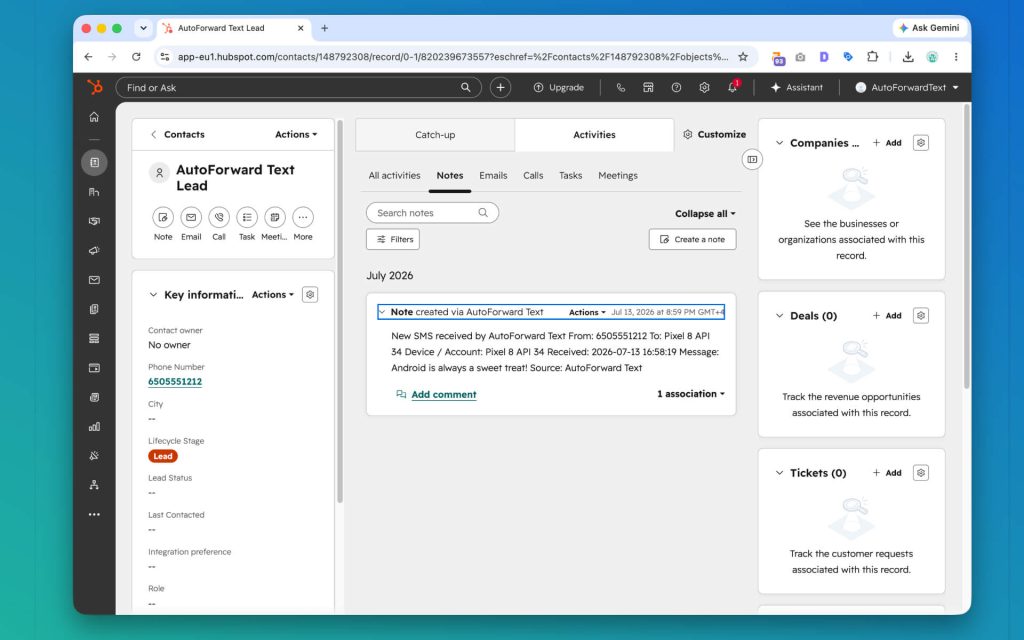
Incoming WhatsApp message → AutoForward Text → HubSpot contact + note
Incoming SMS → AutoForward Text → Pipedrive person + note + activity
Incoming lead message → AutoForward Text → GoHighLevel contact + opportunity + task
SMS Sources You Can Connect
AutoForward Text is designed to work with several ways of receiving SMS.
Android Phone
An Android phone can receive SMS through its normal SIM card. The AutoForward Text app sends the incoming message to the dashboard, where it can then be pushed to the connected CRM.
This is useful when the business already has a working mobile number and does not want to replace it with a new CRM number.
iPhone Shortcuts
Supported iPhone message workflows can use Apple Shortcuts to send incoming message data to AutoForward Text. Once received by the platform, eligible messages can be forwarded to connected CRMs.
Twilio Number
A connected Twilio number can receive SMS in the cloud. This suits businesses that already use Twilio and prefer not to depend on a physical mobile phone.
AutoForward Virtual Number
A virtual number managed through AutoForward Text can receive supported messages and send them into connected workflows, including CRM processing where available.
The important part is message reception. If the message is not successfully received and processed by AutoForward Text, it cannot be pushed into the CRM.
How WhatsApp to CRM Forwarding Works
AutoForward Text can connect a WhatsApp account and process supported incoming WhatsApp messages.
Once the WhatsApp account and CRM are connected:
- A customer sends a WhatsApp message.
- AutoForward Text receives the message from the connected account.
- The sender’s phone number is used to search for a matching CRM contact where possible.
- A contact or person is created if no match is found.
- The message is added as a CRM note or other supported record.
This is useful for businesses that receive leads through WhatsApp but manage sales activity in HubSpot, Pipedrive, or GoHighLevel.
Do not confuse CRM logging with two-way CRM messaging. The current integration sends incoming message information into the CRM. It does not automatically mean that a reply written inside the CRM will be sent back through WhatsApp or SMS.
How Contacts Are Matched
The sender’s phone number is the most reliable identifier available for an incoming SMS or WhatsApp message.
AutoForward Text can use that number to search for an existing contact, person, or lead record. If a match is found, the message can be attached to the existing record instead of creating another contact.
For better matching, store phone numbers in international format whenever possible.
Recommended format:
+14155552671
+971501234567
Numbers stored in several different forms may not always be treated as the same contact.
For example:
050123456714155516712+14155516712
Using one consistent format reduces duplicate CRM records.
Contacts, Notes, Deals, Opportunities, and Tasks
A CRM contains several different record types. They do not all mean the same thing.
| Record Type | What It Represents | Typical Message Use |
|---|---|---|
| Contact or Person | The individual who sent the message | Created or updated using the sender’s phone number |
| Note | A record of what the person said | Stores the incoming SMS or WhatsApp message |
| Deal | A potential sale in Pipedrive or another sales CRM | Useful when the incoming message represents a genuine enquiry |
| Opportunity | A lead moving through a GoHighLevel pipeline | Useful for agencies and local-service sales workflows |
| Activity or Task | A follow-up action assigned to the team | Reminds someone to call, reply, quote, or investigate |
A short message such as “Thanks” should not necessarily create a new deal. A message such as “Can I get a quote?” may justify a sales opportunity and a follow-up task.
The current integration behavior depends on how each CRM connector has been implemented.
How to Set Up CRM Forwarding
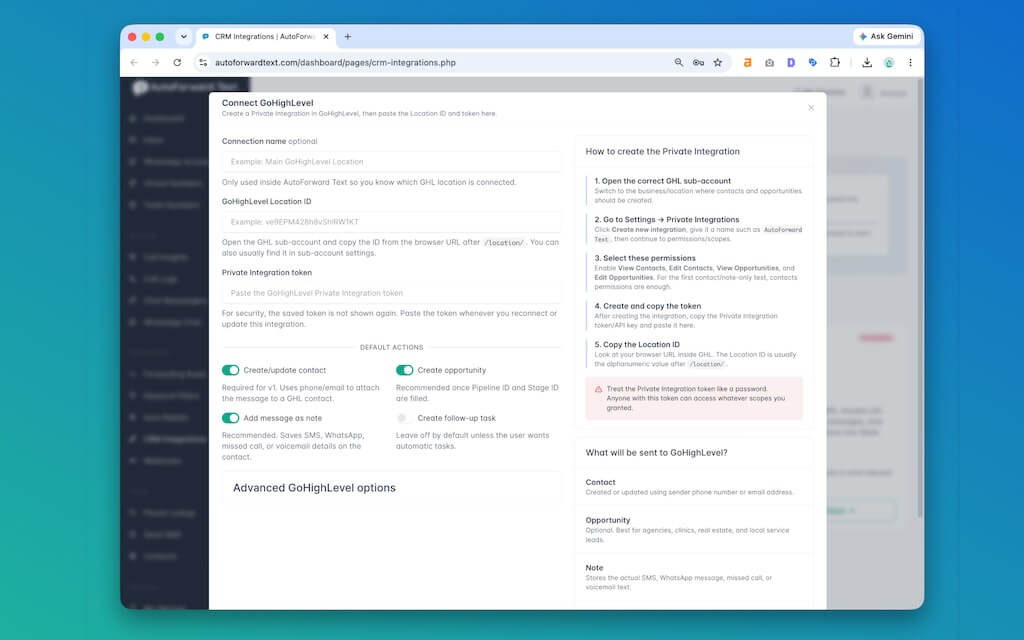
1. Connect a Message Source
First, make sure AutoForward Text is receiving messages from at least one source, such as an Android phone, iPhone Shortcut, WhatsApp account, Twilio number, or virtual number.
2. Open CRM Integrations
Sign in to AutoForward Text and open CRM Integrations from the dashboard menu.
3. Choose a CRM
Select HubSpot, Pipedrive, or GoHighLevel.
4. Enter or Authorize the Connection Details
The setup method depends on the CRM:
- HubSpot: authorize the required HubSpot account
- Pipedrive: enter the company domain and API token
- GoHighLevel: enter the Location ID and Private Integration access token
5. Run a Test Push
Use the test option to confirm that AutoForward Text can create a sample CRM record.
6. Send a Real Test Message
Send an SMS or WhatsApp message to one of your connected accounts. Confirm that it appears in the AutoForward Text Inbox and then check the CRM.
Best Business Use Cases
1. Local Service Leads
Plumbers, electricians, HVAC companies, repair businesses, and contractors often receive first enquiries by SMS or WhatsApp. Sending those messages into the CRM helps the team follow up before the customer contacts a competitor.
2. Sales Enquiries on a Shared Business Phone
A company may have one mobile phone used for incoming enquiries. CRM forwarding ensures those messages are visible to the wider sales team rather than remaining with the person holding the phone.
3. WhatsApp Leads from Advertisements
Businesses running click-to-WhatsApp ads can capture incoming conversations as CRM contacts and notes.
4. Property and Real Estate Enquiries
Agents can log incoming buyer, tenant, owner, and viewing enquiries without manually entering every phone number into the CRM.
5. Appointment and Booking Requests
Clinics, salons, consultants, and service businesses can turn incoming messages into follow-up tasks or opportunities.
6. Missed Sales Follow-Up
When a customer sends a message outside office hours, the conversation can still reach the CRM so it is visible the next morning.
7. Multi-Channel Lead Capture
A business may receive SMS on one number and WhatsApp on another. AutoForward Text brings both message types into the same CRM environment.
8. CRM Migration or Testing
A business testing a new CRM can temporarily connect more than one platform and compare how incoming messages are recorded.
HubSpot vs Pipedrive vs GoHighLevel
| CRM | Strongest Use Case | Typical Buyer |
|---|---|---|
| HubSpot | Contact records, customer history, and timeline notes | Companies already using HubSpot for marketing, sales, or service |
| Pipedrive | Sales deals and follow-up activities | Sales teams that want a clear pipeline and activity tracking |
| GoHighLevel | Opportunities, tasks, and agency or local-business workflows | Agencies, consultants, and service businesses running lead pipelines |
The best choice is usually the CRM your team already uses consistently.
Connecting several CRMs just because they are available can create fragmented records and duplicated lead data. For normal day-to-day use, one primary CRM is usually cleaner.
This is acceptable for businesses using one primary CRM. Companies needing complex routing should treat the current version as a message-capture integration rather than a full CRM workflow engine.
Common Problems and Fixes
| Problem | Likely Cause | What to Check |
|---|---|---|
| CRM is connected but no message appears | The incoming message was not received by AutoForward Text | Confirm that the message appears in the AutoForward Text Inbox |
| Test push works but live messages do not | Message source or processing issue | Check the device, WhatsApp account, Twilio number, or virtual number connection |
| Same message appears in several CRMs | More than one CRM is connected | This is expected; disconnect CRMs that should not receive future messages |
| Duplicate contacts are created | Phone numbers use inconsistent formats | Store numbers in full international format |
| CRM connection suddenly fails | Token revoked, expired, regenerated, or permissions changed | Reconnect the CRM or update its credentials |
| Contact is created without a name | The source message only supplied a phone number | Update the CRM contact manually when the name becomes known |
| Old messages were not imported | CRM forwarding only applies to new processed messages | Send a new test message after connecting the CRM |
Start with the Inbox. If the incoming message does not appear in AutoForward Text, the CRM integration never received anything to process.
Frequently Asked Questions
Can I automatically forward SMS messages to a CRM?
Yes. AutoForward Text can send supported incoming SMS messages from connected devices and numbers into HubSpot, Pipedrive, or GoHighLevel.
Can I forward WhatsApp messages to a CRM?
Yes. Supported incoming WhatsApp messages from connected accounts can be sent into connected CRM platforms.
Which CRMs does AutoForward Text support?
Direct CRM integrations currently include HubSpot, Pipedrive, and GoHighLevel.
Do I need to create a forwarding rule?
No. In the current MVP version, CRM forwarding begins automatically after the CRM is connected successfully.
Can I choose which phone sends messages to HubSpot?
Not currently. CRM forwarding is account-wide and applies to supported messages from all connected devices and WhatsApp accounts.
What happens if I connect more than one CRM?
Supported incoming messages are sent to every connected CRM. For example, if HubSpot and Pipedrive are connected, the message is sent to both.
Can I stop messages going to one CRM?
Yes. Disconnect that CRM from the CRM Integrations page. Future messages will no longer be sent to it.
Are old messages imported into the CRM?
No. The integration processes supported new messages received after the CRM connection is active.
How are existing CRM contacts matched?
The sender’s phone number is used where possible. Storing CRM phone numbers in international format improves matching.
Can AutoForward Text create CRM contacts automatically?
Yes. When no matching CRM record is found, the integration may create a new contact or person using the information available in the incoming message.
Can it create deals, opportunities, or follow-up tasks?
Depending on the connected CRM, AutoForward Text can create or associate notes, deals, opportunities, activities, and tasks.
Can I reply from inside the CRM?
The current integration is primarily designed to send incoming message data into the CRM. A reply written inside the CRM is not automatically sent back through SMS or WhatsApp unless a separate supported workflow exists.
Do I need Twilio?
No. SMS can also be received through a connected Android phone, supported iPhone workflow, or other available message source.
Can this work with my existing mobile number?
Yes. An Android phone can receive SMS on its existing SIM and send the incoming message into AutoForward Text for CRM processing.
Final Thoughts
CRM software is only useful when customer conversations actually reach it.
If leads continue arriving on a mobile phone or WhatsApp account, asking staff to copy every message manually is not a serious long-term workflow. It is slow, inconsistent, and easy to forget.
AutoForward Text bridges that gap by capturing supported incoming SMS and WhatsApp messages and pushing them into HubSpot, Pipedrive, or GoHighLevel.
The current MVP is intentionally straightforward: connect a CRM, and supported new messages from all connected devices and WhatsApp accounts are sent automatically to every connected CRM.
That does mean there is no selective routing yet. But for a business using one main CRM, it provides the most important first step: getting customer messages out of individual phones and into a shared sales system where they can be tracked and followed up.
Forward SMS and WhatsApp Messages to Your CRM
Connect AutoForward Text with HubSpot, Pipedrive, or GoHighLevel and automatically capture incoming business messages as CRM contacts, notes, deals, opportunities, and follow-up tasks.
- Forward incoming SMS from connected phones and numbers
- Send supported WhatsApp messages into your CRM
- Match contacts using the sender’s phone number
- Capture leads without manually copying messages