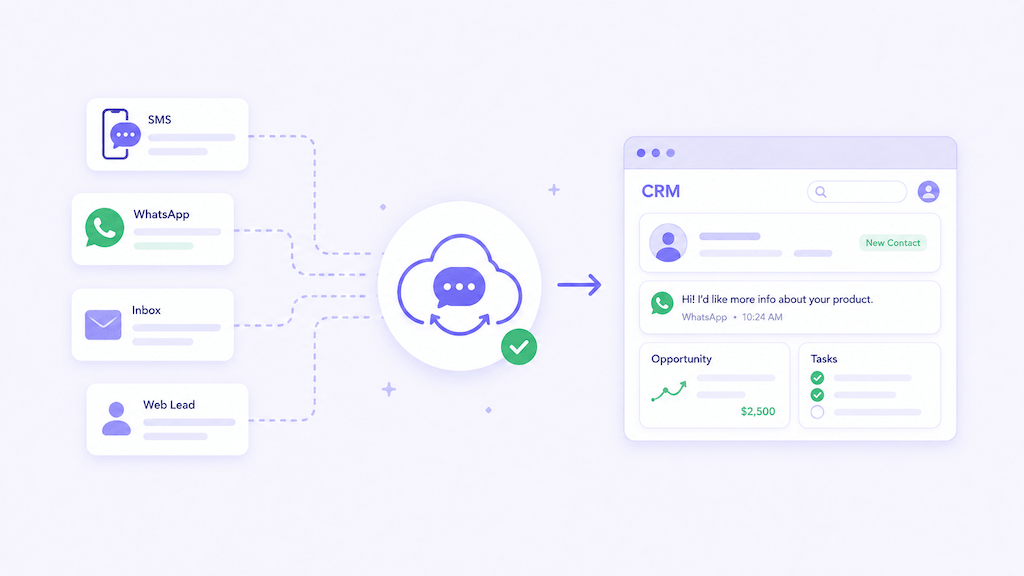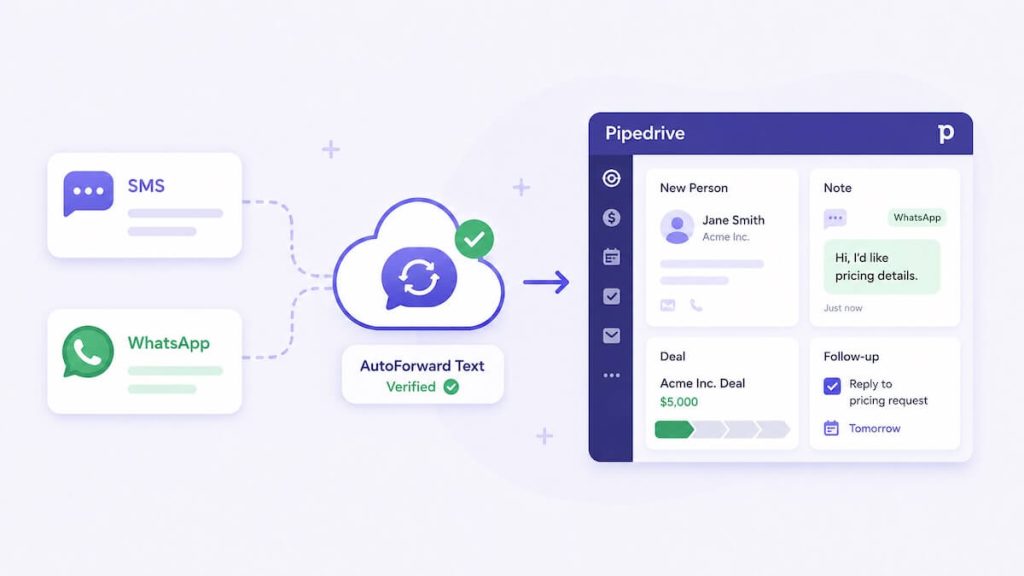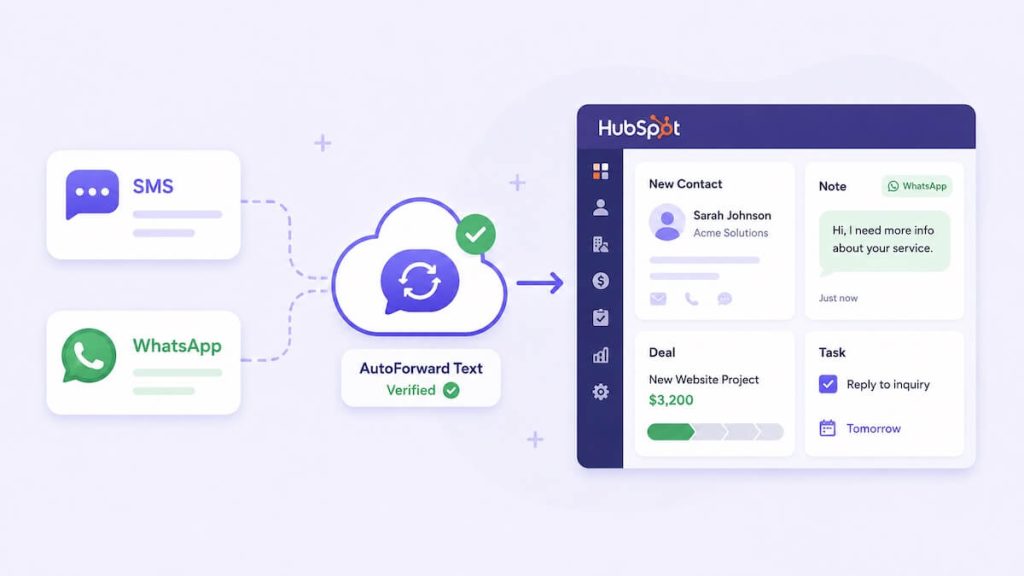
HubSpot may be where your team manages contacts and sales activity, but many customer conversations still begin somewhere else: on a mobile phone, an Android SIM, an iPhone Shortcut, a WhatsApp account, or a connected business number.
AutoForward Text can automatically send supported incoming SMS and WhatsApp messages into HubSpot so those conversations do not remain trapped on one device.
When a message arrives, AutoForward Text can use the sender’s phone number to find an existing HubSpot contact or create a new one. The incoming message can then be added as a note or timeline record under that contact.
Quick Answer: How to Forward SMS and WhatsApp to HubSpot
Open CRM Integrations in AutoForward Text, connect your HubSpot account, approve the requested permissions, and return to the dashboard.
Once the connection is active, supported incoming SMS and WhatsApp messages from all connected devices and accounts are automatically sent to HubSpot.
AutoForward Text can search HubSpot using the sender’s phone number. If a matching contact exists, the message is added to that contact. If no match exists, a new contact may be created.
Automatically Log Incoming Messages in HubSpot
Connect AutoForward Text to HubSpot and capture incoming SMS and WhatsApp conversations as contact records and notes.
Why Connect Incoming Messages to HubSpot?
HubSpot is useful when the customer history is complete. The problem is that mobile messages often sit outside the CRM.
A salesperson may receive an SMS on a personal or company phone. A WhatsApp enquiry may reach one employee after hours. A local service business may get new leads on a number that has been used for years.
Without automatic logging:
- The team cannot see the original enquiry
- Contacts are entered manually or not entered at all
- Follow-up depends on one person remembering
- Lead sources are difficult to measure
- Customer conversations are scattered across phones
- Support and sales teams lack context
Forwarding incoming messages to HubSpot turns those phone conversations into shared CRM history.
HubSpot SMS Tools vs Incoming Message Forwarding
There are several different things people mean when they search for a HubSpot SMS integration.
| Workflow | What It Does | Typical Requirement |
|---|---|---|
| SMS marketing from HubSpot | Sends campaigns or automated outbound messages | HubSpot messaging features, a provider, consent, and compliance setup |
| Two-way texting inside HubSpot | Lets staff send and receive texts through a connected number | A dedicated SMS provider or marketplace integration |
| Incoming phone SMS to HubSpot | Logs messages already received on an existing phone or number | A connected device or message source such as AutoForward Text |
| WhatsApp to HubSpot | Copies supported incoming WhatsApp messages into CRM contact history | A connected WhatsApp account and HubSpot integration |
AutoForward Text is primarily focused on the third and fourth workflows: capturing incoming messages that already arrive on your phones and WhatsApp accounts.
What AutoForward Text Creates in HubSpot
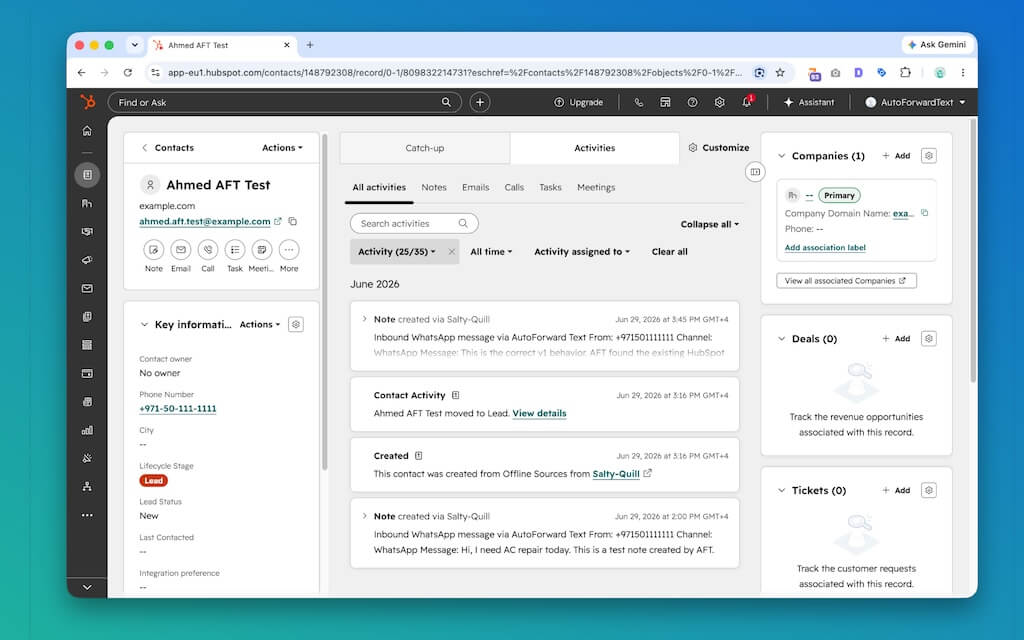
The HubSpot integration is designed to create a useful contact history from incoming business messages.
Depending on the information available, AutoForward Text can:
- Search for an existing HubSpot contact by phone number
- Create a new HubSpot contact when no match is found
- Add the incoming message as a note or timeline record
- Include the sender’s phone number
- Include the sender’s name when available
- Include the message source
- Include the original SMS or WhatsApp message body
- Include device or connected-account details where supported
This gives sales and support staff a record of what the customer actually said, rather than a vague manually entered note such as “Customer called.”
Supported Message Sources
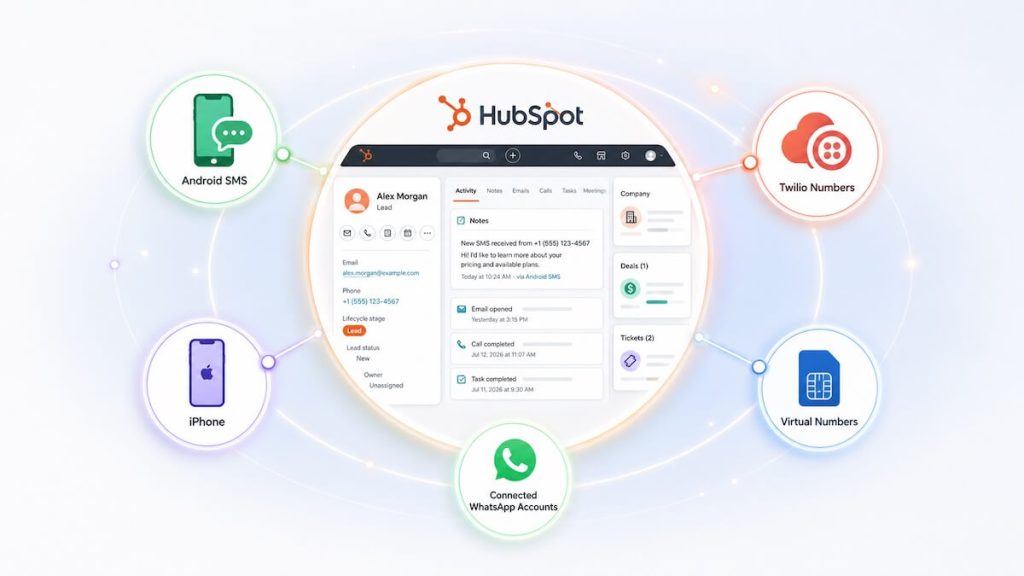
HubSpot forwarding can begin with several AutoForward Text message sources.
Android SMS
An Android phone receives SMS through its normal SIM card. The AutoForward Text app sends supported incoming messages to the dashboard, where they can be processed for HubSpot.
This is useful when the business wants to keep an existing mobile number.
iPhone Shortcuts
Supported iPhone workflows can use Apple Shortcuts to send incoming message information to AutoForward Text. Once processed, the message can be passed to HubSpot.
WhatsApp Accounts
A connected WhatsApp account can provide supported incoming messages for CRM logging.
Twilio Numbers
A connected Twilio number can receive SMS in the cloud and send message data into AutoForward Text.
Virtual Numbers
Supported virtual numbers managed through AutoForward Text can also feed incoming message workflows.
The message must first reach AutoForward Text. If it does not appear in the AutoForward Text Inbox or message records, HubSpot has nothing to receive.
How the HubSpot Integration Works
- A customer sends an SMS or WhatsApp message.
- The connected source receives the message.
- AutoForward Text records and processes the incoming message.
- The system confirms that HubSpot is connected.
- HubSpot is searched for a contact matching the sender’s phone number.
- The existing contact is used, or a new contact is created.
- The message is added as a note or timeline record.
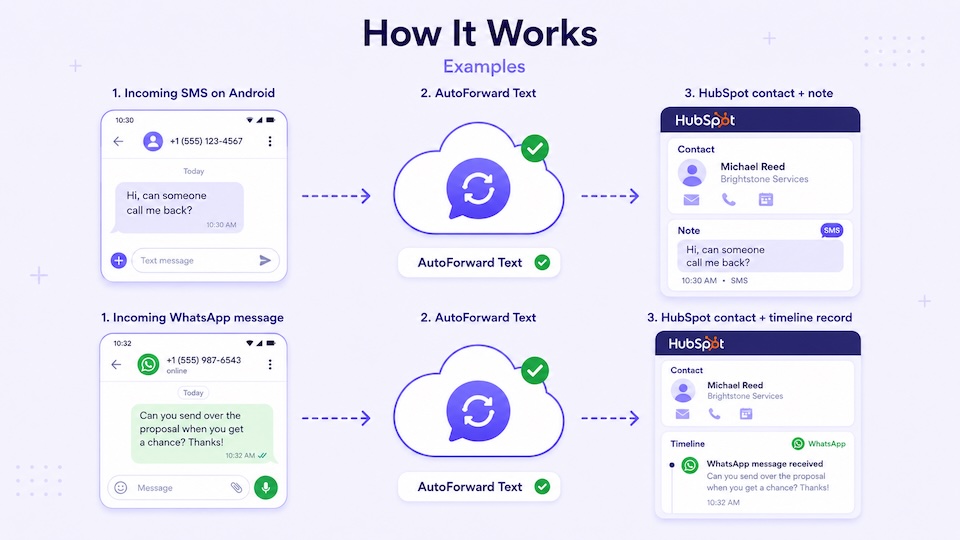
The goal is not to make HubSpot act like the physical phone. The goal is to ensure the customer conversation becomes visible to the team.
To stop new messages from going to HubSpot, disconnect HubSpot from the CRM Integrations page.
How to Connect HubSpot
1. Sign In to AutoForward Text
Open your AutoForward Text dashboard.
2. Open CRM Integrations
Select CRM Integrations from the left-hand menu.
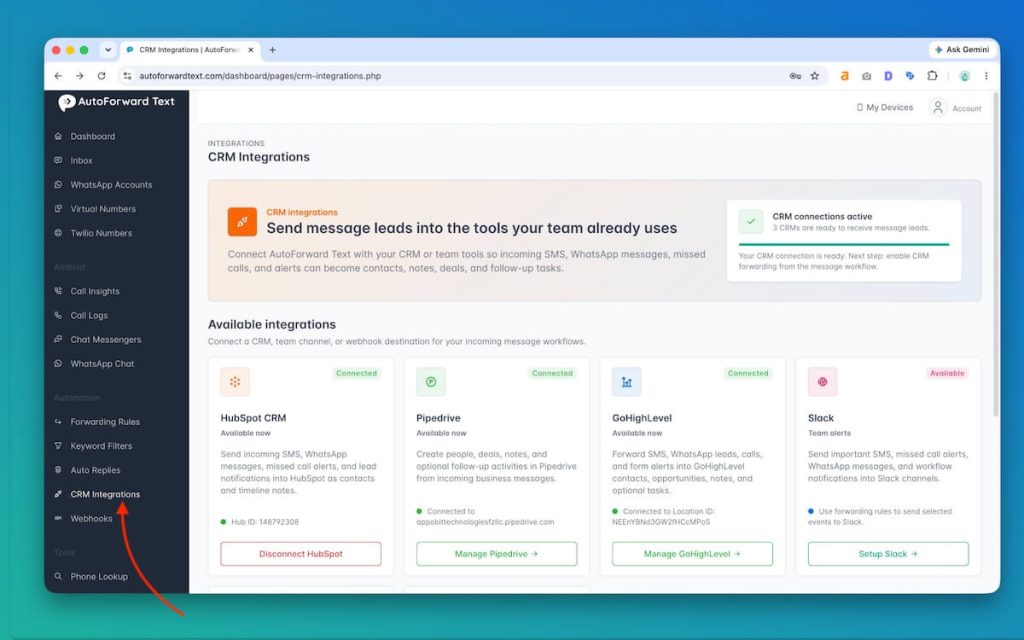
3. Find HubSpot CRM
Locate the HubSpot card and select the connection option.
4. Sign In to HubSpot
HubSpot will ask you to sign in and choose the account you want to connect.
5. Review the Requested Permissions
Approve the permissions needed to search, create, and update the supported HubSpot records.
6. Return to AutoForward Text
After authorization, the HubSpot card should show Connected along with the connected Hub ID.
Choose the correct HubSpot account. If you have access to several HubSpot portals, check the account name carefully during authorization.
How to Test the HubSpot Connection
A successful connection test confirms that AutoForward Text can access the selected HubSpot account.
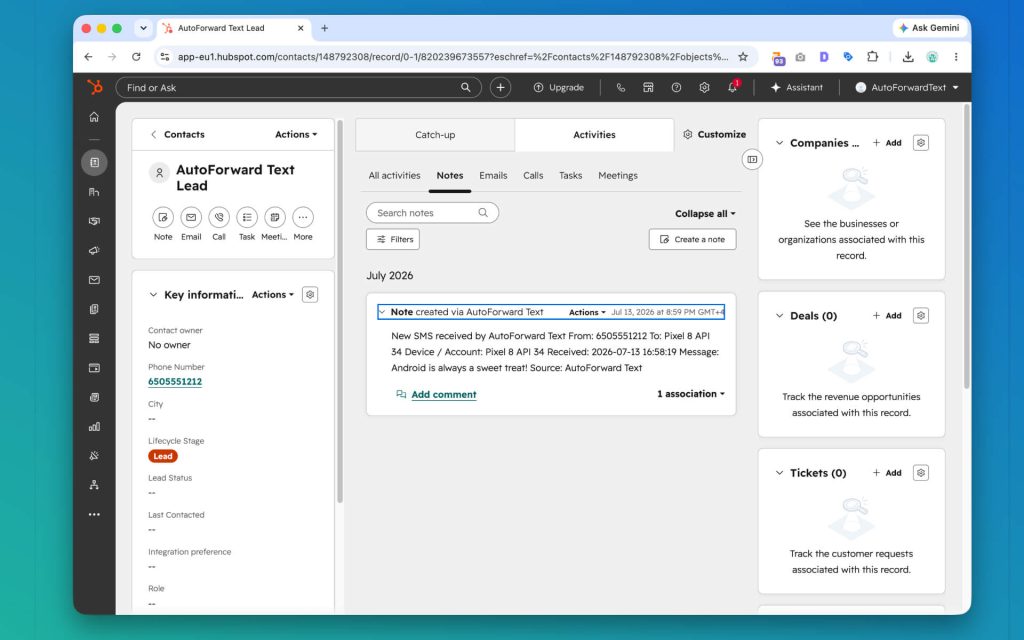
Run the Test Push
Use the available HubSpot test option in AutoForward Text. Confirm that the sample contact or note appears in HubSpot.
Send a Real Test SMS
- Send an SMS to one of your connected phone numbers.
- Confirm that it appears in the AutoForward Text Inbox.
- Open HubSpot.
- Search for the sender’s phone number.
- Confirm that the contact and note were created or updated.
Send a Real Test WhatsApp Message
- Send a WhatsApp message to a connected account.
- Confirm that AutoForward Text receives the message.
- Open HubSpot and search for the sender.
- Check the contact record for the new note or timeline activity.
If the test push works but the real message does not: the HubSpot connection is probably valid. Check the phone, WhatsApp account, message processing, and AutoForward Text Inbox first.
How Contact Matching Works
Incoming SMS and WhatsApp messages usually provide a phone number even when they do not provide a full name or email address.
AutoForward Text can use that number to search for an existing HubSpot contact.
For more reliable matching, use complete international phone-number formatting.
Recommended:
+14155552671
+971501234567
Inconsistent formatting can lead to duplicate contact records.
| Stored Number | Potential Issue |
|---|---|
0501234567 | Local format may be difficult to match internationally |
971501234567 | Country code present but no plus symbol |
+971501234567 | Preferred international format |
If the sender name is unavailable, HubSpot may initially show a contact created mainly from the phone number. The team can update the name later.
Forward Incoming SMS to HubSpot
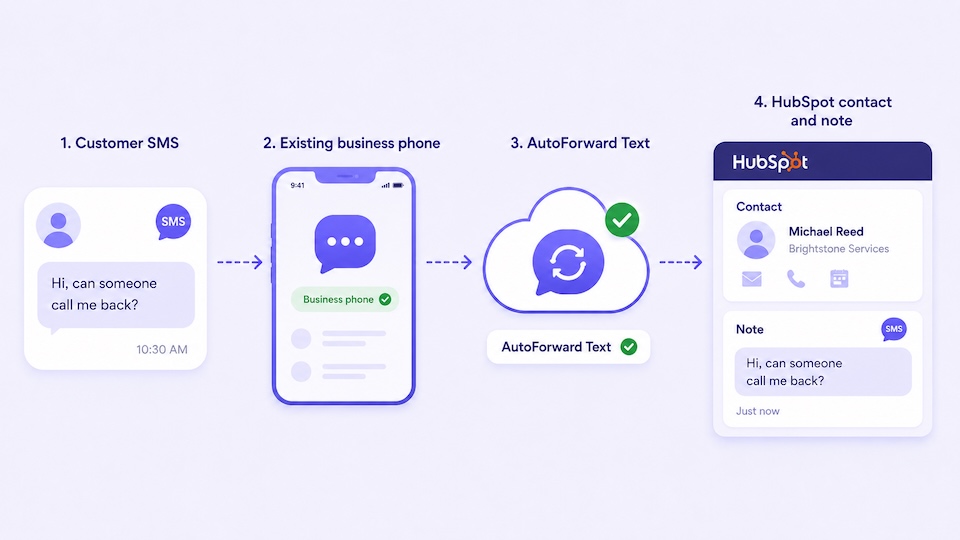
SMS-to-HubSpot forwarding is useful when customer messages arrive on an existing business phone rather than a dedicated CRM texting number.
A typical workflow looks like this:
Customer SMS → Existing business phone → AutoForward Text → HubSpot contact and note
This is especially helpful for:
- Long-standing business mobile numbers
- Local service companies
- Salespeople who already advertise a direct mobile number
- Teams that do not want to replace their current SIM
- Businesses that only need incoming message logging
The Android option is often the most direct because the phone continues receiving SMS normally through its existing carrier.
Forward WhatsApp Messages to HubSpot
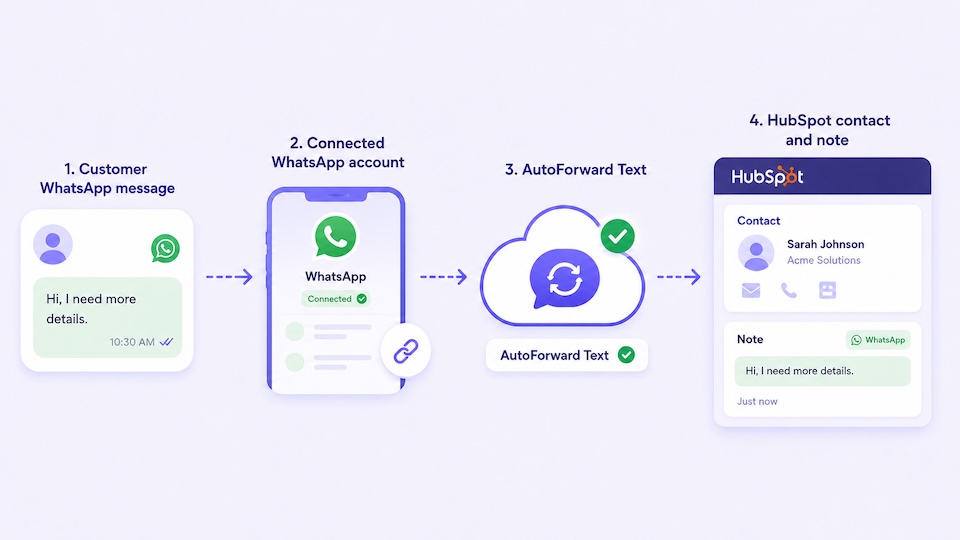
Many businesses receive more enquiries through WhatsApp than SMS. The problem is that those conversations can remain invisible to everyone except the person using the account.
With AutoForward Text, supported incoming WhatsApp messages can be sent into HubSpot contact history.
A typical workflow looks like:
Customer WhatsApp message → Connected WhatsApp account → AutoForward Text → HubSpot contact and note
This can help with:
- Click-to-WhatsApp advertising leads
- Property enquiries
- Appointment requests
- Product questions
- Support conversations
- International customer enquiries
Current scope: the integration logs incoming WhatsApp information in HubSpot. It does not automatically turn HubSpot into a complete two-way WhatsApp inbox.
Best Business Use Cases
1. Local Service Businesses
Contractors, HVAC companies, plumbers, electricians, repair companies, and cleaning services often receive urgent enquiries by SMS or WhatsApp. Logging those enquiries in HubSpot makes follow-up visible and measurable.
2. Real Estate and Property
Buyer, seller, tenant, landlord, and viewing enquiries can be added to HubSpot without manually entering every phone number.
3. Agencies
Agencies receiving WhatsApp leads from advertisements can build a HubSpot contact history from the first incoming message.
4. Appointment-Based Businesses
Clinics, salons, consultants, and service providers can capture booking and rescheduling conversations.
5. Shared Sales Phones
A single company phone can receive enquiries while the entire sales team gains visibility in HubSpot.
6. After-Hours Leads
Messages received outside office hours still reach the CRM, reducing the chance that they are forgotten the next day.
7. Customer Support History
Support conversations can be recorded under the same contact used by sales and account-management teams.
8. Existing Mobile Numbers
Businesses can keep using a familiar number rather than forcing customers to switch to a new CRM-provided number.
Current model:
All supported incoming SMS and WhatsApp messages → Connected HubSpot account
This works best when HubSpot is the main CRM and the business wants automatic message capture rather than complex routing.
Common Problems and Fixes
| Problem | Likely Cause | What to Check |
|---|---|---|
| HubSpot shows connected but no message appears | The message did not reach AutoForward Text | Confirm that it appears in the AutoForward Text Inbox |
| Test push works but live SMS does not | Phone or device connection issue | Check device status, permissions, app connection, and recent message activity |
| WhatsApp message does not appear | WhatsApp account disconnected or message not processed | Confirm the account is active and the incoming message is visible in AutoForward Text |
| Wrong HubSpot account connected | Incorrect portal selected during authorization | Disconnect HubSpot and reconnect using the correct account |
| Duplicate contacts created | Phone-number format differs | Use consistent international formatting |
| Contact created without a name | The source only provided a phone number | Update the contact manually when the name becomes known |
| HubSpot access stops working | Authorization revoked or permissions changed | Disconnect and reconnect HubSpot |
| Old messages missing | Historical messages are not imported automatically | Send a new test message after connecting HubSpot |
Best diagnostic order: first check AutoForward Text Inbox, then run the HubSpot test push, then review the connected HubSpot account.
Frequently Asked Questions
Can HubSpot receive incoming SMS messages?
Yes. AutoForward Text can send supported incoming SMS messages from connected phones and numbers into HubSpot as contact records and notes.
Can I connect my existing mobile number to HubSpot?
Yes. An Android phone can continue receiving SMS through its existing SIM while AutoForward Text sends supported incoming messages to HubSpot.
Can I forward WhatsApp messages to HubSpot?
Yes. Supported incoming WhatsApp messages from connected accounts can be logged under HubSpot contacts.
Do I need Twilio?
No. You can use a connected Android phone, supported iPhone workflow, WhatsApp account, or another available message source.
Do I need to create a HubSpot forwarding rule?
No. The current MVP begins forwarding supported new messages automatically after HubSpot is connected.
What happens if Pipedrive or GoHighLevel is also connected?
The same supported incoming message is sent to every connected CRM.
How does AutoForward Text find the HubSpot contact?
The sender’s phone number is used where possible. International number formatting improves matching.
Can AutoForward Text create a new HubSpot contact?
Yes. If no matching contact is found, the integration may create a new contact using the available sender information.
Does the original message appear in HubSpot?
Yes. The incoming SMS or WhatsApp message can be added as a note or timeline record under the contact.
Can I reply from HubSpot and send the message back as SMS?
Not through this basic CRM logging workflow. Replies written in HubSpot are not automatically sent back through the original SMS or WhatsApp channel.
Are old messages imported?
No. The integration processes supported new messages received after the HubSpot connection is active.
How do I stop messages going to HubSpot?
Open CRM Integrations and disconnect HubSpot. Existing HubSpot records remain, but future messages will no longer be sent.
Final Thoughts
HubSpot works best when customer conversations are attached to the contact record instead of scattered across individual phones.
Manually copying incoming SMS and WhatsApp messages into HubSpot is not a reliable process. Staff forget, names are entered inconsistently, and important enquiries disappear inside personal devices.
AutoForward Text gives businesses a practical way to keep using their existing message sources while automatically creating a shared HubSpot history.
Forward Incoming SMS and WhatsApp Messages to HubSpot
Use AutoForward Text to capture messages from connected phones and WhatsApp accounts as HubSpot contacts and notes.
- Keep using your existing mobile number
- Log incoming SMS under HubSpot contacts
- Forward supported WhatsApp conversations to HubSpot
- Reduce manual CRM data entry