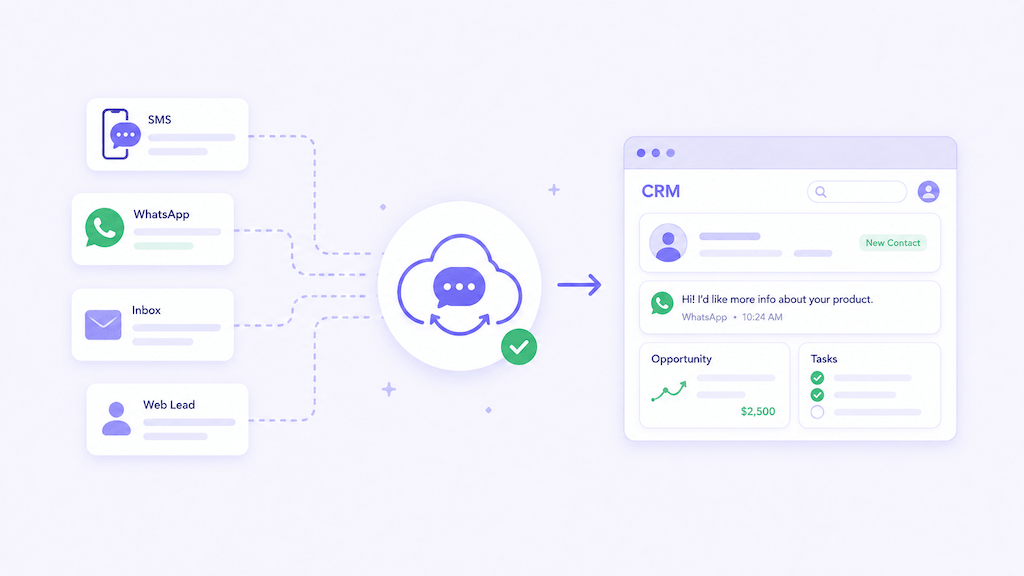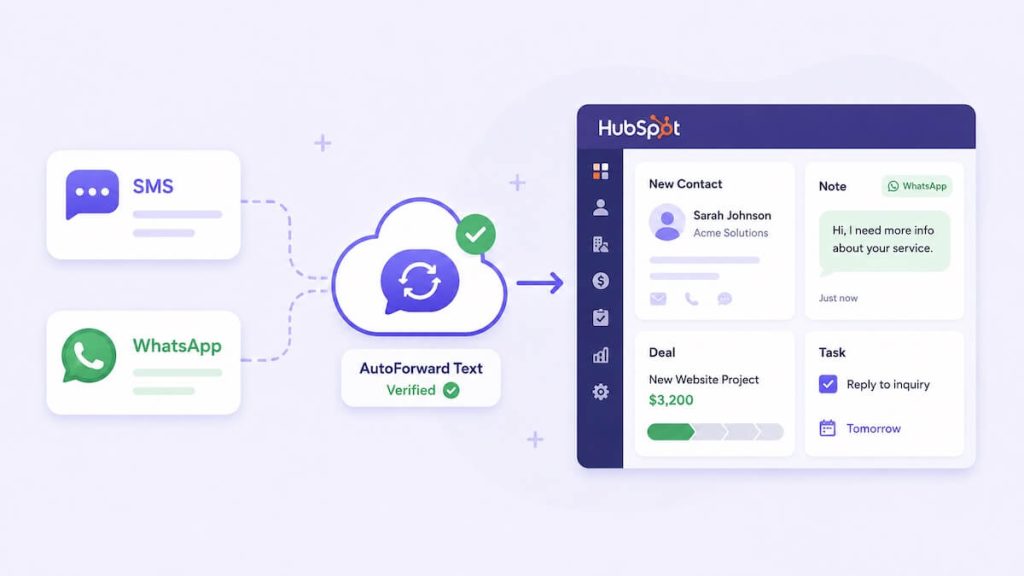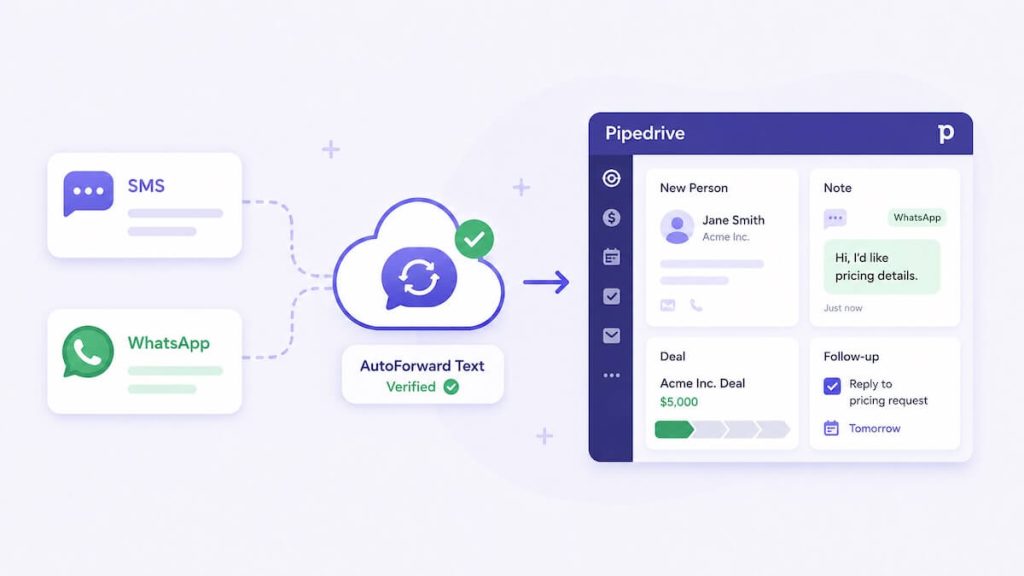
Pipedrive is built around people, deals, activities, and follow-up. The problem is that many real sales conversations begin outside Pipedrive on WhatsApp, a mobile phone, an Android SIM, an iPhone Shortcut, or a connected business number.
AutoForward Text can automatically send supported incoming WhatsApp and SMS messages into Pipedrive so those conversations become visible inside the sales pipeline.
When a message arrives, AutoForward Text can use the sender’s phone number to find an existing Pipedrive person or create a new one. The incoming message can then be added as a note, and the integration may also create or associate a deal or follow-up activity depending on the current workflow.
Quick Answer: How to Forward WhatsApp and SMS to Pipedrive
Open CRM Integrations in AutoForward Text, connect Pipedrive using your company domain and API token, and run a test push.
Once the connection is active, supported incoming WhatsApp and SMS messages from all connected devices and accounts are automatically sent to Pipedrive.
AutoForward Text can search Pipedrive using the sender’s phone number. If a matching person exists, the message can be attached to that record. If no match exists, a new person may be created.
Turn Incoming Messages Into Pipedrive Records
Connect AutoForward Text to Pipedrive and capture WhatsApp and SMS conversations as people, notes, deals, and follow-up activities.
Why Connect Incoming Messages to Pipedrive?
Pipedrive helps sales teams manage opportunities, but it can only help with the conversations that actually reach it.
Many leads still arrive through:
- WhatsApp messages
- SMS on a business phone
- Direct messages to a salesperson’s mobile number
- After-hours enquiries
- Existing numbers that customers already know
- Connected Twilio or virtual numbers
Without automatic CRM logging:
- New leads remain on one employee’s phone
- People are created manually or not at all
- Deals are opened late
- Follow-up activities are forgotten
- Managers cannot see the full customer conversation
- Sales reporting becomes unreliable
Forwarding incoming messages to Pipedrive turns those conversations into records the team can assign, track, and move through a pipeline.
Why WhatsApp Is Important for Pipedrive Users
For many sales teams, WhatsApp is where prospects ask the first serious question.
A customer may respond to an advertisement, request a quote, ask about availability, send a property reference, or confirm an appointment. That message may be commercially valuable, but it often remains outside the CRM.
A WhatsApp-to-Pipedrive workflow can help the team:
- Create a person from the sender’s phone number
- Save the original message as a note
- Create or associate a deal
- Create a follow-up activity
- Keep the lead visible after the first employee reads it
What AutoForward Text Creates in Pipedrive
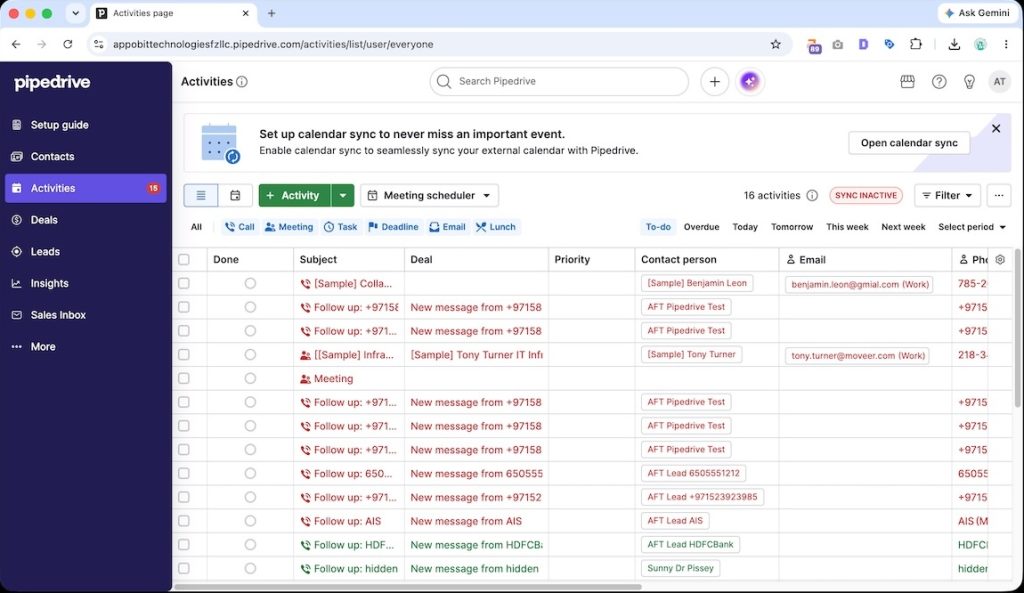
The integration is designed to turn an incoming business message into useful Pipedrive records.
Depending on the current integration behavior, AutoForward Text can:
- Search for an existing person by phone number
- Create a new person when no match is found
- Add the incoming message as a note
- Create or associate a deal
- Create a follow-up activity
- Include the sender’s phone number
- Include the sender’s name when available
- Include the original message body
- Include the message source
Supported Message Sources
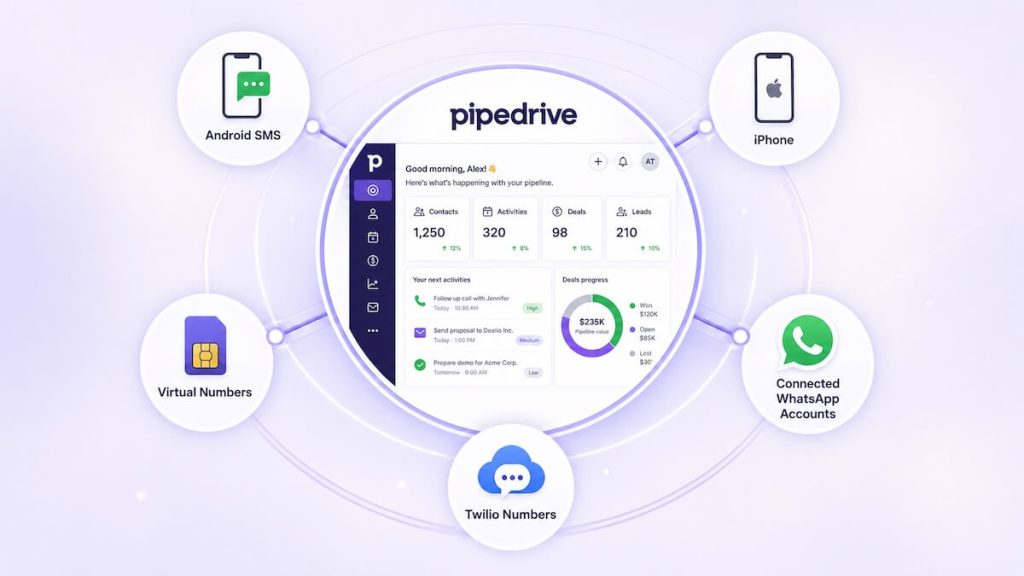
Connected WhatsApp Account
Supported incoming WhatsApp messages can be received by AutoForward Text and pushed into Pipedrive.
Android SMS
An Android phone can receive SMS through its existing SIM card. AutoForward Text then sends supported incoming messages to the dashboard and connected CRM.
iPhone Shortcuts
Supported iPhone workflows can use Apple Shortcuts to send incoming message details to AutoForward Text.
Twilio Numbers
A connected Twilio number can receive cloud-based SMS and pass the message into Pipedrive through AutoForward Text.
Virtual Numbers
Supported virtual numbers managed through AutoForward Text can also feed incoming-message workflows.
The message must first be received by AutoForward Text. If it does not appear in the Inbox or message records, Pipedrive cannot receive it.
How the Pipedrive Integration Works
- A customer sends a WhatsApp message or SMS.
- The connected source receives it.
- AutoForward Text records and processes the incoming message.
- The system confirms that Pipedrive is connected.
- Pipedrive is searched for a person matching the sender’s phone number.
- The existing person is used, or a new person is created.
- The message is added as a note.
- A deal or follow-up activity may be created or associated.
Example:
WhatsApp enquiry → AutoForward Text → Pipedrive person + note + activity
Incoming SMS → AutoForward Text → Pipedrive person + note + deal
To stop new messages from going to Pipedrive, disconnect Pipedrive from the CRM Integrations page.
What You Need Before You Begin
- An active AutoForward Text account
- A Pipedrive account
- Permission to access the required Pipedrive company account
- Your Pipedrive company domain
- Your Pipedrive API token
- At least one connected message source
How to Find Your Pipedrive Company Domain
Your Pipedrive company domain appears in the browser address when you are signed in.
Example browser address:
https://yourcompany.pipedrive.com
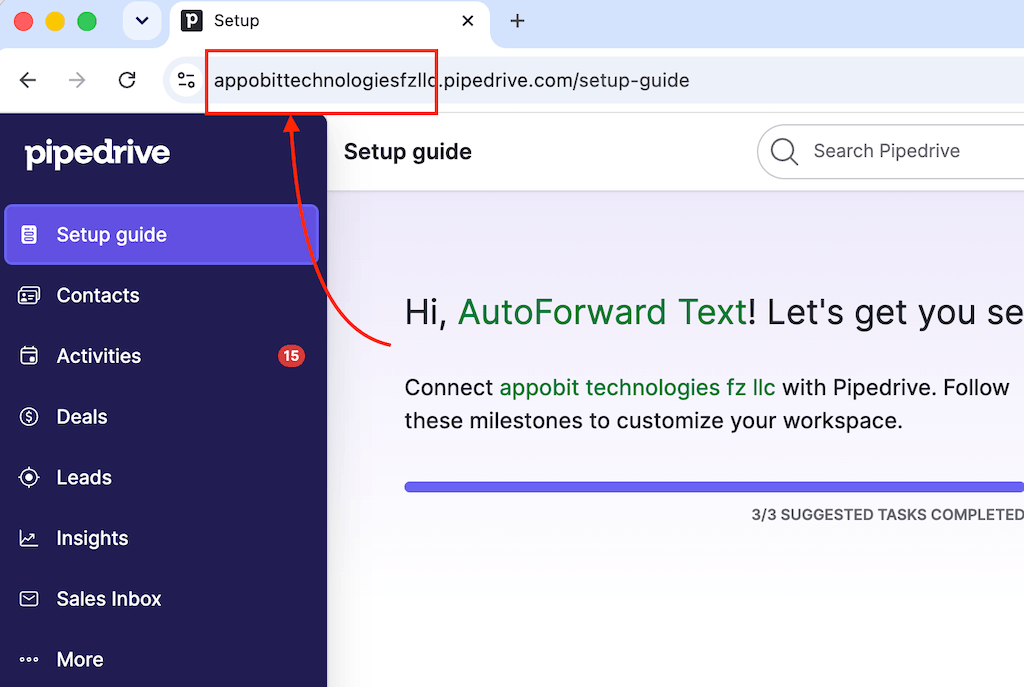
In this example, the company domain is yourcompany.pipedrive.com.
Do not paste: a complete deal URL, pipeline URL, settings-page URL, or public website address.
How to Find Your Pipedrive API Token
- Sign in to Pipedrive.
- Open your account or personal settings.
- Go to Personal preferences.
- Open the API section.
- Copy your personal API token.
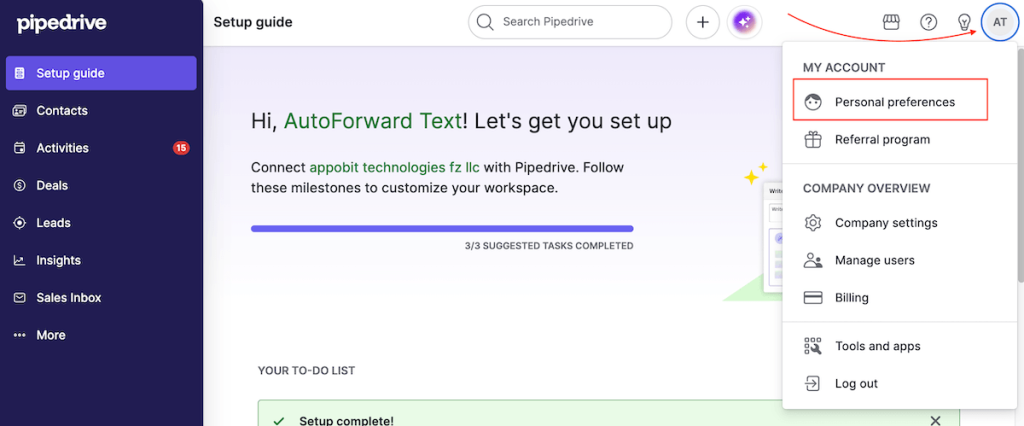
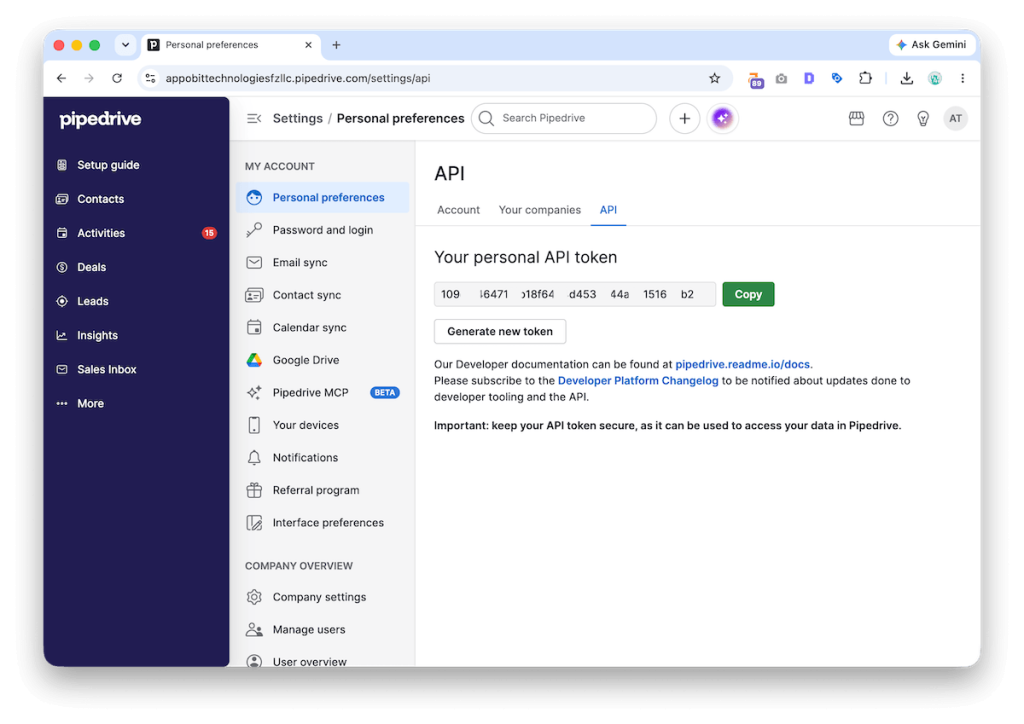
Pipedrive may move this setting as its interface changes. Search the account settings for API token when necessary.
Treat the API token like a password. Do not publish it, include it in screenshots, or send it through an unsecured support message.
How to Connect Pipedrive
1. Sign In to AutoForward Text
Open your AutoForward Text dashboard.
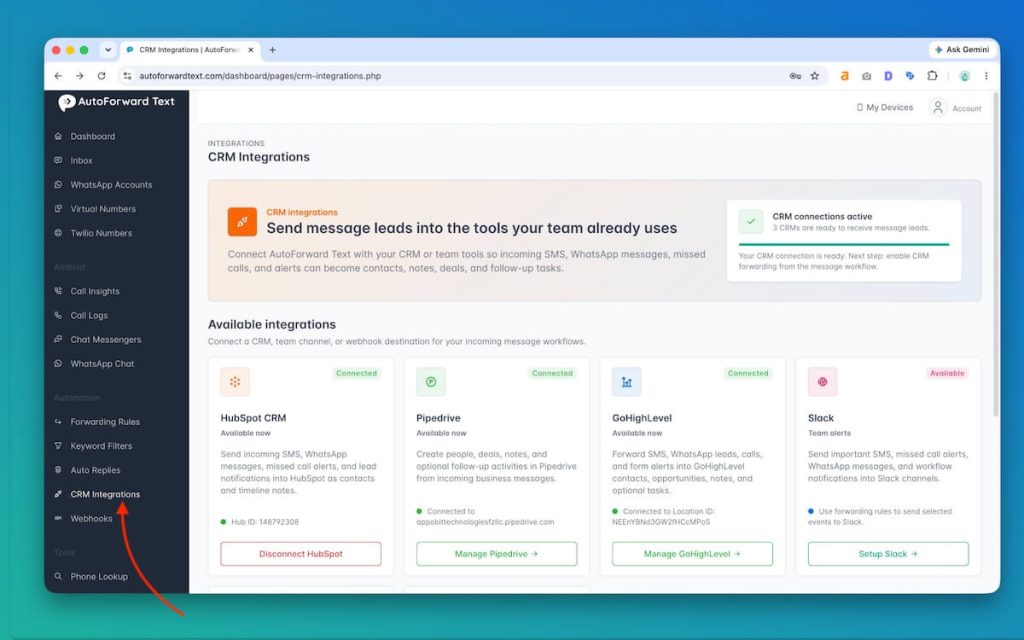
2. Open CRM Integrations
Select CRM Integrations from the left-hand menu.
3. Find Pipedrive
Locate the Pipedrive card and select Connect Pipedrive or Set Up Pipedrive.
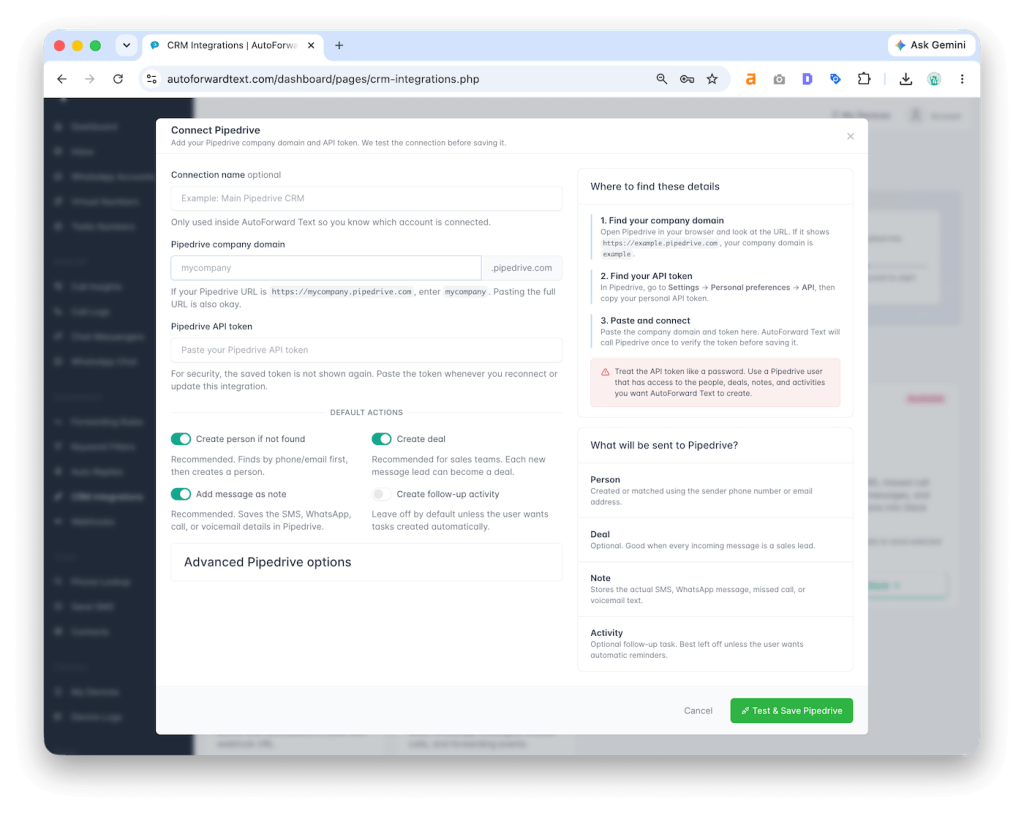
4. Enter the Company Domain
Enter the Pipedrive domain shown when you are signed in.
5. Enter the API Token
Paste the personal API token copied from Pipedrive.
6. Save the Connection
Save the integration details.
7. Run a Test Push
Use the test option to confirm that AutoForward Text can access Pipedrive and create the expected sample records.
There is no separate “Enable Pipedrive Forwarding” step. Once the connection is active, supported new messages are processed automatically.
How to Test the Pipedrive Connection
Run the Pipedrive test push from AutoForward Text, then confirm that the sample person, note, deal, or activity appears in Pipedrive.
Next, send a real WhatsApp message or SMS to a connected source. Confirm that it appears in AutoForward Text, then search Pipedrive using the sender’s phone number.
If the test push succeeds but live messages do not appear: the Pipedrive credentials are probably correct. Check the message source and AutoForward Text processing first.
How Person Matching Works
Pipedrive uses the term person for an individual contact. AutoForward Text can use the sender’s phone number to search for an existing person.
For better matching, store phone numbers in complete international format.
+14155552671
+971501234567
Inconsistent formatting can create duplicates. If no name is available, the person may initially be created using the phone number.
Forward WhatsApp Messages to Pipedrive
A typical workflow looks like:
Customer WhatsApp message → Connected WhatsApp account → AutoForward Text → Pipedrive person, note, deal, or activity
This can help with click-to-WhatsApp leads, property enquiries, appointment requests, pricing questions, quote requests, and after-hours leads.
Forward Incoming SMS to Pipedrive
A typical workflow looks like:
Customer SMS → Existing business phone → AutoForward Text → Pipedrive person and note
This is especially useful for salespeople with established direct numbers, local service businesses, and companies that only need incoming-message capture.
People, Notes, Deals, and Activities
| Record Type | What It Represents | Typical Message Use |
|---|---|---|
| Person | The individual who sent the message | Created or matched using the phone number |
| Note | The actual content of the conversation | Stores the incoming WhatsApp message or SMS |
| Deal | A potential sale in the pipeline | Useful when the message represents a genuine opportunity |
| Activity | A follow-up action | Used for a call, reply, meeting, quote, or reminder |
Not every message deserves a new deal. A quote request may justify one; a short “Thanks” usually only needs a note.
Best Business Use Cases
1. Real Estate Sales
Property enquiries received by WhatsApp can become Pipedrive people, notes, deals, and follow-up activities.
2. Local Service Companies
Plumbers, electricians, HVAC businesses, contractors, and repair services can capture quote requests from SMS and WhatsApp.
3. B2B Sales Teams
Salespeople receiving direct messages on company phones can keep Pipedrive updated without manual copying.
4. Automotive Sales
Vehicle enquiries, test-drive requests, and pricing questions can enter the sales pipeline quickly.
5. Recruitment and Staffing
Candidate and client messages can be logged under the correct person and followed up through activities.
6. Travel and Hospitality
Booking enquiries and group requests received through WhatsApp can be captured as sales opportunities.
7. Agencies and Consultants
New enquiries arriving through advertisements or referrals can be turned into deals and assigned for follow-up.
8. Existing Business Numbers
Companies can keep using established phone numbers while adding CRM visibility.
Common Problems and Fixes
| Problem | Likely Cause | What to Check |
|---|---|---|
| Invalid API token | Token copied incorrectly or regenerated | Copy the token again and remove extra spaces |
| Company domain rejected | Wrong domain or complete page URL entered | Use the Pipedrive company domain shown in the browser |
| Test push works but live message does not appear | Message-source or processing issue | Confirm that the message appears in AutoForward Text |
| WhatsApp message missing | WhatsApp account disconnected or message not processed | Check account status and recent incoming messages |
| Duplicate people created | Phone-number formats differ | Use complete international formatting |
| Too many deals created | Routine messages treated as sales opportunities | Use notes for ordinary conversation and deals for genuine leads |
| Person created without a name | The source only provided a phone number | Update the person manually when the name becomes known |
| Old messages missing | Historical messages are not imported automatically | Send a new test message after connecting Pipedrive |
Frequently Asked Questions
Can I forward WhatsApp messages to Pipedrive?
Yes. Supported incoming WhatsApp messages from connected accounts can be sent into Pipedrive as people, notes, deals, or follow-up activities.
Can I forward incoming SMS to Pipedrive?
Yes. AutoForward Text can send supported incoming SMS messages from connected phones and numbers into Pipedrive.
Can I use my existing mobile number?
Yes. An Android phone can continue receiving SMS through its existing SIM while AutoForward Text pushes supported incoming messages into Pipedrive.
Do I need Twilio?
No. You can use a connected Android phone, supported iPhone workflow, WhatsApp account, or another available message source.
What happens if HubSpot or GoHighLevel is also connected?
The same supported incoming message is sent to every connected CRM.
How does AutoForward Text find the Pipedrive person?
The sender’s phone number is used where possible. International phone-number formatting improves matching.
Can it create deals or activities?
Depending on the current integration behavior, AutoForward Text can create or associate deals and follow-up activities as well as notes.
Can I reply from Pipedrive and send the message back?
Not through this basic CRM logging workflow. Replies written in Pipedrive are not automatically sent back through the original SMS or WhatsApp channel.
Where do I find my Pipedrive company domain?
Open Pipedrive in your browser and use the company domain shown in the address, such as yourcompany.pipedrive.com.
Where do I find my Pipedrive API token?
Open your Pipedrive personal settings or preferences and look for the API section.
Are old messages imported?
No. The integration processes supported new messages received after the Pipedrive connection is active.
How do I stop messages going to Pipedrive?
Open CRM Integrations and disconnect Pipedrive. Existing Pipedrive records remain, but future messages will no longer be sent.
Final Thoughts
Pipedrive is only useful when genuine sales conversations reach the pipeline.
When WhatsApp and SMS enquiries remain on individual phones, the team loses visibility, deals are created late, and follow-up depends too heavily on memory.
AutoForward Text gives businesses a practical way to keep using existing WhatsApp accounts and mobile numbers while automatically pushing supported incoming messages into Pipedrive.
For sales teams that need better lead capture and cleaner follow-up, getting the original message into Pipedrive is already a meaningful improvement.
Forward WhatsApp and SMS Messages to Pipedrive
Use AutoForward Text to capture incoming business conversations as Pipedrive people, notes, deals, and follow-up activities.
- Keep using your existing mobile number
- Log supported WhatsApp messages in Pipedrive
- Create or update people using the sender’s phone number
- Reduce manual CRM data entry