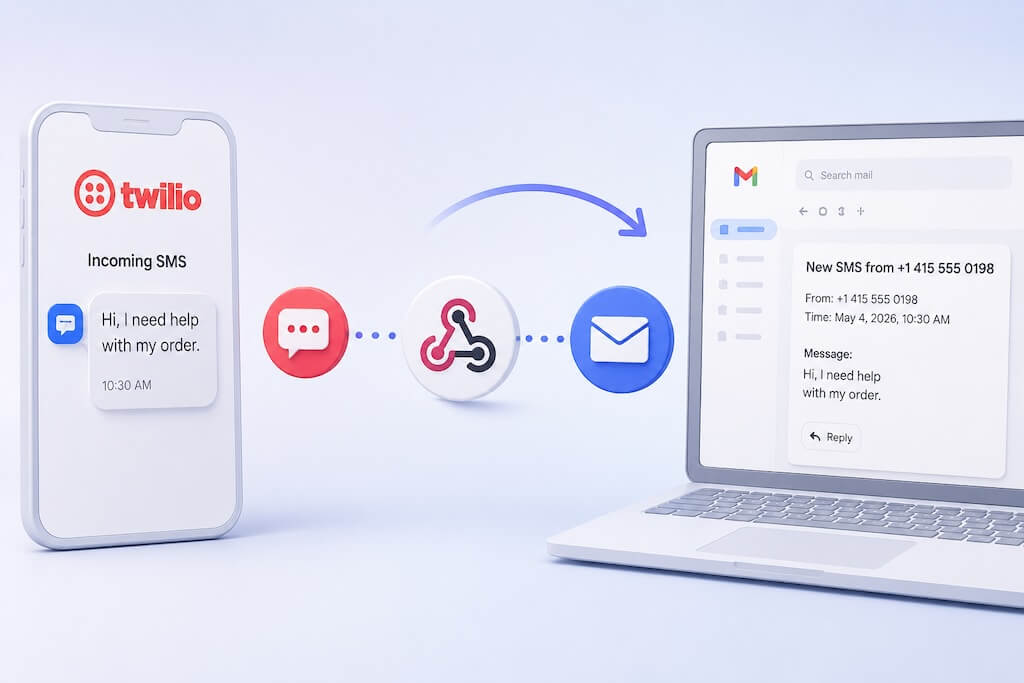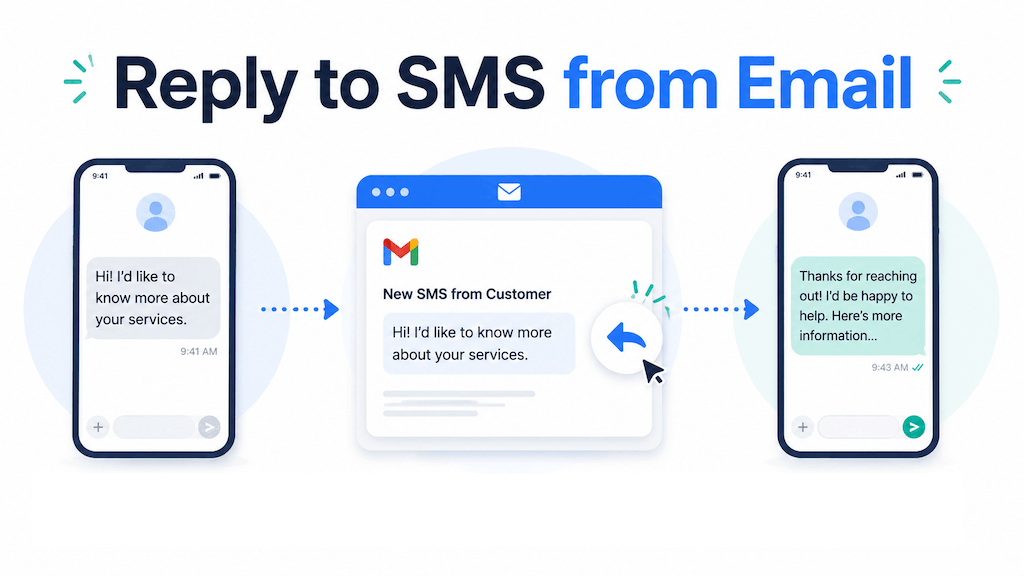
Forwarding SMS messages to email is useful. Being able to press Reply in Gmail or Outlook and send a text back to the original sender is what turns it into a real two-way communication workflow.
Most SMS forwarding tools stop after delivering a copy of the message to your inbox. That helps you see the text, but it still forces you to pick up the phone or open another dashboard to respond.
With AutoForward Text, you can receive text messages by email and reply directly from your inbox. Your response is routed back through your connected Android SMS gateway and delivered to the original sender as a normal SMS.
Can You Reply to SMS from Email?
Yes. AutoForward Text can forward an incoming SMS to your email inbox with a secure reply-enabled address. You can press Reply in Gmail, Outlook, Microsoft 365, Apple Mail, or another email client, type your response, and send it normally.
AutoForward Text identifies the original SMS conversation and sends your email reply back to the correct phone number through your connected Android device.
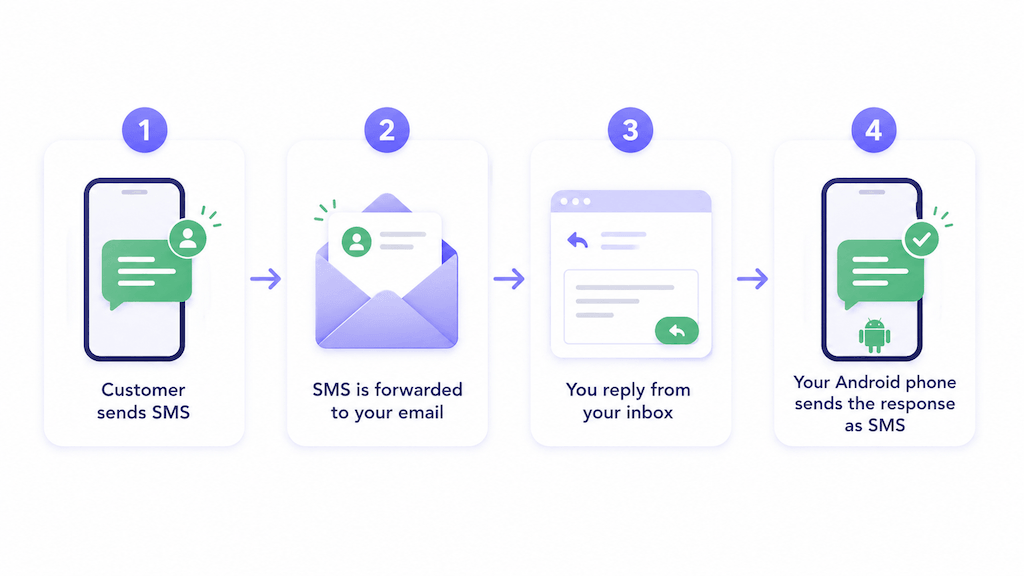
The customer receives a normal text message. They do not need an app, an AutoForward Text account, or access to your email.
Turn Your Email Inbox Into a Two-Way SMS Inbox
Forward incoming text messages to email and reply directly from Gmail, Outlook, or your shared business inbox.
How Replying to SMS from Email Works
Step 1: A Text Message Arrives on Your Connected Phone
Your Android phone receives the SMS normally through its SIM card and mobile carrier.
The phone must be connected to AutoForward Text and configured to forward incoming SMS messages to your chosen email destination.
Step 2: AutoForward Text Forwards the SMS to Email
The forwarded email can include the sender’s phone number, message content, device information, and message time.
Most importantly, the email contains a secure Reply-To address linked to that message and conversation.
Step 3: You Press Reply
Open the forwarded SMS in your inbox and press Reply exactly as you would with a normal email.
You do not need to copy the sender’s phone number, create a new message, or sign into a separate chat interface.
Step 4: AutoForward Text Processes the Reply
When the email reply arrives, AutoForward Text identifies your account, the original SMS conversation, the destination phone number, and the connected Android gateway that should send the reply.
Step 5: The Original Sender Receives an SMS
Your connected Android phone sends the message through its normal SMS service. The customer receives it like any other text message.
Important: Your email provider does not send the SMS directly. Gmail or Outlook sends the reply to AutoForward Text, and your connected Android phone sends the actual text message.
What the Conversation Looks Like
Suppose a customer sends this message to your business phone:
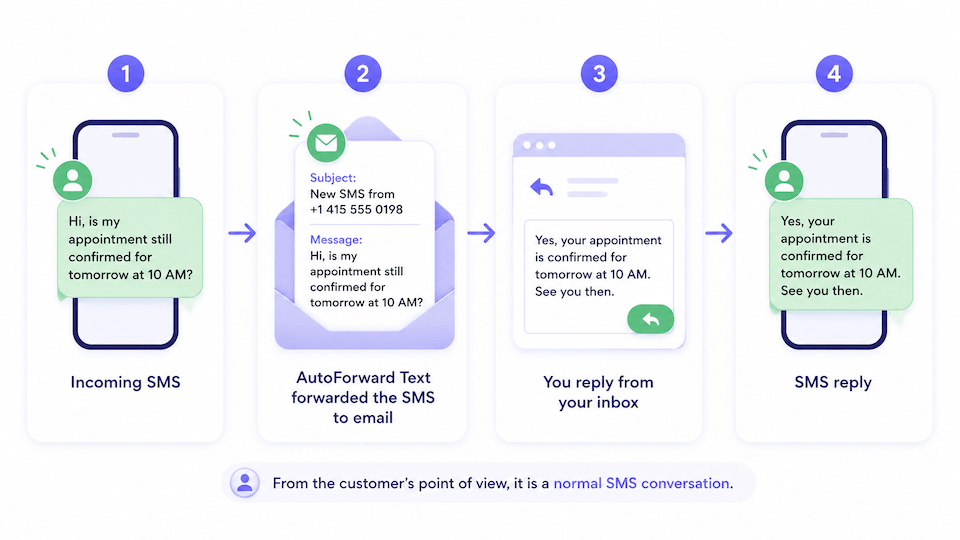
AutoForward Text forwards it to your inbox:
You press Reply and type:
The customer receives:
From the customer’s point of view, it is a normal SMS conversation. They do not need to know that your team responded from email.
Why Two-Way SMS Email Is Better Than Basic Forwarding
Basic SMS-to-email forwarding solves visibility. It lets you see incoming texts without checking the phone.
Two-way SMS email solves the actual workflow. It lets your team continue the conversation from the inbox they already use.
| Feature | Basic SMS-to-Email | SMS-to-Email With Reply |
|---|---|---|
| Receive text messages in email | Yes | Yes |
| Reply directly from inbox | No | Yes |
| Keep the conversation moving | No | Yes |
| Use a shared business inbox | Limited | Yes |
| Avoid switching between tools | No | Yes |
| Useful for customer support | Partly | Strongly |
The real difference:
Forwarding creates visibility. Replying creates a usable communication system.
Reply from Gmail, Outlook, or Other Email Apps
The reply workflow is not tied to one email provider. It works through standard email replies, so it can be used with Gmail, Google Workspace, Outlook, Microsoft 365, Apple Mail, Yahoo Mail, shared team inboxes, and helpdesk tools that preserve the original Reply-To address.
For security, the reply should normally come from an email address that is authorized for your AutoForward Text account or included in your forwarding workflow.
Do not manually replace or edit the special Reply-To address included with the forwarded SMS.
Android SMS Gateway Requirements
Replying to SMS from email requires a connected Android phone because the phone acts as the outbound SMS gateway.
The device should:
- Be connected to your AutoForward Text account
- Have SMS permissions enabled
- Have the SMS gateway sending enabled
- Contain an active SIM capable of sending SMS
- Have mobile signal and internet connectivity
- Remain online for reliable message delivery
Be clear about this: If the Android phone is offline, has no signal, or cannot send a normal SMS, your email reply cannot be delivered successfully.
How AutoForward Text Knows Where to Send the Reply
Each forwarded message uses a secure reply address linked to the original SMS.
That reply information allows AutoForward Text to identify the correct user account, original sender, SMS conversation, and connected Android device.
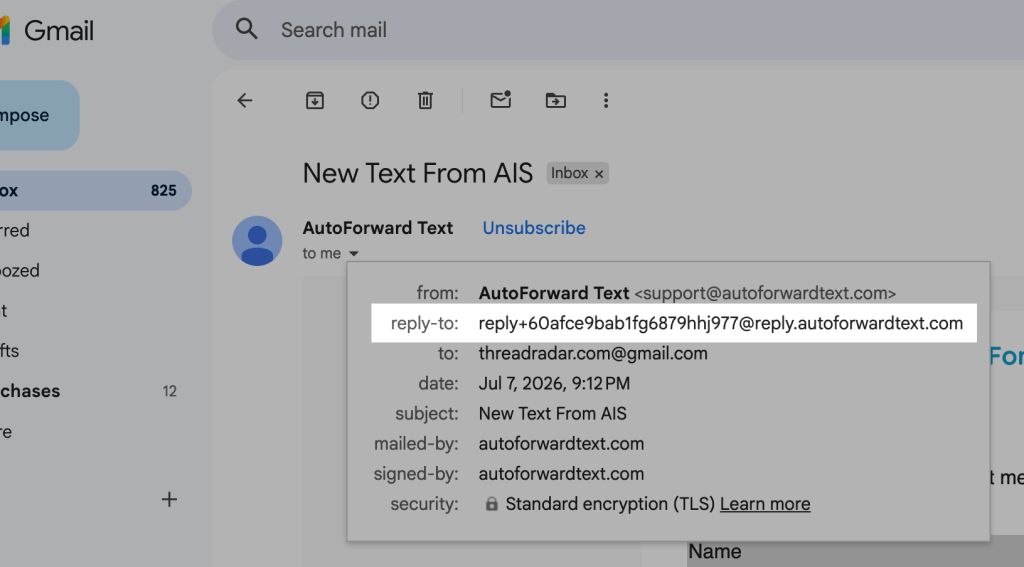
When you reply, the system validates the message and routes the new content to the original sender. You do not need to remember a phone number or include special commands in the email body.
Email Signatures, Quoted Text, and Long Replies
Email messages often contain more than the reply itself. They may include signatures, legal disclaimers, quoted conversation history, formatting, links, or logos.
AutoForward Text attempts to use the new reply content rather than sending the entire email thread as an SMS. Still, email formatting differs between providers, so simple replies work best.
Best Practices
- Write the actual reply at the top of the email.
- Keep the response short and direct.
- Avoid large signatures and long disclaimers.
- Do not attach files when sending an SMS reply.
- Remember that long text may be split into multiple SMS segments.
Best approach: Treat the email reply like a text message, not a formal email. Short, clean replies are more reliable and easier for the recipient to read.
Best Business Use Cases
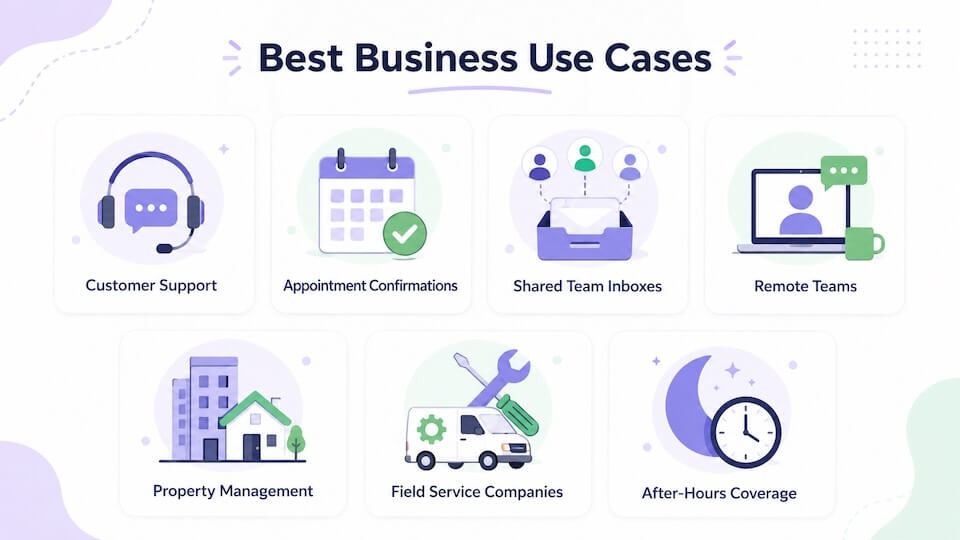
Customer Support
Support teams can receive incoming SMS messages in the same inbox they use for email requests and reply without switching devices.
Appointment Confirmations
Clinics, salons, consultants, repair companies, and service businesses can answer scheduling questions from Gmail or Outlook.
Shared Team Inboxes
Authorized employees can view messages sent to the business phone and respond from a shared inbox such as support@company.com or appointments@company.com.
Remote Teams
Employees can respond to business texts without having the physical company phone in their hands.
Property Management
Property managers can respond to tenants, maintenance teams, contractors, and owners through email while keeping the actual SMS conversation on the business number.
Field Service Companies
HVAC companies, plumbers, electricians, delivery businesses, and other field teams can centralize customer messages in the office inbox.
After-Hours Coverage
Incoming messages can be forwarded to the person monitoring the inbox after hours, allowing the business to respond without handing over the physical phone.
How to Set Up Reply to SMS from Email
- Connect your Android phone to AutoForward Text.
- Enable SMS forwarding to your chosen email address.
- Enable the Android device as an SMS gateway.
- Confirm the device has SMS permissions and mobile service.
- Send a test SMS to the connected Android phone.
- Open the forwarded SMS in Gmail, Outlook, or your email client.
- Press Reply and send a short response.
- Confirm that the original sender receives the reply as SMS.
Test flow:
Test phone → Android device → Email inbox → Reply → Test phone
Common Problems and Fixes
| Problem | Likely Cause | Fix |
|---|---|---|
| SMS reaches email, but the reply is not sent | SMS gateway is disabled | Enable gateway sending for the connected Android device |
| Reply remains pending | Device is offline | Reconnect the phone to the internet and check the AutoForward Text app |
| SMS sending fails | No mobile signal, inactive SIM, or carrier restriction | Test sending a normal SMS from the Android phone |
| Too much email content is included | Signature or quoted email history was included | Place a short reply at the top and reduce the email signature |
| Reply is rejected | Unauthorized mailbox or changed Reply-To address | Reply from the approved email account without editing the recipient |
| One reply becomes several texts | The message exceeds a single SMS segment | Shorten the reply |
Reply to SMS from Email vs Email to SMS
These two features are related, but they solve different problems.
| Feature | How It Starts | Best For |
|---|---|---|
| Reply to SMS from email | An incoming SMS is forwarded to your inbox | Responding to an existing text conversation |
| Email to SMS | You create a new email addressed to a phone-based AutoForward Text address | Starting a new SMS message from email |
Privacy and Responsible Use
- Only connect devices and phone numbers you own or are authorized to manage.
- Use secure email accounts and enable two-factor authentication.
- Limit shared inbox access to trusted team members.
- Avoid sending highly sensitive information through ordinary SMS.
- Follow local privacy, consent, and messaging laws.
Frequently Asked Questions
Can I reply to a text message from Gmail?
Yes. When an SMS is forwarded by AutoForward Text with a reply-enabled address, you can press Reply in Gmail and send your response back as SMS through your connected Android gateway.
Can I reply to SMS from Outlook?
Yes. Outlook and Microsoft 365 can be used because the workflow relies on a standard email reply.
Does Gmail send the text message directly?
No. Gmail sends the email reply to AutoForward Text. Your connected Android phone sends the actual SMS.
Does the customer see my email address?
The customer receives a normal SMS on their phone. They do not need to use or interact with your email address.
Can multiple employees reply from a shared inbox?
Yes, provided the shared inbox and authorized sender settings are configured correctly. This can be useful for support, sales, dispatch, and appointment teams.
Can the customer reply again?
Yes. Their next SMS is received by the connected Android phone and can be forwarded to email again, allowing the conversation to continue.
Can I send attachments from email as MMS?
The reply workflow is designed primarily for text-based SMS. Do not rely on email attachments being delivered as MMS unless your specific account and device workflow supports it.
What happens if my Android phone is offline?
The reply may remain pending or fail until the device reconnects. Keep the gateway phone powered on, connected to the internet, and able to send SMS.
Can I start a brand-new SMS from email?
Yes, but that is handled through the separate Email-to-SMS feature. Reply-to-SMS is intended for responding to an incoming message that has already been forwarded to email.
Do I need a Twilio number?
No. This workflow can use your connected Android phone and its SIM as the SMS gateway.
Final Thoughts
Receiving SMS messages in email is useful, but it only solves half the problem.
The stronger workflow is two-way: a customer sends a text, the message appears in Gmail or Outlook, your team presses Reply, and the response goes back to the customer as SMS.
That means fewer missed conversations, less app switching, and a more practical way to manage business texts from the inbox your team already uses.
Reply to SMS Directly from Your Email Inbox
Use AutoForward Text to forward incoming SMS messages to Gmail, Outlook, or a shared business inbox, then send replies back through your connected Android SMS gateway.
- Receive incoming texts by email
- Press Reply without copying phone numbers
- Send responses through your Android device
- Keep customer conversations moving from one inbox