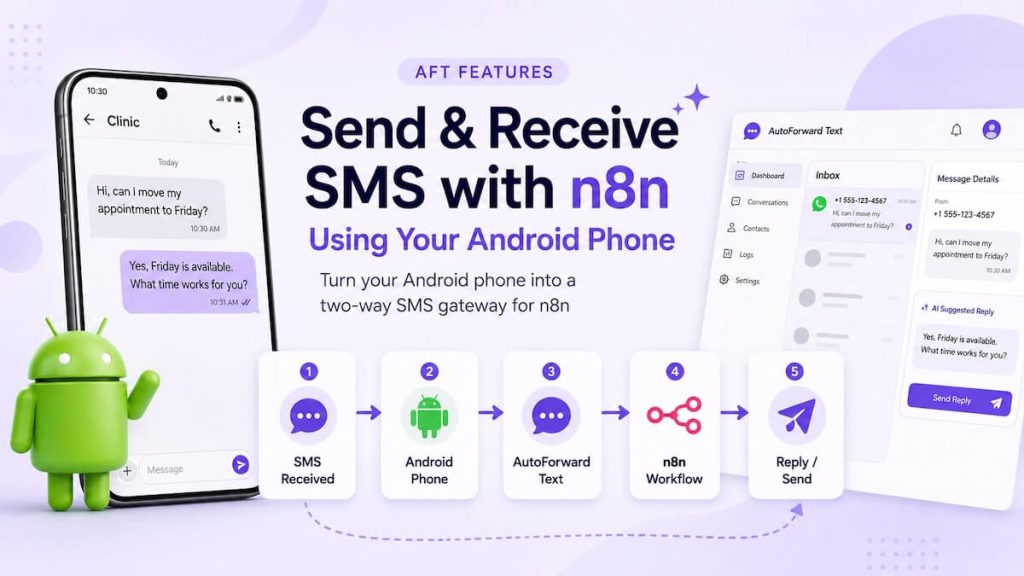
You do not need to move your SMS workflow to a new cloud phone number just to automate text messages with n8n. With an Android phone, its existing SIM card, and AutoForward Text, you can receive incoming SMS in n8n, process them in a workflow, reply to the sender, and trigger new outbound text messages.
The important distinction is that n8n does not send the SMS itself. AutoForward Text connects the workflow to your Android device, while the phone sends and receives messages using the mobile number already attached to its SIM.
Once this basic connection works, you can put almost anything in the middle: CRM updates, Google Sheets, appointment logic, lead qualification, human approval, or an AI Agent.
How Android SMS and n8n Work Together
Think of the Android phone as the physical messaging endpoint and n8n as the automation engine.
When somebody sends an SMS to the phone, the AutoForward Text Android app captures the incoming message and can forward selected message data to a webhook. n8n receives that webhook and can then run whatever logic you want.
For an outbound message, the flow runs in the opposite direction. n8n makes an authenticated API request to AutoForward Text, AutoForward Text routes the request to the selected Android gateway device, and the phone sends the actual SMS.
This is useful when you already have a mobile number you want to keep using. You are not replacing that phone number with a new virtual number just to make it available to an automation workflow.
Before You Start
You will need:
- An Android phone running Android 8 or newer
- An active SIM that can send and receive SMS
- An active internet connection on the Android phone
- The AutoForward Text Android app installed and connected
- An AutoForward Text account
- An n8n Cloud account or a self-hosted n8n instance that can receive public webhooks
The Android phone must remain powered on and connected. If the device is offline, there is no Internet, SMS permission is removed, or aggressive battery management prevents background activity, messages may be delayed or fail to process.
If you plan to send messages from n8n as well as receive them, enable the Android device’s SMS Gateway feature in AutoForward Text.
Step 1: Connect Your Android Phone
Install AutoForward Text on the Android device and sign in using your AutoForward Text account.
Grant SMS permission when prompted. If you also use AutoForward Text for app notifications, calls, or contact names, those features may require additional permissions, but SMS permission is the important one for this tutorial.
Next, disable battery optimization for AutoForward Text. On phones from Samsung, Xiaomi, Huawei, Oppo, Vivo, and other manufacturers with aggressive power management, also make sure the app is allowed to run in the background and is not placed in a sleeping or restricted-app list.
Open the AutoForward Text dashboard and confirm that the device appears under your connected physical devices.
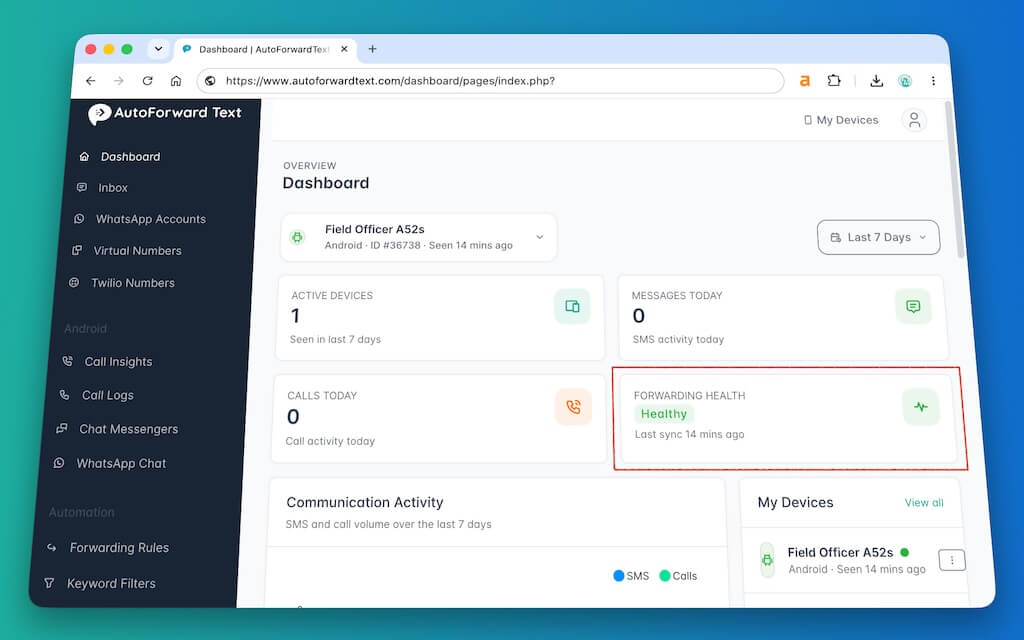
Enable SMS Gateway for outbound messages
Receiving SMS and forwarding them to n8n is one half of the workflow. To let n8n trigger a reply or a completely new outbound message through this phone, enable SMS Gateway for the device.
Once enabled, AutoForward Text can route an outbound SMS command to the Android device, which then sends the message using its SIM.
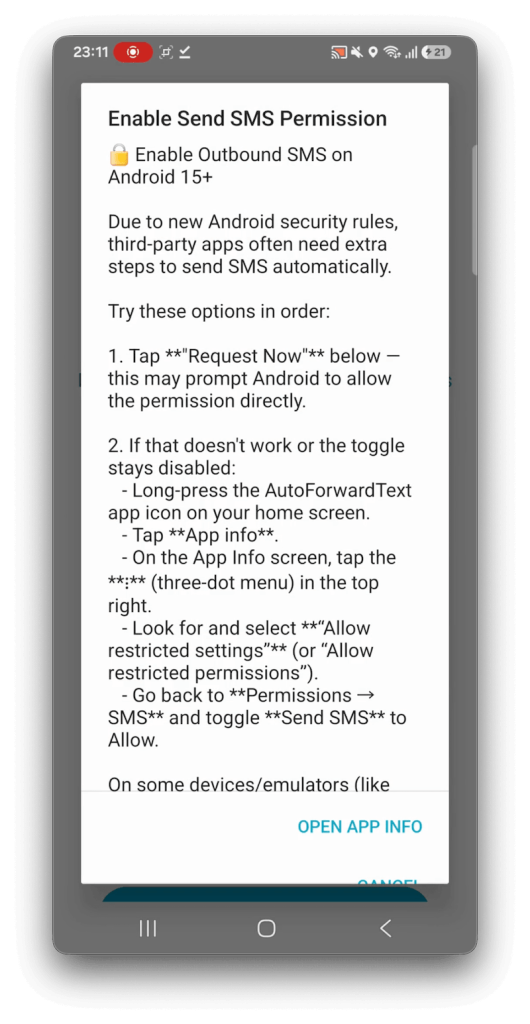
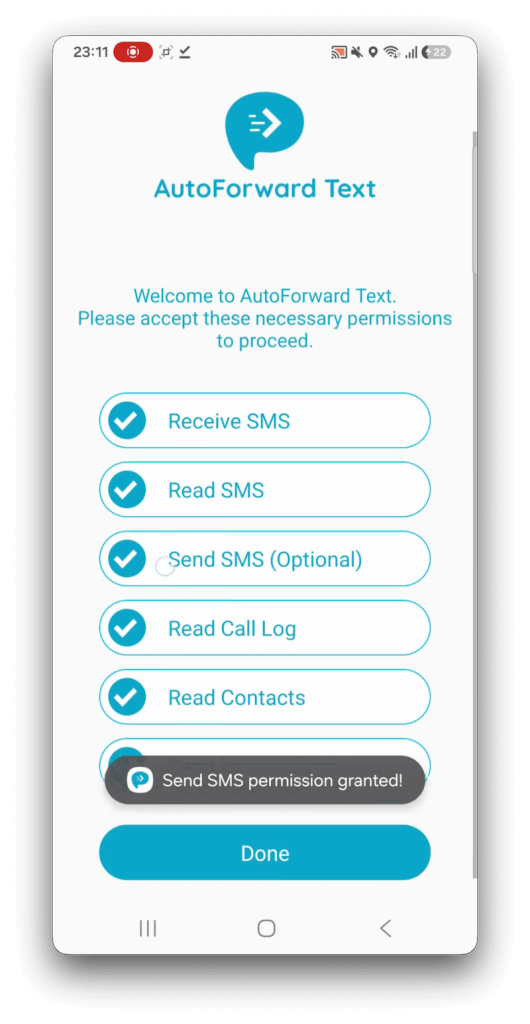
Before touching n8n, send a normal SMS to the Android phone and confirm that it appears in the AutoForward Text message log.
If the SMS appears in AutoForward Text, the Android side is working.
Step 2: Create an n8n Webhook
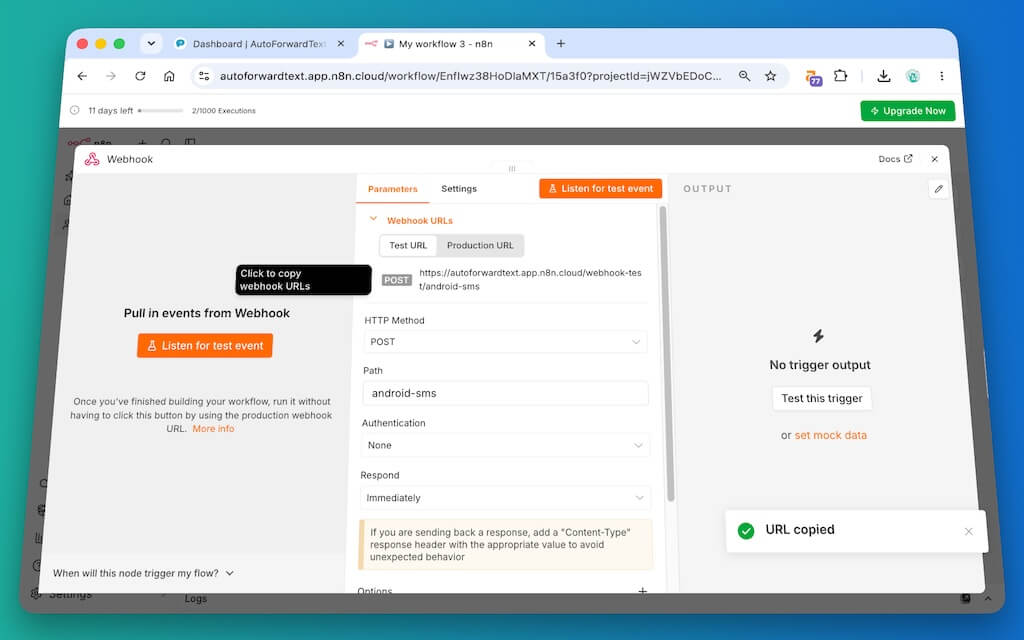
Create a new workflow in n8n and add a Webhook node.
Set the HTTP method to:
POST
Use a simple path such as:
android-sms
n8n gives the Webhook node a test URL and a production URL. Use the test URL while building the workflow so you can inspect a real incoming SMS. When the workflow is ready and published, switch AutoForward Text to the production URL.
Do not leave the test webhook URL in AutoForward Text after publishing the workflow. The test URL is intended for development while n8n is listening for a test event.
Step 3: Forward Incoming SMS to n8n
Copy the n8n test webhook URL and return to AutoForward Text.
Open the Webhooks section for the Android device and add a Webhook destination.
Use:
- Method: POST
- Webhook URL: the n8n test webhook URL
- Source: incoming SMS for the selected Android device
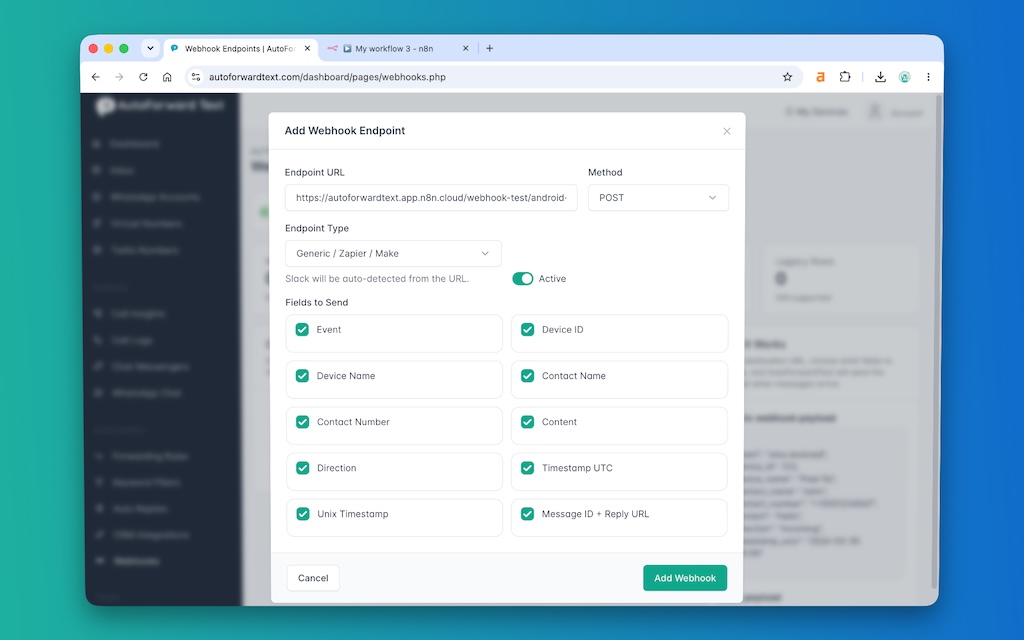
AutoForward Text lets the webhook include useful fields such as:
eventdevice_iddevice_namecontact_namecontact_numbercontentdirectiontimestamp_utctimestamp_unixmessage_id
For n8n, I would include all of those fields. They make the webhook useful for far more than a single demo workflow.
In n8n, click Listen for test event or execute the Webhook node so it is waiting for the request.
Now send a fresh SMS to the Android phone.
Step 4: Test the Incoming SMS Payload
When the new text arrives, AutoForward Text sends the selected fields to n8n as JSON.
A typical payload can look like this:
{
  "event": "sms.received",
  "device_id": 36664,
  "device_name": "Office Android",
  "contact_name": "Customer",
  "contact_number": "+14155550123",
  "content": "Hi, can I move my appointment to Friday?",
  "direction": "incoming",
  "timestamp_utc": "2026-08-19 10:24:00",
  "timestamp_unix": 1787135040,
  "message_id": 24831
}
The most useful fields for most workflows are:
| Field | Why It Matters |
|---|---|
contact_number | Identifies the person who sent the SMS and gives you the number to reply to. |
content | The actual text message to process. |
device_id | Identifies which Android phone received the message when more than one device is connected. |
message_id | Identifies the AutoForward Text message record and is useful for reply, logging, and deduplication logic. |
event | Makes it easy to branch between received and sent SMS events if both directions are included. |
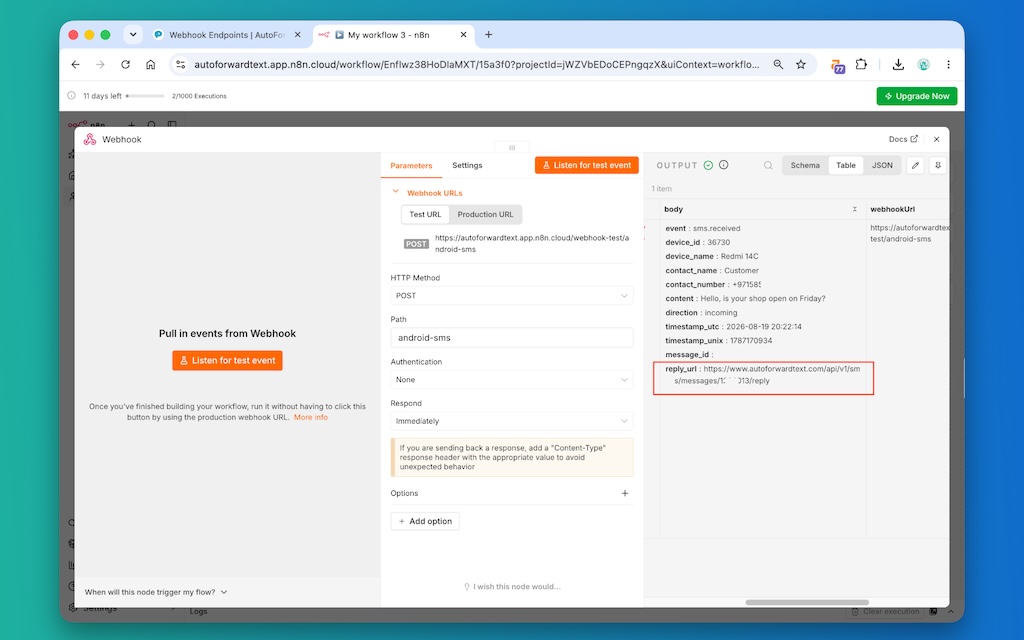
At this point, you already have one useful automation direction:
↓
Android Phone
↓
AutoForward Text
↓
n8n
You can now send the message into a CRM, database, helpdesk, Slack channel, Google Sheet, notification workflow, or any other n8n-supported process.
Step 5: Reply to an SMS from n8n
To make the workflow two-way, add an HTTP Request node after the Webhook node.
The HTTP Request node calls the AutoForward Text Android SMS Reply API. The reply is then routed back through the same Android SMS gateway rather than being sent by n8n itself.
↓
Your n8n Logic
↓
HTTP Request
↓
AutoForward Text
↓
Android Phone
↓
SMS Reply
In the HTTP Request node:
- Use POST.
- Use your AutoForward Text API key for authentication.
- Map the incoming
message_idso the reply is associated with the correct SMS. - Map the reply text from the previous n8n node.
- Use a stable idempotency value so a workflow retry does not create an accidental duplicate message.
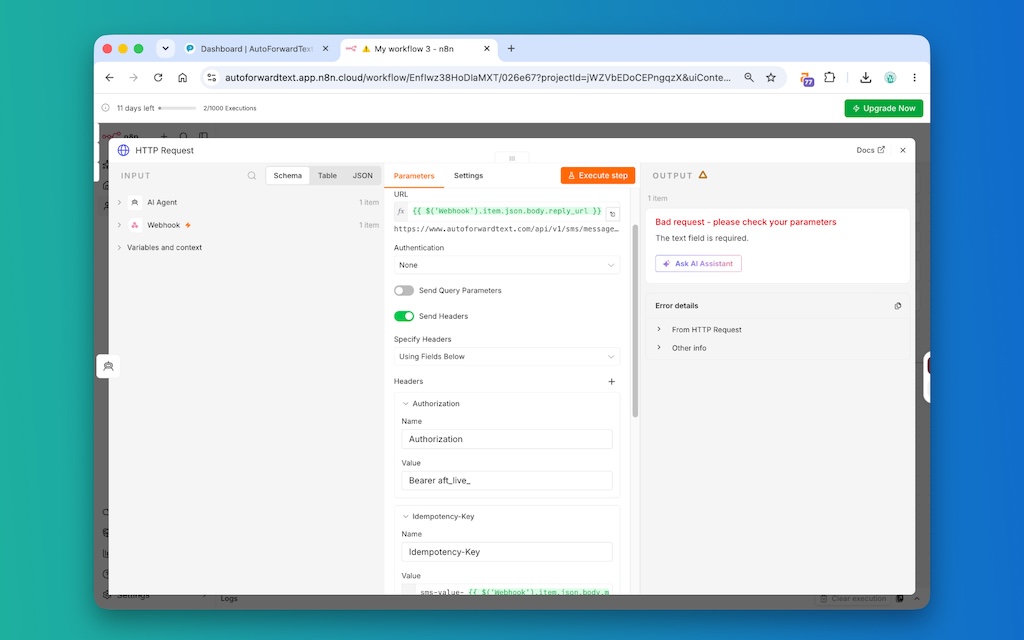
Conceptually, the n8n node should map these values:
Incoming message: message_id = 24831
Reply: Yes, Friday is available. What time works for you?
The recipient should receive the response as a normal SMS from the Android phone’s existing mobile number.
Step 6: Send a New SMS from n8n
A reply starts with an incoming SMS. A new outbound SMS does not.
This is useful when another system should initiate the text:
↓
n8n
↓
AutoForward Text Send API
↓
Android Phone
↓
Recipient
Add another HTTP Request node and call the Android SMS Send API. The outbound request needs enough information to identify:
- The Android gateway device
- The destination phone number
- The SMS message text
Use the full international phone-number format wherever possible, for example:
+14155552671
Once connected, n8n can initiate messages from almost any trigger.
If the customer replies YES, that new inbound SMS returns through the webhook you already configured in the previous steps.
That is the point where the setup becomes genuinely two-way.
Step 7: Activate and Test the Complete Workflow
Do not jump straight to an AI agent or large automation. First prove the message round trip.
Test this sequence:
- Send an SMS from another phone to the connected Android number.
- Confirm the message appears in the AutoForward Text message log.
- Confirm the n8n Webhook receives the correct payload.
- Run the Reply API HTTP Request.
- Confirm the second phone receives the reply.
- Run a separate Send API test to a permitted test number.
- Confirm the Android gateway sends the new SMS.
Once the flow works, publish or activate the n8n workflow and replace the test webhook URL in AutoForward Text with the Webhook node’s production URL.
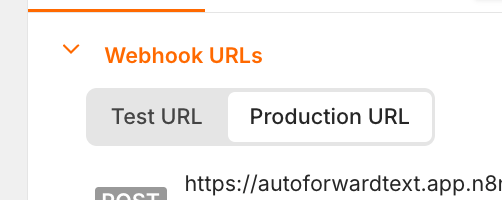
This final URL switch is easy to forget. A workflow can work perfectly while manually testing and then appear to stop later because AutoForward Text is still calling n8n’s temporary test webhook.
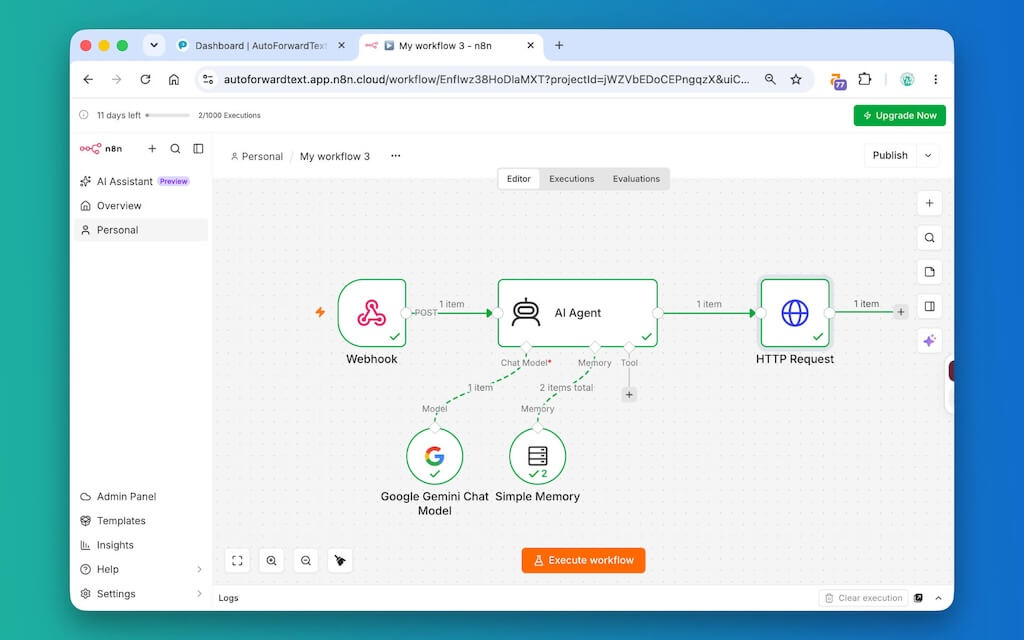
Optional: Add an AI Agent to the SMS Workflow
Once the basic two-way workflow is reliable, adding AI is straightforward.
↓
n8n Webhook
↓
AI Agent
↓
HTTP Request
↓
Android SMS Reply
The AI Agent receives the SMS content and generates a response. The HTTP Request node then sends that response through AutoForward Text and the Android phone.
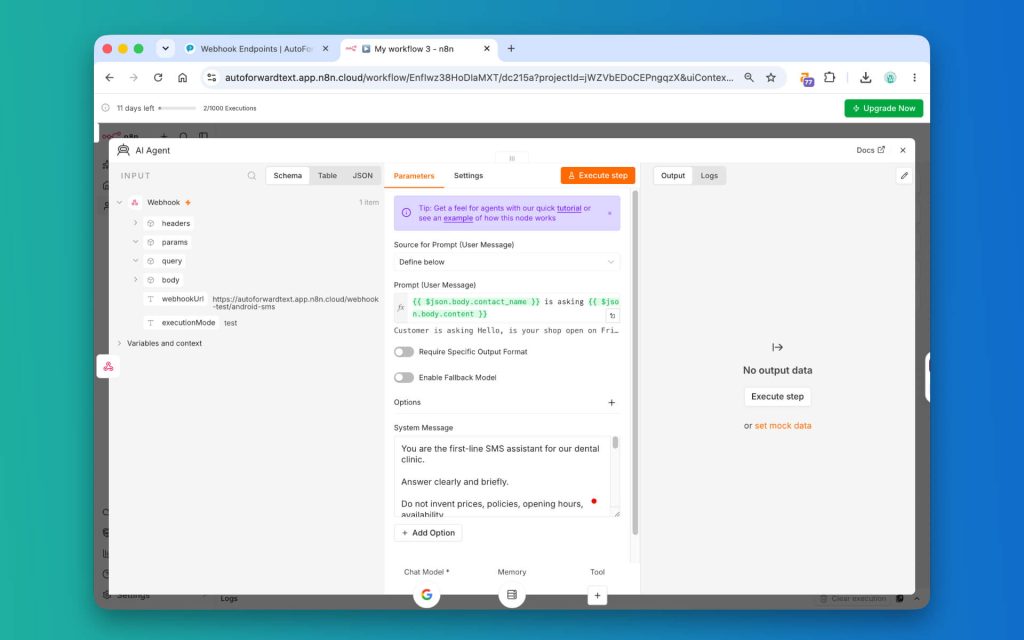
For a customer-facing agent, keep its authority narrow. For example:
You are the first-line SMS assistant for our business.

Answer clearly and briefly.

Do not invent prices, policies, opening hours, availability,
or other facts that have not been provided to you.

If you do not know the answer, say that someone from the team
will follow up.

Keep normal replies short enough to work well over SMS.

Do not claim to be a human.
If you need conversation continuity, use the sender’s contact_number as a stable session key for your memory layer.
The useful architecture is bigger than AI. AutoForward Text gives n8n access to the real SMS channel. Whether the response comes from an AI Agent, CRM rule, database lookup, human approval step, or fixed workflow logic is up to n8n.
Useful n8n SMS Automations
| Workflow | Example |
|---|---|
| Lead qualification | A new lead enters your CRM → n8n sends an SMS → replies return to the same workflow. |
| Appointment confirmations | Calendar event → SMS reminder → customer replies YES or requests another time. |
| AI customer support | Incoming SMS → AI answers basic questions → difficult cases are handed to a person. |
| SMS to CRM | Incoming text → identify contact → save the message as an activity or note. |
| Human escalation | Incoming urgent SMS → Slack or email alert → approved response goes back by SMS. |
| Delivery or field updates | Job status changes → n8n sends a text from the team’s existing Android number. |
| Keyword routing | Incoming text contains a specific word → branch to a dedicated workflow or team. |
Android SMS Gateway vs Cloud SMS API
Using your Android phone is not automatically better than using a cloud SMS provider. It solves a different problem.
| Android Phone + SIM | Cloud SMS Provider |
|---|---|
| Useful when you want to keep using an existing mobile number | Useful when you want provisioned virtual numbers |
| The physical phone must remain online and healthy | No physical Android phone is required |
| Good fit for modest operational messaging and existing-number workflows | Usually better suited to larger-scale messaging infrastructure |
| Messages are sent by the SIM in the Android device | Messages are sent by the provider’s network/API |
| Carrier plan, device behavior, and Android restrictions matter | Provider rules, registration, pricing, and messaging compliance matter |
Use the Android gateway when the important requirement is:
“I already have this Android phone and number. I want n8n to automate the SMS coming in and going out through it.”
If you need high-volume messaging, large pools of numbers, or a fully cloud-based messaging stack, a dedicated SMS API provider will usually be the cleaner architecture.
Do not treat an Android gateway as a bulk-SMS loophole. Carrier terms, local laws, consent requirements, anti-spam rules, and your mobile plan still apply. Use it for legitimate messaging with recipients you are allowed to contact.
Troubleshooting
| Problem | Likely Cause | What to Check |
|---|---|---|
| SMS does not appear in AutoForward Text | SMS permission, app connection, or Android background restriction | Open the app, check the signed-in account, confirm SMS permission, internet access, and battery settings |
| SMS appears in AFT but not n8n | Webhook rule or URL problem | Confirm Webhook forwarding is enabled, POST is selected, and the n8n URL is correct |
| n8n test URL works only while editor is open | Still using the test webhook | Publish the workflow and replace the URL with the production webhook URL |
| Outbound SMS does not send | SMS Gateway disabled, phone offline, or Android cannot send | Check gateway status, internet, SIM service, SMS permission, and whether the device can send a normal text manually |
| Messages work and then stop later | Battery optimization or manufacturer background restrictions | Exclude AutoForward Text from battery saver, sleeping apps, and auto-start restrictions |
| Duplicate outbound SMS | Workflow retry triggered the same logical send twice | Use a stable idempotency value for each logical reply/send operation |
| Wrong Android phone sends the SMS | Wrong device mapped in the outbound request | Check the device_id used in the workflow |
Best diagnostic order: Android phone → AutoForward Text message log → n8n Webhook → workflow logic → HTTP Request response → Android gateway → recipient.
Frequently Asked Questions
Can n8n receive SMS from an Android phone?
Yes. AutoForward Text can forward incoming SMS from a connected Android phone to an n8n Webhook using an HTTP POST request.
Can n8n send SMS through my Android phone?
Yes. With SMS Gateway enabled, an n8n workflow can call the AutoForward Text sending API and route the outbound message through the connected Android device and its SIM.
Do I need Twilio to use SMS with n8n?
No. If you already have an Android phone and SIM, AutoForward Text can use that device as the SMS gateway. A cloud SMS provider is a separate option for workflows that need a cloud-based number or different scale.
Does the SMS come from my Android phone’s number?
When the Android phone is used as the SMS gateway, the physical phone sends the SMS through its SIM, so the message uses the mobile service attached to that device.
Does the Android phone have to stay online?
Yes. Keep it powered on, connected to the internet, and able to run AutoForward Text in the background. Battery optimization and manufacturer power-saving settings are common causes of delayed or stopped automation.
Which n8n node receives the SMS?
Use the Webhook node. Configure AutoForward Text to POST incoming SMS data to the Webhook URL.
Which n8n node sends the reply?
Use the HTTP Request node to call the AutoForward Text Android SMS API after your workflow has generated or approved the response.
Can I build an AI SMS agent with this?
Yes. Insert an AI Agent between the Webhook and HTTP Request nodes. The AI can generate the response, while AutoForward Text and the Android phone handle the actual SMS transport.
Can I use this without AI?
Absolutely. You can route messages to a CRM, database, Slack, Google Sheets, a helpdesk, a rules engine, or a human approval step. AI is optional.
Can I connect more than one Android phone?
Yes, if your AutoForward Text account supports the required number of devices. Include the device ID in the webhook and outbound workflow so n8n can tell the phones apart.
Is an Android SMS gateway suitable for bulk marketing?
That is not the intended use of this workflow. Mobile carrier rules, plan restrictions, local messaging laws, recipient consent, and anti-spam requirements still apply. For large-scale messaging, use infrastructure designed for that purpose.
Final Thoughts
The useful part of this setup is not simply “n8n can send a text.”
It is that the Android phone and mobile number you already use can become part of your automation stack.
Incoming SMS can trigger n8n. n8n can process the message. A workflow can reply through the same Android gateway. Other n8n triggers can initiate completely new messages through that phone as well.
That gives you a straightforward architecture:
Android SMS ↔ AutoForward Text ↔ n8n
Start with the basic receive-and-reply loop. Once that is reliable, add CRM lookups, appointment logic, notifications, databases, human approval, or an AI Agent without changing the underlying SMS connection.
Connect Your Android SMS to n8n
Use AutoForward Text to forward incoming SMS from your Android phone to n8n and route automated responses back through the same Android device.
- Use your existing Android phone and SIM
- Send incoming SMS to n8n with webhooks
- Reply or trigger outbound messages from workflows
- Connect SMS to AI, CRM, helpdesk, and automation tools