A WhatsApp form is useful when every new enquiry, booking, quote request, registration, or internal form submission needs to reach someone on WhatsApp quickly. If you already use Google Forms, you do not need to rebuild the form. You can keep your existing Google Form and automatically forward every new response to a WhatsApp contact or WhatsApp group.
With AutoForward Text, a Google Form submission can be forwarded to a connected WhatsApp account as soon as it is received. The same response can also be sent by SMS through an Android phone, AutoForwardText Shared SMS, or your own Twilio number.
The basic WhatsApp form flow:
↓
Google Apps Script trigger
↓
AutoForward Text
↓
WhatsApp Contact or WhatsApp Group
The important difference is that the Google Form remains the original form. Google continues storing the response normally, while AutoForward Text receives a copy and forwards it to the destinations you choose.
What Is a WhatsApp Form?
The phrase WhatsApp form is commonly used for a form that sends submitted information to WhatsApp. A business might use one for sales leads, bookings, quote requests, customer support, registrations, or internal staff requests.
There are two common ways to create this experience:
Build a New Form Around WhatsApp
A dedicated WhatsApp form service creates or hosts a separate form designed specifically to pass the submitted information into WhatsApp.
Keep Your Existing Form
Your existing Google Form continues working as normal, while each new response is automatically forwarded to WhatsApp in the background.
AutoForward Text uses the second model for Google Forms. You do not need to recreate the questions or move responses away from Google Forms. Instead, the existing form becomes a WhatsApp-enabled form because each new submission can be delivered automatically to your WhatsApp contact or team group.
Simple way to think about it: Google Forms collects the information. AutoForward Text delivers the new response to WhatsApp.
Can Google Forms Send Responses to WhatsApp Automatically?
Google Forms does not provide a normal built-in setting that says “send every response to this WhatsApp chat.” However, Google Forms can work with Google Apps Script.
An Apps Script trigger can run whenever somebody submits the form. That script sends a copy of the submitted fields to the unique AutoForward Text webhook URL associated with your Google Forms connection.
↓
onFormSubmit Trigger↓
AutoForward Text Webhook
↓
The respondent does not need to open WhatsApp, press a “send to WhatsApp” button, or do anything after submitting the form. The forwarding happens automatically in the background.
This is especially useful for businesses that already rely on Google Forms and simply want faster notifications or team routing through WhatsApp.
Why Forward Google Form Responses to WhatsApp?
Google Forms is excellent for collecting structured information, but a new response sitting in a spreadsheet or email inbox can still be missed. WhatsApp can put that information directly in front of the person or team that needs to act on it.
Get new leads immediately
A new sales enquiry can arrive in a salesperson’s WhatsApp chat seconds after the form is submitted.
Notify an entire team
Forward submissions to a WhatsApp group instead of depending on one person to see the response.
Respond faster to bookings and requests
Appointment requests, property enquiries, quote forms, service bookings, and support intake forms can all be routed to the relevant team.
Create a backup notification path
The same Google Form can be forwarded to both WhatsApp and SMS, giving important submissions more than one route to the business.
Keep the original Google Forms workflow
You do not have to migrate the form, recreate its fields, or teach customers to use a different page. Google Forms continues to collect and store the original response.
How Google Forms to WhatsApp Works with AutoForward Text
The integration has three main pieces:
- Google Forms collects the response.
- Google Apps Script sends a copy of the new response to AutoForward Text.
- AutoForward Text forwards the response to the WhatsApp or SMS destinations you configured.
↓
Google Apps Script
↓
AutoForward Text
↓
WhatsApp Contact / WhatsApp Group / SMS

A typical forwarded message can look like this:
AutoForward Text does not need the form to use fixed field names such as “Name” or “Message.” It can forward the fields that actually exist in your Google Form.
Step 1: Connect WhatsApp to AutoForward Text Using a QR Code
For Google Forms to WhatsApp forwarding, first connect the WhatsApp account that should receive the form submissions.
- Sign in to the AutoForward Text dashboard.
- Open WhatsApp Accounts.
- Add a WhatsApp account using the QR connection option.
- Scan the QR code using WhatsApp on your phone.
- Wait for the account to show as connected.
The QR-connected account allows AutoForward Text to work with the chats and groups already available to that WhatsApp account.
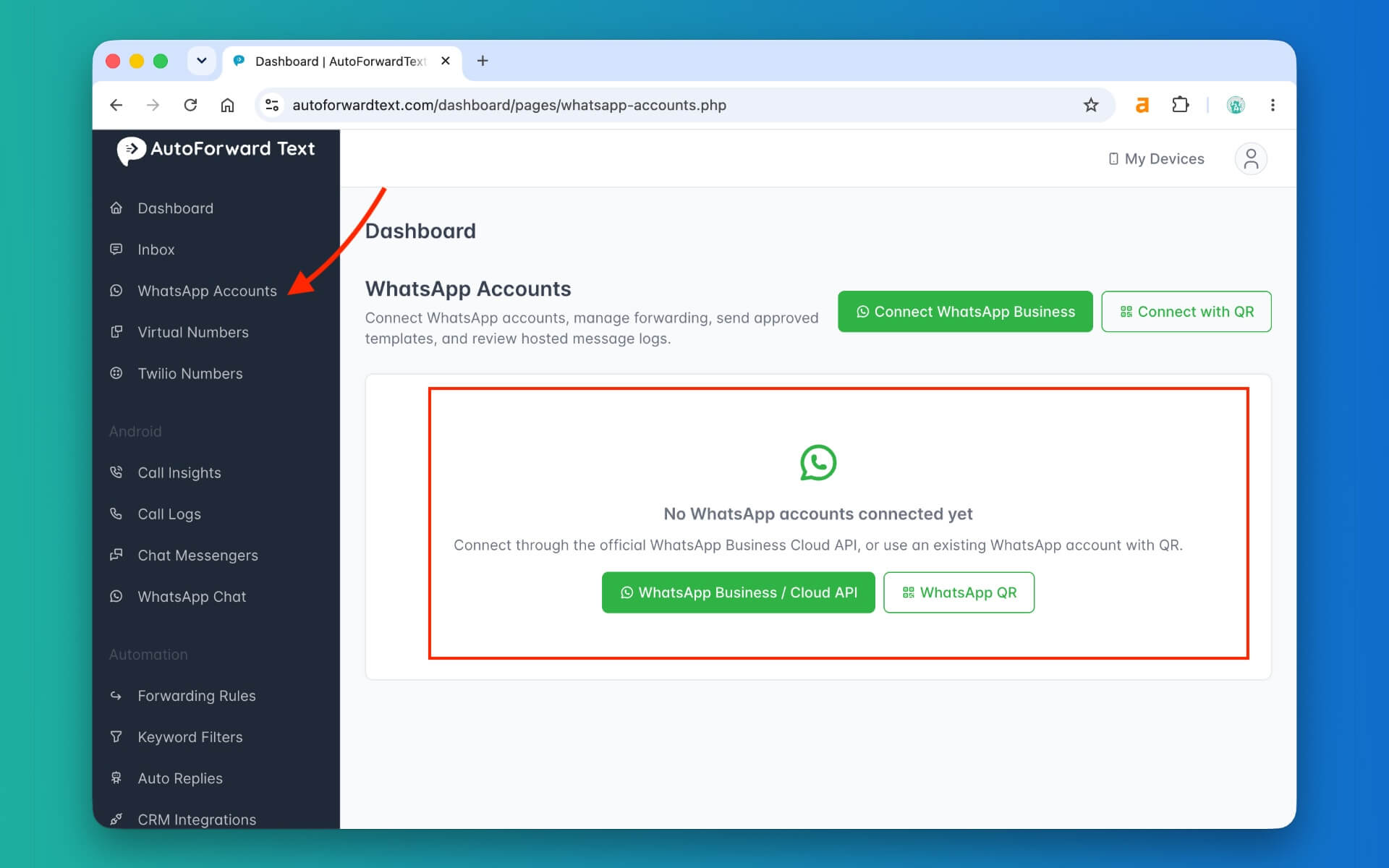
Why QR for this workflow? The Google Forms forwarding screen can use an existing WhatsApp chat or group from your QR-connected account as the destination.

If your main goal is broader WhatsApp message routing, see our guide to automatically forwarding WhatsApp messages to phones, groups, email and more.
Step 2: Create a Google Forms Forwarding Connection
Once WhatsApp is connected, open the Google Forms workflow inside AutoForward Text.
Go to:

Workflows → Google Forms to WhatsApp / SMS
Click Connect Google Form and give the connection a name such as:

- Website Contact Form
- Sales Lead Form
- Property Enquiry Form
- Appointment Request Form

AutoForward Text then creates a unique webhook URL and a ready-to-copy Apps Script for that connection.

Step 3: Add AutoForward Text to Your Google Form
Open your Google Form in edit mode, then open Apps Script from the form.

AutoForward Text generates the script with your unique webhook URL already included, so there is no need to manually build the request.
- Open the Google Form in edit mode.
- Open Apps Script.
- Copy the generated script from AutoForward Text.
- Replace the Apps Script editor contents with the generated script.
- Save the project.

The script reads the submitted questions and answers, then sends them as structured data to the AutoForward Text endpoint.
This also means you do not have to hardcode fields such as name, email, phone, or comments into the script.
Step 4: Add the Form Submission Trigger
The script needs to run whenever a new Google Form response is submitted.
Inside Apps Script, open Triggers and add a trigger with these settings:
| Setting | Value |
|---|---|
| Function | onFormSubmit |
| Event source | From form |
| Event type | On form submit |
Save the trigger and approve the permissions requested by Google.

You do not need to deploy the Apps Script as a Web App. The installable form-submission trigger runs it automatically.

Step 5: Forward Google Form Responses to WhatsApp
Return to the Google Forms connection in AutoForward Text and open the Forward To section.
Add a destination and choose WhatsApp.
- Select your connected QR WhatsApp account.
- Select the WhatsApp contact or group that should receive the form response.
- Save the connection.

Now submit a test response through the public Google Form.
Once the webhook reaches AutoForward Text, the Google Forms connection will show the detected form title, Google Form ID, last response time, and latest webhook status.
The new response is then queued for delivery to the WhatsApp destination you selected.

Send Google Form Responses to a WhatsApp Group
You are not limited to forwarding Google Form responses to one person. A QR-connected WhatsApp account can also use an existing WhatsApp group as the forwarding destination.
↓
AutoForward Text
↓
WhatsApp Group: Sales Team
This is useful when several people may need to act on the same submission.
Examples of Google Forms to WhatsApp group workflows
- Sales: new website lead → sales WhatsApp group
- Real estate: property enquiry → agent group
- Customer support: support form → support team group
- Field service: service request → dispatch group
- Schools: parent enquiry → admissions/admin group
- Operations: internal incident form → operations group
The response appears as a normal message in the selected WhatsApp group, so the existing team conversation remains the place where staff see and discuss the submission.
Forward One Google Form to Multiple Destinations
One Google Form connection can have more than one forwarding destination.
For example:
↓
AutoForward Text
├── WhatsApp → Sales Group
└── SMS → Sales Manager
This can be useful for high-value or time-sensitive forms where relying on one notification channel is not enough.
You can add multiple supported destinations and each one is handled independently. That means a WhatsApp destination can succeed even if a separate SMS destination has a delivery problem.
Send Google Form Responses by SMS Using Your Android Phone
AutoForward Text can also send a new Google Form response as an SMS through a connected Android phone that is configured as an SMS gateway.
This is particularly useful if your business already has a physical Android phone and SIM that you want to use for outbound messaging.
↓
AutoForward Text
↓
Your Android Phone + SIM
↓
SMS Recipient
Inside the Google Forms connection:
- Click Add destination.
- Choose SMS — Android Gateway.
- Select the connected Android device.
- Enter the recipient number in international format.
- Save the connection.
This keeps the Android phone and its SIM as part of the messaging path rather than requiring a separate cloud SMS provider for every use case.
Send Google Form Responses with AutoForwardText Shared SMS
If you do not want to configure your own Android gateway or Twilio account, AutoForward Text Shared SMS can be used as another notification destination.
Choose:
Forward To → SMS — AutoForwardText Shared
Enter the destination phone number and save the connection. Messages sent through the shared sender use your available AutoForward Text SMS credits.
This can be a simple option for sending a form notification to a manager, employee, salesperson, or another business phone without setting up a separate SMS provider.
Send Google Form Responses Through Your Own Twilio Number
Businesses that already use Twilio can use a connected Twilio number as the SMS sending route.
Inside the Google Forms connection:
- Add a destination.
- Choose SMS — Twilio.
- Select the connected Twilio number.
- Enter the recipient number.
- Save the connection.
↓
AutoForward Text
↓
Your Twilio Number
↓
SMS Recipient
This lets a business keep using its existing Twilio setup while AutoForward Text handles the Google Forms trigger and routing.
Google Forms + WhatsApp vs a Standalone WhatsApp Form
If you search for a “WhatsApp form,” you will also find services that create a separate form specifically for WhatsApp.
That approach can make sense when you want a completely new form. But if your business already uses Google Forms, keeping the existing form has some practical advantages.
| Feature | Google Forms + AutoForward Text | Standalone WhatsApp Form |
|---|---|---|
| Keep your existing Google Form | Yes | May require a new or converted form |
| Responses remain stored in Google Forms | Yes | Depends on the service |
| Send response to WhatsApp | Yes | Usually |
| Send to a WhatsApp group | Yes, with supported QR-connected groups | Depends on the service |
| Send by SMS as well | Yes | Depends on the service |
| Multiple destinations | Yes | Depends on the service |
| Need to recreate existing form questions | No | Sometimes |
Neither model is automatically the right answer for every business.
If you want to build an entirely new form designed around WhatsApp, a dedicated WhatsApp form builder may be appropriate. If you already rely on Google Forms and mainly want every new response to reach WhatsApp automatically, forwarding the existing form is often the simpler approach.
Do You Need Zapier, Make or n8n?
No. Not for this basic Google Forms to WhatsApp workflow.
↓
Google Apps Script
↓
AutoForward Text
↓
Google Apps Script provides the form-submission trigger, while AutoForward Text handles the forwarding destination.
That means you do not have to create a Zapier Zap, Make.com scenario, or n8n workflow simply to deliver a Google Form response to WhatsApp.
Those platforms can still be useful if you later need more complicated logic such as CRM updates, AI processing, data enrichment, branching, or custom business rules.
For those use cases, see:
- Connect WhatsApp to n8n with Webhooks, AI and Reply API
- Connect WhatsApp to Make.com and Build an AI Auto-Reply Workflow
- WhatsApp API for Automation: Webhooks, Replies, Templates and AI Agents
For the Google Forms use case, however, the simplest architecture is usually the best one.
Example: Turn a Google Form Into a WhatsApp Lead Form
Imagine a real estate company has a Google Form with these questions:
- Name
- Phone
- Preferred location
- Property type
- Budget
- Message
The customer submits:
Seconds later, the sales team’s WhatsApp group can receive:
From the customer’s perspective, it is still a normal Google Form. From the sales team’s perspective, it behaves like a WhatsApp lead form because every new enquiry appears directly in the team conversation.
Business Use Cases for WhatsApp Forms
Website Lead Forms
Send every new website or campaign lead collected through Google Forms to the sales team’s WhatsApp chat or group.
Quote Requests
Forward quote details to the staff member responsible for responding quickly.
Appointment and Booking Forms
Send appointment requests to a clinic, salon, service business, consultant, or booking team.
Real Estate Enquiries
Forward property type, budget, location and contact details to a group of agents.
School and Admissions Forms
Send parent enquiries, tour requests or admissions questions to the appropriate school team.
Customer Support Intake
Use a structured Google Form to collect the issue, account details and description, then forward it into the support team’s WhatsApp group.
Field Service and Dispatch
Forward job requests to technicians, dispatchers or service coordinators.
Internal Business Forms
Use Google Forms for incident reports, purchase requests, staff requests, delivery issues or other internal processes, while WhatsApp handles the immediate notification.
Frequently Asked Questions
Can Google Forms send responses to WhatsApp?
Yes. AutoForward Text can receive each new Google Form response through a Google Apps Script form-submission trigger and automatically forward it to a selected WhatsApp destination.
Can I send Google Form responses to a WhatsApp group?
Yes. With a supported QR-connected WhatsApp account, you can select an existing WhatsApp group as the forwarding destination for new Google Form responses.
Can I keep using my existing Google Form?
Yes. You do not have to recreate the form. The original Google Form continues working normally and Google continues storing its responses.
Does the customer have to press a WhatsApp button after submitting the form?
No. The Apps Script trigger runs after the form submission and sends the response to AutoForward Text automatically.
Do I need Zapier to connect Google Forms to WhatsApp?
No. The basic workflow uses Google Apps Script and AutoForward Text directly, so Zapier, Make.com and n8n are not required.
Do I need to deploy the Apps Script as a Web App?
No. Create an installable trigger using the onFormSubmit function, choose From form as the event source, and choose On form submit as the event type.
Can the same Google Form response go to WhatsApp and SMS?
Yes. A Google Forms connection can have multiple destinations, such as a WhatsApp group plus an SMS notification to a manager.
Can I send Google Form responses by SMS using my Android phone?
Yes. If your Android phone is connected and enabled as an AutoForward Text SMS gateway, it can be selected as the sending device for Google Form SMS notifications.
Can I use Twilio for Google Form SMS notifications?
Yes. A connected Bring Your Own Twilio number can be selected as an SMS destination route.
What is a WhatsApp form?
A WhatsApp form is a form whose submitted information is delivered into WhatsApp. With AutoForward Text, an existing Google Form can work as a WhatsApp form by forwarding each new response to a WhatsApp contact or group.
Final Thoughts
You do not necessarily need to replace Google Forms to create a WhatsApp form experience.
If your business already has a Google Form collecting enquiries, bookings, quote requests, registrations, or internal requests, AutoForward Text can add the missing delivery layer:
Google Form → AutoForward Text → WhatsApp Contact / WhatsApp Group / SMS
The form remains in Google Forms. The response remains stored by Google. AutoForward Text simply makes sure the new submission also appears where your team is already paying attention.
For many businesses, the most useful configuration is also the simplest: Google Form → WhatsApp group. Everyone who needs to see the new enquiry can receive it in the same team conversation without waiting for someone to check a spreadsheet or inbox.
Start Forwarding Google Form Responses to WhatsApp
Keep your existing Google Form and automatically send every new response to a WhatsApp contact, WhatsApp group, or supported SMS destination.
- Keep your existing Google Form
- Forward responses to WhatsApp automatically
- Send submissions to WhatsApp groups
- Add Android Gateway, Shared SMS or Twilio destinations
- Forward one form to multiple destinations