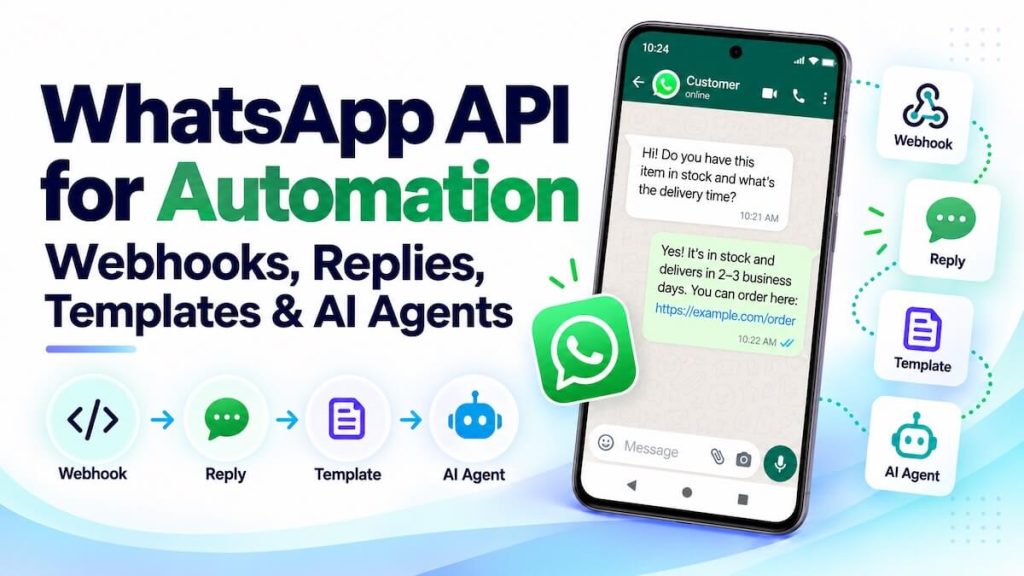
WhatsApp becomes much more useful for business automation when incoming messages can trigger webhooks, workflows can reply programmatically, approved templates can start conversations where required, and AI agents can work inside the same message loop.
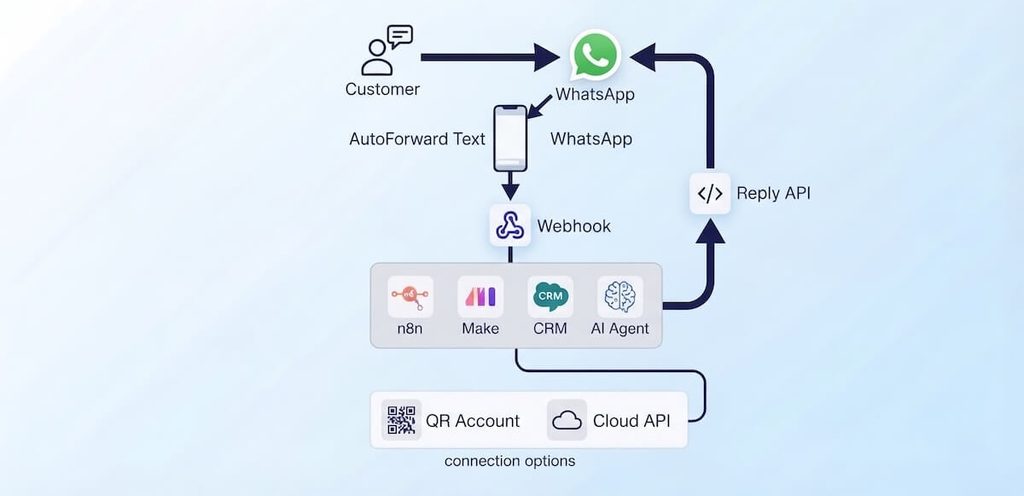
With AutoForward Text, WhatsApp can sit between the customer and the automation tools your business already uses — including n8n, Make.com, CRMs, helpdesks, custom applications, and AI agents.
The automation loop:
↓
AutoForward Text
↓
Webhook
n8n / Make.com / CRM / AI Agent
↓
Reply API
AutoForward Text
↓
WhatsApp Customer
The important part is choosing the right WhatsApp connection model. AutoForward Text can support automation around a QR-connected WhatsApp account as well as the official WhatsApp Cloud API. They solve overlapping problems, but they do not behave exactly the same way.
What Is a WhatsApp API for Automation?
A WhatsApp automation API connects incoming and outgoing WhatsApp conversations to software outside the WhatsApp app.
Instead of one person manually reading every message and typing every reply, the message can become a structured event that triggers another system.
↓
Webhook
↓
Business Logic / AI / CRM
↓
Reply API
↓
That lets you build workflows such as:
- new WhatsApp lead → CRM record
- customer question → AI agent → WhatsApp reply
- support request → helpdesk ticket → acknowledgement
- booking enquiry → calendar workflow
- incoming message → Slack, email, SMS, or WhatsApp group
- Meta-approved template → outbound WhatsApp notification
AutoForward Text acts as the messaging and routing layer so your automation platform does not need to own the entire WhatsApp integration itself.
QR-Connected WhatsApp vs WhatsApp Cloud API
Before building the workflow, understand that there are two different connection models.
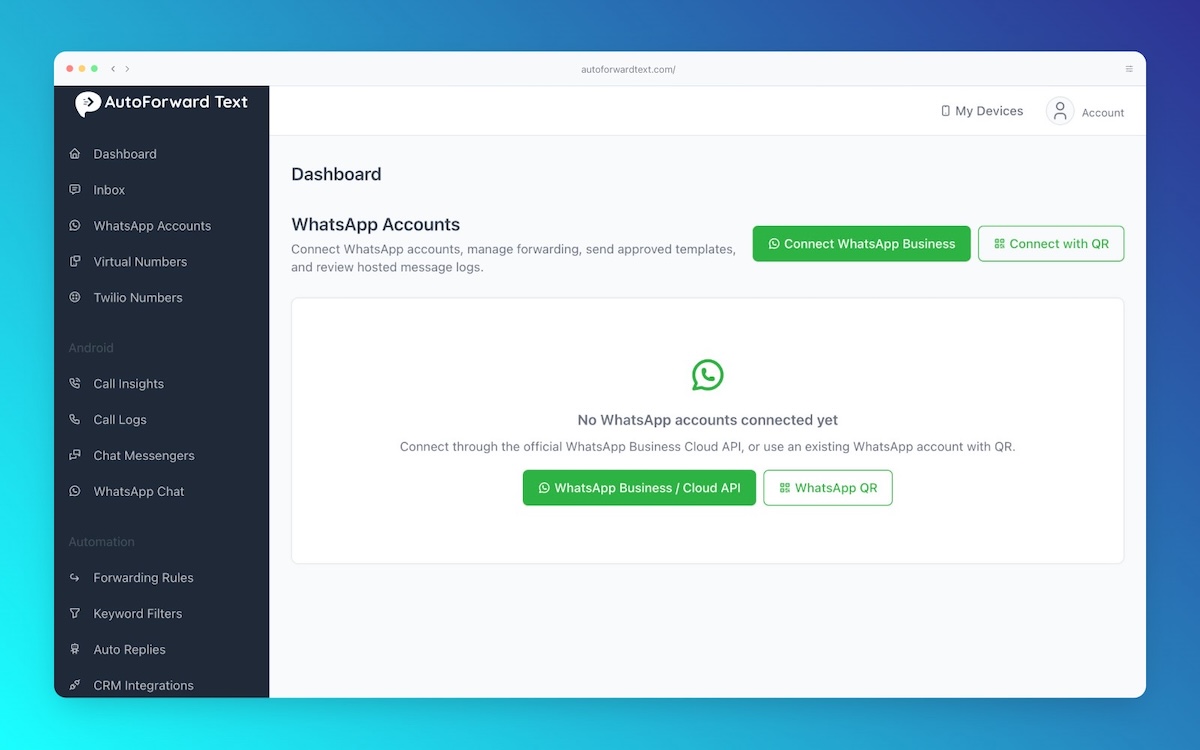
QR-Connected WhatsApp
Connect an existing WhatsApp or WhatsApp Business account by scanning a QR code, similar to linking another device.
This route is useful when you want automation around an account your team already uses, including normal chats and groups.
WhatsApp Cloud API
Use Meta’s official WhatsApp Business Platform infrastructure.
This route is designed for official API messaging, business templates, structured outbound notifications, and Meta’s conversation rules.
| Feature | QR-Connected WhatsApp | WhatsApp Cloud API |
|---|---|---|
| Connect an existing WhatsApp account | Yes | Uses WhatsApp Business Platform setup |
| Incoming webhook automation | Yes | Yes |
| Programmatic replies | Yes | Yes |
| Existing chats/groups | Useful for chat and group workflows | Cloud API is structured around Business Platform conversations |
| Meta-approved message templates | Not the core model | Yes |
| 24-hour customer-service window | Different connection behavior | Important Cloud API rule |
| Best for | Flexible automation around an existing WhatsApp account | Official API-first business messaging |
Do not treat QR and Cloud API as the same thing. Templates and the 24-hour customer-service window belong to the WhatsApp Business Platform / Cloud API model. QR-connected workflows have a different operational model.
How the Automation Architecture Works
The basic architecture has four parts:
- WhatsApp channel: where the customer sends the message.
- AutoForward Text: receives the message and exposes it to your workflow.
- Automation layer: n8n, Make.com, CRM, helpdesk, custom app, or AI agent.
- Reply route: sends the response back into the correct WhatsApp conversation.
↓
Connected WhatsApp Account
↓
AutoForward Text
↓ Webhook
Automation / AI
↓
Reply API
AutoForward Text
↓
Customer
Receive WhatsApp Messages Through Webhooks
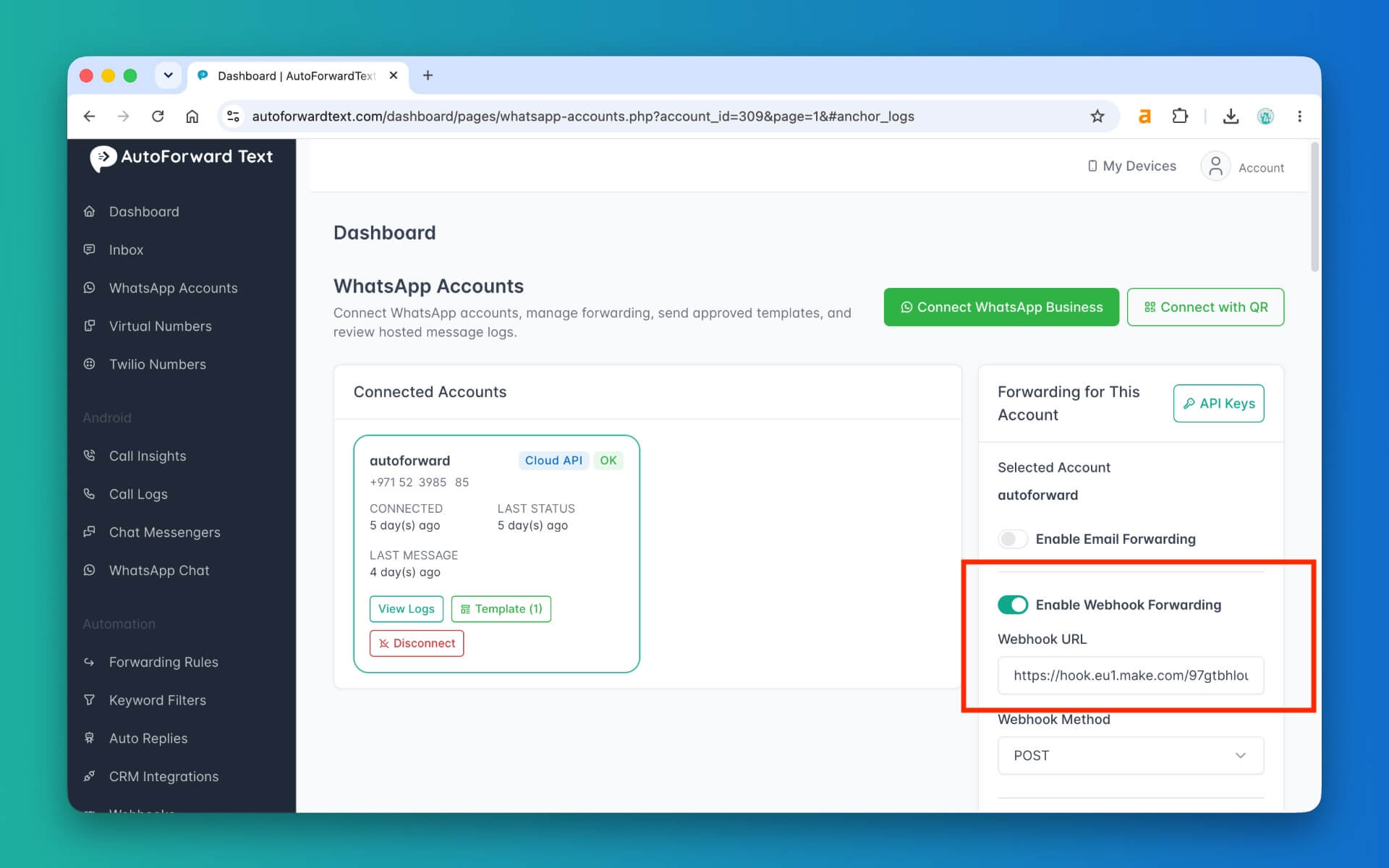
Webhook forwarding is what turns an incoming WhatsApp message into an automation event.
Inside AutoForward Text, you can enable webhook forwarding on a connected WhatsApp account and provide the payload URL from the platform that should receive the message.
That destination could be:
- an n8n Webhook node
- a Make.com custom webhook
- a CRM endpoint
- a helpdesk integration
- your own PHP, Node.js, Python, or other backend
- an AI-agent framework
↓
AutoForward Text
↓
HTTP Webhook
Your Automation Endpoint
Once the webhook arrives, the receiving system can inspect the sender, message content, and other available message details, then decide what should happen next.
Examples of webhook actions
- create a new CRM lead
- look up an existing customer
- classify the message with AI
- check an order or appointment
- notify a team member
- route the conversation to a human
- generate a WhatsApp reply
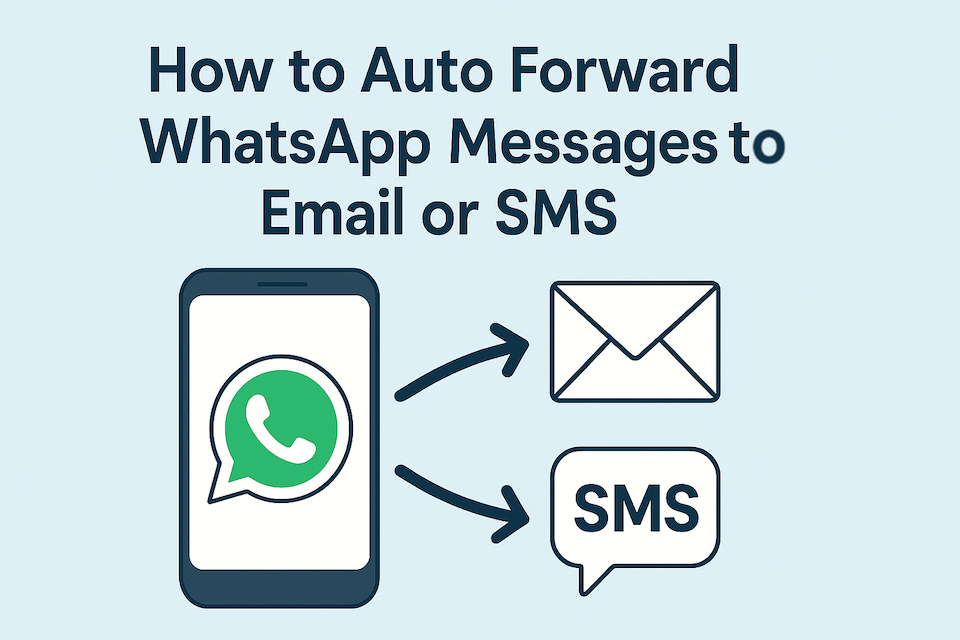
For workflows focused primarily on forwarding WhatsApp messages rather than replying through automation, see How to Automatically Forward WhatsApp Messages to Phone, Groups, Email & More.
Reply to WhatsApp Messages Through an API
Receiving the webhook is only half of a conversational workflow. The automation also needs a clean way to respond.
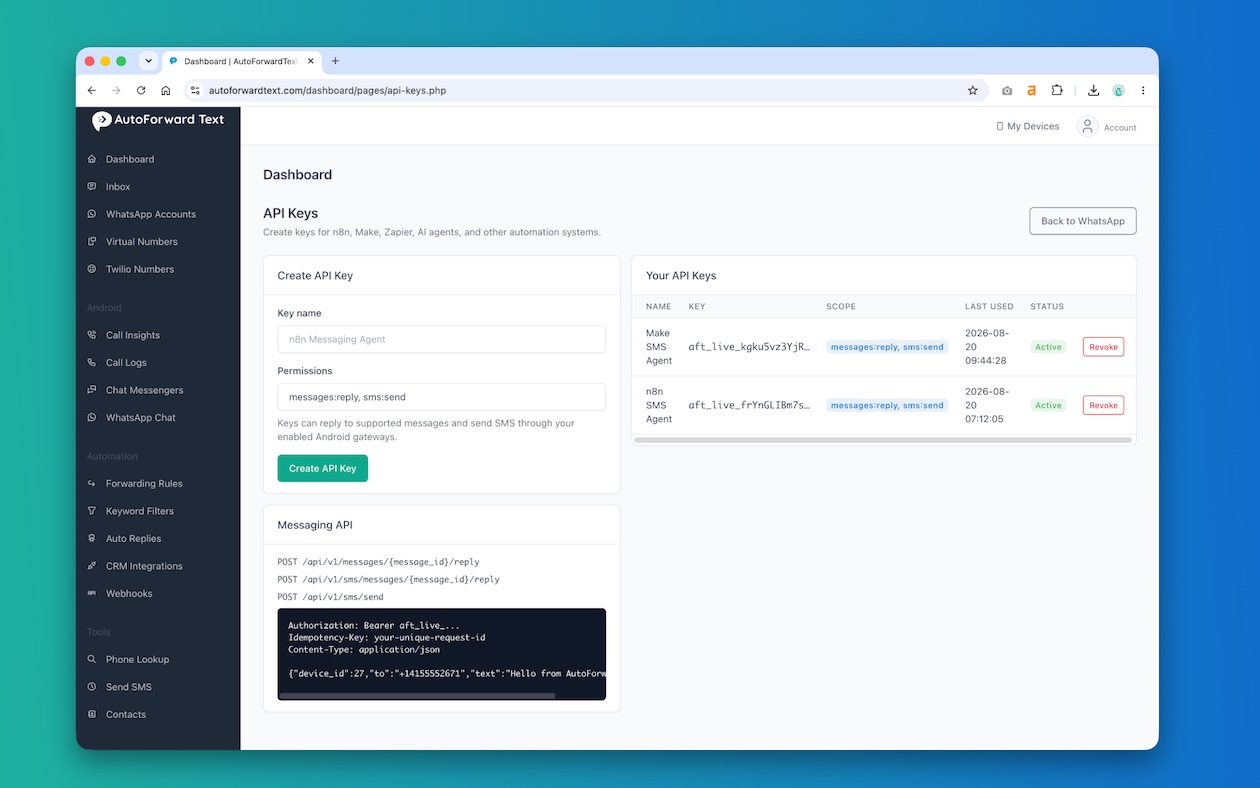
Incoming AutoForward Text webhooks can include a specific reply endpoint. Your workflow sends an authenticated POST request to that endpoint rather than manually rebuilding the underlying WhatsApp route.
Create an API key in the AutoForward Text dashboard, then make a request using:
Authorization: Bearer YOUR_API_KEY
Idempotency-Key: your-unique-request-id
Content-Type: application/json

{"text":"Your message here"}
The exact reply URL comes from the incoming message payload.
↓
Webhook contains reply endpoint
↓
Automation creates response
↓
POST reply endpoint
AutoForward Text
↓
Customer
This approach is useful because your n8n, Make.com, or AI workflow does not need access to the underlying connector credentials. It can work with the AutoForward Text API key and the message-specific reply route.
Why Idempotency Matters
Automation platforms sometimes retry HTTP requests when a connection times out or a workflow run is uncertain.
Without duplicate protection, one logical reply could accidentally become two identical WhatsApp messages.
AutoForward Text uses an Idempotency-Key so a workflow can identify one logical send or reply.
Idempotency-Key: wa-lead-8421-reply-1
Use a new unique key for each logical message. Do not reuse the same idempotency key with different reply text.
Practical rule: create the idempotency key from a workflow run ID, message ID, UUID, or another value that is unique to that one intended reply.
WhatsApp Templates and the 24-Hour Window
Templates are an important part of the WhatsApp Cloud API model.
When a customer messages your business, the WhatsApp Business Platform allows normal customer-service replies within its conversation window. When you need to initiate or reopen a conversation outside that window, an approved message template may be required.
Cloud API concept:
→
Normal reply
Outside the allowed customer-service window
→
Approved WhatsApp template may be required
Where are templates created?
Templates are created and submitted for approval in Meta WhatsApp Manager. AutoForward Text uses Meta’s approval workflow rather than creating a separate template approval system.
Which templates can be sent?
Only templates with an approved status in Meta should be available for sending. If a template does not appear, check whether it is still pending, rejected, or associated with a different WhatsApp Business Account.
Template variables
A template can contain variables such as:
Hello {{1}}, your order {{2}} is ready.
The values must be supplied in the same order:
{{1}}→ customer name{{2}}→ order number
Recipient format
Use the full international phone number, including the country code, such as:
+14155552671
Important: Do not apply Cloud API template rules to QR-connected WhatsApp as though they are the same connection type. Choose the connection model first, then design the automation around the rules that apply to that model.
Build a WhatsApp AI Agent
A WhatsApp AI agent is simply the webhook-and-reply loop with an AI system in the middle.
↓
Webhook
↓
AI Agent
↓
Business Rules / Knowledge / Tools
↓
Reply API
↓
Customer
The AI can perform a narrow first-line role such as:
- answering common questions
- qualifying a sales lead
- collecting booking information
- checking approved CRM or order data
- routing support enquiries
- deciding when a human should take over
A good WhatsApp agent should not invent prices, policies, availability, order status, or other business facts it does not actually know. When the required information is unavailable, the workflow should hand off to a person or create a follow-up task.
Conversation memory
If your automation platform supports memory, use a stable contact identifier so follow-up messages remain attached to the right conversation.
Connect WhatsApp to n8n
n8n is a strong fit for WhatsApp automation because the basic pattern maps cleanly to workflow nodes.
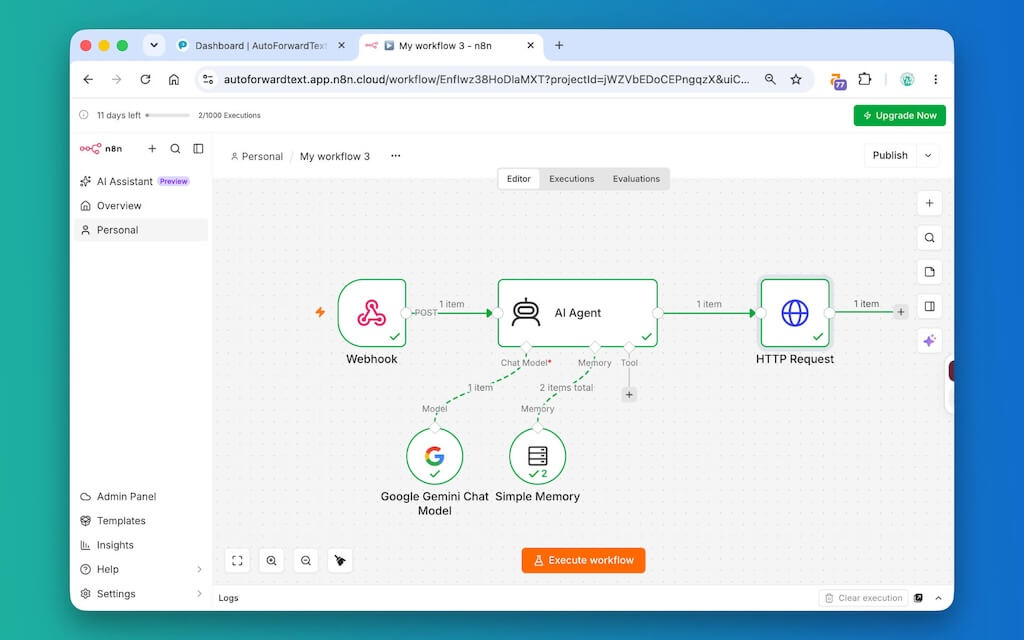
↓
AutoForward Text Webhook
↓
n8n Webhook Node
↓
AI Agent / CRM / Logic
↓
HTTP Request to Reply Endpoint
↓
A typical n8n workflow can:
- receive the incoming WhatsApp webhook;
- extract the sender and content;
- look up customer context;
- send the message to an AI Agent or normal workflow logic;
- POST the response to the supplied reply endpoint.
For the complete setup, see How to Connect WhatsApp to n8n and Build an AI Auto-Reply Workflow.
Connect WhatsApp to Make.com
Make.com uses the same basic architecture, but inside a visual scenario.

↓
AutoForward Text
↓
Make.com Custom Webhook
↓
AI / Filters / CRM / Tools
↓
HTTP Reply Request
↓
WhatsApp Customer
That scenario can combine WhatsApp with Make AI Agents, CRMs, spreadsheets, ticketing systems, email, databases, and other Make modules.
For the detailed walkthrough, see How to Connect WhatsApp to Make.com and Build an AI Auto-Reply Workflow.
The important architecture is the same in both platforms: webhook in, automation in the middle, reply API out.
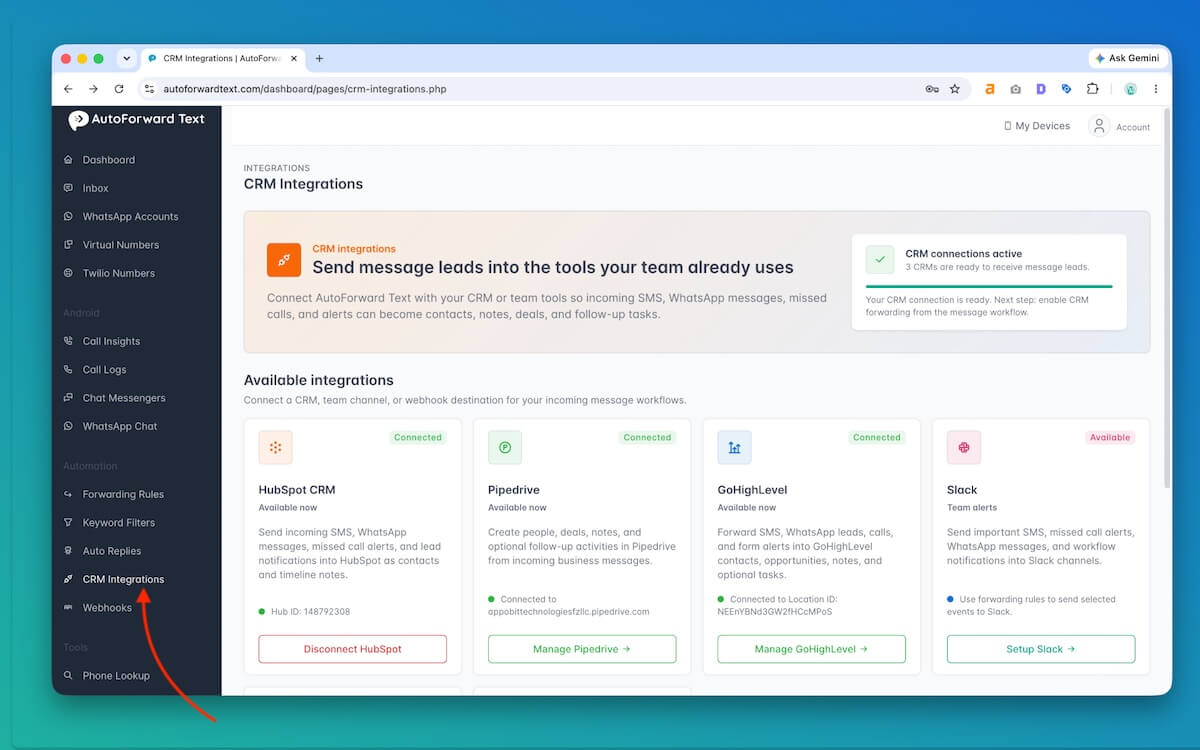
Connect WhatsApp to CRMs and Helpdesks
AI is only one use case. A webhook can also make WhatsApp part of a normal business workflow.
| Incoming WhatsApp Event | Possible Automation |
|---|---|
| New sales enquiry | Create CRM lead and assign a salesperson |
| Existing customer message | Find CRM contact and attach conversation context |
| Support request | Create helpdesk ticket and send acknowledgement |
| Booking request | Check calendar or create scheduling task |
| Urgent keyword | Alert support or operations team |
| Unknown question | Escalate to a human rather than generating an uncertain answer |
This is where WhatsApp stops being an isolated inbox and becomes another input channel for the systems your company already operates.
Forward WhatsApp Messages to Other Channels
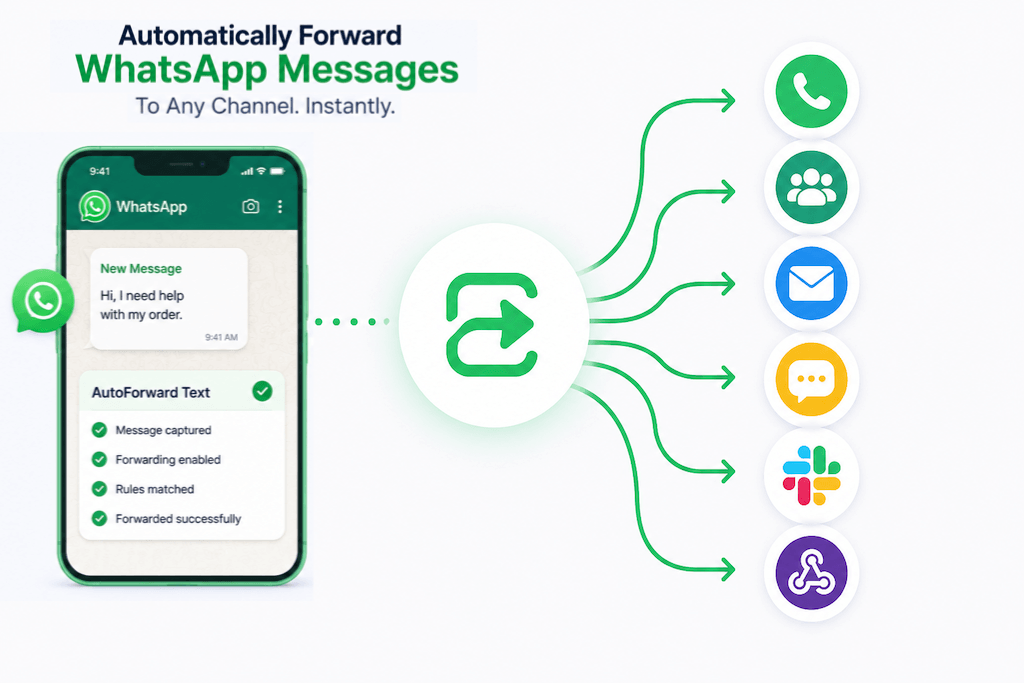
Not every incoming WhatsApp message needs an automated WhatsApp reply. Sometimes the useful action is simply routing it somewhere else.
AutoForward Text can help route WhatsApp messages to destinations such as:
- SMS
- another WhatsApp number
- a WhatsApp group
- Slack
- webhooks and internal systems
For a full guide to these routing workflows, see How to Automatically Forward WhatsApp Messages to Phone, Groups, Email & More.
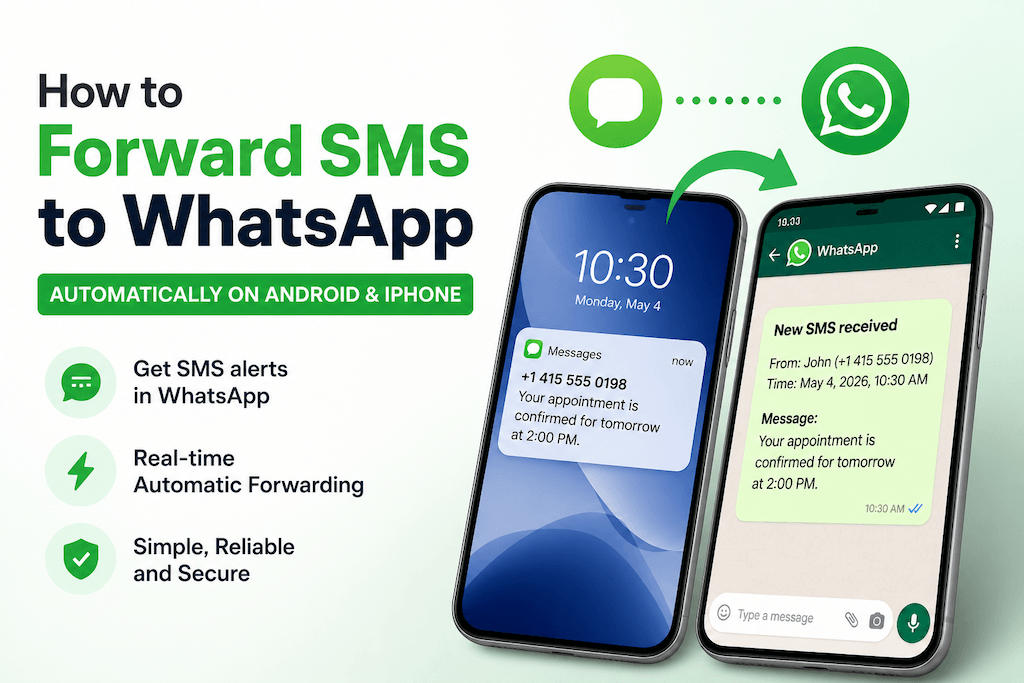
If you specifically need the opposite direction, see How to Forward SMS to WhatsApp Automatically.
Common WhatsApp Automation Use Cases
Lead Qualification
A new enquiry arrives on WhatsApp, the workflow asks a small number of qualifying questions, then creates or updates a CRM lead.
First-Line Customer Support
An AI agent answers approved FAQs and routes billing, complaints, refunds, or uncertain requests to a person.
Appointment and Booking Workflows
Collect the requested date, location, or service, then send the request to a calendar or booking system.
Team Alerts
Forward important customer messages into a sales, support, dispatch, or operations WhatsApp group.
CRM Enrichment
Use the sender’s number to identify the contact, then attach message content to the customer record.
After-Hours Responses
Provide a brief automated acknowledgement, answer a small set of known questions, and create a task for the team to follow up.
AI Classification
Classify incoming messages as sales, support, billing, appointment, spam, or urgent, then route them accordingly.
Which WhatsApp Connection Should You Choose?
Choose QR-connected WhatsApp when:
- you want to automate an existing WhatsApp or WhatsApp Business account;
- your team already works in normal chats or WhatsApp groups;
- you want flexible webhook and reply workflows around that existing account;
- you want group routing or other connected-account workflows.
Choose WhatsApp Cloud API when:
- you want the official Meta API-first business messaging model;
- you need approved templates for business-initiated messaging;
- you are building around Meta’s customer-service window and template rules;
- your business already operates or plans to operate WhatsApp Business Platform infrastructure.
Choose the WhatsApp connection first, then the automation platform. n8n and Make.com can work with either architecture, but your messaging rules and available conversation types depend on the WhatsApp connection model underneath.
Security, Reliability and Guardrails
Protect API keys
Store AutoForward Text API keys securely in your automation platform’s credential system. Do not paste live keys into public workflows, screenshots, repositories, or prompts.
Use idempotency keys
Give every logical reply a unique Idempotency-Key so retries do not create duplicate customer messages.
Avoid reply loops
If WhatsApp messages trigger another WhatsApp workflow, make sure messages generated by the automation do not feed endlessly back into the same flow.
Limit what AI can decide
AI should only answer using information it actually has. Pricing, availability, order status, policies, refunds, and other business-critical facts should come from trusted data or be handed to a person.
Keep a human handoff
Automation works best when it has a clear escape route. Difficult, sensitive, angry, or ambiguous conversations should be escalated.
Respect WhatsApp and Meta rules
For Cloud API workflows, follow Meta’s messaging, template, consent, and conversation requirements. For any WhatsApp automation, avoid spammy or non-consensual behavior.
Frequently Asked Questions
Can WhatsApp messages trigger a webhook?
Yes. AutoForward Text can forward incoming WhatsApp message data to a webhook endpoint used by n8n, Make.com, a CRM, a helpdesk, an AI system, or your own application.
Can my automation reply to a WhatsApp message?
Yes. Incoming webhooks can include a message-specific reply endpoint. Your automation can POST an authenticated reply to that endpoint using an AutoForward Text API key.
What headers are required for a reply?
Use your Bearer API key, a unique Idempotency-Key, and JSON content such as {"text":"Your message here"}.
Why is an Idempotency-Key required?
Automation platforms may retry requests. The idempotency key helps prevent the same logical reply from being sent more than once.
Can I connect WhatsApp to n8n?
Yes. AutoForward Text can send incoming WhatsApp messages to an n8n Webhook, and n8n can process the message and call the reply endpoint. See our WhatsApp + n8n guide.
Can I connect WhatsApp to Make.com?
Yes. A Make.com custom webhook can receive the message, run AI or normal scenario logic, and send the result back through the reply API. See our WhatsApp + Make.com guide.
Can I build a WhatsApp AI agent?
Yes. The incoming webhook becomes the AI agent’s input, and the reply API sends the output back to WhatsApp. The workflow can also use CRM, calendar, database, or support tools before replying.
What is a WhatsApp message template?
A template is a pre-approved message managed through Meta for WhatsApp Business Platform messaging. It can be used when a Cloud API workflow needs to initiate or reopen a conversation where an approved template is required.
Where do I create WhatsApp templates?
Create and submit templates through Meta WhatsApp Manager. AutoForward Text uses Meta’s approval status rather than creating a separate approval process.
Can I automate a normal WhatsApp account using QR?
AutoForward Text supports QR-connected WhatsApp workflows for connected accounts. This is a different connection model from WhatsApp Cloud API and should not be confused with Meta’s template-based Cloud API rules.
Can I forward WhatsApp messages to a group?
With supported QR-connected workflows, an existing WhatsApp chat or group can be used as a forwarding destination. See our WhatsApp forwarding guide.
Do I need AI to automate WhatsApp?
No. Webhooks and reply APIs can be used for normal rules, CRM updates, routing, alerts, support tickets, or other deterministic workflows without AI.
Final Thoughts
A useful WhatsApp API is not just about sending messages. The real value is the automation loop around the conversation.
WhatsApp → Webhook → Automation / AI → Reply API → WhatsApp
AutoForward Text can act as the bridge between WhatsApp and the tools your business already uses. Incoming messages become workflow events. n8n and Make.com can process them. CRMs and helpdesks can store or route them. AI agents can generate controlled first-line replies. And Cloud API workflows can use approved Meta templates when the messaging rules require them.
The main architectural decision is whether your workflow should use a QR-connected WhatsApp account or the official WhatsApp Cloud API. Once that is clear, webhooks and reply APIs provide the common automation layer around the conversation.
Connect WhatsApp to Your Automation Stack
Use AutoForward Text to connect WhatsApp messages to webhooks, reply APIs, n8n, Make.com, CRMs, helpdesks, and AI agents.
- Receive incoming WhatsApp messages through webhooks
- Reply programmatically from your automation
- Connect WhatsApp to n8n and Make.com
- Build AI-agent and CRM workflows
- Use Meta-approved templates for supported Cloud API messaging