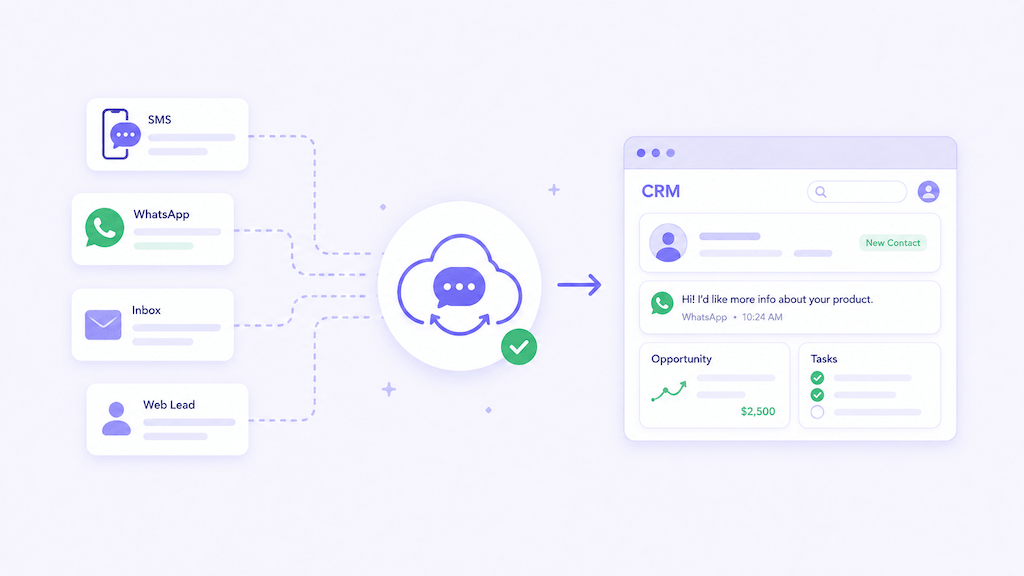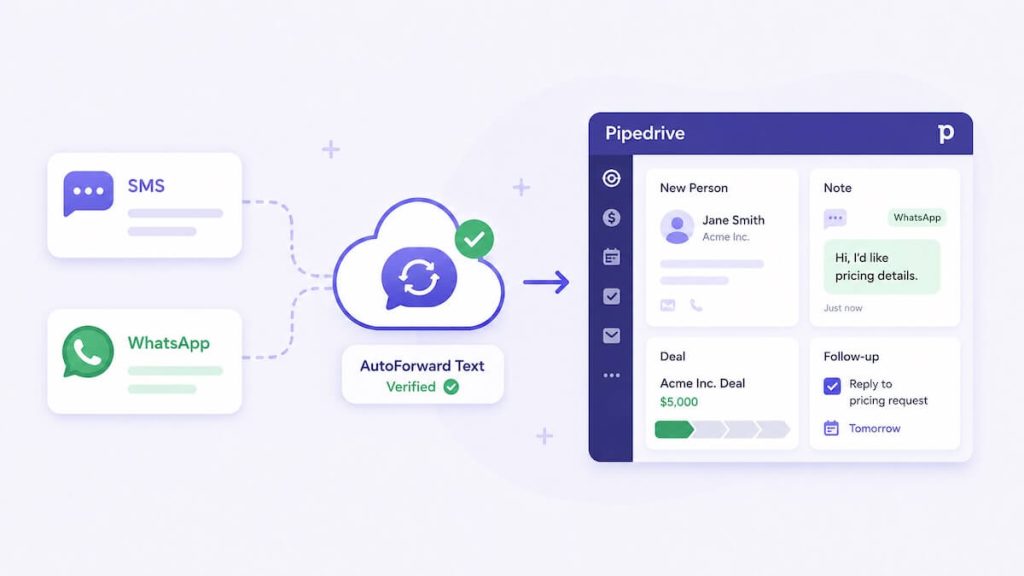
GoHighLevel can manage contacts, opportunities, pipelines, and follow-up tasks, but many valuable leads still begin outside the platform on a mobile phone, an Android SIM, an iPhone Shortcut, or a WhatsApp account.
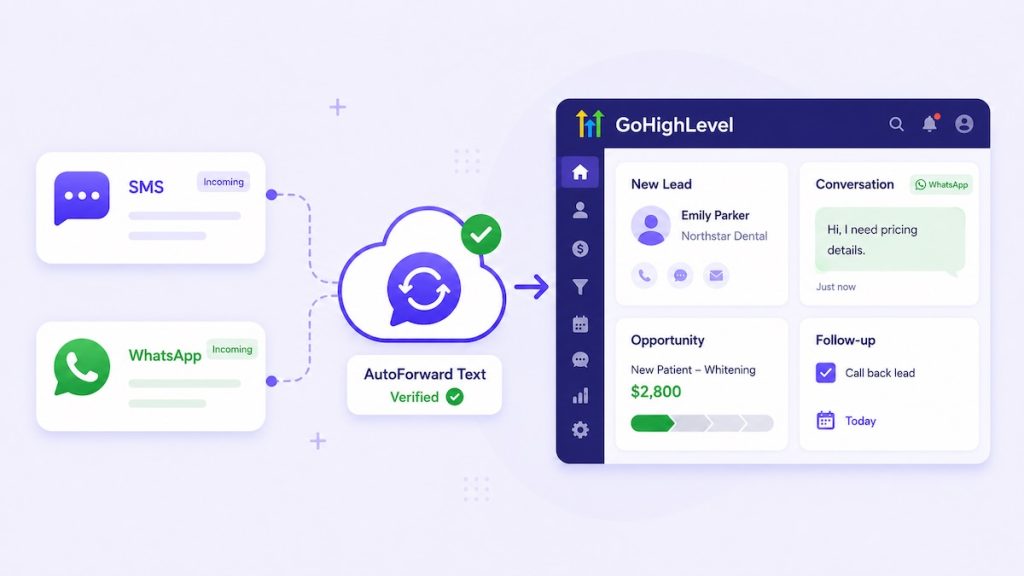
AutoForward Text can automatically send supported incoming SMS and WhatsApp messages into GoHighLevel so those enquiries become visible inside the location where your team already manages leads.
When a message arrives, AutoForward Text can use the sender’s phone number to find an existing GoHighLevel contact or create a new one. The message can then be added as a note, while the integration may also create or associate an opportunity or follow-up task.
Basic workflow:
↓
AutoForward Text receives the message
↓
GoHighLevel contact is found or created
↓
Message is added as a note
↓
Opportunity or follow-up task can be created
↓
Team follows up in GoHighLevel
Quick Answer: How to Forward SMS and WhatsApp Leads to GoHighLevel
Open CRM Integrations in AutoForward Text, connect GoHighLevel using your Location ID and Private Integration access token, and run a test push.
Once the connection is active, supported incoming SMS and WhatsApp messages from all connected devices and accounts are automatically sent to the connected GoHighLevel location.
AutoForward Text can search GoHighLevel using the sender’s phone number. If a matching contact exists, the message can be attached to that contact. If no match exists, a new contact may be created.
Send Incoming Leads to GoHighLevel Automatically
Connect AutoForward Text to GoHighLevel and capture SMS and WhatsApp enquiries as contacts, notes, opportunities, and follow-up tasks.
Why Connect Incoming Messages to GoHighLevel?
GoHighLevel is designed to centralize lead management, but that only works when the first customer message reaches the CRM.
In the real world, prospects often contact a business through:
- An existing mobile number
- An Android phone used by the owner or receptionist
- A direct WhatsApp account
- A salesperson’s company phone
- An after-hours WhatsApp enquiry
- A connected Twilio or virtual number
Without automatic CRM logging:
- Leads remain on individual phones
- Contacts are created manually or not at all
- Opportunities are added late
- Follow-up tasks are forgotten
- Agencies cannot see what happened after a lead arrived
- Pipeline reporting becomes incomplete
Forwarding incoming messages to GoHighLevel turns those conversations into records that can be assigned, tracked, and followed up.
GoHighLevel Phone System vs Existing Phone Message Forwarding
There are several different ways SMS can interact with GoHighLevel.
| Workflow | What It Does | Typical Requirement |
|---|---|---|
| GoHighLevel phone or LC Phone | Sends and receives messages through a number provisioned or connected inside GoHighLevel | Phone setup, registration, carrier compliance, and account configuration |
| Twilio connected to GoHighLevel | Uses a Twilio number for calls and SMS inside the platform | Twilio account, number configuration, and messaging compliance |
| Existing mobile SMS to GoHighLevel | Logs messages already received on an existing phone or SIM | A connected device or message source such as AutoForward Text |
| WhatsApp leads to GoHighLevel | Copies supported incoming WhatsApp enquiries into CRM records | A connected WhatsApp account and GoHighLevel integration |
AutoForward Text is primarily focused on capturing incoming messages from existing phones and WhatsApp accounts.
This is not a replacement for every GoHighLevel phone feature. AutoForward Text is designed to bring incoming message data into the CRM, not to replace the complete GoHighLevel calling and texting system.
What AutoForward Text Creates in GoHighLevel
The integration is designed to convert incoming business enquiries into useful CRM records.
Depending on the current integration behavior, AutoForward Text can:
- Search for an existing GoHighLevel contact by phone number
- Create a new contact when no match is found
- Add the incoming message as a note
- Create or associate an opportunity
- Create a follow-up task
- Include the sender’s phone number
- Include the sender’s name when available
- Include the original message body
- Include the message source
Supported Message Sources
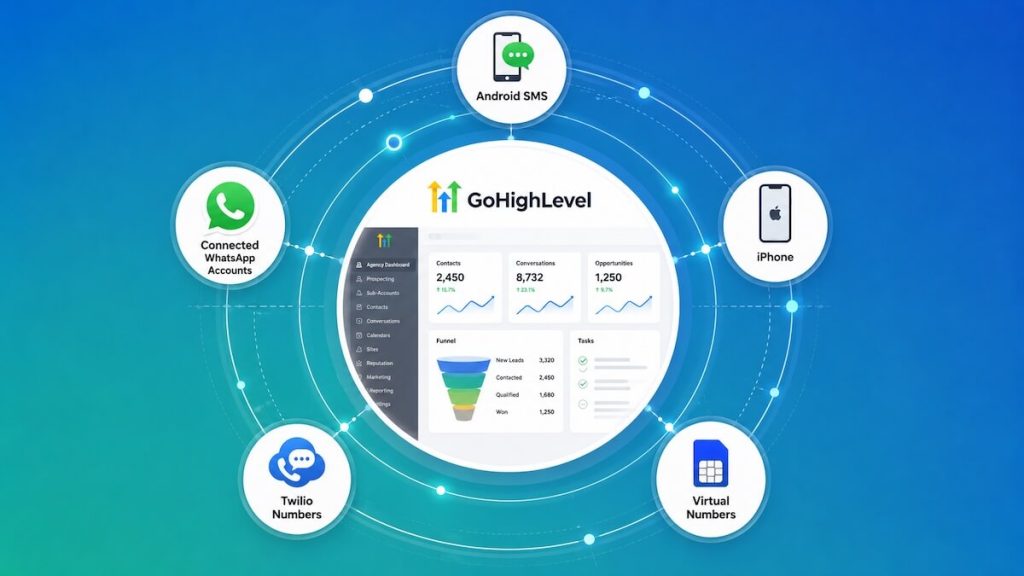
GoHighLevel forwarding can begin with several AutoForward Text message sources.
Android SMS
An Android phone can receive SMS through its existing SIM card. AutoForward Text then sends supported incoming message data to the dashboard and connected CRM.
iPhone Shortcuts
Supported iPhone workflows can use Apple Shortcuts to send incoming message details to AutoForward Text.
Connected WhatsApp Accounts
Supported incoming WhatsApp messages can be received by AutoForward Text and pushed into GoHighLevel.
Twilio Numbers
A connected Twilio number can receive cloud-based SMS and pass the message into GoHighLevel through AutoForward Text.
Virtual Numbers
Supported virtual numbers managed through AutoForward Text can also feed incoming-message workflows.
The message must first reach AutoForward Text. If it does not appear in the Inbox or message records, GoHighLevel cannot receive it.
How the GoHighLevel Integration Works
- A customer sends an SMS or WhatsApp message.
- The connected source receives the message.
- AutoForward Text records and processes the incoming message.
- The system confirms that GoHighLevel is connected.
- The connected GoHighLevel location is searched for a contact matching the sender’s phone number.
- The existing contact is used, or a new contact is created.
- The message is added as a note.
- An opportunity or follow-up task may be created or associated.
To stop new messages from going to GoHighLevel, disconnect the integration from the CRM Integrations page.
What You Need Before You Begin
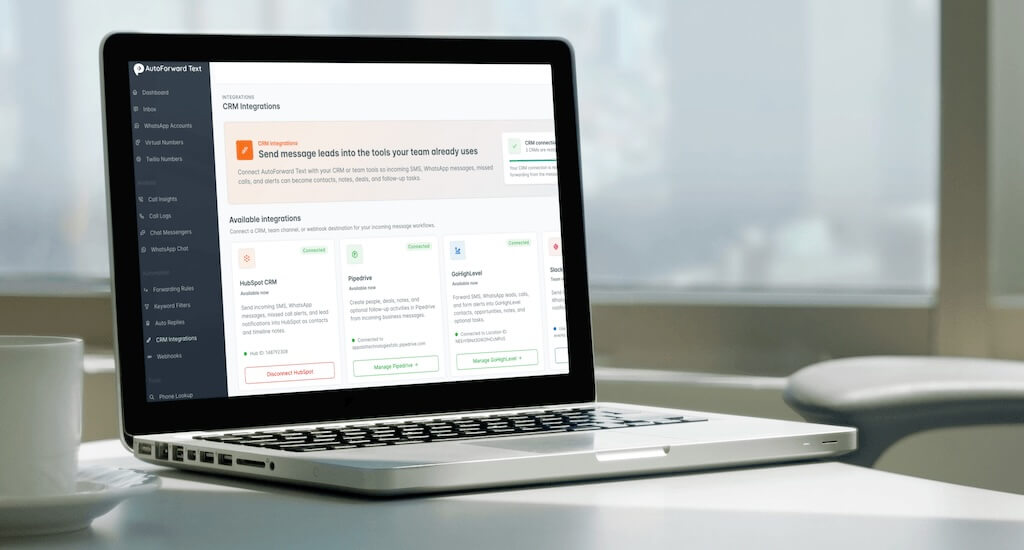
You will need:
- An active AutoForward Text account
- Access to the required GoHighLevel location
- Permission to create a Private Integration
- The GoHighLevel Location ID
- A Private Integration access token
- At least one connected message source
A message source can be an Android phone, supported iPhone workflow, WhatsApp account, Twilio number, or virtual number.
GoHighLevel accounts may contain several locations. Create the integration inside the location where the contacts and opportunities should appear.
How to Find Your GoHighLevel Location ID
Sign in to GoHighLevel and open the required location.
The Location ID is normally visible in the browser address.

Example browser address:
https://app.gohighlevel.com/v2/location/NEEnYBNd3GW2fHCcMPoS/settings/...
The Location ID in that example is:
NEEnYBNd3GW2fHCcMPoS
Copy only the value between /location/ and the next forward slash.
Do not paste the complete browser URL. AutoForward Text only needs the Location ID.
How to Create a GoHighLevel Private Integration
A Private Integration gives AutoForward Text permission to create and update supported records inside one GoHighLevel location.
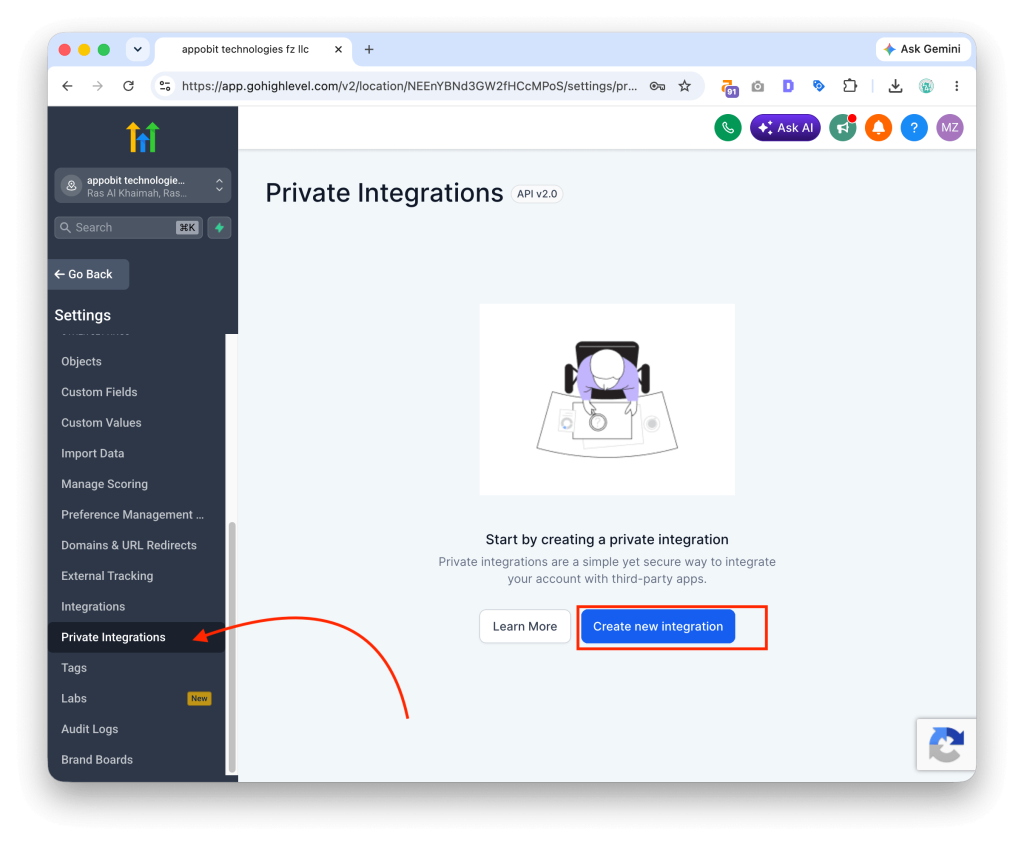
- Open the required GoHighLevel location.
- Go to Settings.
- Select Private Integrations.
- Create a new Private Integration.
- Enter a name such as
AutoForwardText. - Add a description explaining that it sends incoming SMS and WhatsApp messages into CRM records.
- Select the required scopes.
- Create or save the integration.
- Copy the generated access token.
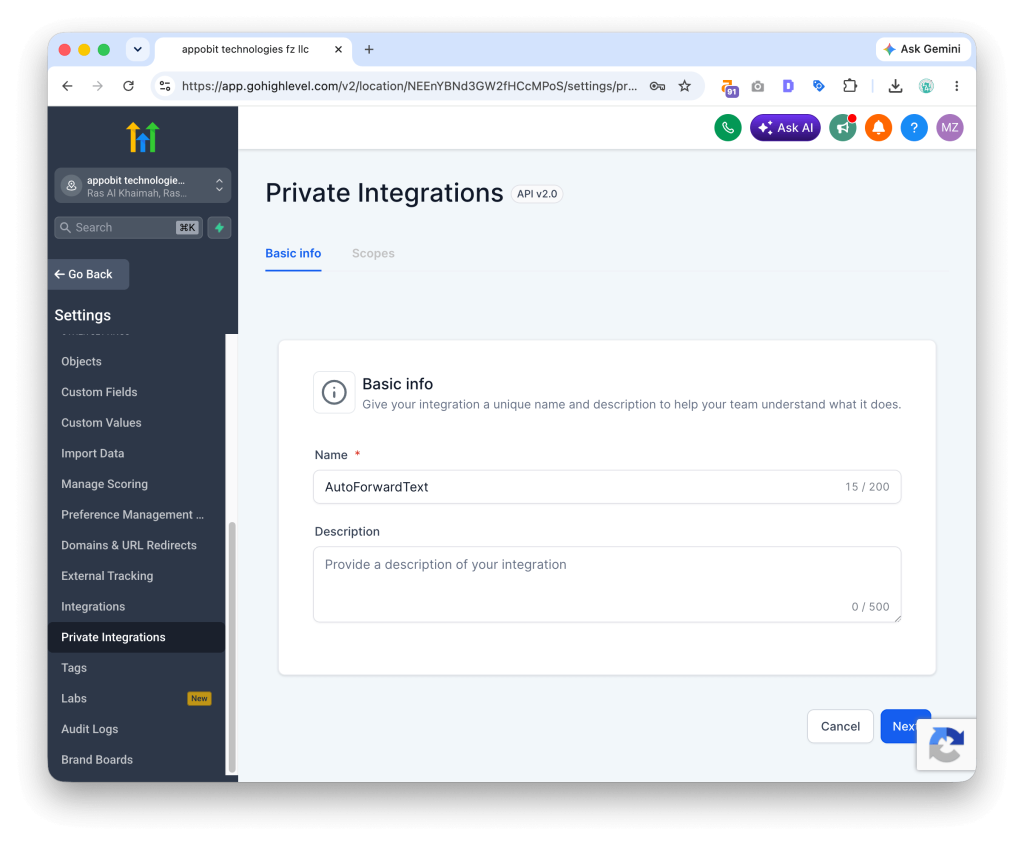
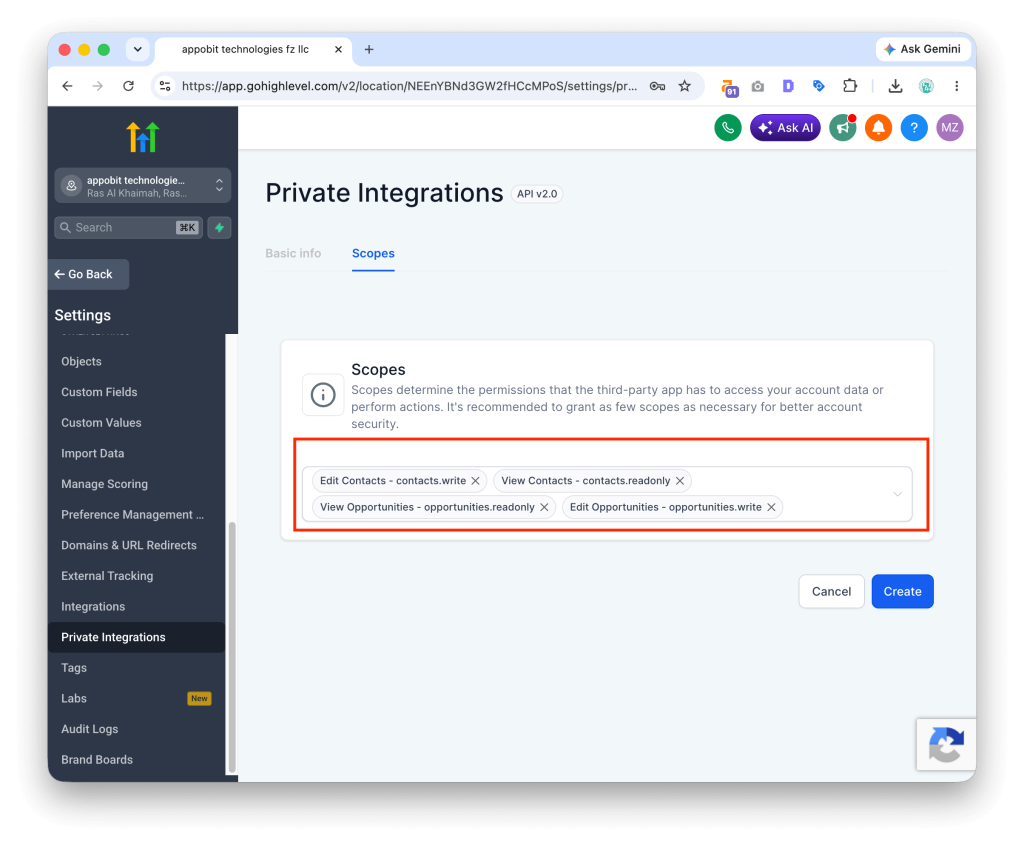
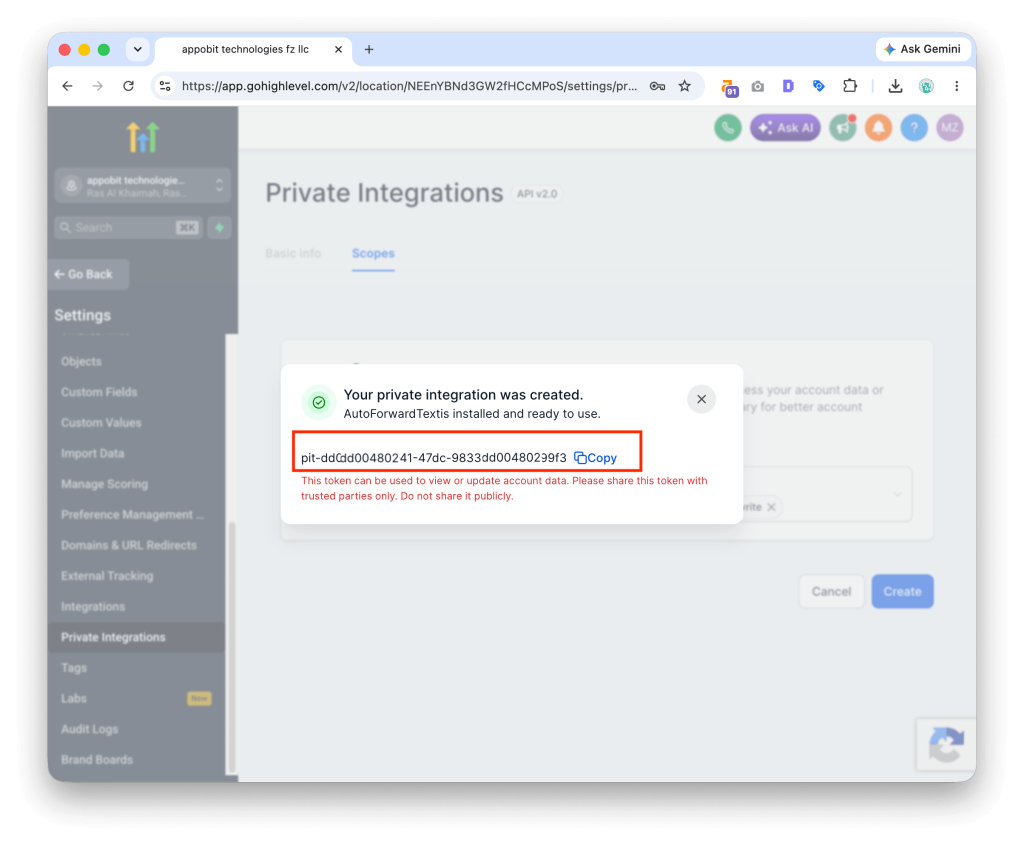
Suggested integration name:
AutoForwardText
Suggested description:
Sends incoming SMS and WhatsApp messages from AutoForward Text into GoHighLevel contacts, notes, opportunities, and follow-up tasks.
Treat the access token like a password. Do not publish it, include it in screenshots, or send it through an unsecured support message.
Which Private Integration Scopes to Enable
AutoForward Text needs permission to search for records and create or update the CRM objects used by the integration.
The required scopes may include access to:
- Contacts
- Opportunities
- Notes
- Tasks
- Location information
Enable read and write permissions where AutoForward Text needs to search for an existing record and then create or update it.
Use the minimum required permissions. Do not enable unrelated scopes that the integration does not need.
If the test push fails with an authorization or permission error, return to the Private Integration and confirm that the required scopes are enabled.
How to Connect GoHighLevel
1. Sign In to AutoForward Text
Open your AutoForward Text dashboard.
2. Open CRM Integrations
Select CRM Integrations from the left-hand menu.
3. Find GoHighLevel
Locate the GoHighLevel card and select Connect GoHighLevel or Set Up GoHighLevel.
4. Enter the Location ID
Paste the Location ID copied from the GoHighLevel browser address.
5. Enter the Access Token
Paste the token generated by the Private Integration.
6. Save the Connection
Save the integration details.
7. Run a Test Push
Use the test option to confirm that AutoForward Text can access the location and create the expected sample records.
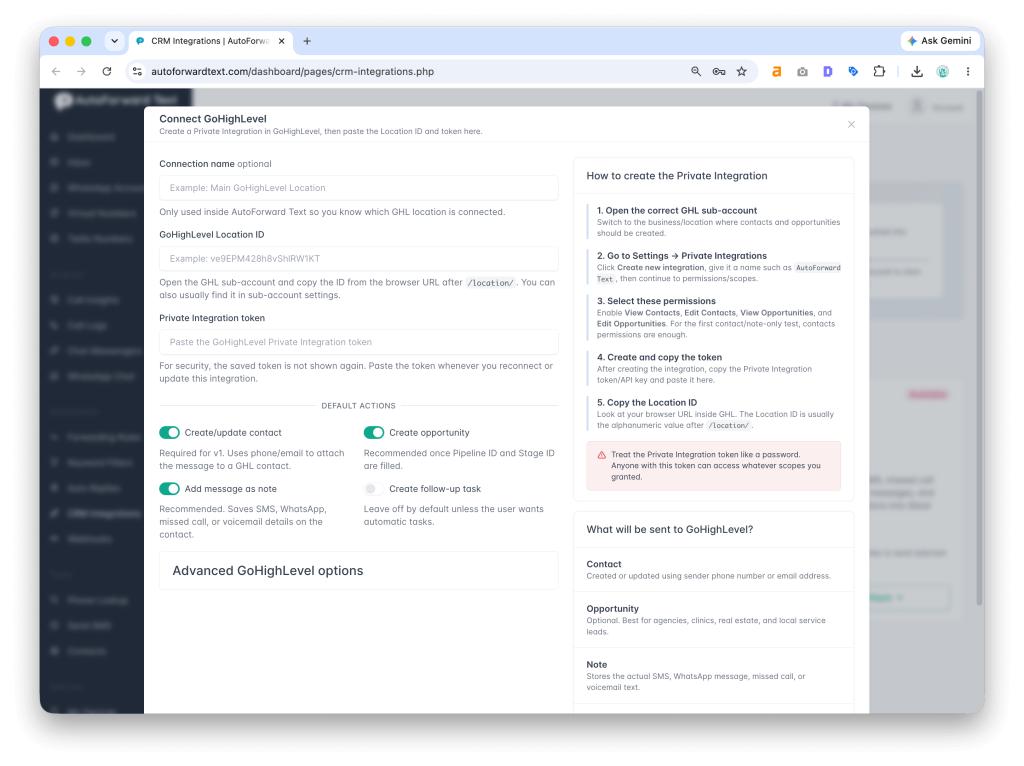
How to Test the GoHighLevel Connection
Run the Test Push
Use the GoHighLevel test push from AutoForward Text. Then confirm that the sample contact, note, opportunity, or task appears in the correct location.
Send a Real SMS
- Send an SMS to one of your connected phone numbers.
- Confirm that it appears in the AutoForward Text Inbox.
- Open the connected GoHighLevel location.
- Search for the sender’s phone number.
- Check the contact’s notes and associated records.
Send a Real WhatsApp Message
- Send a WhatsApp message to a connected account.
- Confirm that AutoForward Text receives it.
- Open GoHighLevel and search for the sender.
- Check the contact, note, opportunity, or task.
If the test push succeeds but live messages do not appear: the GoHighLevel credentials are probably correct. Check the message source and AutoForward Text processing first.
How Contact Matching Works
AutoForward Text can use the sender’s phone number to search for an existing GoHighLevel contact.
If a match is found, the incoming message can be attached to that contact. If no match exists, a new contact may be created.
Use complete international phone-number formatting where possible.
Recommended:
+14155552671
+971501234567
Inconsistent formatting can create duplicate contacts.
| Stored Number | Potential Issue |
|---|---|
0501234567 | Local format may not match the incoming international value |
971501234567 | Country code present but no plus symbol |
+971501234567 | Preferred international format |
If the source message does not include a name, the contact may initially be created using only the phone number. The team can add the correct name later.
Forward Incoming SMS to GoHighLevel
SMS-to-GoHighLevel forwarding is useful when customers already contact an existing business mobile number.
Customer SMS → Existing business phone → AutoForward Text → GoHighLevel contact, note, opportunity, or task
This can help businesses that:
- Want to keep an existing mobile number
- Receive enquiries on an Android phone
- Do not want to move all messaging to a new CRM number
- Need incoming lead capture rather than bulk outbound SMS
- Have staff who receive direct customer texts
Forward WhatsApp Leads to GoHighLevel
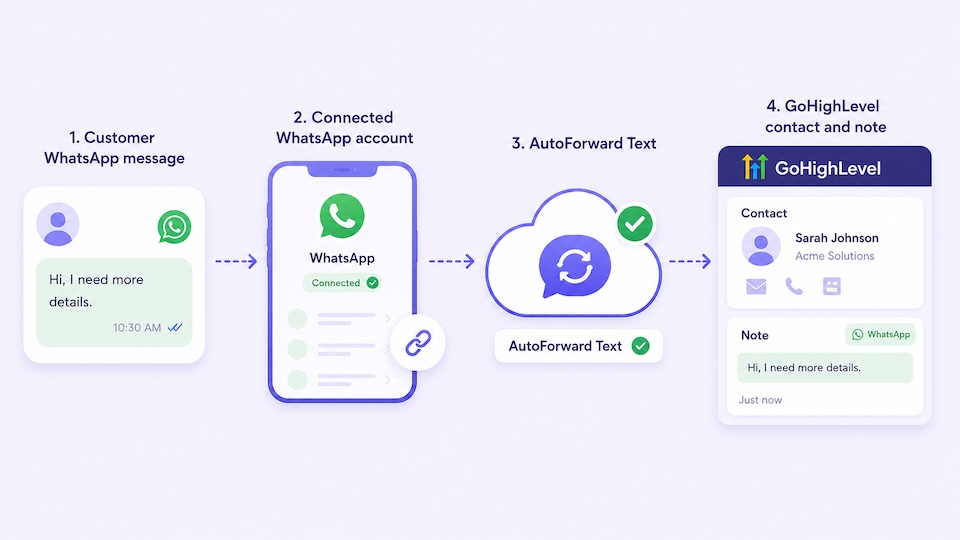
WhatsApp is often the first contact channel for local businesses, agencies, property companies, consultants, and international sales teams.
A typical workflow looks like:
Customer WhatsApp message → Connected WhatsApp account → AutoForward Text → GoHighLevel contact, note, opportunity, or task
This is useful for:
- Click-to-WhatsApp advertising leads
- Local service enquiries
- Property and real-estate leads
- Appointment requests
- Agency client enquiries
- Quote requests
- After-hours messages
Current scope: the integration logs incoming WhatsApp information in GoHighLevel. It does not automatically turn GoHighLevel into a complete two-way WhatsApp inbox.
Contacts, Notes, Opportunities, and Tasks
GoHighLevel contains several CRM record types, and each has a different purpose.
| Record Type | What It Represents | Typical Message Use |
|---|---|---|
| Contact | The individual who sent the message | Created or matched using the phone number |
| Note | The original customer message | Stores the incoming SMS or WhatsApp content |
| Opportunity | A lead moving through a pipeline | Useful when the message represents a genuine sales enquiry |
| Task | A follow-up action assigned to the team | Used for a call, quote, reply, appointment, or reminder |
Not every message should create a new opportunity.
Creating opportunities for routine replies can make the pipeline noisy and less useful.
Best Business Use Cases
1. Agencies
Marketing agencies can capture SMS and WhatsApp leads directly inside the client’s GoHighLevel location.
2. Local Service Businesses
HVAC companies, plumbers, electricians, contractors, repair businesses, and cleaners can turn quote requests into contacts and opportunities.
3. Real Estate
Property enquiries received on WhatsApp or SMS can be added to the correct pipeline and assigned for follow-up.
4. Appointment-Based Businesses
Clinics, salons, consultants, and service providers can capture booking and rescheduling enquiries.
5. Home Services
Messages about repairs, inspections, quotations, and emergency visits can become opportunities and tasks.
6. Coaches and Consultants
Direct WhatsApp and mobile enquiries can be added to a sales pipeline without manual data entry.
7. Multi-Location Businesses
Each GoHighLevel location can be connected using the correct Location ID and Private Integration created inside that location.
8. Existing Business Numbers
Businesses can keep using established mobile numbers while adding GoHighLevel visibility.
Common Problems and Fixes
| Problem | Likely Cause | What to Check |
|---|---|---|
| Invalid or unauthorized token | Token copied incorrectly, revoked, or missing scopes | Copy the token again and verify the Private Integration permissions |
| Incorrect Location ID | Full URL or wrong location copied | Copy only the value after /location/ |
| Records appear in the wrong location | Integration created in another location | Reconnect using the correct Location ID and Private Integration |
| Test push works but live message does not appear | Message-source or processing issue | Confirm that the message appears in AutoForward Text |
| WhatsApp lead missing | WhatsApp account disconnected or message not processed | Check account status and recent incoming messages |
| Duplicate contacts created | Phone-number formats differ | Use complete international formatting |
| Contact created but no opportunity | Opportunity creation is not part of the current event or configuration | Confirm what the integration creates for that message type |
| Old messages missing | Historical messages are not imported automatically | Send a new test message after connecting GoHighLevel |
Best diagnostic order: confirm the message reached AutoForward Text, run the GoHighLevel test push, then verify the Location ID, token, and scopes.
Frequently Asked Questions
Can I forward incoming SMS to GoHighLevel?
Yes. AutoForward Text can send supported incoming SMS messages from connected phones and numbers into GoHighLevel.
Can I forward WhatsApp leads to GoHighLevel?
Yes. Supported incoming WhatsApp messages from connected accounts can be sent into GoHighLevel as contacts, notes, opportunities, or tasks.
Can I use my existing mobile number?
Yes. An Android phone can continue receiving SMS through its existing SIM while AutoForward Text pushes supported incoming messages into GoHighLevel.
Do I need Twilio?
No. You can use a connected Android phone, supported iPhone workflow, WhatsApp account, or another available message source.
Do I need a GoHighLevel forwarding rule?
No. The current MVP processes supported new messages automatically after GoHighLevel is connected.
Can I choose which device sends messages to GoHighLevel?
Not currently. GoHighLevel forwarding is account-wide and applies to supported messages from all connected devices and WhatsApp accounts.
What happens if HubSpot or Pipedrive is also connected?
The same supported incoming message is sent to every connected CRM.
Where do I find the GoHighLevel Location ID?
Open the required GoHighLevel location and copy the value shown after /location/ in the browser address.
How do I create a GoHighLevel Private Integration?
Open the required location, go to Settings, select Private Integrations, create a new integration, enable the required scopes, and copy the generated access token.
Which Private Integration scopes are required?
The integration may require read and write access for contacts, notes, opportunities, tasks, and location information.
Can AutoForward Text create a GoHighLevel contact?
Yes. If no matching contact is found, the integration may create one using the sender information available in the incoming message.
Can it create opportunities or tasks?
Depending on the current integration behavior, AutoForward Text can create or associate opportunities and follow-up tasks as well as notes.
Can I reply from GoHighLevel and send the message back?
Not through this basic CRM logging workflow. Replies written in GoHighLevel are not automatically sent back through the original SMS or WhatsApp channel.
Are old messages imported?
No. The integration processes supported new messages received after the GoHighLevel connection is active.
How do I stop messages going to GoHighLevel?
Open CRM Integrations and disconnect GoHighLevel. Existing records remain, but future messages will no longer be sent.
Final Thoughts
GoHighLevel is strongest when incoming leads become contacts, opportunities, and follow-up tasks quickly.
When SMS and WhatsApp enquiries remain on individual phones, lead handling becomes inconsistent. Staff forget to enter contacts, opportunities are created late, and agencies have limited visibility into what happened.
AutoForward Text gives businesses a practical way to keep using existing mobile numbers and WhatsApp accounts while automatically pushing supported incoming messages into GoHighLevel.
Forward SMS and WhatsApp Leads to GoHighLevel
Use AutoForward Text to capture incoming business conversations as GoHighLevel contacts, notes, opportunities, and follow-up tasks.
- Keep using your existing mobile number
- Log supported WhatsApp leads in GoHighLevel
- Create or update contacts using the sender’s phone number
- Reduce manual CRM data entry