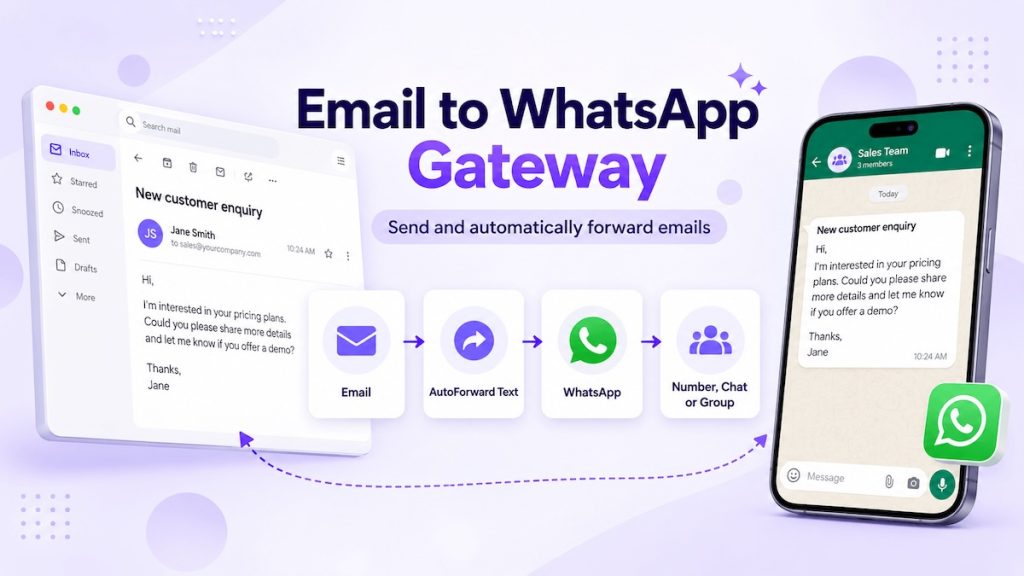
Email to WhatsApp forwarding turns ordinary emails from Gmail, Outlook, websites, CRMs, helpdesks and monitoring services into WhatsApp messages. With AutoForward Text, you can send an email to a different WhatsApp number each time, or automatically forward selected emails to one saved WhatsApp number, existing chat or group.
The messages are sent through a WhatsApp account you connect to AutoForward Text using a QR code. The email sender does not need to integrate with the WhatsApp Business API, and the WhatsApp recipient does not need an AutoForward Text account.
The basic email-to-WhatsApp flow:
↓
AutoForward Text Email Gateway
↓
Your QR-Connected WhatsApp Account
↓
WhatsApp Number, Chat or Group
Quick Start: Turn Emails Into WhatsApp Messages
Send messages and important alerts through your own connected WhatsApp account. Choose a different recipient in each email, or save one WhatsApp destination for automatic forwarding.
Step 1: Connect Your WhatsApp Account
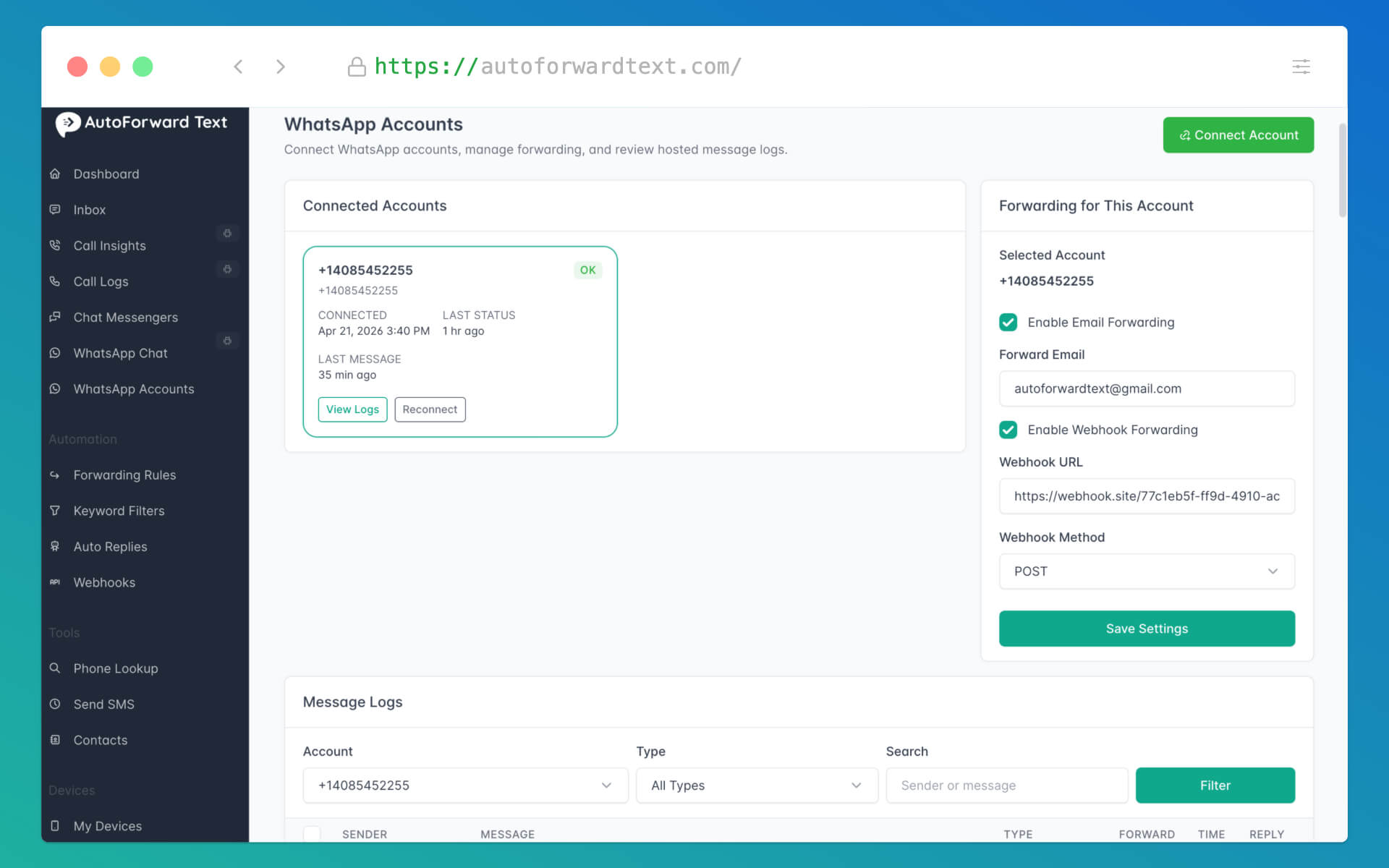
Sign in to AutoForward Text, open WhatsApp Accounts and scan the QR code using the WhatsApp account that should send the messages.
Step 2: Enable Email Gateway
Open Messaging → Email Gateway, enable the gateway and add the email addresses authorised to send through your account.
Step 3: Choose How to Address the Message
Different recipient each time: Email 15551234567@reply.autoforwardtext.com. The digits before @reply.autoforwardtext.com become the destination WhatsApp number.
One saved number, chat or group: Send or automatically forward the email to your private address, such as yourname@reply.autoforwardtext.com. AutoForward Text sends it to the WhatsApp destination saved in your Email Gateway settings.
Phone-number format: Use the complete country code and phone number with digits only. Do not add a plus sign, spaces, brackets or dashes. For example, use 15551234567@reply.autoforwardtext.com, not +1 (555) 123-4567@reply.autoforwardtext.com.
What Is an Email-to-WhatsApp Gateway?
An email-to-WhatsApp gateway receives an email, converts its useful content into a message and sends that message to WhatsApp. It gives systems that already support email a practical way to reach a WhatsApp recipient without building a separate integration for every website, CRM, helpdesk or alerting tool.
The original email might come from a person using Gmail or Outlook, but it can also come from software such as:
- A website contact form
- A CRM lead or deal notification
- A booking or appointment system
- A helpdesk escalation
- A billing or payment platform
- A server or uptime monitoring service
- An order, delivery or dispatch system
↓
AutoForward Text Receives the Email
↓
Connected WhatsApp Account Sends the Message
↓
Recipient Sees It in WhatsApp
This is different from manually copying an email into WhatsApp. Once the gateway is configured, the delivery can happen automatically whenever an approved email arrives.
Two Ways to Send Email to WhatsApp
AutoForward Text supports two related Email Gateway workflows. The right one depends on whether the WhatsApp recipient changes from one email to the next.
Send to Any WhatsApp Number
Put the recipient’s phone number in the email address:
+15551234567@reply.autoforwardtext.com
Change the number whenever you need to send to another WhatsApp recipient.
Automatically Forward Email
Send email to your private forwarding address:
yourname@reply.autoforwardtext.com
Every approved email is delivered to the WhatsApp number, existing chat or group saved in your settings.
| Requirement | Recommended Workflow |
|---|---|
| Each email may have a different recipient | Phone-number email address |
| Every email goes to the same WhatsApp number | Private forwarding address |
| Forward alerts to an existing WhatsApp chat | Private forwarding address |
| Forward emails to a WhatsApp group | Private forwarding address |
| A CRM dynamically selects the customer’s number | Phone-number email address |
| A Gmail or Outlook filter forwards selected alerts | Private forwarding address |
Step 1: Connect WhatsApp to AutoForward Text Using a QR Code
Both Email Gateway workflows require a connected WhatsApp QR account. This is the account that will send the outgoing WhatsApp messages.
- Sign in to the AutoForward Text dashboard.
- Open WhatsApp Accounts.
- Choose the QR connection option.
- Open WhatsApp on your phone and scan the QR code.
- Wait for the account to show as connected.
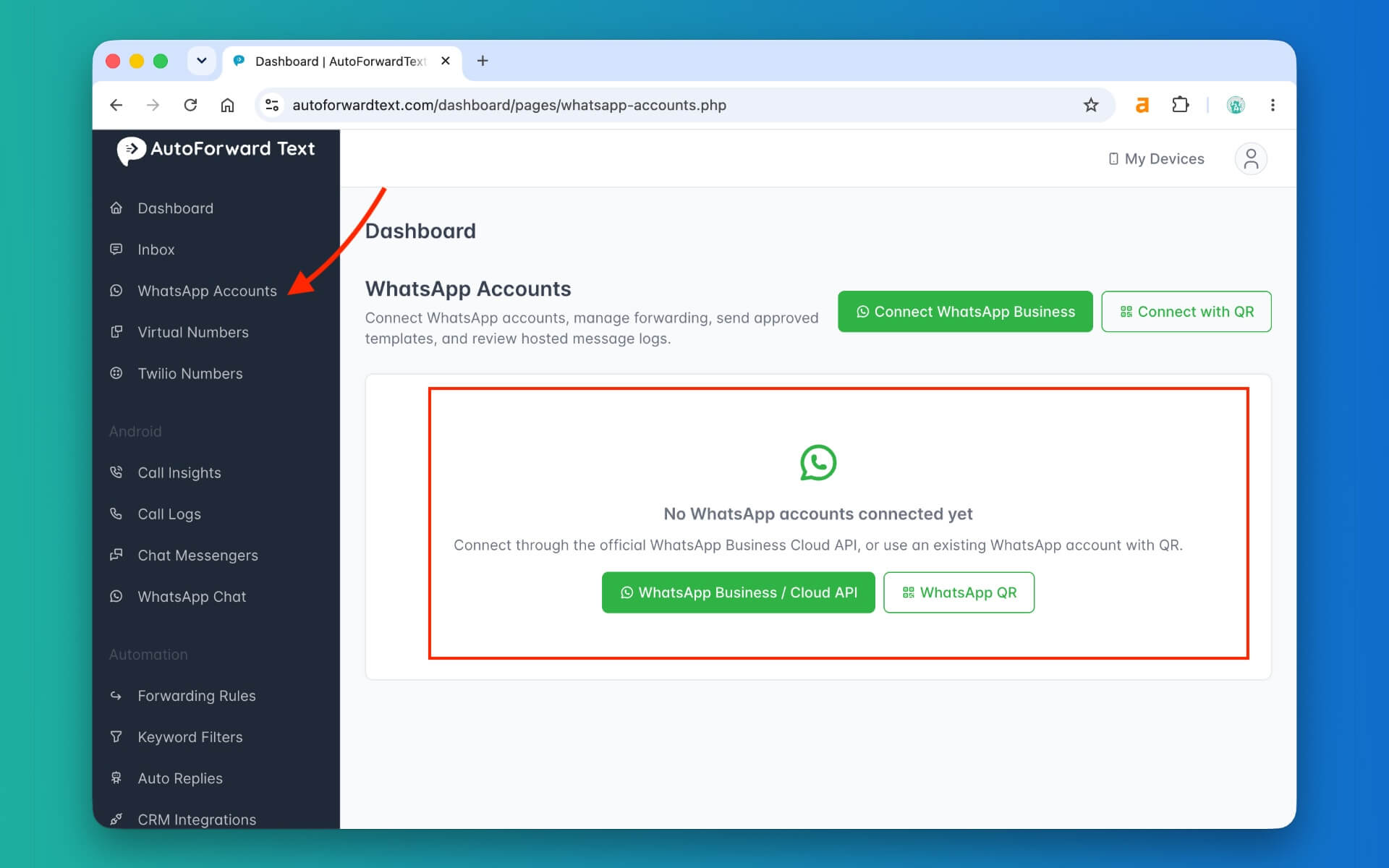
Important: Email Gateway WhatsApp delivery uses a QR-connected account. WhatsApp Cloud API accounts are intentionally excluded from these routes.
The recipient sees the message as coming from the connected WhatsApp account. AutoForward Text does not provide an anonymous WhatsApp identity for this workflow.
Step 2: Enable Email Gateway and Approve Senders
After connecting WhatsApp, open:
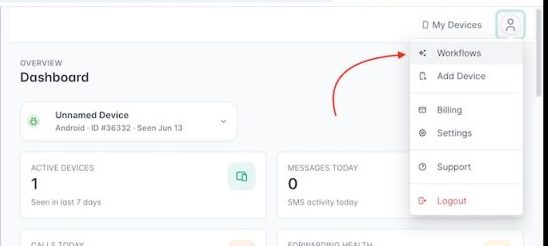
Workflows → Email to SMS Bridge
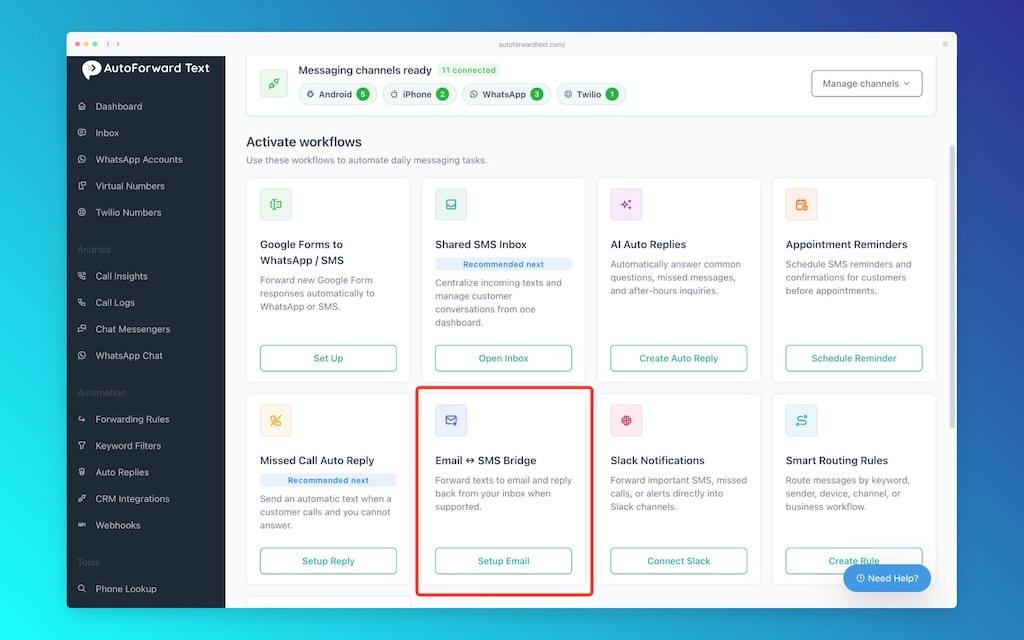
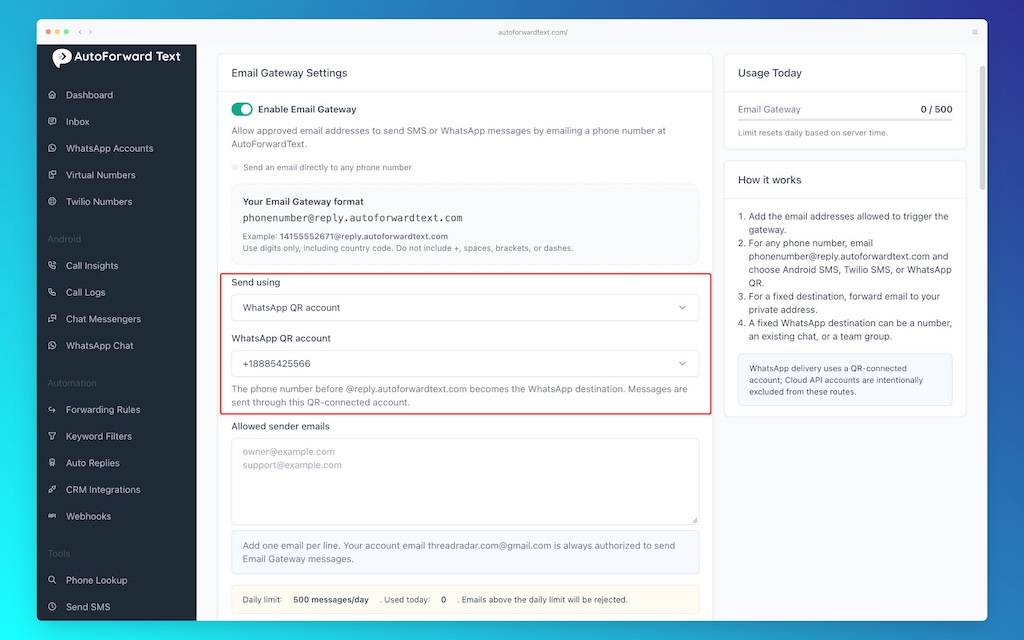
- Enable Email Gateway.
- Choose WhatsApp QR account under Send using.
- Select the connected WhatsApp account.
- Add the email addresses that are allowed to use the gateway.
- Save the settings.
Add one approved sender email address per line. Your AutoForward Text account email may already be authorised, but other Gmail, Outlook, website, CRM or service addresses should be added explicitly.
The approved-sender list helps prevent somebody who discovers a gateway address from sending messages through your connected WhatsApp account.
Method 1: Send an Email to Any WhatsApp Number
Use this method when the WhatsApp recipient changes from one email to another. The destination number is placed directly before @reply.autoforwardtext.com.
15551234567@reply.autoforwardtext.com↓
AutoForward Text Email Gateway
↓
Your Connected WhatsApp Account
↓
WhatsApp Number +1 555 123 4567
1. Create the recipient email address
Start with the destination’s complete international phone number. Include the country code and digits only:
15551234567@reply.autoforwardtext.com
For a UK number such as +44 7700 900123, the gateway address would be:
447700900123@reply.autoforwardtext.com
2. Compose the email
Write the email in Gmail, Outlook or another approved email account.
3. Send the email
AutoForward Text checks the sender, reads the destination number from the email address and sends the email content through your selected WhatsApp QR account.
4. Check Recent Email Gateway Activity
The activity table shows whether the message was sent or failed, which route was used, the destination and the delivery time. Use it as the first place to investigate a missing message.
When the number-addressed method is useful
- A sales representative emails different prospects from Outlook.
- A CRM constructs a recipient address from each lead’s phone number.
- A booking system sends confirmation details to different customers.
- A support team sends case updates to the relevant customer.
- An internal application already sends email but has no WhatsApp integration.
Method 2: Automatically Forward Email to a Saved WhatsApp Destination
Use the fixed-destination method when selected emails should always reach the same WhatsApp number, existing chat or group.
↓
Your Private AutoForward Text Address
↓
Connected WhatsApp QR Account
↓
Saved Number, Chat or Group
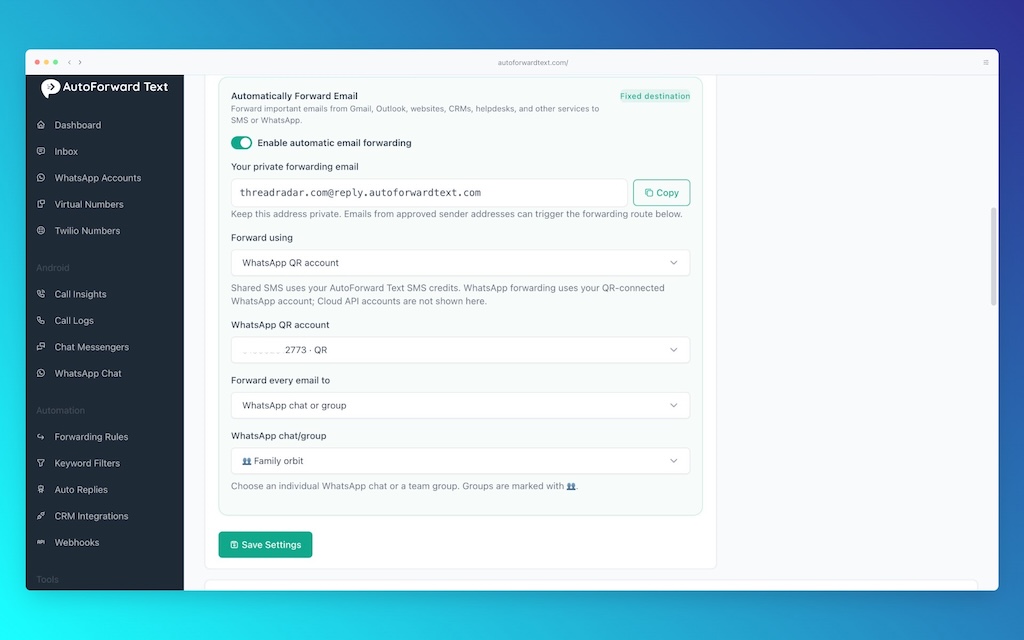
1. Enable automatic email forwarding
In Email Gateway settings, turn on Enable automatic email forwarding.
2. Copy your private forwarding email
AutoForward Text provides a private address similar to:
yourname@reply.autoforwardtext.com
Unlike the phone-number format, this address does not contain the WhatsApp recipient. The destination is saved separately in your account.
3. Select the WhatsApp sending account
Choose WhatsApp QR account and select the connected account that should send the messages.
4. Choose the fixed destination
Select one of the supported destination types:
- A WhatsApp phone number
- An existing WhatsApp chat
- An existing WhatsApp group
5. Save and test the route
Send a test message from an approved email address to the private forwarding address. Confirm that it appears in the selected WhatsApp destination and that the activity table shows a successful WhatsApp route.
Keep the private address private. Do not publish it on a website, forum, documentation page or public screenshot. Only share it with trusted people and services whose email addresses you have approved.
How to Automatically Forward Gmail to WhatsApp
Gmail filters can forward only the emails that matter. This is usually better than forwarding the entire inbox to WhatsApp.
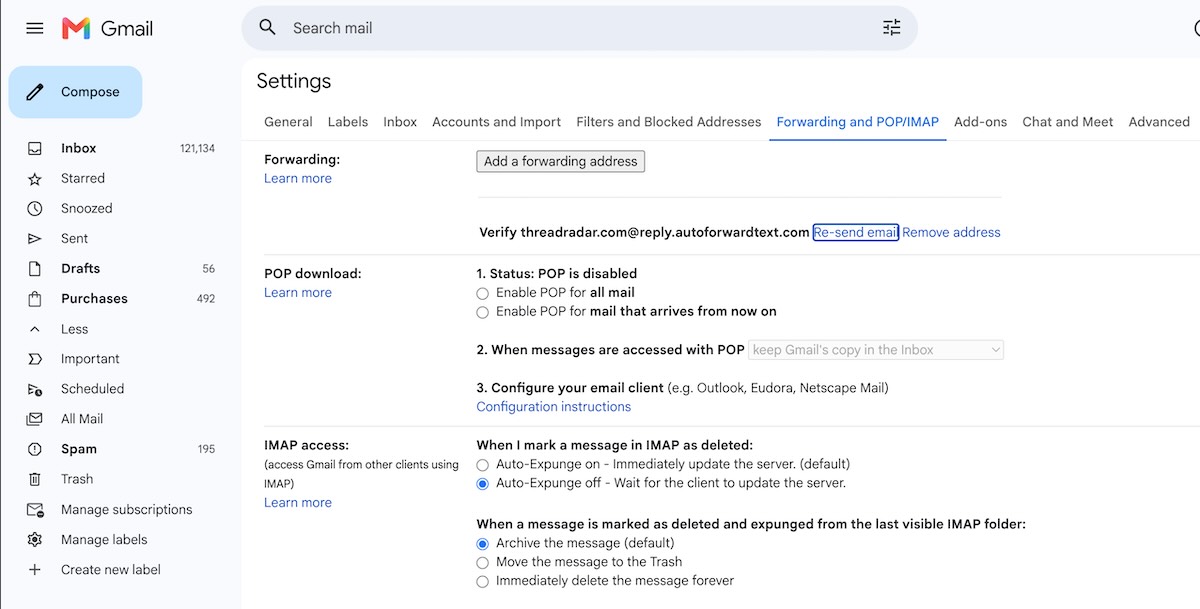
- Copy your private AutoForward Text forwarding address.
- In Gmail, open Settings → See all settings → Forwarding and POP/IMAP.
- Add the private forwarding address.
- Complete Gmail’s forwarding-address verification process.
- Create a Gmail filter based on the sender, subject, keywords, recipient or other conditions.
- Choose Forward it to and select the AutoForward Text address.
- Save the filter and test it with a matching email.
Useful Gmail filter examples
| Email condition | WhatsApp use |
|---|---|
| Subject contains “New lead” | Notify the sales group |
| From your payment processor | Send failures to finance |
| Subject contains “Urgent” | Alert the support team |
| From your booking platform | Notify reception or scheduling |
| From your uptime monitor | Alert the IT or on-call group |
Do not create an unrestricted rule that forwards every personal or business email unless that is genuinely required. Selective filters reduce noise and limit unnecessary exposure of email content.
How to Automatically Forward Outlook Email to WhatsApp
Outlook rules can perform the same job for Microsoft email accounts.
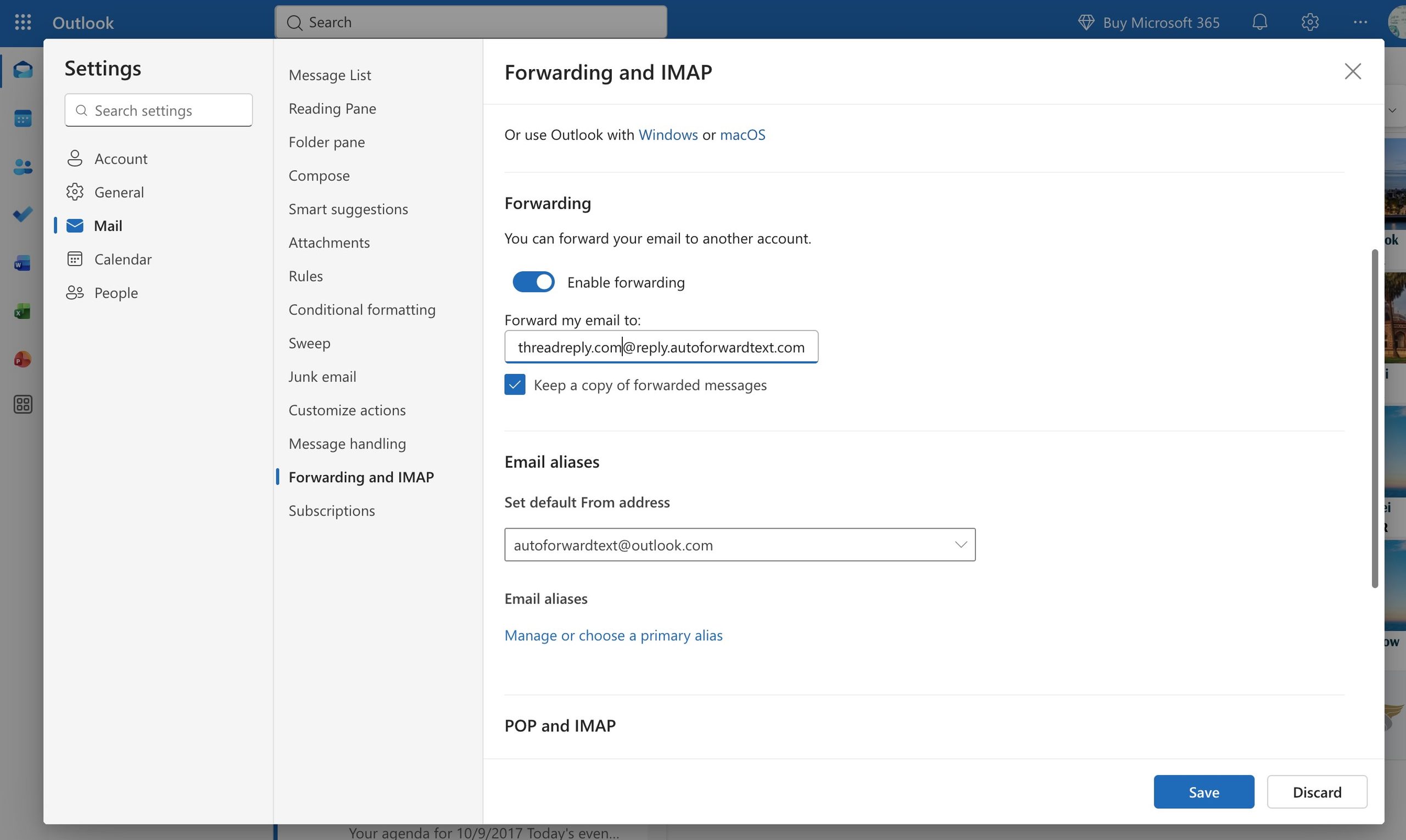
- Copy your private AutoForward Text address.
- Open Outlook and go to Settings → Mail → Rules.
- Create a new rule.
- Choose the sender, subject, keywords or other conditions.
- Add the action to forward or redirect matching messages.
- Enter your private AutoForward Text address.
- Save the rule and send a matching test email.
Microsoft 365 administrators: Some organisations restrict automatic forwarding to external email addresses. If the rule does not run, ask the Microsoft 365 administrator whether external forwarding is permitted for the mailbox.
This workflow works well for shared sales, support, bookings and operations inboxes where only selected messages need immediate WhatsApp visibility.
How to Forward Email to a WhatsApp Group
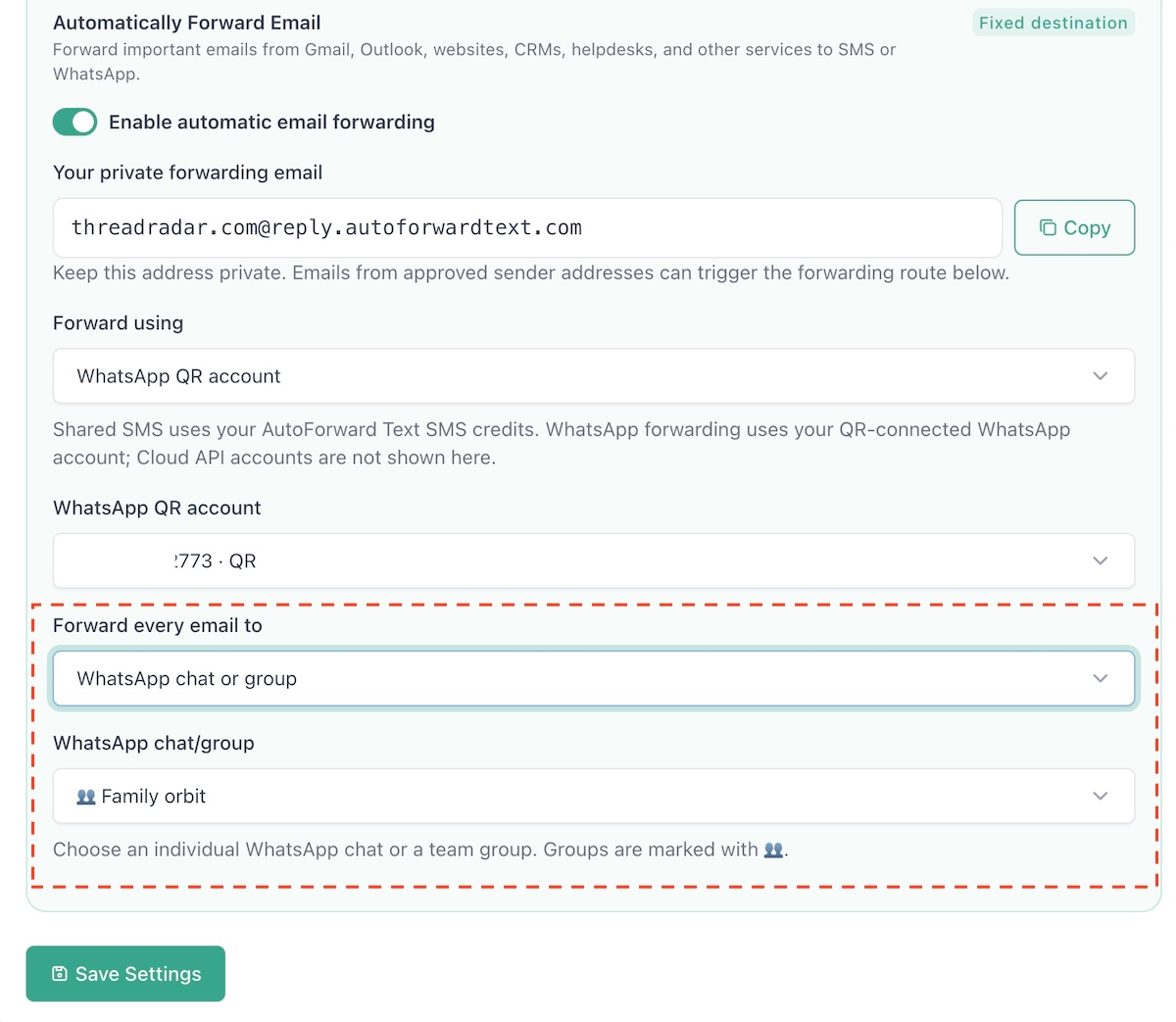
Group delivery uses the fixed-destination workflow. The connected WhatsApp account must already have access to the group you want to select.
- Connect the WhatsApp account through QR.
- Open Workflows → Email to SMS.
- Enable automatic email forwarding.
- Select the connected WhatsApp QR account.
- Under Forward every email to, choose WhatsApp chat or group.
- Select the existing group.
- Save the settings.
- Send an approved test email to your private forwarding address.
↓
Private AutoForward Text Address
↓
Connected WhatsApp Account
↓
Sales Team WhatsApp Group
Number versus group: The address 15551234567@reply.autoforwardtext.com targets a telephone number. To deliver email to an existing WhatsApp group, save the group as the fixed destination and use your private forwarding address.
Group forwarding is particularly useful for leads, support escalations, operational alerts and booking requests that should be visible to more than one team member.
How to Forward One Email to WhatsApp Manually
If you only need to share one email occasionally, an automated gateway may be unnecessary. You can use one of these manual methods instead.
Copy and paste the email
Open the email on Android, iPhone, PC or Mac, copy the relevant text and paste it into the WhatsApp conversation.
Share the email attachment
Download the document, image or other attachment from the email, then attach it to a WhatsApp message.
Save the email as a PDF
Use the email application’s print function to save the message as a PDF, then send that PDF through WhatsApp. This can preserve more of the email’s visual layout.
| Requirement | Better Option |
|---|---|
| Share one email once | Manual copy, attachment or PDF |
| Send recurring alerts | Automatic Email Gateway route |
| Send to different customer numbers | Phone-number email address |
| Notify a team group automatically | Private forwarding address with saved group |
Business Uses for Email-to-WhatsApp Forwarding
| Email source | WhatsApp destination | Example |
|---|---|---|
| Website contact form | Sales group | New lead or quote request |
| CRM | Salesperson or sales chat | New lead, task or deal update |
| Helpdesk | Support group | Priority ticket or escalation |
| Billing platform | Finance or operations group | Failed payment or account warning |
| Monitoring service | IT or on-call group | Server downtime or device alert |
| Booking system | Reception or scheduling chat | New appointment or cancellation |
| E-commerce platform | Operations group | Order exception or delivery issue |
| Internal application | Customer number | Confirmation, reminder or status update |
Website lead alerts
Many contact-form tools already send an email whenever somebody submits a lead. Forward those emails to the sales group’s private gateway address so the team sees the enquiry quickly.
Customer reminders and confirmations
A booking or internal system can address each email to the customer’s number at @reply.autoforwardtext.com. This is useful when the recipient changes with every message.
Operations and on-call alerts
Route selected monitoring, security or equipment emails to an on-call WhatsApp group. Important systems should still have appropriate monitoring, escalation and backup channels rather than relying on one messaging route alone.
Shared team workflows
Send leads, bookings, priority tickets or order issues into a WhatsApp group instead of leaving the information in one employee’s inbox.
Email to WhatsApp vs Email to SMS
WhatsApp and SMS solve related problems, but they are not interchangeable.
| Feature | Email to WhatsApp | Email to SMS |
|---|---|---|
| Sending route | Connected WhatsApp QR account | AutoForward Text Shared SMS, Android gateway or Twilio |
| Existing chats | Can use a saved chat | Not applicable |
| Team groups | Can use an existing WhatsApp group | Usually requires multiple SMS destinations |
| Recipient requirement | Recipient uses WhatsApp | Recipient has a text-capable phone number |
| Internet dependence | WhatsApp account requires connectivity | Depends on the selected SMS route |
| Best for | Chats, groups and teams already using WhatsApp | Universal phone alerts and traditional text delivery |
If SMS is the better destination for your workflow, read how to automatically forward email to SMS or see the Email to SMS Gateway.
Security, Privacy and Limits
Approve only trusted email senders
Keep the approved list narrow. Remove old services and employee addresses when they no longer need access.
Protect your private forwarding address
Treat it like a private routing credential. Do not include it in public screenshots or webpages.
Review what the source email contains
A forwarded message may contain customer, operational or account information. Do not route passwords, highly sensitive personal information or regulated data without first confirming that the workflow is appropriate for your organisation.
Monitor the connected WhatsApp account
Email delivery depends on the QR-connected WhatsApp account remaining connected and available. Check its status if messages stop arriving.
Check your current gateway allowance
The Email Gateway page displays the account’s daily limit and usage. Messages above the displayed allowance may be rejected, so monitor the activity table when testing a new or higher-volume workflow.
Understand the fixed-destination model
Your private forwarding address uses one saved destination at a time. Use the phone-number email format when each email needs a different recipient.
Email-to-WhatsApp Troubleshooting
| Problem | What to check |
|---|---|
| Email is rejected | Confirm that the actual sender address is in Allowed sender emails. |
| No WhatsApp message arrives | Check that Email Gateway is enabled and the QR account is still connected. |
| Number-addressed message fails | Use country code and digits only before @reply.autoforwardtext.com. |
| Email goes to the wrong destination | Review the saved fixed destination in Automatic Email Forwarding. |
| WhatsApp group is not available | Confirm that the connected account belongs to the group and refresh the available chat list. |
| Gmail does not forward | Confirm the forwarding address and review the filter conditions. |
| Outlook rule does not run | Check the rule and whether the Microsoft 365 administrator blocks external forwarding. |
| Daily messages stop | Review Usage Today and the displayed Email Gateway limit. |
Recent Email Gateway Activity should be the first place you look. It shows whether the email was accepted, which route handled it, the destination and whether delivery succeeded or failed.
Frequently Asked Questions
Can I send an email to a WhatsApp number?
Yes. After connecting a WhatsApp QR account and enabling Email Gateway, send the email to an address such as 15551234567@reply.autoforwardtext.com. The number before the at sign becomes the WhatsApp destination.
Can I automatically forward emails to WhatsApp?
Yes. AutoForward Text gives you a private forwarding address. Approved emails sent or automatically forwarded to it can be delivered to one saved WhatsApp number, existing chat or group.
Can Gmail automatically forward email to WhatsApp?
Yes. Add your private AutoForward Text address to Gmail, then create a filter that forwards matching emails to it. AutoForward Text sends those emails to the WhatsApp destination saved in your settings.
Can Outlook automatically forward email to WhatsApp?
Yes. Create an Outlook rule that forwards selected emails to your private AutoForward Text address. Some Microsoft 365 organisations restrict external forwarding, so an administrator may need to allow the rule.
Can I forward an email to a WhatsApp group?
Yes. Connect WhatsApp through QR, enable automatic email forwarding and select an existing WhatsApp group as the fixed destination. Emails sent to your private address will then be delivered to that group.
Can I send email to WhatsApp from a PC?
Yes. You can use Gmail, Outlook or another approved email service on your PC. Send to a phone-number gateway address or to your private fixed-destination address.
Can I send email to WhatsApp from Android or iPhone?
Yes. Compose the email using an approved email account on Android or iPhone. The delivery method is the same as on a computer.
Can every email go to a different WhatsApp number?
Yes. Include each recipient’s international number in the email address, for example 15551234567@reply.autoforwardtext.com.
Does the WhatsApp recipient need an AutoForward Text account?
No. The recipient receives a normal WhatsApp message from your connected WhatsApp account.
Which WhatsApp account sends the message?
The QR-connected WhatsApp account selected in Email Gateway settings sends the message.
Does Email Gateway support WhatsApp Cloud API accounts?
Not for these routes. Email-to-WhatsApp delivery uses a QR-connected WhatsApp account, and Cloud API accounts are intentionally excluded from the Email Gateway options described here.
Can I send emails to more than one WhatsApp group?
The private automatic-forwarding address uses one saved destination at a time. You can change that destination later. Separate multi-route workflows may require another automation setup.
Are email attachments forwarded to WhatsApp?
The Email Gateway is designed primarily to turn email subject and message content into a WhatsApp message. Test your required attachment type before relying on it, and do not assume every email attachment or complex HTML layout will be transferred unchanged.
Is the Email to WhatsApp Gateway free?
AutoForward Text may offer a trial or plan-based access depending on the current subscription options. Check the current pricing and your dashboard allowance before setting up a production workflow.
Final Thoughts
Email-to-WhatsApp forwarding is most useful when the systems you already use can send email but the people who need to act are paying attention to WhatsApp.
AutoForward Text supports both sides of that requirement:
- Dynamic recipients: Put the destination number in the email address.
- Fixed destinations: Forward approved emails to a private address connected to one saved number, chat or group.
Email → AutoForward Text → Your Connected WhatsApp Account → Number / Chat / Group
Use the phone-number format when the recipient changes. Use the private forwarding address when Gmail, Outlook, a CRM, website, helpdesk or monitoring service should always alert the same person or team.
Start Sending Email to WhatsApp
Connect your WhatsApp account and turn approved emails into WhatsApp messages without rebuilding every website, CRM or alerting workflow.
- Send email to different WhatsApp numbers
- Automatically forward Gmail and Outlook messages
- Deliver email alerts to a WhatsApp chat or group
- Use your own QR-connected WhatsApp account
- Review sent and failed messages in Email Gateway Activity