
Customer Questions
Bring supported product, account and service questions into shared destinations.
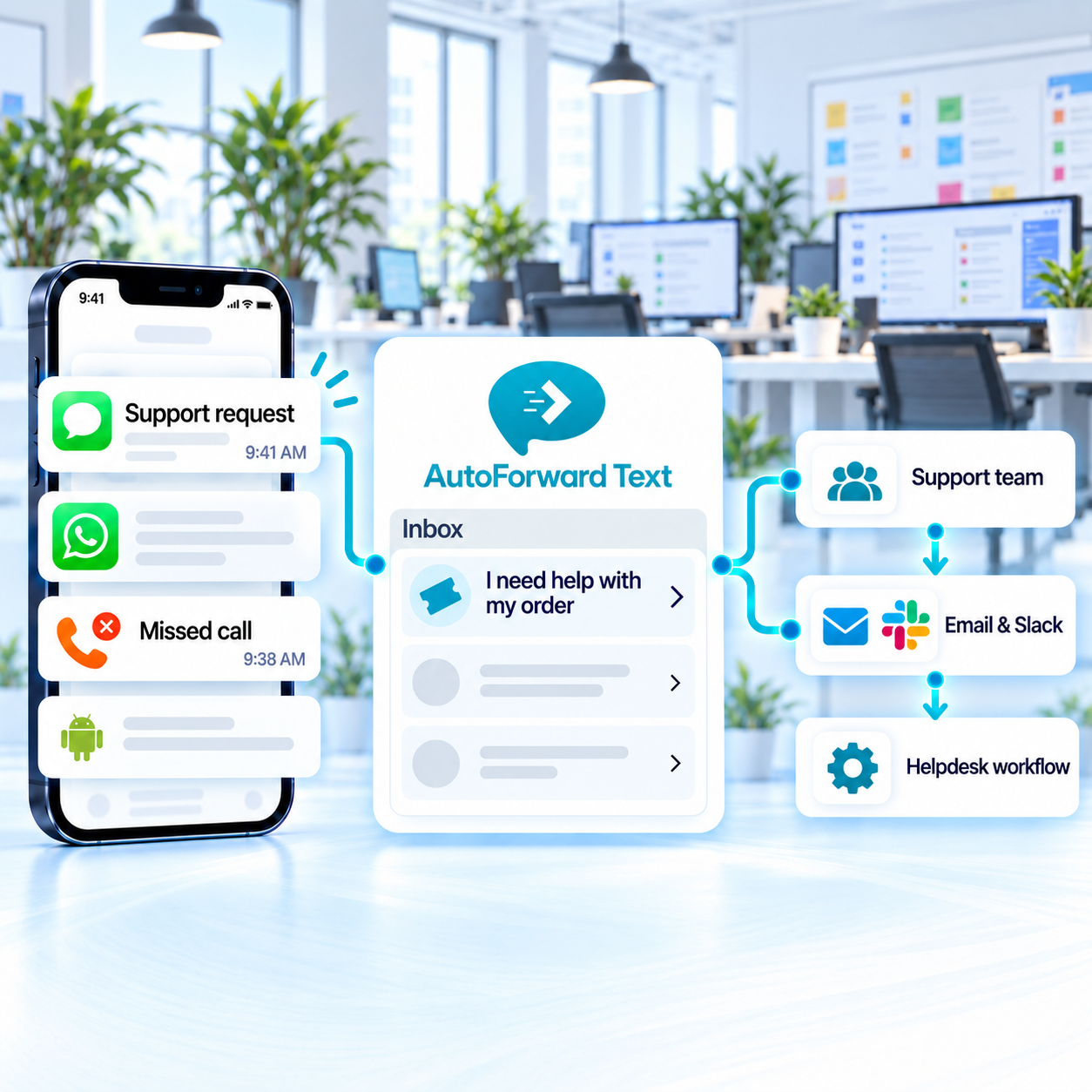
Route supported SMS, WhatsApp conversations, Android notifications and missed-call activity from business channels to a shared inbox, email, Slack, helpdesk integrations, webhooks or the support team responsible for replying.
Reduce dependence on one business handset.
Use supported keywords, contacts and schedules.
Automate acknowledgement while agents handle the conversation.
Customers may text, call or use WhatsApp even when the support team works in email, Slack or a web inbox. Routing connects those supported channels with the team’s daily workflow.
Bring supported product, account and service questions into shared destinations.
Route selected keywords and priority contacts to escalation workflows.
Send acknowledgements and alert appropriate duty destinations where configured.
Make supported unanswered-call activity visible for follow-up.
Use available conditions to separate sales questions, service issues, VIP contacts and after-hours communication, then send each event to an appropriate team destination.
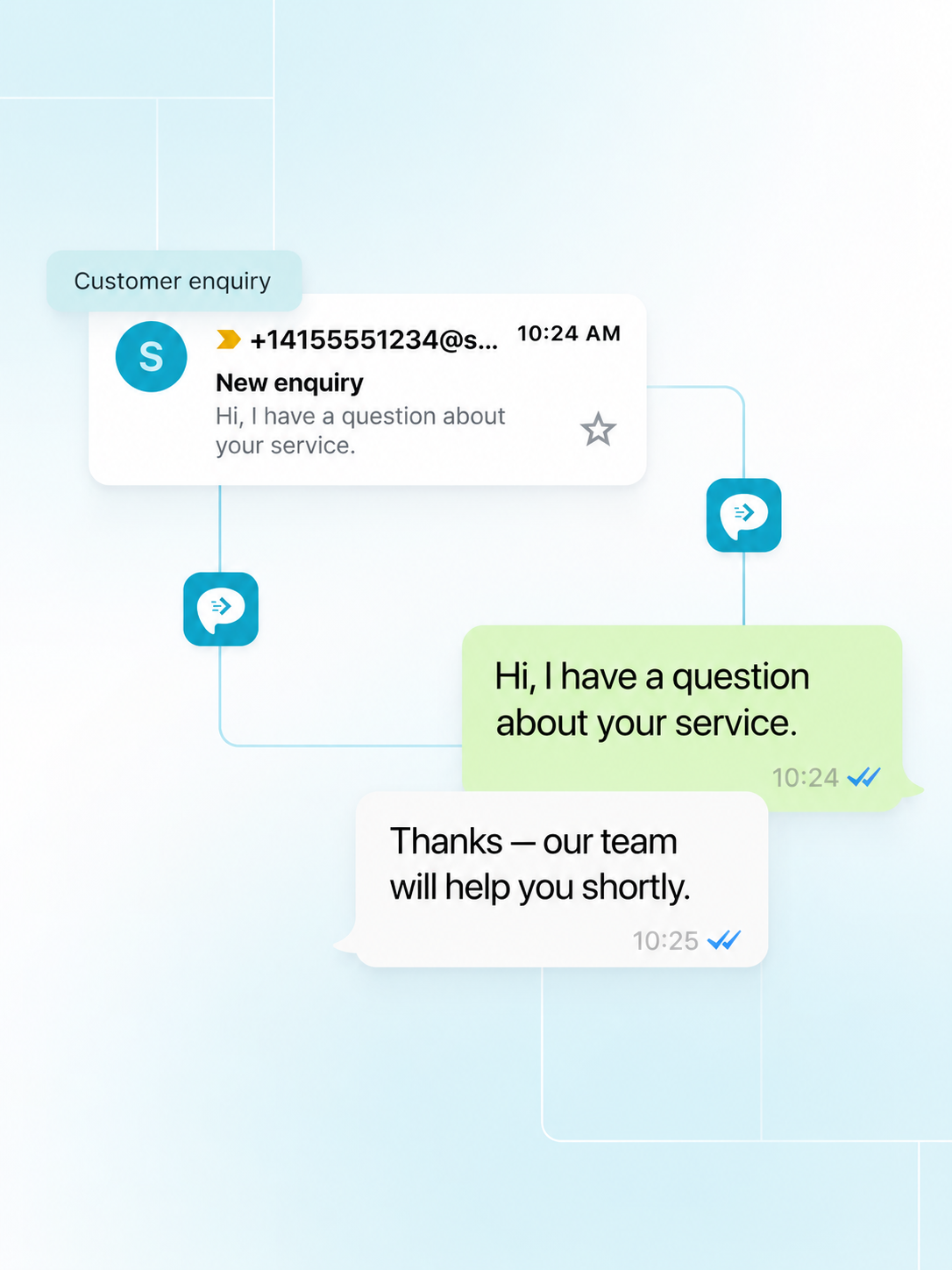
The AutoForward Text inbox and connected reply workflows can help teams review supported conversations away from the original phone. Reply availability depends on the source channel and configuration.
Allow authorized agents to review available conversation history.
Connect routes with clear queues, escalation and follow-up responsibilities.
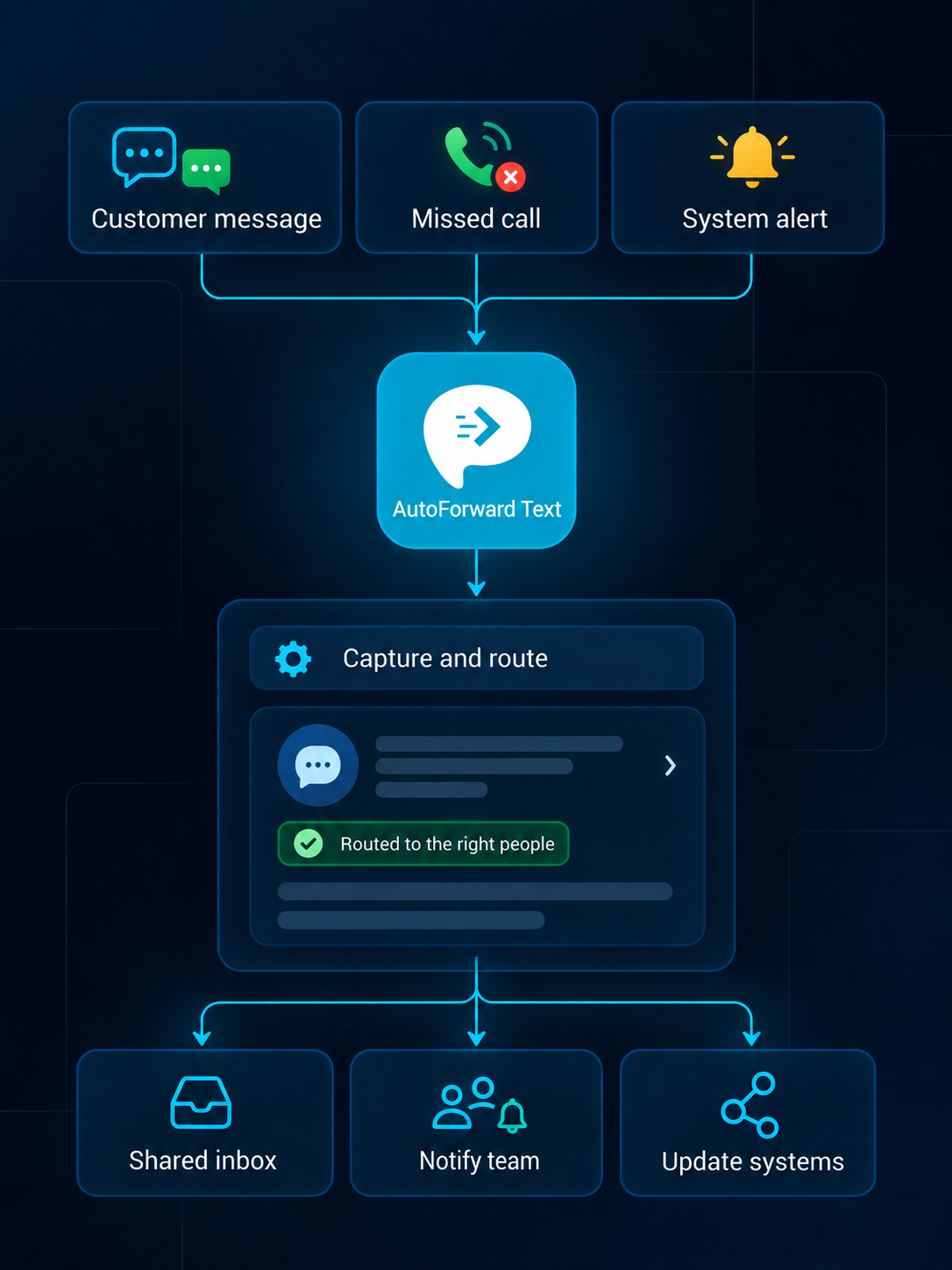
Use the web inbox directly or connect supported events with collaboration, CRM, helpdesk and automation workflows.
Review supported conversations from a web dashboard.
Create searchable alerts in individual or shared inboxes.
Notify the right team channel when selected messages arrive.
Route supported alerts into connected WhatsApp workflows.
Forward priority communication to an owner or duty phone.
Add supported events to customer and operational records.
Pass available event data into your own applications.
Trigger n8n, Make.com, Zapier or custom logic.
Routing creates visibility; the support process still needs ownership, status tracking and human judgment.
A supported message or call event reaches a connected business channel.
Available topic, sender and schedule information determines the route.
The configured inbox, agent or team destination receives the event.
A person verifies context, responds and records the outcome appropriately.
A forwarded alert is not the same as a resolved ticket. Define ownership, access and fallback procedures before relying on the workflow.
Auto-replies should acknowledge receipt without guaranteeing resolution.
Limit sensitive message content and destination access.
Make clear who handles each route and escalation.
Plan for channel, phone, network and integration interruptions.
Capabilities vary by source channel, country, permissions, destination and integration configuration.
Discuss Your WorkflowAvailable options include supported Android phones and SIMs, virtual phone numbers, Twilio and WhatsApp configurations. Choose the source based on whether you need to retain an existing number or add a cloud channel.
Supported events can be routed to email, another phone, Slack, WhatsApp, the AutoForward Text inbox, webhooks, APIs and connected business workflows.
Yes. Supported rules can use available sender, contact, keyword, schedule and source information to select destinations and follow-up actions.
Supported inbox, email, WhatsApp and gateway configurations can provide reply workflows. Availability depends on the source channel, destination and permissions.
Supported message events can feed connected systems through available integrations, webhooks or APIs. The exact fields and actions depend on the destination configuration.
Supported Android and virtual-number setups can make missed-call records visible in team workflows. Available call data depends on the channel, device and permissions.
No. Your organization remains responsible for lawful access, consent, privacy, retention, carrier and local communication requirements.
Yes. Device-based Android forwarding requires the phone to remain powered, connected and allowed to run in the background. Cloud channels do not rely on that Android device.
Route communication to the agents, inboxes and systems responsible for timely, human follow-up.