
Incoming SMS
Receive supported text events from Android, iPhone, Twilio or virtual-number channels.
Send supported incoming SMS and WhatsApp messages to a Make.com webhook, then classify enquiries, notify teams, update CRMs, create tickets, call business APIs or route approved replies through connected messaging channels.
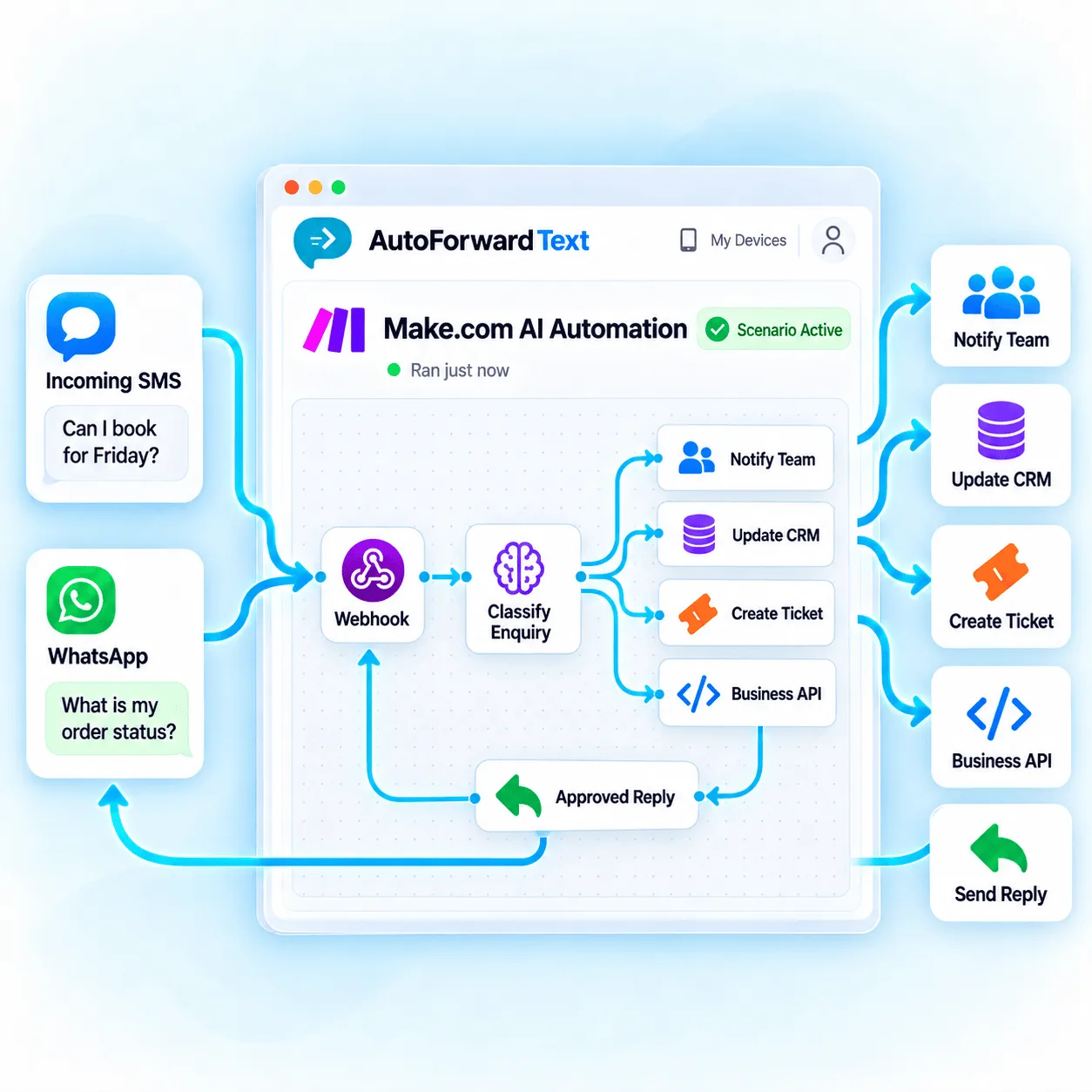
Send supported message data to a Make.com webhook.
Branch, transform and connect business systems.
Authenticate replies and prevent duplicate sends.
Normalize communication from several supported sources, then use Make.com to apply your own business logic and connect the systems that should act next.
Receive supported text events from Android, iPhone, Twilio or virtual-number channels.
Forward supported QR or Meta Cloud message events into a Make.com webhook.
Branch by sender, keyword, source, schedule, intent or data returned by another service.
Use supported reply endpoints or SMS sending channels with explicit authentication.
Create a production webhook in Make.com and add its HTTPS URL as the appropriate AutoForward Text destination. A successful inbound event can then trigger the modules and connections authorized in that scenario.
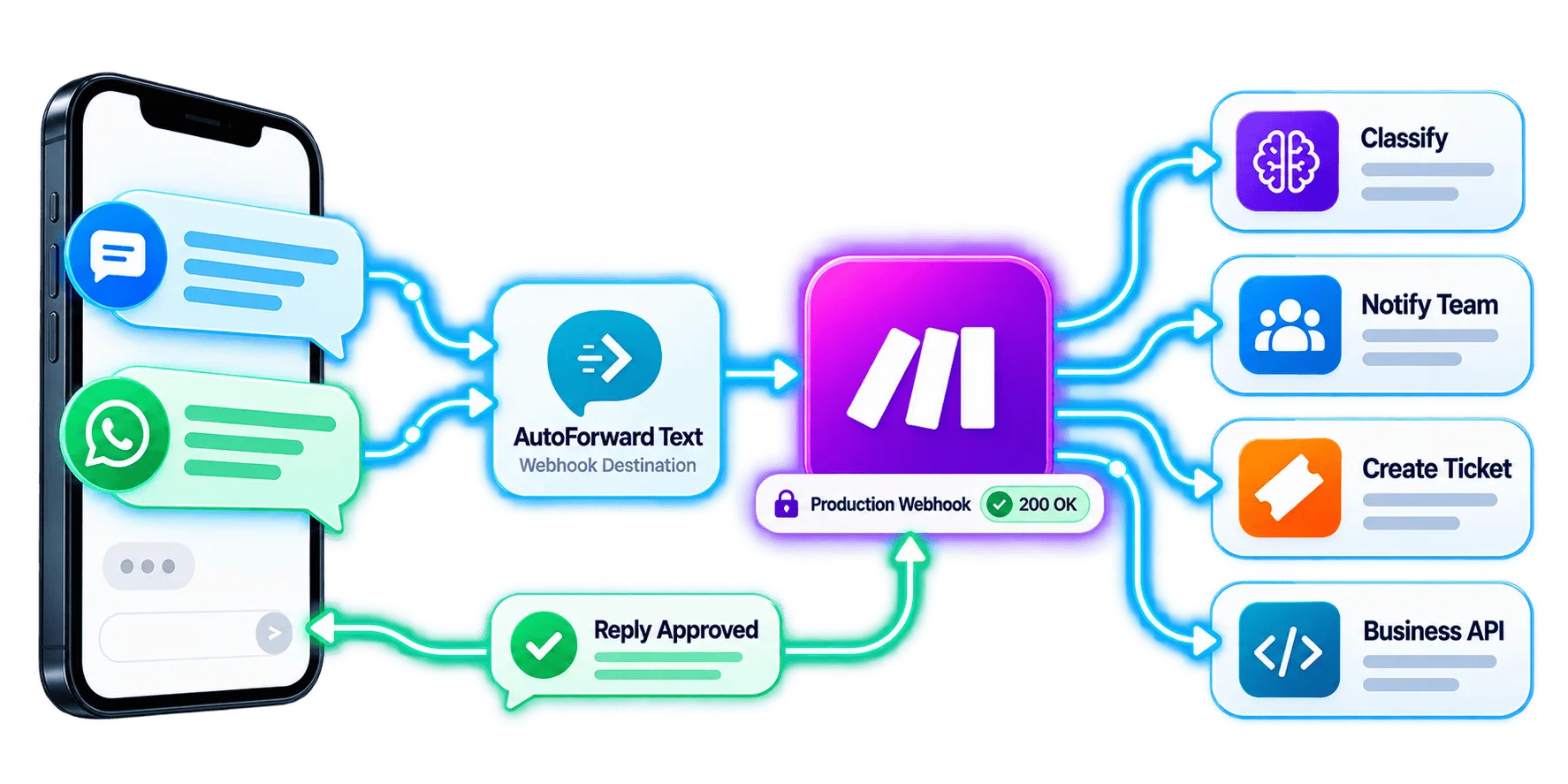
For supported WhatsApp automation, the incoming payload can include a reply endpoint tied to that conversation. Send an authenticated POST request to that URL rather than storing provider credentials throughout the scenario.
Use Run once to capture a sample payload, map the fields, then activate the scenario and test the live webhook before relying on it.
Add the Android, iPhone, WhatsApp, Twilio or virtual channels you need.
Add a Make.com Custom Webhook module and copy its generated webhook URL.
Paste the webhook URL into the relevant AutoForward Text forwarding settings.
Validate fields, branch safely and connect only authorized service credentials.
Activate the scenario and send fresh real messages from external sources.
Use deterministic routing for simple work and add AI only where it contributes meaningful classification, extraction or drafting.
Create or update HubSpot, GoHighLevel or Pipedrive records from supported enquiries.
Classify topic and urgency, then create a ticket or notify the correct support queue.
Extract requested dates and prepare a booking action for verification.
Match order references and alert fulfillment or delivery teams.
Post focused message alerts into sales, support or operations channels.
Write approved message fields into a database, sheet or internal reporting system.
Use an AI model to categorize communication while retaining human oversight.
Generate a proposed answer, validate it, then send through a supported controlled reply path.
Treat inbound processing and outbound messaging as separate capabilities. Each reply path needs its own supported source, authorization, recipient context and platform compliance.
Use the supported event reply endpoint and account for Meta conversation-window or template requirements.
Require an outbound-capable Android gateway, Twilio, virtual number or another supported sending configuration.
Mark automated output and ensure sent replies cannot re-trigger the same scenario indefinitely.
Require review for refunds, medical, legal, financial, safety or other high-impact responses.
Keep API keys, webhook URLs and third-party credentials out of public scenario exports and screenshots.
Treat webhook payload fields as untrusted input before using them in queries, prompts or outbound calls.
Generate one stable key per logical outbound reply so retries do not duplicate customer messages.
Restrict tools, destinations, spend and data access; log decisions and add human review where needed.
Test the source, inbound webhook and outbound action independently before debugging the entire scenario.
Confirm the scenario is active and AutoForward Text uses the current custom webhook URL.
Verify the source channel is connected and the message appears in AutoForward Text logs.
Check the Bearer API key, required permission and exact event reply endpoint.
Use a unique idempotency key per intended reply and keep it stable across retries.
Channel capabilities and outbound requirements depend on the connected provider and configuration.
Yes. Supported SMS from connected Android phones, iPhone workflows, Twilio numbers and virtual numbers can be sent to a Make.com webhook for routing and automation.
Yes. Supported incoming messages from connected WhatsApp accounts can be forwarded as webhook payloads to a Make.com scenario.
For supported WhatsApp workflows, an incoming payload can include a message-specific reply endpoint. Make.com can send an authenticated POST request to that endpoint using an AutoForward Text API key and a unique idempotency key.
Automation platforms may retry failed or delayed requests. A unique idempotency key identifies one logical reply and helps prevent the same customer message from being sent more than once.
SMS sending or replies require a supported outbound SMS channel and the necessary permissions or provider configuration. Receiving an inbound webhook alone does not automatically authorize outbound SMS.
Yes. Make.com can pass supported message content to an AI model or agent, but businesses should validate outputs, protect personal data, restrict tool access and require human review for sensitive or high-impact actions.
For basic inbound delivery, acknowledge the webhook quickly with a successful response and perform slower work afterward where possible. Reply calls are separate authenticated requests to the supported reply endpoint.
Use HTTPS, protect webhook and API credentials, grant the minimum scopes, validate input, keep secrets outside scenario modules where possible, restrict execution access and avoid logging unnecessary message content.
Receive supported messages through webhooks, add business logic and build carefully controlled team, CRM and AI-agent actions.