AutoForward Text

Automatically Forward WhatsApp Messages to Your Team and Business Tools

Connect a supported WhatsApp account through QR for practical contact and group routing, or use Meta Cloud API for approved business messaging workflows. Route conversations to shared inboxes, email, Slack, CRM systems, webhooks, automation and other supported destinations.

QR ConnectionMeta Cloud APIGroupsRepliesWebhooks
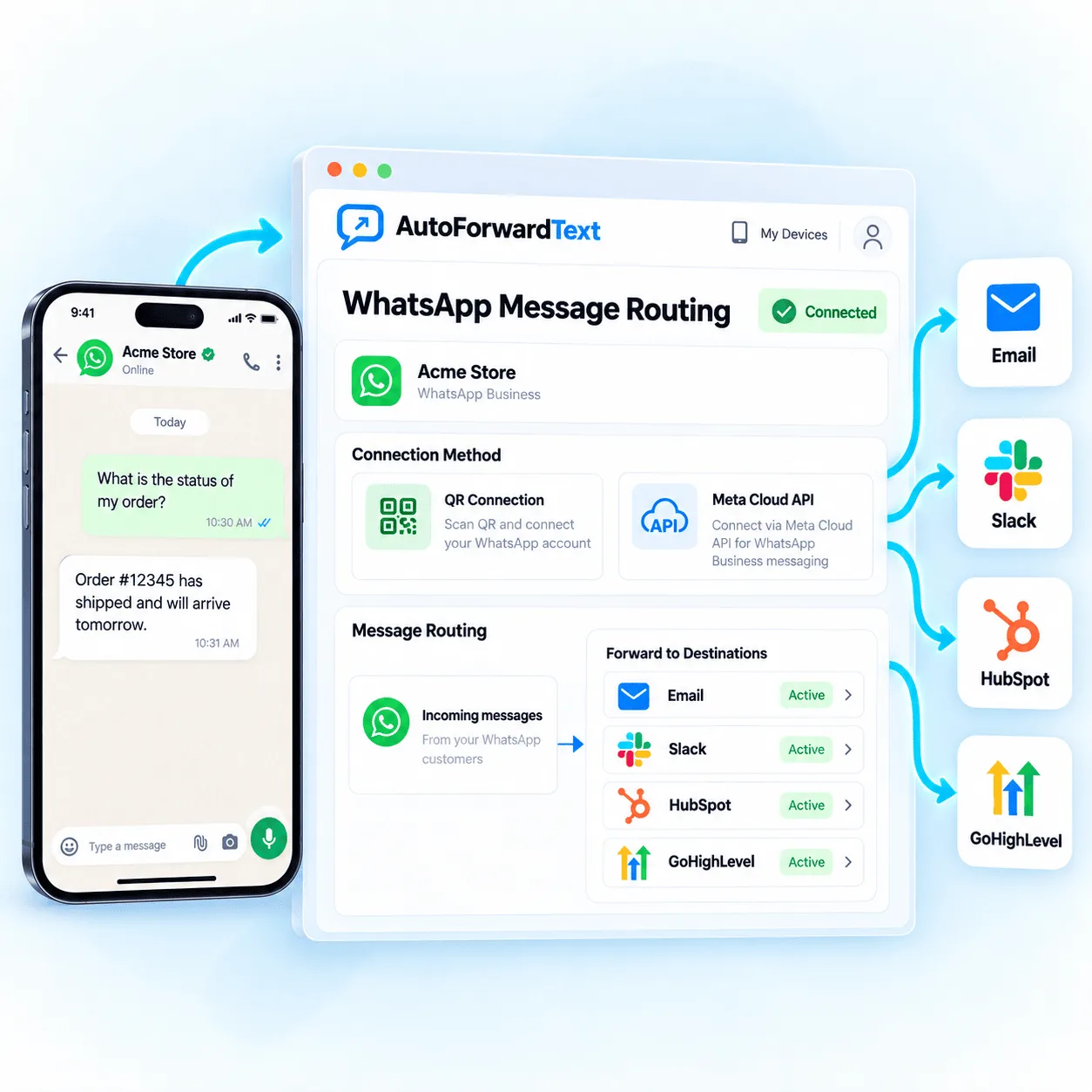
WhatsApp messages routed through AutoForward Text to email, Slack, HubSpot and GoHighLevel
Connect your account

Use a supported QR session or Meta Cloud API setup.

Route automatically

Send messages where the right people already work.

Reply where supported

Continue conversations through inbox or automation workflows.

Two connection options

Choose QR Routing or Meta Cloud Business Messaging

QR connects a supported WhatsApp account for practical contact, group and team-routing workflows. Meta Cloud API connects supported WhatsApp Business messaging governed by Meta templates, conversation rules and business requirements.

WhatsApp QR Connection

Scan a QR code to connect a supported WhatsApp account. This option is useful for forwarding to contacts and groups, shared visibility and practical team routing.

  • ✓ Fast connection from the dashboard
  • ✓ Supported contacts and group destinations
  • ✓ Forwarding rules and team workflows
QR code used to connect WhatsApp with AutoForward Text

Meta Cloud API

Connect supported WhatsApp Business messaging through Meta Cloud API for approved templates, webhooks, automation and supported reply handling.

  • ✓ Official business messaging route
  • ✓ Template and conversation-window rules
  • ✓ Webhook, inbox and automation workflows
QR and Meta Cloud are separate connection types. Contact, group, template, media and reply capabilities depend on the route selected for the workflow.
Forward WhatsApp anywhere

Move Important Messages Beyond One WhatsApp Inbox

Automatically route supported messages to the people, channels and systems that need them instead of manually forwarding each conversation.

WhatsApp Groups

Route supported messages into sales, support, dispatch, booking or operations groups.

Email

Create searchable message copies, shared inbox alerts and email-based support workflows.

Slack

Route sales, support and operational alerts into the Slack channels your team monitors.

Webhooks & APIs

Pass supported WhatsApp events into CRM, ticketing, reporting or custom applications.

Automation & AI

Use n8n, Make.com or custom logic to classify, route, notify and respond where supported.

Multiple Destinations

Send one important event to a group, email archive, Slack alert and backup workflow.

SMS

Send urgent WhatsApp activity to a normal phone number as a supported SMS alert.

Another Phone

Notify an owner, manager, assistant or backup phone when important WhatsApp messages arrive.

Cross-channel routing

Forward SMS to WhatsApp Contacts and Groups

WhatsApp is not only a source. Supported rules can take an incoming SMS from Android, iPhone or Twilio and route it into a connected WhatsApp contact or group so the team can see it where they already communicate.

SMS → WhatsApp Contact

Notify a specific person when an important text reaches the business number.

SMS → WhatsApp Group

Share selected SMS with sales, support or operations teams.

Example workflow
Incoming SMS
Routing Rule
WhatsApp Group
WhatsApp to email replies

Reply to WhatsApp Messages Directly From Email

Forward a supported incoming WhatsApp message to Gmail, Outlook, Microsoft 365, Apple Mail or a shared inbox. When you press Reply, AutoForward Text can process the email response and route it through the connected WhatsApp account to the original conversation.

Respond from the email inbox your team already monitors.
Keep the return path associated with the original supported conversation.
Use concise replies and remove signatures or quoted history where needed.
Read the WhatsApp Email Reply Guide
WhatsApp Message

A supported conversation arrives.

Email Reply

Your team presses Reply.

WhatsApp Response

The reply returns through the supported channel.

Important: email forwarding alone does not guarantee a reply path. The connected WhatsApp account, forwarding configuration and current WhatsApp messaging rules must support the response.
Inbox and replies

Bring WhatsApp Conversations Into a Shared Workflow

Supported WhatsApp conversations can appear alongside SMS activity in the AutoForward Text dashboard. Give teams visibility, preserve context and reply through available channel-specific workflows.

Unified conversation visibility

Monitor supported SMS and WhatsApp activity from one dashboard.

Supported WhatsApp replies

Reply from the inbox or connected workflow when the channel and connection support it.

Conversation context

Review recent supported messages before responding or handing the conversation to a teammate.

QR Workflows

Practical account, contact and group routing based on supported QR connections.

Cloud API Workflows

Business messaging, webhook and reply handling governed by Meta requirements.

Important: forwarding does not automatically create full two-way synchronization in every destination. Supported replies and media handling depend on the selected WhatsApp connection and route.
How it works

Start Forwarding WhatsApp Messages in Four Steps

Connect the account, choose a source and destination, apply any routing conditions, then test the workflow before relying on it.

1

Connect WhatsApp

Use the supported QR or Meta Cloud API connection process.

2

Choose a Destination

Select a group, email, Slack, webhook, automation, SMS, phone or multiple routes.

3

Add Routing Rules

Use available contacts, keywords, schedules and filters to control forwarding.

4

Test and Enable

Send a test message, confirm the destination and watch for forwarding loops.

Business use cases

Useful Wherever One WhatsApp Inbox Is Not Enough

Customer Support

Route customer messages to a shared inbox, support group, email or Slack.

Sales Leads

Notify the sales team or manager when a new WhatsApp enquiry arrives.

Appointment Requests

Send booking messages to the person or group responsible for scheduling.

Operations & Dispatch

Route vendor updates, driver messages and confirmations to operations.

Team Collaboration

Give multiple people visibility instead of relying on one account owner.

Backup & Records

Create searchable email or webhook records of selected message activity.

Schedule a WhatsApp message

Use a supported QR sender or an applicable approved Meta Cloud template.

Explore WhatsApp Scheduling
WhatsApp FAQ

WhatsApp Forwarding Questions

Connection type, destination and message format can affect what a WhatsApp workflow supports.

Visit the Help Center
How do I connect WhatsApp to AutoForward Text?+

Choose the WhatsApp connection option in your dashboard. Supported setups can connect through a QR-based session or Meta Cloud API, depending on the account and workflow you use.

Where can WhatsApp messages be forwarded?+

Supported incoming WhatsApp messages can be routed to destinations such as another phone, a WhatsApp contact or group, email, SMS, Slack, webhooks and multiple destinations.

Can I forward messages into a WhatsApp group?+

Yes, supported QR-connected workflows can route messages into selected WhatsApp groups. Group capabilities can vary by connection type.

Can I reply to WhatsApp messages from email?+

Yes. In supported WhatsApp-to-email workflows, you can reply from Gmail, Outlook, Microsoft 365, Apple Mail or another compatible inbox. AutoForward Text processes the email response and routes it through the connected WhatsApp account to the original conversation. Reply capabilities depend on the connection type and WhatsApp messaging rules.

Can AutoForward Text forward SMS to WhatsApp?+

Yes. Supported routing rules can take incoming SMS and send the message into a connected WhatsApp contact or group workflow.

Can WhatsApp messages trigger a webhook or automation?+

Supported WhatsApp message events can be passed to webhooks, n8n, Make.com or your own systems for routing, classification and other business actions.

Are images, documents and voice notes always forwarded?+

Media handling can vary by WhatsApp connection and destination. Confirm the supported message types for your setup before relying on media forwarding.

Is forwarding the same as full two-way synchronization?+

No. Forwarding copies or routes message content. A destination does not automatically become a native synchronized WhatsApp conversation, and reply support varies by workflow.

WhatsApp in. Workflow out.

Forward WhatsApp Messages Automatically.

Connect a supported WhatsApp account and route important messages to groups, email, SMS, Slack, webhooks and the team workflows that need them.