
Find Contacts
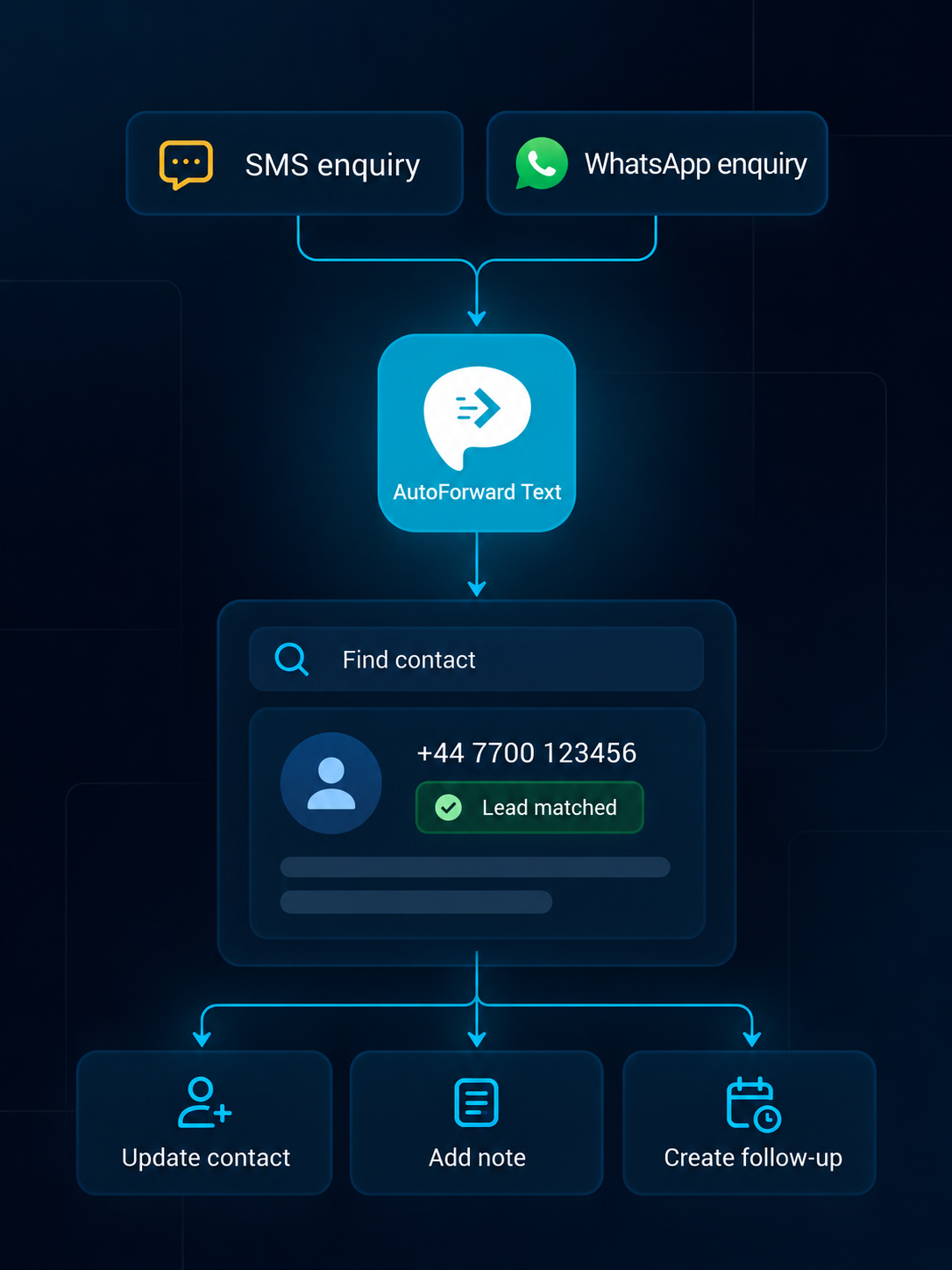
Search for an existing HubSpot contact using the sender phone number where possible.
Capture supported customer conversations that begin on mobile phones, existing SIMs, WhatsApp accounts and connected numbers. AutoForward Text can find or create a HubSpot contact using the sender’s phone number and attach the incoming message as a note.
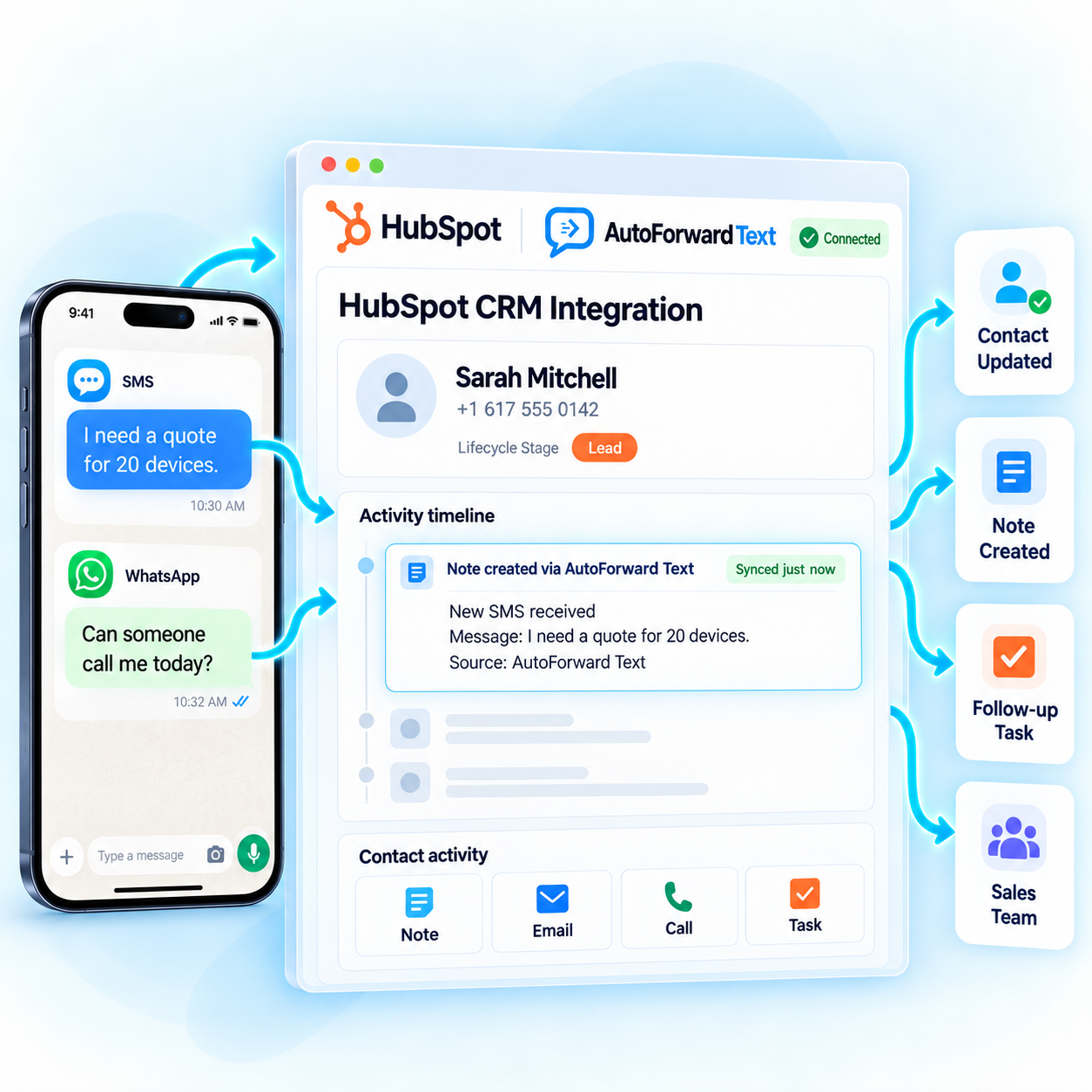
Capture messages already reaching business phones.
Find a contact or create one from available sender details.
Add supported incoming content to the CRM record.
HubSpot becomes more useful when the first customer message reaches the contact record without manual copying.
Search for an existing HubSpot contact using the sender phone number where possible.
Create a new contact from available sender details when no match is found.
Attach supported incoming SMS or WhatsApp content to the contact record.
Include available channel and sender context for sales follow-up.
Phone numbers provide the practical identifier connecting a message with a contact. Consistent international formatting helps reduce duplicate records.
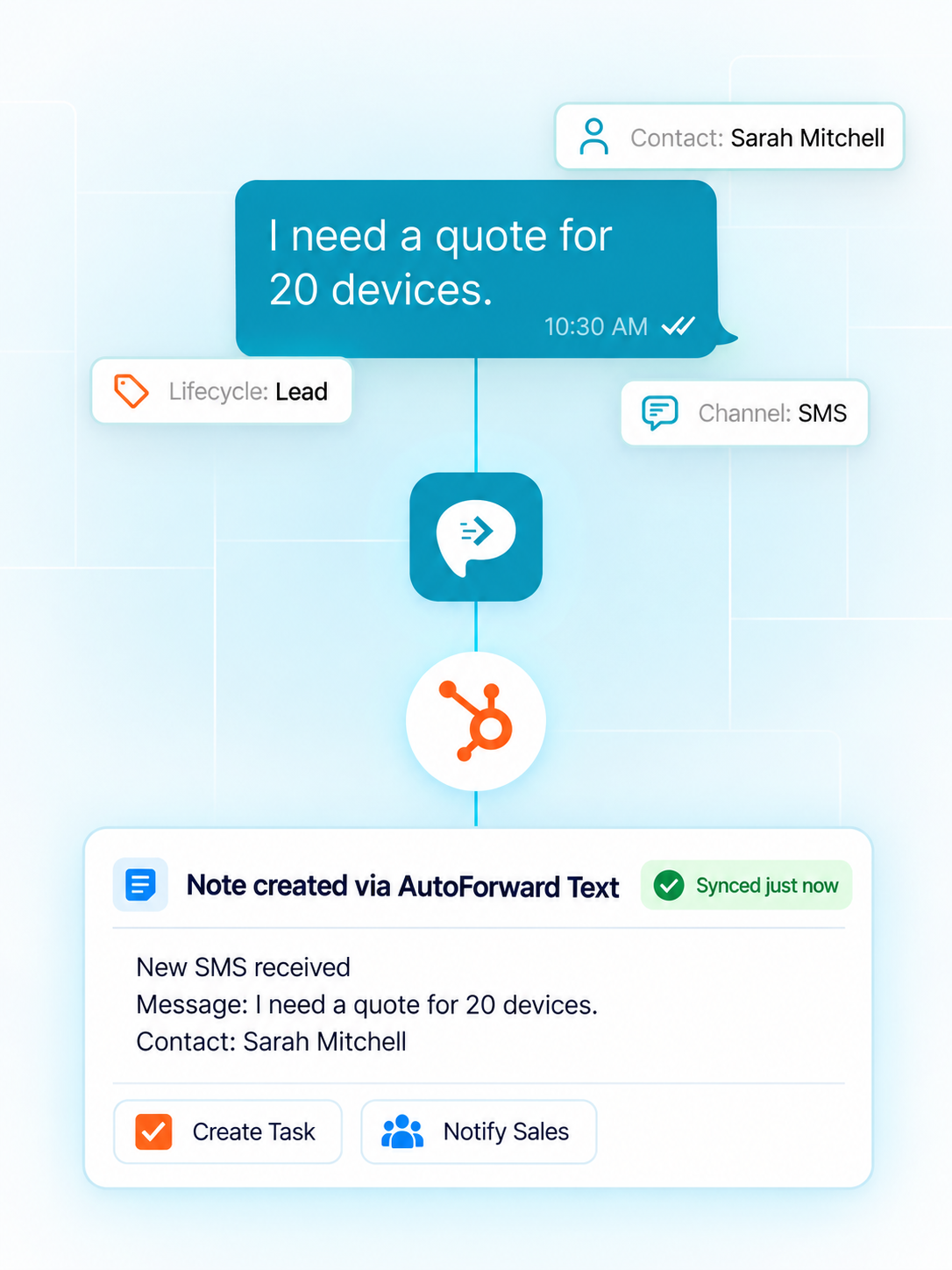
The current workflow focuses on making supported new conversations visible inside HubSpot.
Use the CRM Integrations area and an authorized HubSpot connection. Interface labels and permissions can change over time.
Use an account authorized to connect integrations and manage the required contact records.
Sign in to AutoForward Text and locate the HubSpot integration.
Complete the current HubSpot authorization flow and choose the appropriate account.
Run the test, then send a fresh SMS or WhatsApp message and inspect the contact.
The message must first reach AutoForward Text before it can be sent to HubSpot.
The integration is designed to capture supported new incoming messages in HubSpot. It does not automatically import old history or send a CRM-written reply back through the original channel.
Historical SMS and WhatsApp conversations are not imported automatically.
Current CRM forwarding can apply to supported messages from connected sources rather than a selective rule.
A note written in HubSpot does not automatically send a reply to the customer.
If multiple CRMs are connected, eligible messages may be sent to each one.
Grant only the scopes and account access required for CRM record creation.
Never publish tokens or include them in screenshots and unsecured support messages.
Verify matching and record creation without using sensitive customer data.
Use international phone formatting and inspect test records before launch.
Current behavior may evolve, so use the detailed setup guide when connecting your account.
Read the HubSpot GuideYes. Supported new incoming SMS from connected AutoForward Text sources can be sent to HubSpot and stored as contacts and notes.
Yes. Supported new incoming messages from a connected WhatsApp account can be matched to a CRM contact using the sender phone number and added as contacts and notes.
Yes. A supported Android phone can keep receiving SMS through its existing SIM while AutoForward Text sends eligible incoming messages to the connected CRM.
No. Sources can also include a connected Android phone, supported iPhone workflow, WhatsApp account, virtual number or another available channel.
The sender phone number is used where possible. Storing numbers in complete international format improves matching and reduces duplicates.
No. The integration processes supported new messages received after the CRM connection becomes active.
Not through the basic CRM logging workflow. A CRM-written response is not automatically sent through the original SMS or WhatsApp channel unless a separate supported workflow is configured.
The connection requires an authorized HubSpot account connection with the required permissions. Protect these values like passwords and grant only the access needed by the integration.
Connect HubSpot, test contact matching and capture supported new incoming conversations without manual copying.