
Incoming SMS
Post supported texts with available sender and message details.
Bring supported customer texts, order updates, operational alerts, missed-call activity and Android app notifications into the Slack channels your team already watches. Route only the communication each team needs instead of asking everyone to monitor a shared phone.
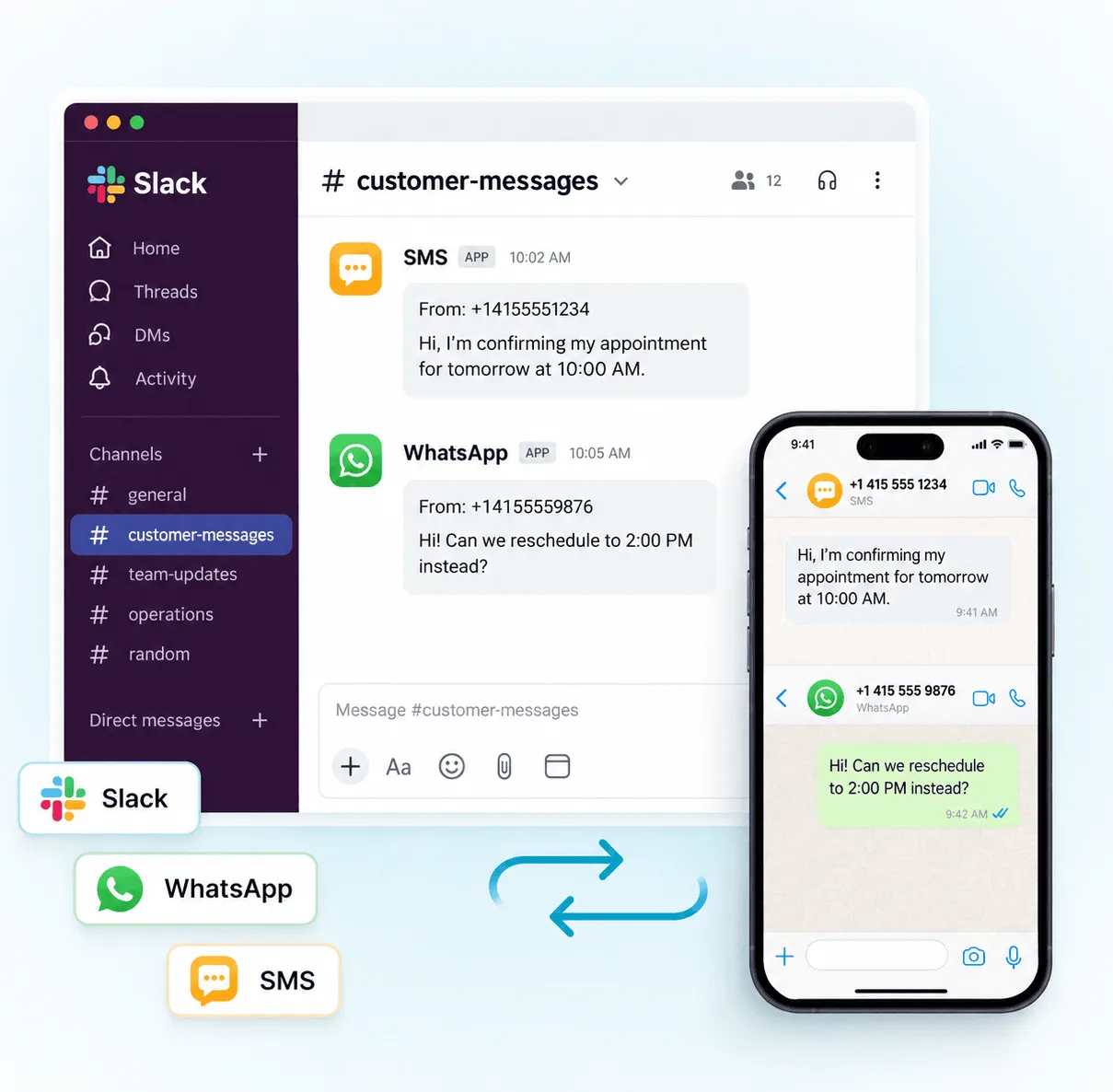
Make selected text messages visible inside Slack.
Choose which channel receives each event.
Coordinate follow-up after a message arrives.
Customers, field workers and older systems may communicate by text while your internal team works in Slack. AutoForward Text connects supported events with the workspace where work is coordinated.
Post supported texts with available sender and message details.
Forward notification previews exposed by supported Android apps.
Make supported incoming, outgoing and missed-call records visible.
Send selected events to Slack alongside email, phones or webhooks.
Forwarding everything into one place becomes noisy. Use supported contacts, senders, keywords, schedules and sources to create focused Slack destinations.
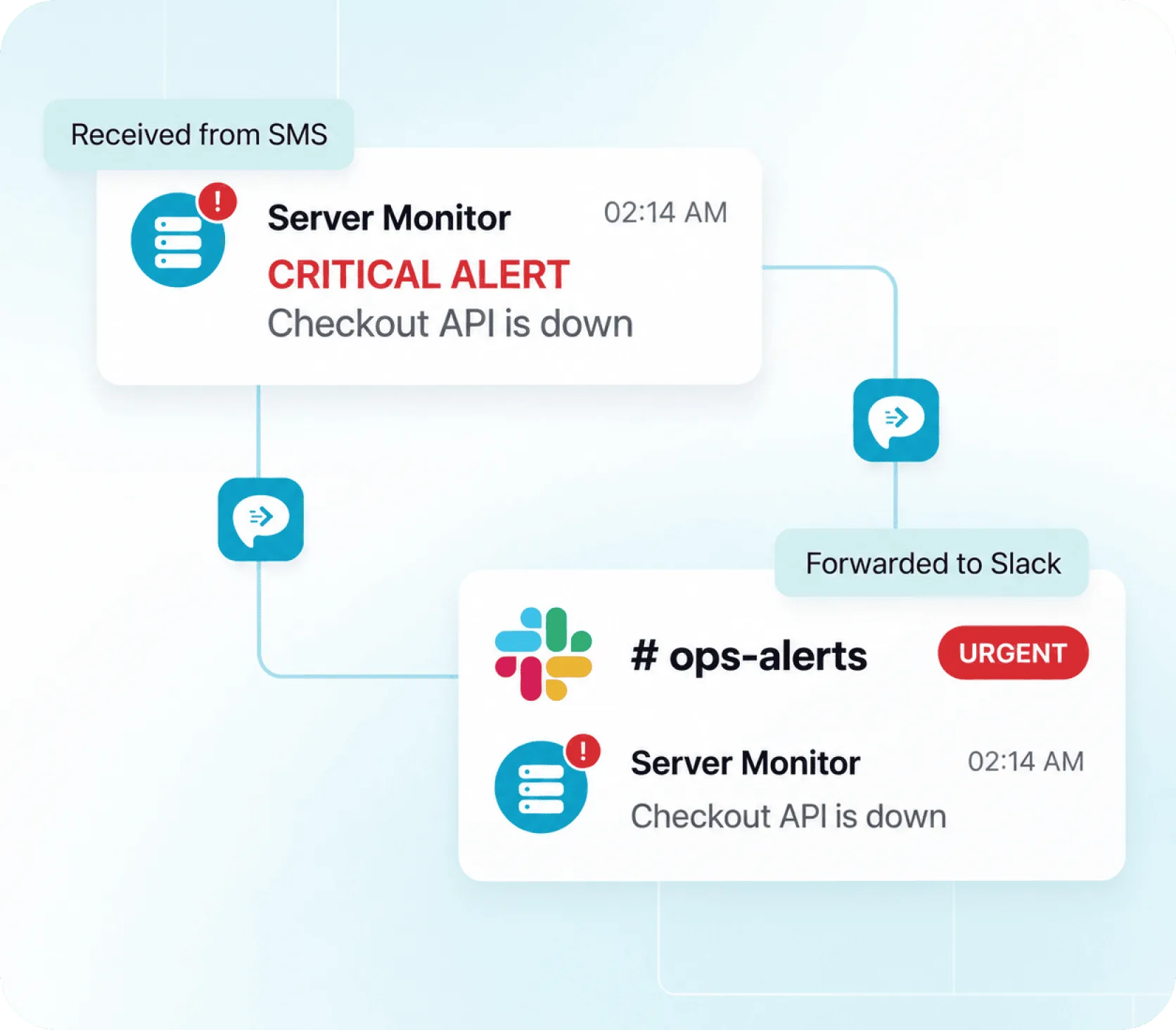
Incoming webhooks post events to an approved channel. Where Slack makes channel email available, AutoForward Text email forwarding can use that generated address.
Authorize the Slack app, choose a channel, copy the webhook URL and add it as the forwarding endpoint.
Where available under your plan and permissions, copy the channel email and use it as an email destination.
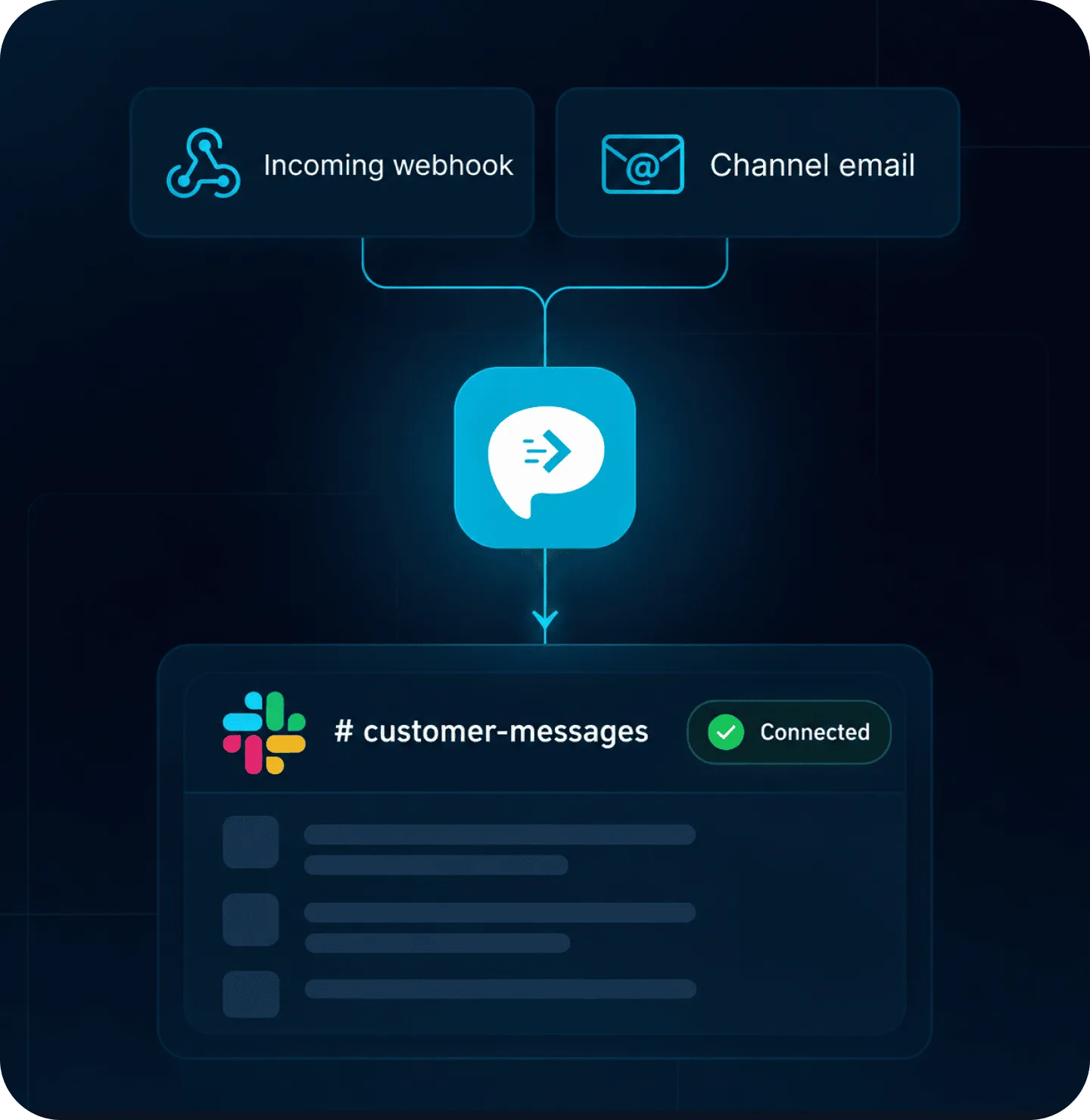
Exact Slack menus depend on workspace policy and the connection method your administrator permits.
Add a supported Android, iPhone, virtual, Twilio or WhatsApp channel.
Select incoming webhook or available channel email.
Authorize Slack or copy the generated channel email.
Choose messages and sources for this destination.
Send a fresh message and review processing logs.
Use one source or combine several. Label routes clearly so teammates know where each event originated.
An incoming webhook or channel email posts into Slack; it does not turn a normal Slack thread reply into an SMS. Two-way behavior needs a supported sending channel, authorized trigger, recipient mapping and safeguards.
Explore Webhooks & APIsUse webhooks or channel email when the goal is visibility and coordination.
Build a separate approved flow that validates channel, recipient and agent action.
Trigger assignments, forms and internal notifications after an event arrives.
Pass supported events to ticketing, CRM and custom response tools.
Treat webhook URLs like credentials and only forward content to members authorized to see it.
Choose private channels for customer or operationally sensitive content.
Never publish them; revoke and replace any exposed URL.
Remove former staff, vendors and guests when access is no longer needed.
Align Slack history and forwarded logs with business requirements.
Workspace plans, app approvals and permissions can affect available methods.
Read the Slack GuideYes. Supported incoming SMS can be routed to a Slack channel using an incoming webhook or, where available in your workspace, a Slack channel email address.
Supported sources can include Android phones and SIMs, iPhone Shortcuts, virtual numbers, Twilio and WhatsApp workflows. Android can also forward supported app-notification previews and call activity.
Yes. Multiple supported devices or channels can deliver to the same Slack destination. Add source labels so teammates can identify where each event originated.
Yes. Supported contact, sender, keyword, schedule and source rules can route messages to channels for sales, support, orders or operations.
Basic webhook or channel-email forwarding is one-way into Slack. Sending a Slack response back as SMS requires a separately configured workflow, supported sending channel and appropriate safeguards. A normal thread reply does not automatically become an SMS.
On supported Android setups, notification content exposed through Android Notification Access can be forwarded. This uses the visible notification preview and does not read an encrypted app database.
Check that the source is online, the rule is enabled, its filters match, the webhook URL or channel email is correct, Slack still permits posting and Android battery restrictions are not stopping the app. Then send a new test.
Use appropriate private channels, restrict membership and webhook management, avoid unnecessary sensitive content, rotate exposed webhook URLs and follow your access and retention policies.
Connect a supported source, choose a Slack destination, add focused rules and verify the route with a test message.